King Jin AI: Find the Template and Create Your Entrance
A Practical Guide to the King Jin AI Trend, From Finding a Linked CapCut Template to Preparing a Clear Portrait, Checking the Crop, and Creating a Cinematic Character Look With PicEditor. Follow the Template Workflow or Try Original Prompts for a Custom Still Image.
What Is the King Jin AI Trend?
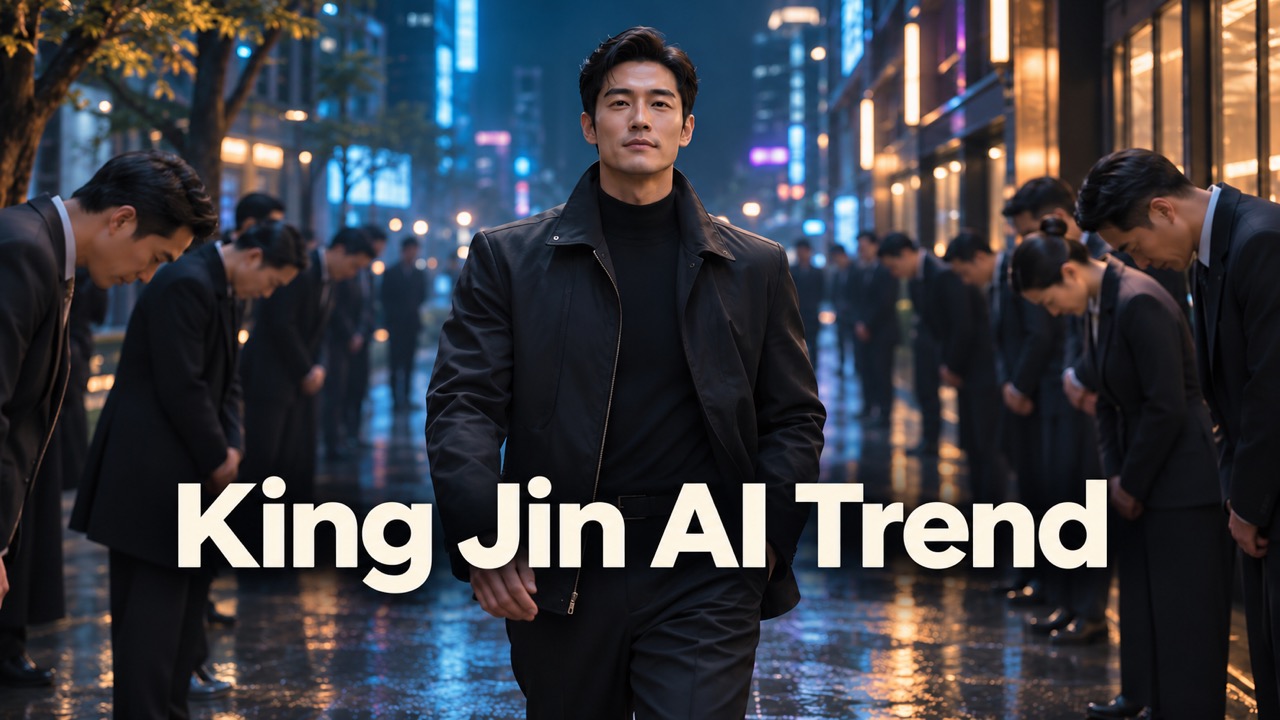
King Jin AI is a search term associated with dramatic character entrance edits: an ordinary portrait becomes the starting point for a confident, cinematic arrival. If you searched for king jin incoming, the practical goal is usually the same: find the entrance effect and make a version featuring yourself.
The most useful starting point is a working template link. A King Jin tutorial by xiao fei on TikTok links directly to a CapCut template listed as AI trend, credited to GG-Bond. The page displays a 4:3 aspect ratio. This matters because the name shown inside CapCut may differ from the phrase used in a tutorial.
Choose the template route when you want its existing edit. Choose a custom portrait workflow when you want more control over the outfit, setting, or character mood.
How to Find the King Jin CapCut Template
Search for King Jin AI trend or King Jin incoming, then open a tutorial that includes a CapCut template button. Follow that button to the actual template page and watch the preview before adding a photo.
Check three things:
- The visual: Does the preview match the entrance effect you wanted?
- The creator: Does the template show the expected creator and a working use button?
- The framing: Will its aspect ratio preserve the subject and surrounding scene?
The linked example above is a useful reference, not proof that every similarly named upload uses the same template. Avoid choosing solely by thumbnail or search ranking.
CapCut’s official template guide explains that a template link on a social post can open the corresponding edit in CapCut. That connection is more useful than repeatedly searching a generic title such as AI trend.
How to Make a King Jin Incoming Edit
1. Choose a Clear Portrait
Start with one person, visible eyes, an unobstructed face, and even lighting. A front-facing or slight three-quarter portrait gives you a straightforward reference to evaluate. Keep the original file available so you can compare it with any edited version.
Avoid beginning with a heavily filtered image. Dramatic shadows and beauty effects can make it harder to tell if the generated character still resembles the person.
2. Open the Template and Add Your Photo
Open the template from its source link, select the use option, and follow the media requirements shown in your app. Read any generation or payment notice before proceeding.
For mobile templates, CapCut’s use and export instructions describe selecting your media, previewing the edit, and replacing or cropping a segment when needed. Available controls can differ across versions, so use the options actually displayed.
3. Review the Whole Sequence
Watch once for the overall entrance, then again for facial consistency. Check the eyes, jawline, hair, hands, and clothing at each cut. A strong opening frame does not guarantee that later frames will look equally convincing.
If the face looks wrong, try a cleaner source portrait before adding more effects. If the crop hides important details, adjust it before export.
4. Export With the Framing Intact
Preview the exported file on your phone before posting. For a 4:3 template, a vertical crop can remove people or scenery at the sides. Keeping the full composition inside a vertical canvas may suit the edit better.
Check the soundtrack in your intended posting app. An audio track heard in a tutorial is not a guarantee that every export includes the same sound.
Prepare a Custom Portrait With PicEditor
A template gives you a preset direction. A custom still image gives you room to explore the character before committing to a video.
PicEditor’s photo editor offers photo editing, enhancement, background changes, and restyling tools. Use these to prepare a clearer portrait or experiment with a cinematic look. Treat this as a separate creative step; an edited still does not automatically reproduce a CapCut template’s motion or timing.
Keep the face recognizable and make one meaningful change at a time. For example, test the jacket and lighting before changing the entire background. Compare the edited image with your original portrait, then use whichever version preserves the identity more convincingly.
King Jin AI Prompt Ideas to Try
These original prompts are starting points for custom still images inspired by a dramatic entrance. They are not the hidden instructions behind the linked template.
Night Street Entrance
Edit the uploaded portrait into a cinematic night street scene. Preserve the person’s facial features, hairstyle, and natural proportions. Give the subject a dark tailored jacket and a calm, confident expression. Place a softly focused crowd on both sides of a clear walkway. Use blue and amber city lighting, subtle pavement reflections, and realistic skin texture. Keep the face clearly visible. No text or logos.
Cinematic Character Close-Up
Create a cinematic close-up from this portrait. Keep the original identity and natural facial proportions. Use a dark jacket, soft side lighting, a restrained expression, and a blurred urban background. Keep the eyes sharp and the skin natural. Avoid exaggerated facial reshaping, plastic skin, and distracting objects near the mouth.
Rooftop Arrival Portrait
Place the person from the uploaded photo on a city rooftop at dusk. Preserve facial identity and hairstyle. Use a confident standing pose, dark contemporary clothing, a softly blurred skyline, and gentle rim lighting. Keep the composition spacious enough for later cropping. No weapons, captions, or watermarks.
For more styling directions, explore PicEditor’s dark aura fantasy portrait prompts. Keep supernatural effects restrained if you want the entrance to feel like a live-action scene.
Why Is the Template Missing or Different?
A missing template option does not necessarily mean your photo is unsuitable. CapCut’s export guide notes that availability can depend on region or app version. Return to the original link and compare the preview before troubleshooting your image.
If a tutorial opens a different-looking edit, check the creator and framing rather than forcing the wrong template to fit. For the closest match, follow the linked template. For a personal interpretation of the King Jin AI trend, start with a clean portrait and build the look deliberately.