Transparent Backgrounds: GPT Image 2 Goes Native—Are Fake Checkerboards Finally Over?
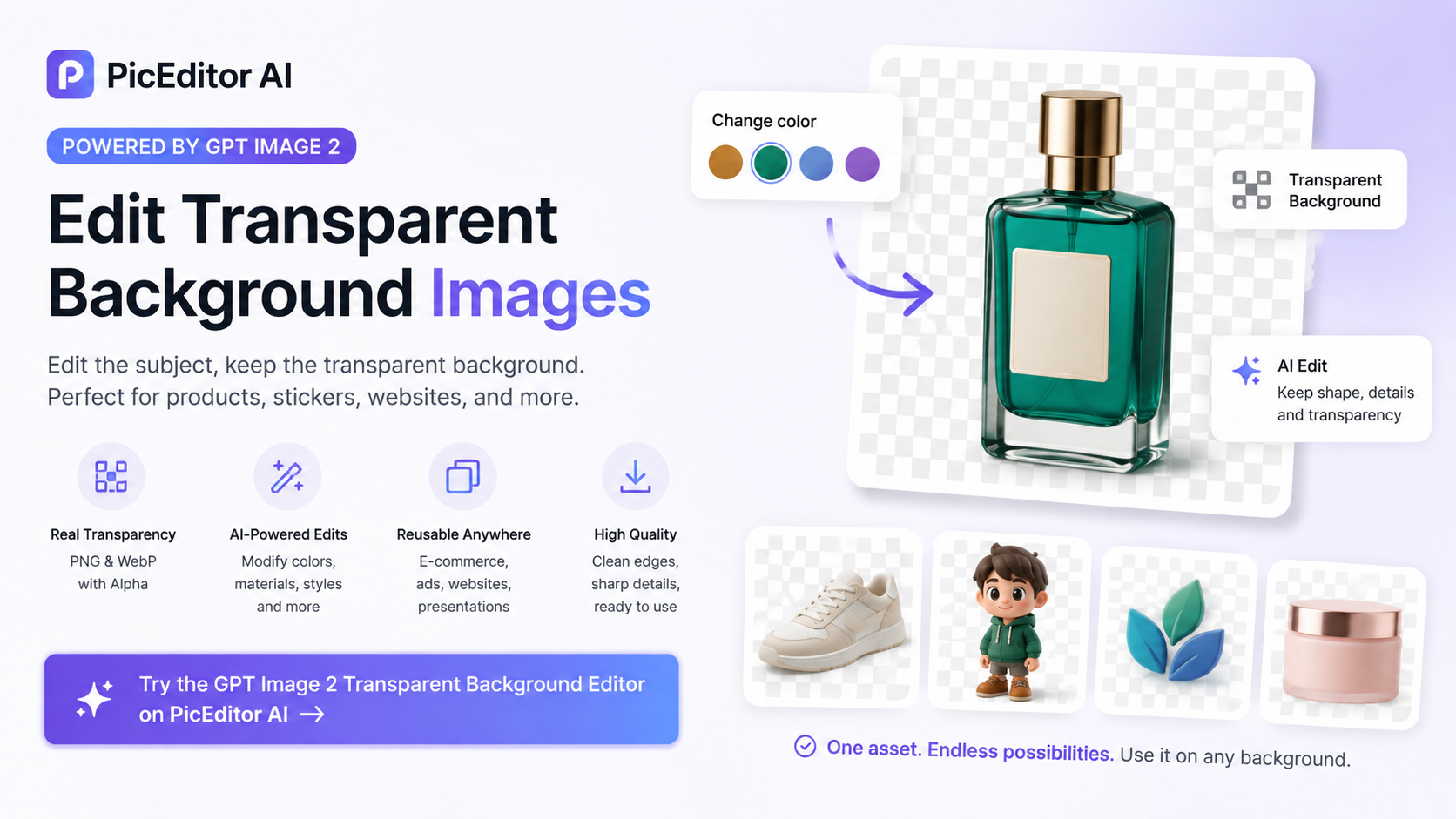
Learn how to create, edit, and reuse Transparent Backgrounds with GPT Image 2 Transparent Background Editor. This guide covers practical uses for product images, advertisements, websites, presentations, stickers, and brand assets, along with prompt tips and solutions to common transparency problems. It also explains how to refine existing transparent images with PicEditor AI while preserving clean edges and a reusable transparent canvas.
Introduction
AI-generated transparency often looks right in preview but downloads as a checkerboard or white box. GPT Image 2 addresses this with native Transparent Backgrounds in API preview, producing PNG and WebP files with genuine alpha channels. That makes it easier to create product cutouts, stickers, website graphics, presentation assets, and marketing visuals that can be placed over almost any design. If you already have a transparent PNG, PicEditor AI's GPT Transparent BG Image Editor lets you refine the subject while preserving the empty canvas.
What Are Transparent Backgrounds?
Transparent Backgrounds have no solid color behind the subject. Empty pixels let the layer below show through, while partly transparent pixels keep soft details such as hair, glass, smoke, and fabric looking natural.
Editors usually show these empty areas as a gray-and-white checkerboard. That pattern should not appear in the downloaded file. If it stays visible when you place the image over another color, it is part of the image rather than real transparency.
With Transparent Backgrounds, the same subject can be used in many designs. A product can move from a store page to an advertisement, while a character can appear on a website or sticker sheet. This is why Transparent Backgrounds save time: one clean cutout can be reused without removing the background again.
Practical Uses for Transparent Backgrounds
E-commerce product images
Product photography is one of the clearest uses for Transparent Backgrounds. A clean cutout can be placed on category pages, marketplace listings, promotional banners, comparison tables, and seasonal campaigns.
Keep one high-quality master and add shadows, props, or brand colors in the final layout. Transparent Backgrounds are especially helpful for shoes, furniture, cosmetics, jewelry, plants, and electronics with unusual outlines.
Advertising and social media
Marketers reuse subjects across posts, stories, advertisements, thumbnails, and email banners. Transparent Backgrounds allow products or portrait cutouts to be repositioned while testing different colors, headlines, calls to action, and compositions.
Website and app design
Icons, mascots, 3D objects, and hero graphics work better when independent of the page. Transparent Backgrounds let one asset sit on light sections, dark themes, gradients, photographs, and responsive layouts.
Presentations
Transparent Backgrounds help charts and illustrations blend into branded slides, gradients, photographs, and colored templates. Leave enough empty space for labels, arrows, or supporting text.
How to Edit Transparent Backgrounds with PicEditor AI
Creating an asset is only the beginning. Editing Transparent Backgrounds may involve changing a product color, material, packaging, edge, or character style.
The GPT Transparent BG Image Editor is designed for this stage. It uses GPT Image 2 only and modifies the visible subject without intentionally filling the surrounding canvas.
Step 1: Upload one reference image
For reliable Transparent Backgrounds, use a PNG that already contains a clean cutout. The editor reads the visible subject, silhouette, proportions, spacing, and alpha edges.
Step 2: Describe only the intended change
Choose ratio and resolution. Tell GPT Image 2 what to modify and what must remain stable. Mention Transparent Backgrounds explicitly; clear constraints reduce unwanted rooms, floors, opaque patches, and decorative scenery.
For example:
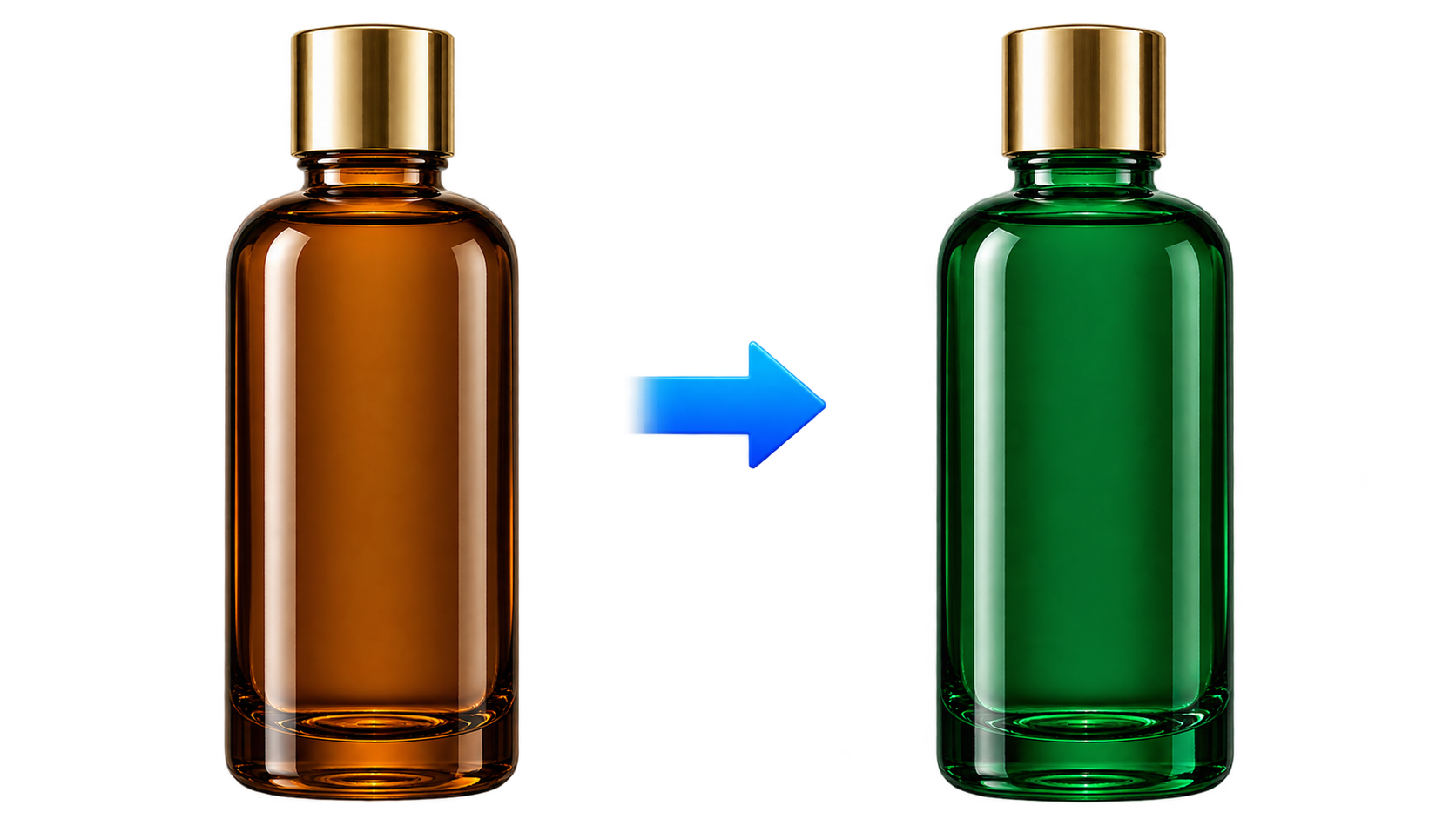
Change the bottle from amber glass to deep emerald glass. Preserve its shape, cap, reflections, translucent edges, proportions, and Transparent Backgrounds. Do not add scenery, a floor, a frame, text, or a cast shadow.
For character art:
Restyle the character in a soft 3D clay style. Preserve the pose, facial expression, silhouette, spacing, and Transparent Backgrounds. Do not add a platform, room, border, text, or new objects.
Step 3: Inspect and download
Review each GPT Image 2 result, refine your instruction if needed, and download the strongest variation. Test Transparent Backgrounds over white, black, and a saturated color to reveal halos, checkerboard pixels, rough edges, and unwanted shadows.
Edits that fit this workflow
For e-commerce, recolor a product, replace a material, or refresh packaging while keeping Transparent Backgrounds ready for store templates.
For stickers and character art, adjust clothing, expression, pose details, or illustration finish without generating a new scene.
Logos and brand elements can receive new color or material treatments while Transparent Backgrounds keep them reusable in mockups.
Portrait cutouts can be restyled for banners and profile graphics, and isolated objects can be polished for presentations or campaigns.
In each case, Transparent Backgrounds separate the GPT Image 2 edit from the layout you will build later.
Tips for Better Transparent Backgrounds
Keep the subject isolated
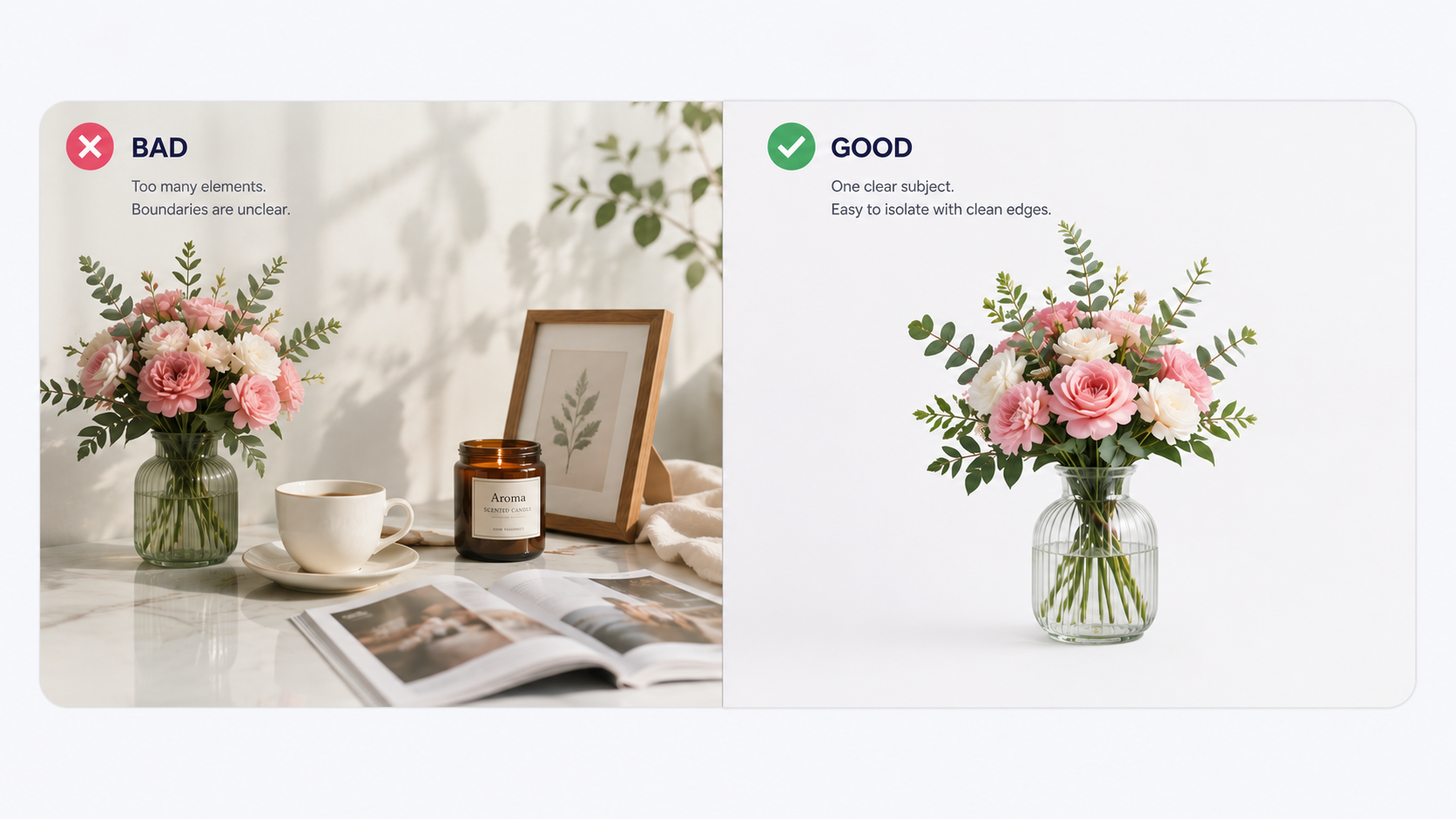
Prompts for Transparent Backgrounds should focus on one object or clearly defined group. Complex scenes make visible boundaries uncertain.
Request the complete object
Use “fully visible,” “centered,” and “with generous padding” to prevent cropping and preserve layout flexibility.
Control shadows
A natural shadow can ground a product but reduce flexibility. Request no cast shadow and add one later in the final composition.
Protect delicate edges
For hair, glass, smoke, lace, feathers, or translucent fabric, preserve fine and partially transparent edges. Transparent Backgrounds look convincing when those transitions stay smooth.
Common Transparent Background Problems
The checkerboard appears in the downloaded file
The pattern is baked into the image. Regenerate in PNG or WebP and request real alpha transparency. Genuine Transparent Backgrounds reveal the layer underneath.
Adds a new scene
Remove environmental language. Request an isolated subject with Transparent Backgrounds and exclude floors, walls, rooms, landscapes, and backdrops.
Fine details disappear
Start with a clean source that has a complete subject, comfortable padding, and accurate alpha edges. In the prompt, name the details GPT Image 2 should preserve, such as hair, feathers, glass edges, fabric, jewelry, or thin decorations.
The product is cropped
Request the “complete object fully visible with generous padding.” Extra transparent space is easier to use than a tight crop.
A Simple Transparent Background Workflow
For consistent results, use the same process every time:
- Upload a clean PNG with Transparent Backgrounds and enough space around the complete subject.
- Choose an aspect ratio and resolution that match the final store page, advertisement, presentation, or social post.
- Describe the exact change and name the shapes, colors, edges, or details that must remain unchanged.
- Generate several variations and compare their silhouettes, composition, fine details, and transparent space.
- Test the strongest result over light, dark, and colored backgrounds before placing it in the final design.
If it adds a scene, simplify the prompt and repeat that Transparent Backgrounds must remain untouched. If an important feature changes, name it directly in the next instruction. Continue refining the edit until the subject looks clean and works naturally across different layouts.
Create Once, Reuse Anywhere
The real value of Transparent Backgrounds is not the absence of a color. It is the freedom to reuse one asset across different designs without repeating the same cleanup work.
Generate an isolated subject, preserve its alpha edges, keep a high-quality master, and edit the visible object without filling the canvas. That process turns Transparent Backgrounds into a practical part of everyday design rather than a one-time visual effect.
Ready to update a product, character, or graphic while keeping its canvas clear? Try the GPT Image 2 Transparent Background Editor on PicEditor AI.