AI Image Tools
Everything You Need to Edit Photos Faster
Open the PicEditor AI tools library for background removal, photo enhancement, object cleanup, face swap, upscaling, and more focused image workflows.
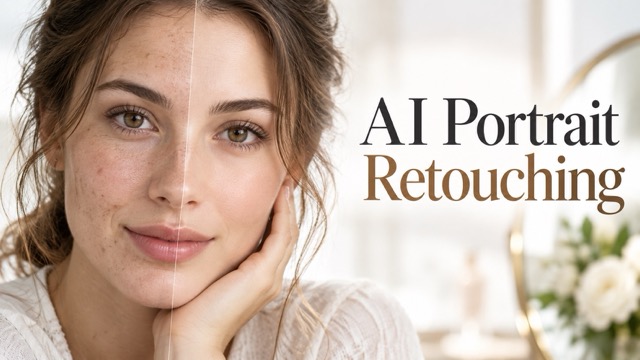
AI Portrait Retouching

Snatched Waist Editor
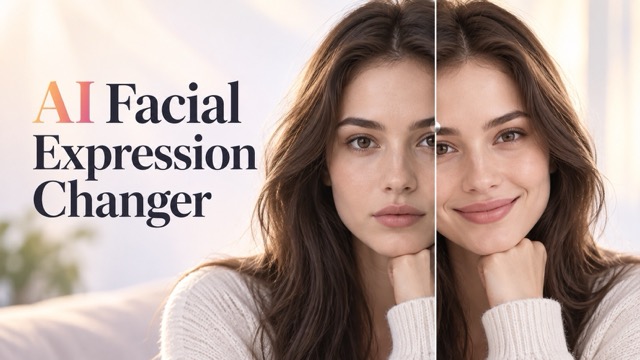
AI Facial Expression Changer
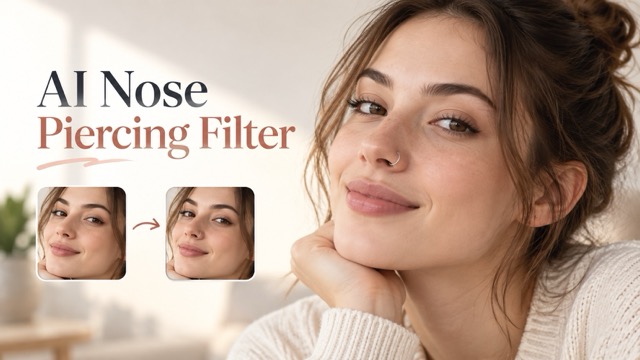
AI Nose Piercing Filter
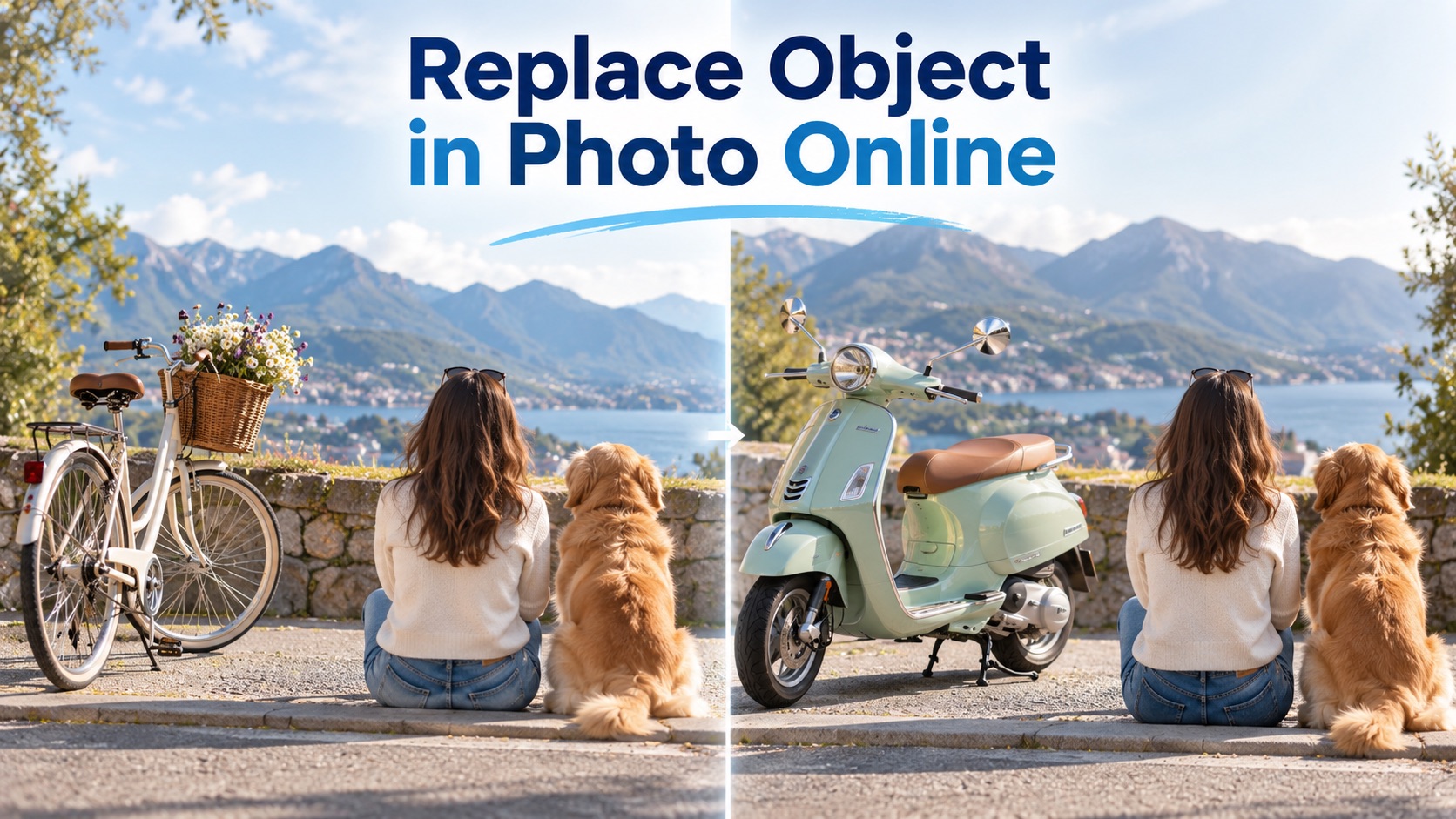
Replace Object in Photo Online
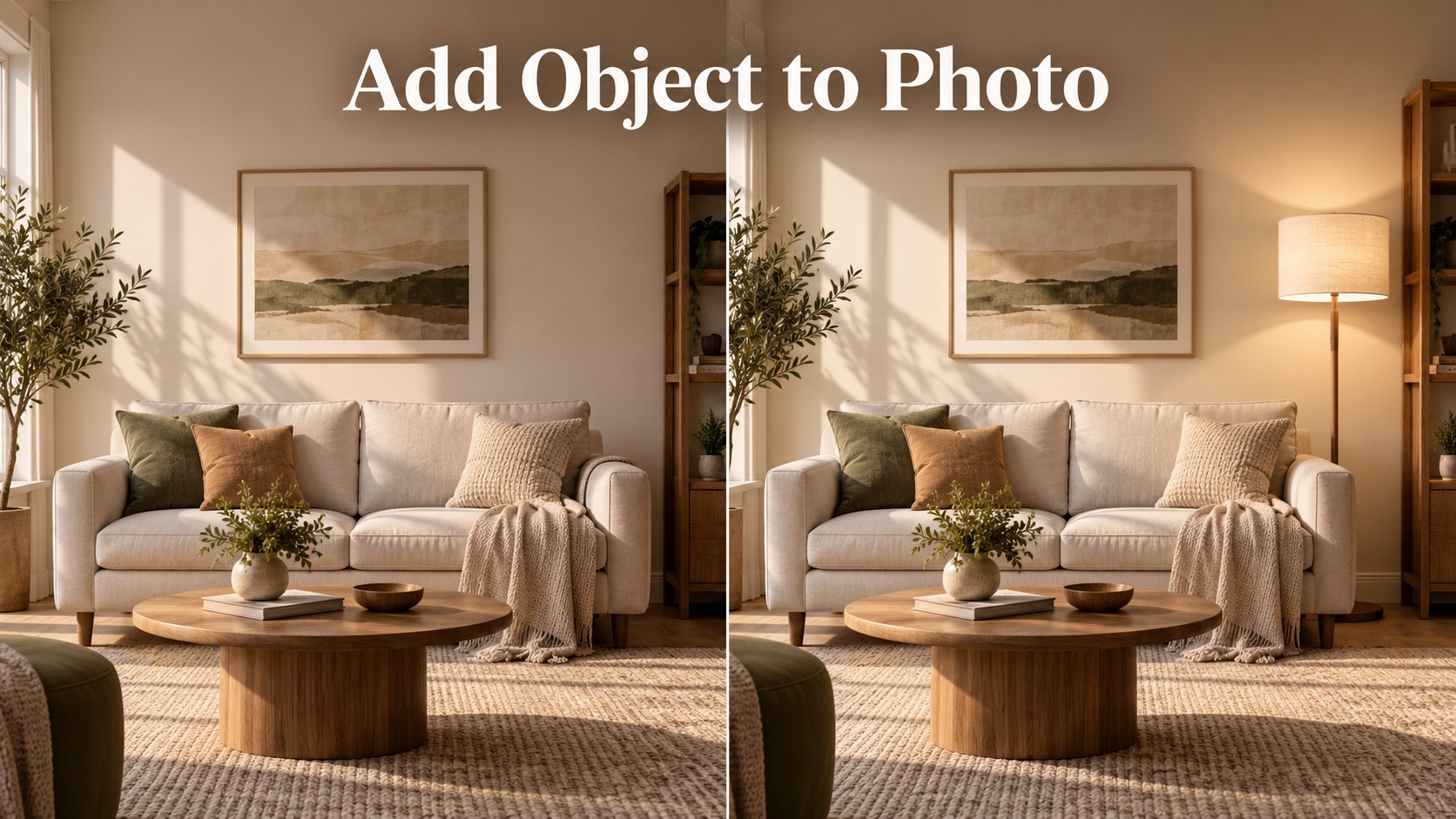
Add Object to Photo
Eyeliner Filter
AI Bust Down Filter

Image Splitter

Add White Background to Photo
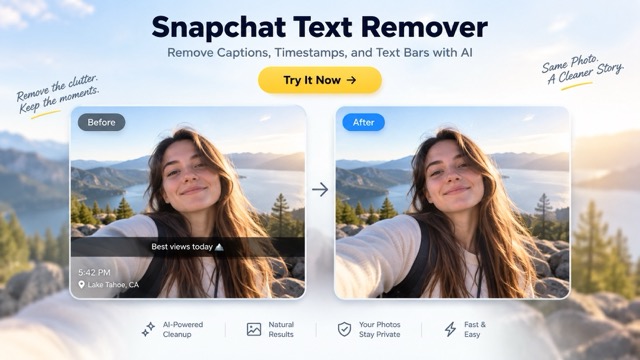
Snapchat Text Remover
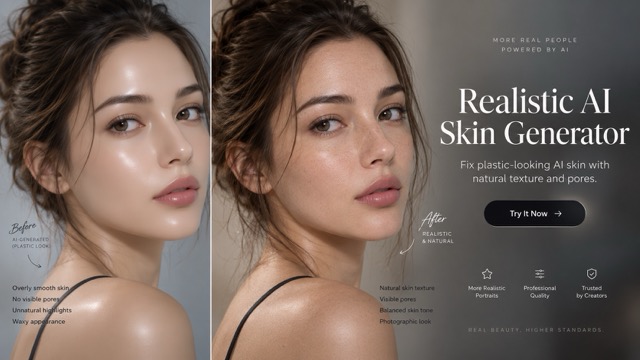
Realistic AI Skin Generator

Add speech bubble to photo
Change Photo Background
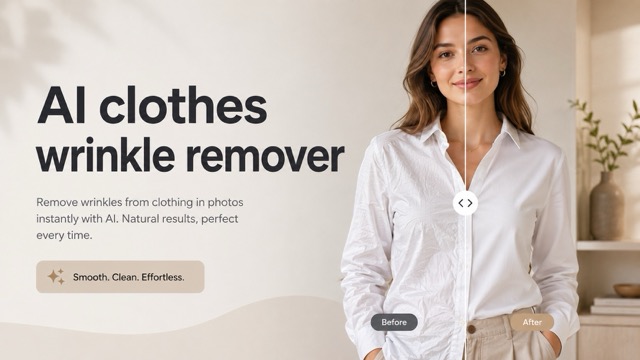
AI Clothes Wrinkle Remover
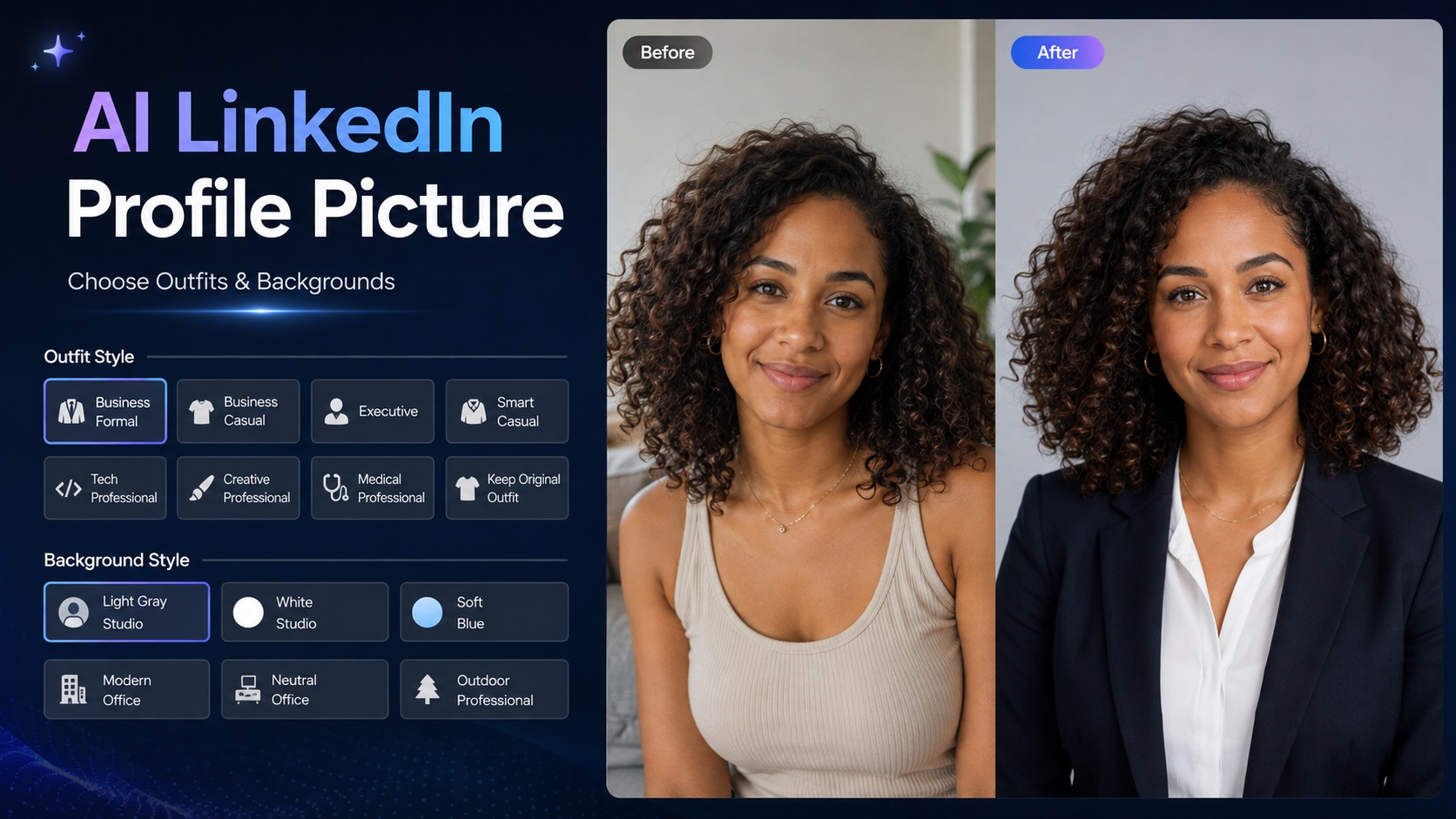
AI LinkedIn Profile Picture
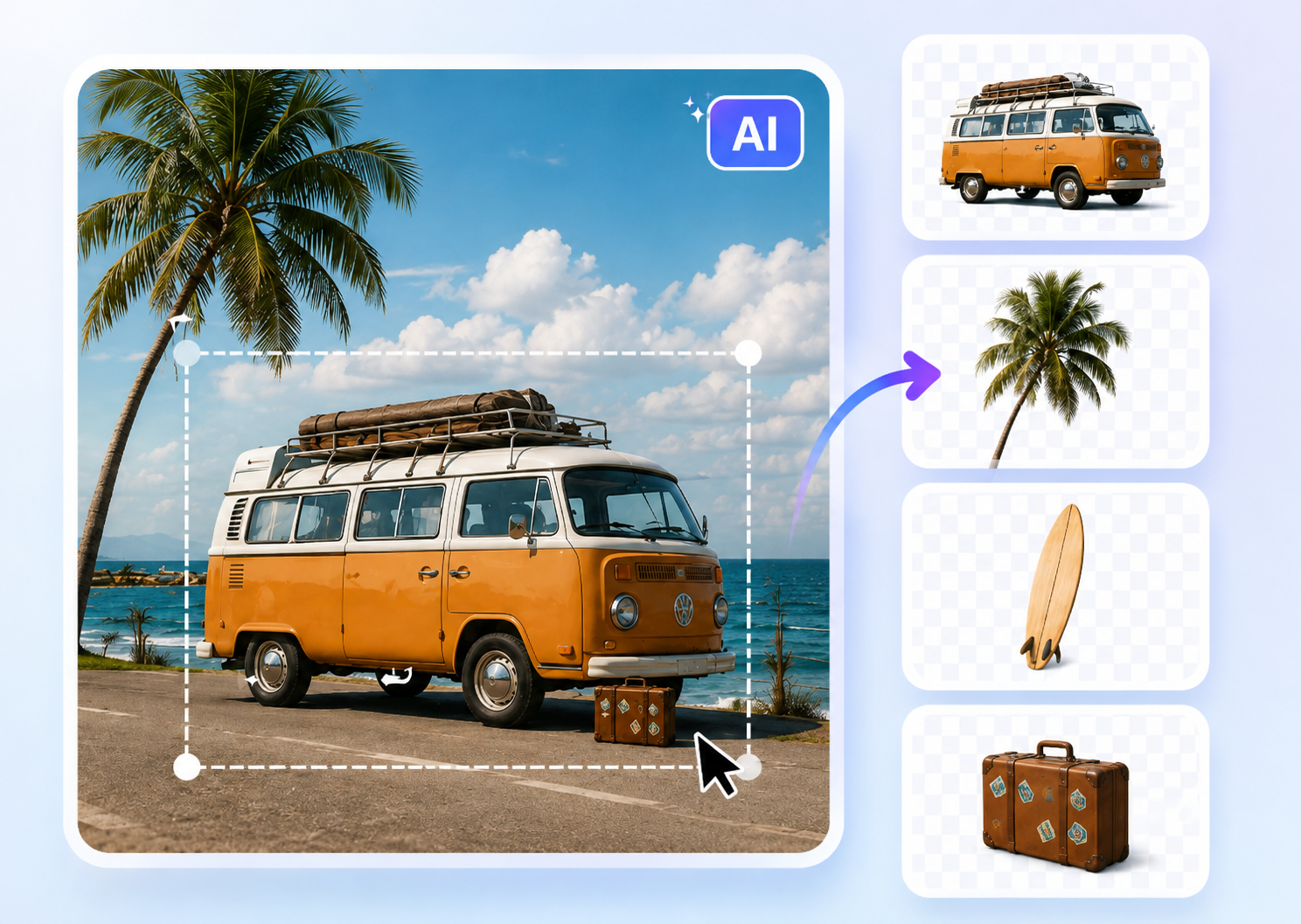
Image to Layers
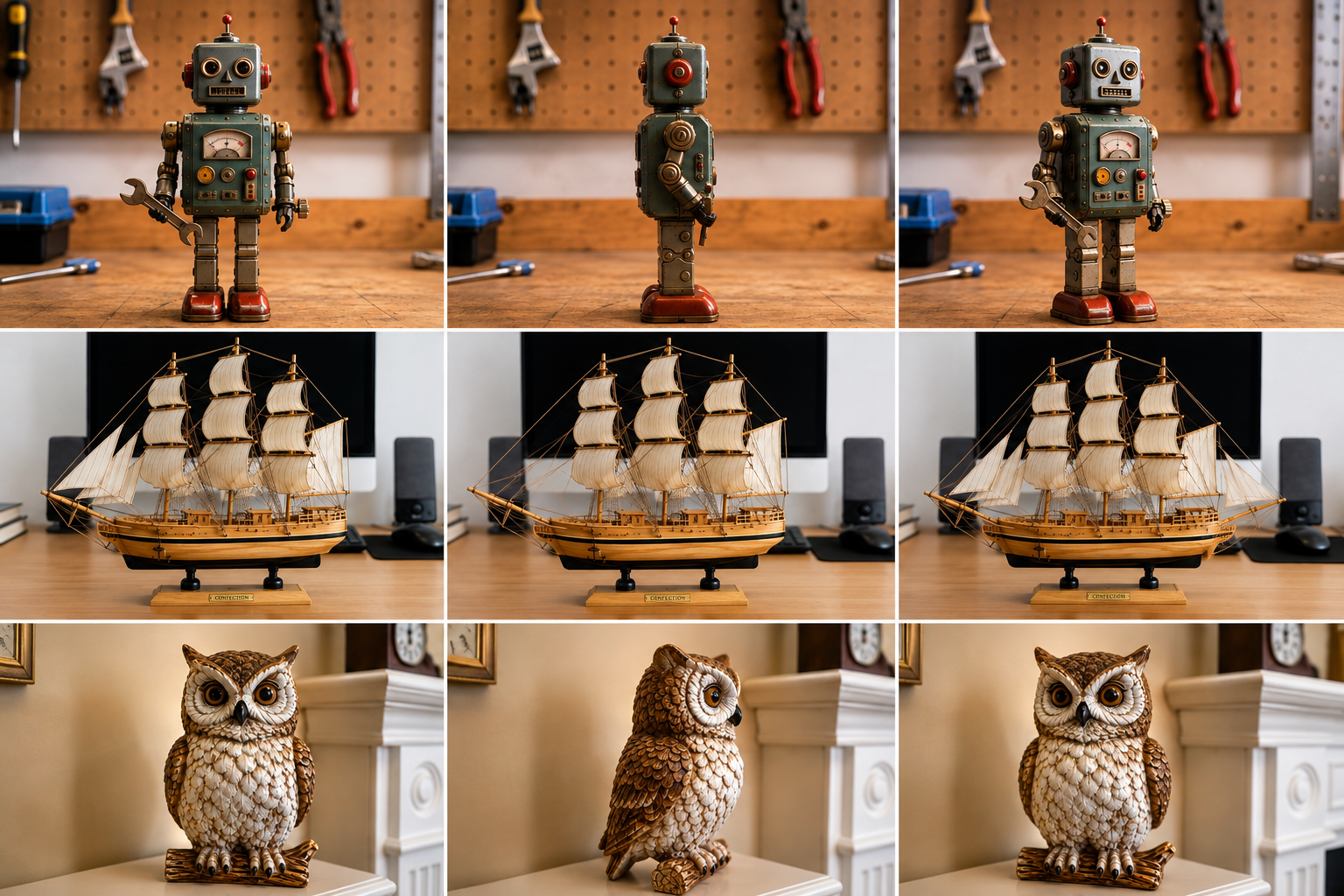
3D Angle Editor
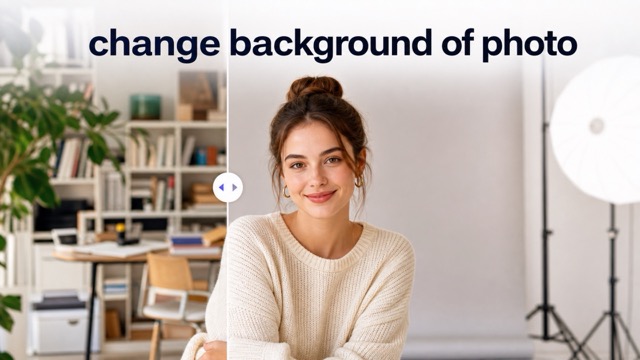
Change Background of Photo
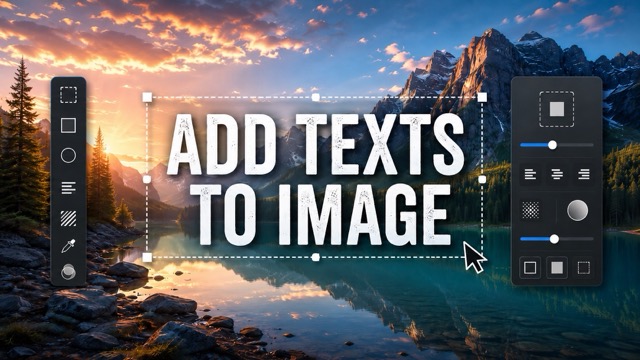
Add Text to Image
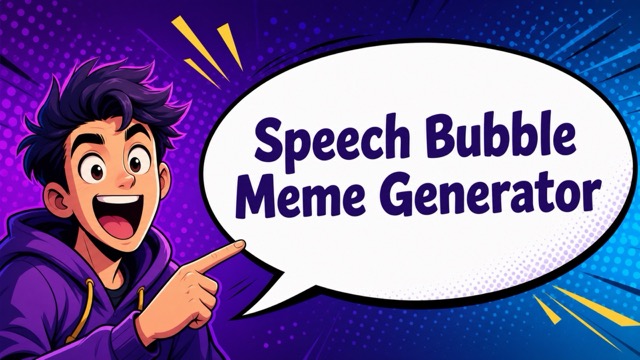
Speech Bubble Meme Generator
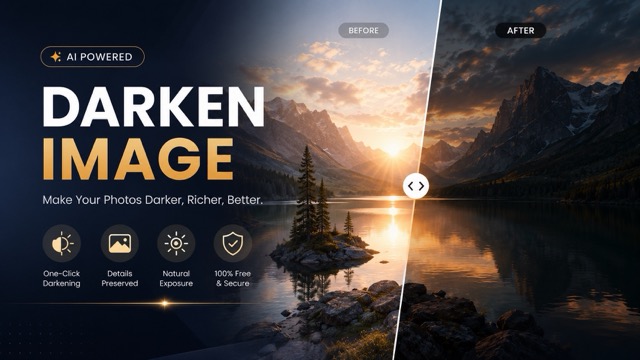
AI Image Darkener
Edit Transparent Images With GPT Image 2
A transparent background image editor built for focused image-to-image changes
Upload a cutout and edit it with GPT Image 2 while the canvas stays transparent. This transparent background image editor helps you refine products, portraits, stickers, logos, and design assets without rebuilding the mask after every change. GPT Image 2 follows your direction while protecting the subject's recognizable shape and clean edges. GPT Image 2 powers every edit in this transparent background image editor.
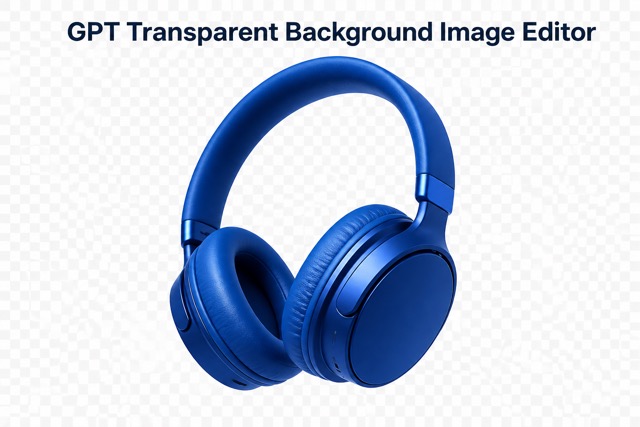
How the GPT Image 2 Transparent Editor Works
The transparent background image editor turns a familiar image-to-image workflow into four direct steps. GPT Image 2 receives one transparent source, follows your requested change, and returns a reusable subject without adding a new scene behind it. GPT Image 2 keeps this transparent background image editor focused on editable assets.

Upload a Transparent Image
Add one transparent PNG so GPT Image 2 can read the visible subject, alpha edges, proportions, and framing. The transparent background image editor starts from your existing cutout instead of asking you to erase the background again.
Generate With GPT Image 2
Let GPT Image 2 edit only the visible subject and keep unrelated scenery out. The transparent background image editor aims for a polished result with a clear silhouette, balanced detail, and usable transparent space.

Download and Reuse
Review the GPT Image 2 result, refine your instruction if needed, and place the finished asset into a store, presentation, poster, or design. The transparent background image editor keeps the workflow ready for repeated creative edits.
Why Edit Transparent Images With GPT Image 2
The transparent background image editor keeps the part you want to change separate from the scene you will add later. GPT Image 2 gives you creative range without forcing another background-removal step after each generation.
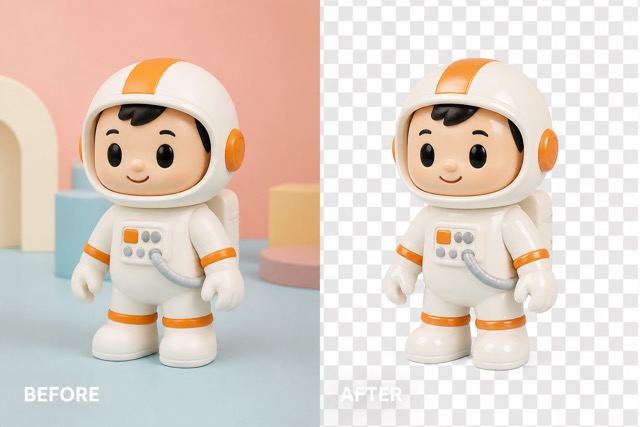
Preserve Transparency Through Every Edit
GPT Image 2 edits the visible subject while the transparent background image editor protects the empty canvas around it. Change the asset without accepting a white rectangle, generated room, or decorative backdrop. GPT Image 2 keeps the result flexible for layering and layout work.
Refine Clean Edges and Recognizable Shapes
A useful cutout needs more than empty pixels. The transparent background image editor guides GPT Image 2 to respect silhouettes, small details, spacing, and the source composition. GPT Image 2 can restyle or repair the subject while the transparent background image editor keeps the asset practical for design.
Direct the Result With Your Own Prompt
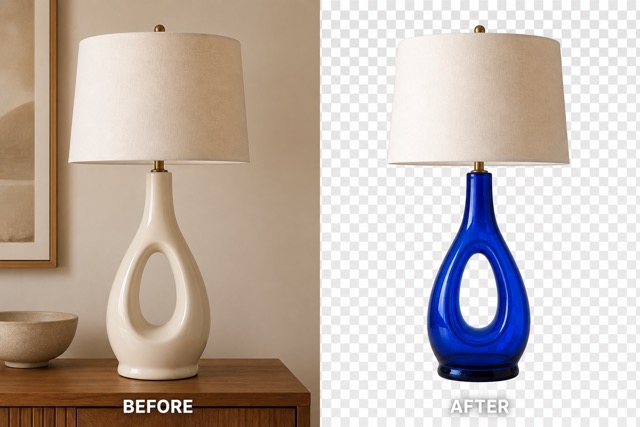
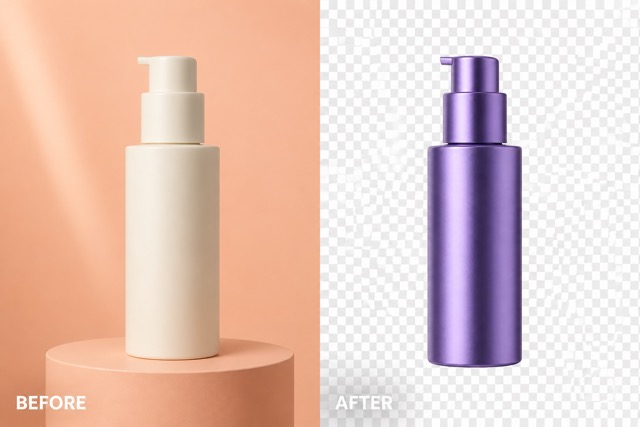
Use GPT Image 2 for a precise material swap, color change, character variation, packaging refresh, or style update. The transparent background image editor blends your instruction with its built-in rules, so GPT Image 2 changes the subject without filling the background.
Create Assets Ready for Real Projects
Turn a transparent source into another usable transparent asset with GPT Image 2. The transparent background image editor supports product graphics, profile art, stickers, icons, campaign elements, and presentation visuals. GPT Image 2 helps the subject feel finished while the transparent background image editor keeps placement flexible.
Ways to Use the Transparent Background Image Editor
From commerce to personal creativity, GPT Image 2 can update an existing transparent asset without locking it to a new scene. The transparent background image editor keeps each result adaptable across channels and formats.

Ecommerce Product Assets
Use GPT Image 2 to recolor, restyle, or refresh an isolated product. The transparent background image editor keeps the edited item easy to place across product pages, ads, and marketplace graphics.

Stickers and Character Art
Ask GPT Image 2 for a new outfit, pose detail, facial mood, or illustration finish. The transparent background image editor preserves open space around the character for stickers, reactions, and social graphics.

Logos and Brand Elements
Explore a color or material treatment with GPT Image 2 while keeping the asset isolated. The transparent background image editor makes the result easier to reuse in layouts, mockups, and campaign compositions.

Portrait and Profile Cutouts
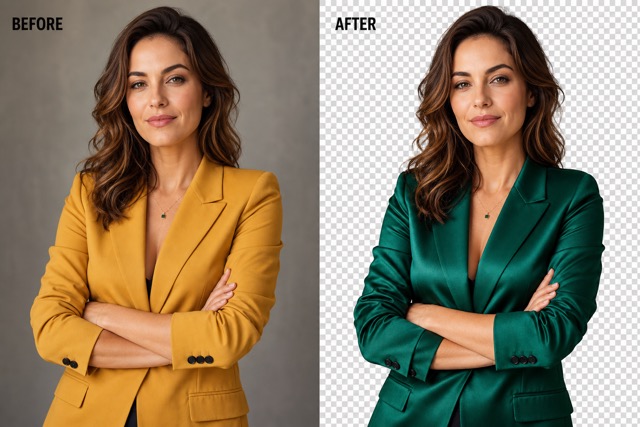
Let GPT Image 2 update clothing, styling, lighting, or artistic treatment without inventing a location. The transparent background image editor keeps the portrait ready for banners, thumbnails, and profile designs.
Presentation and Campaign Graphics
Create a polished isolated object with GPT Image 2, then layer it over your own brand system. The transparent background image editor separates subject generation from final layout decisions.
Creative Reactions to GPT Image 2 Editing
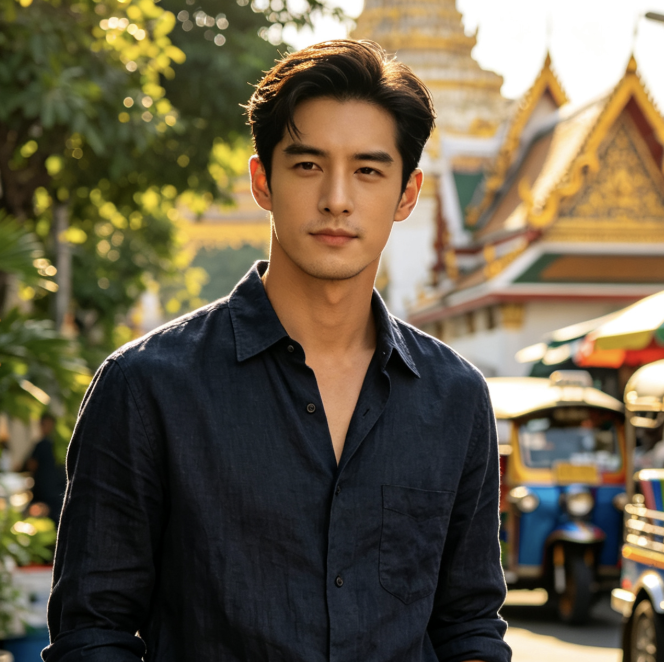
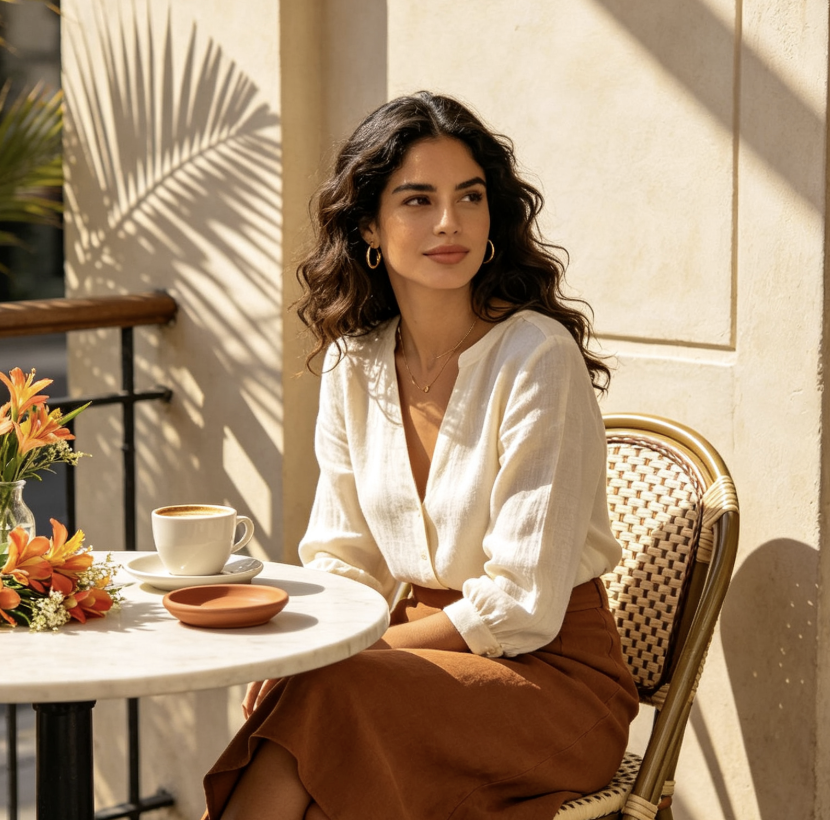
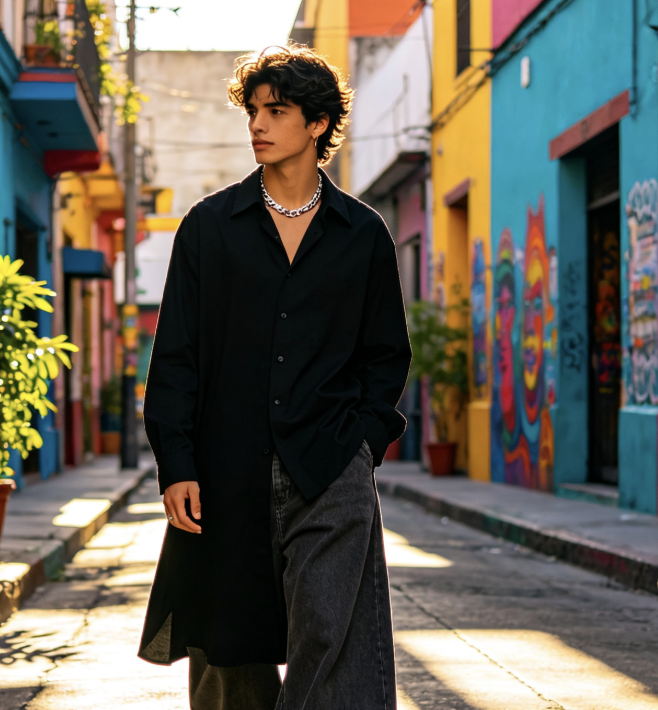
These illustrative reactions show how different creative roles might use the transparent background image editor with GPT Image 2 for products, portraits, characters, brand assets, and presentation graphics.
I used GPT Image 2 to update several isolated product colors without rebuilding every layout. The transparent background image editor kept the files easy to place in our existing store templates, which made early concept review much faster.
I used GPT Image 2 to update several isolated product colors without rebuilding every layout. The transparent background image editor kept the files easy to place in our existing store templates, which made early concept review much faster.
The transparent background image editor gave me a practical way to try character variations with GPT Image 2. I could focus on expression and wardrobe while keeping each cutout ready for sticker and social compositions.
The transparent background image editor gave me a practical way to try character variations with GPT Image 2. I could focus on expression and wardrobe while keeping each cutout ready for sticker and social compositions.
GPT Image 2 helped me refine a portrait cutout without inventing a distracting location. The transparent background image editor preserved the flexible canvas I needed for multiple campaign sizes and visual systems.
GPT Image 2 helped me refine a portrait cutout without inventing a distracting location. The transparent background image editor preserved the flexible canvas I needed for multiple campaign sizes and visual systems.
I asked GPT Image 2 for a material change on an isolated package concept. The transparent background image editor kept the result clean enough to compare quickly inside our own mockups instead of a generated scene.
I asked GPT Image 2 for a material change on an isolated package concept. The transparent background image editor kept the result clean enough to compare quickly inside our own mockups instead of a generated scene.
The transparent background image editor made GPT Image 2 feel much more useful for presentation graphics. I could produce a focused object variation and then control the background, typography, and layout in my deck.
The transparent background image editor made GPT Image 2 feel much more useful for presentation graphics. I could produce a focused object variation and then control the background, typography, and layout in my deck.
GPT Image 2 gave my isolated icon a polished new finish while the transparent background image editor kept its placement options open. The workflow was especially useful when I needed fast visual directions for a prototype.
GPT Image 2 gave my isolated icon a polished new finish while the transparent background image editor kept its placement options open. The workflow was especially useful when I needed fast visual directions for a prototype.

GPT Image 2 Transparent Editing FAQ
Learn how the transparent background image editor uses GPT Image 2, what to upload, how prompts work, and where transparent results can fit into your creative workflow.
It is an image-to-image tool that uses only GPT Image 2 for edits. Upload an asset that already has transparency, describe the change, and let the transparent background image editor modify the visible subject while keeping the surrounding canvas transparent.
No. This page is configured specifically for GPT Image 2. The transparent background image editor does not offer a multi-model selector, which keeps the workflow focused on one GPT Image 2 editing path. GPT Image 2 is the only model used here.
Start with a PNG or another supported image whose background is already transparent. GPT Image 2 can then edit the visible subject, and the transparent background image editor can preserve the empty canvas around it.
Yes. The prompt box stays available so you can tell GPT Image 2 what to change. The transparent background image editor joins that request with built-in instructions that protect transparency, composition, and the source subject.
Use a clean source with a complete subject, comfortable padding, and accurate alpha edges. Clear instructions help GPT Image 2 understand the intended edit, while the transparent background image editor reduces unwanted scenery, opaque patches, and edge artifacts.
You can use results for product visuals, stickers, profile art, icons, presentations, and campaign compositions, subject to your source rights and applicable terms. GPT Image 2 handles the edit while the transparent background image editor keeps the asset flexible for later placement.
Edit a Transparent Image With GPT Image 2
Upload one cutout, describe the change, and let GPT Image 2 refine the visible subject. Open the transparent background image editor to create a clean, flexible asset for your next design. GPT Image 2 keeps the transparent background image editor direct and focused.