Reduce temporary skin blemishes in portraits while keeping your natural texture and facial features.
AI Image Tools
Everything You Need to Edit Photos Faster
Open the PicEditor AI tools library for background removal, photo enhancement, object cleanup, face swap, upscaling, and more focused image workflows.
FLUX 3 Image Klein

Ideogram 4.5
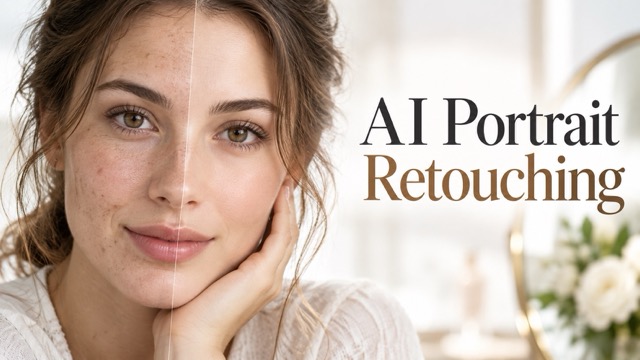
AI Portrait Retouching

Snatched Waist Editor
AI Facial Expression Changer

AI Texture Generator
AI Nose Piercing Filter
Replace Object in Photo Online
Add Object to Photo
Eyeliner Filter
AI Bust Down Filter

Image Splitter

Add White Background to Photo
Snapchat Text Remover
Realistic AI Skin Generator

Add speech bubble to photo
Change Photo Background
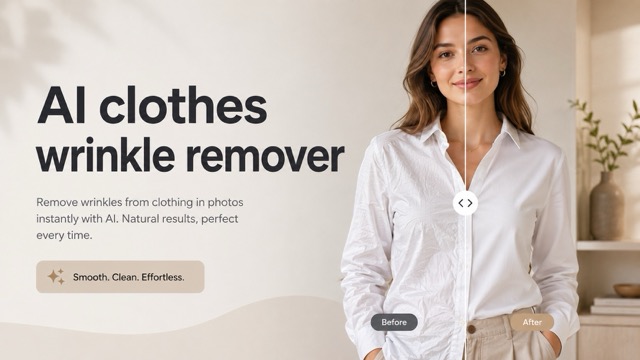
AI Clothes Wrinkle Remover
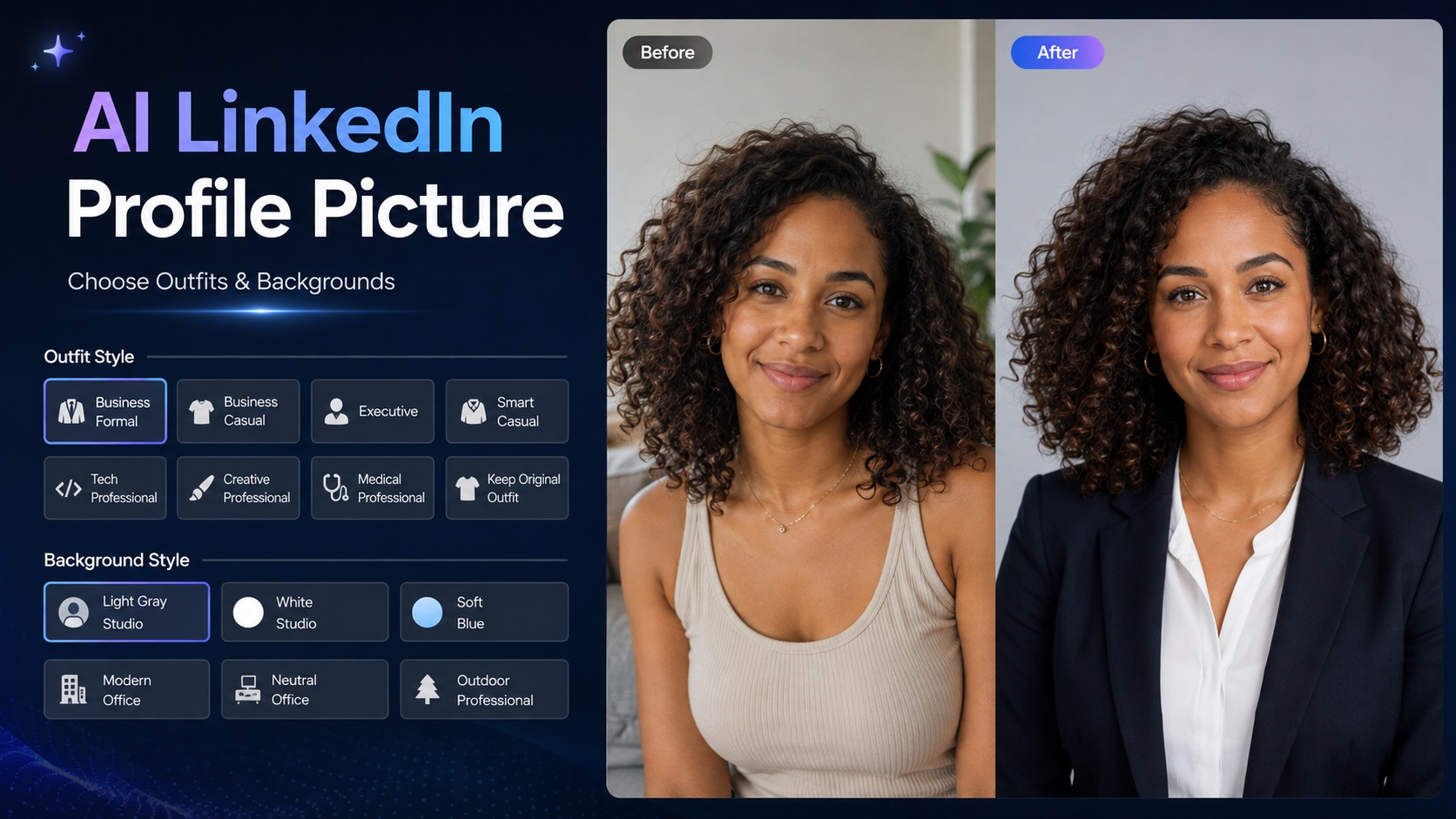
AI LinkedIn Profile Picture
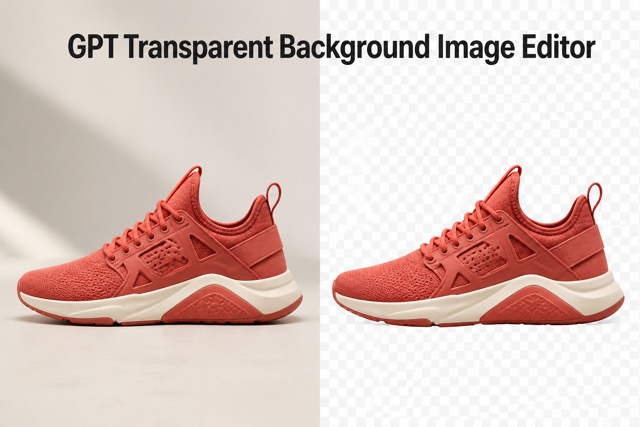
GPT Transparent BG Image Editor
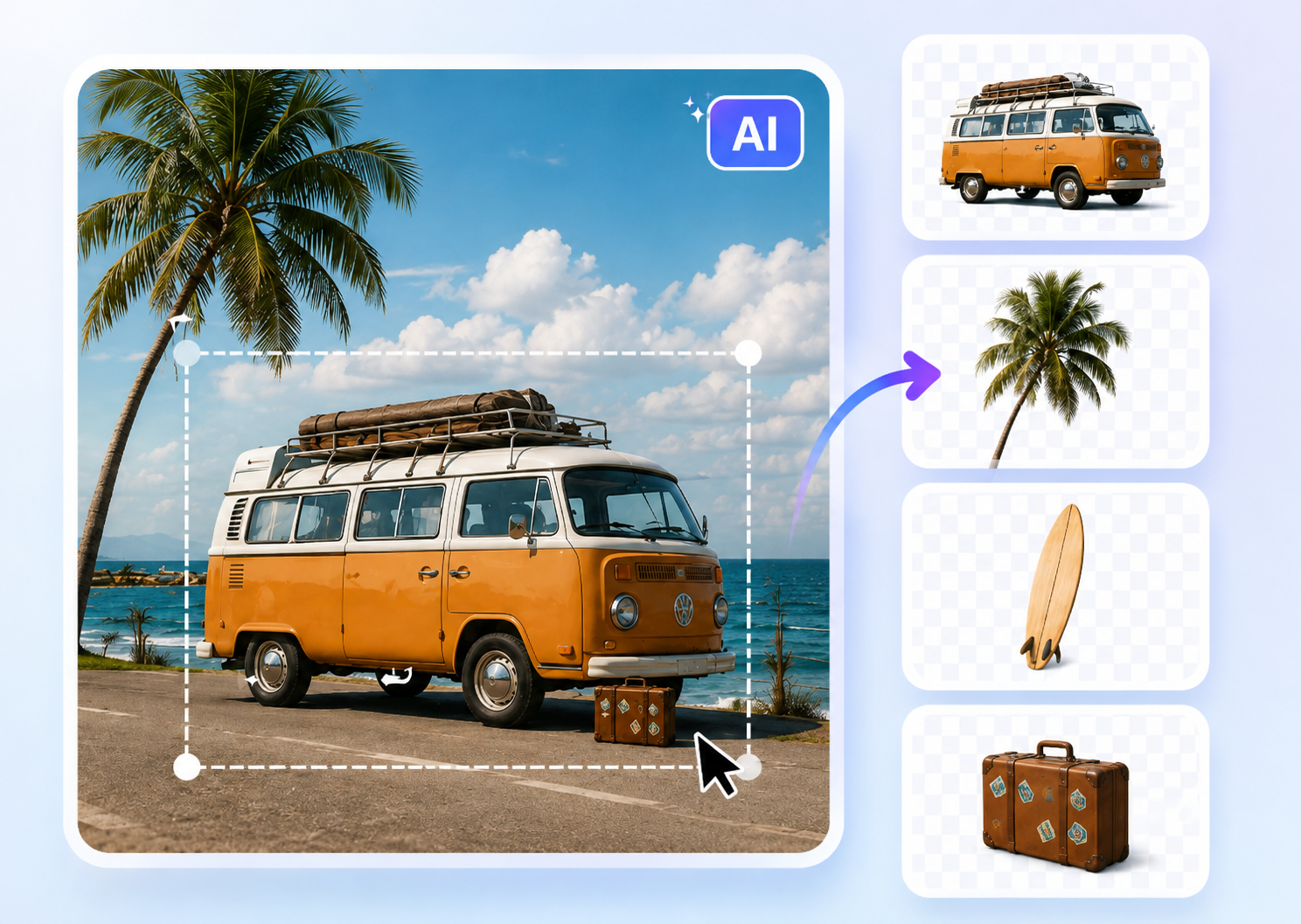
Image to Layers
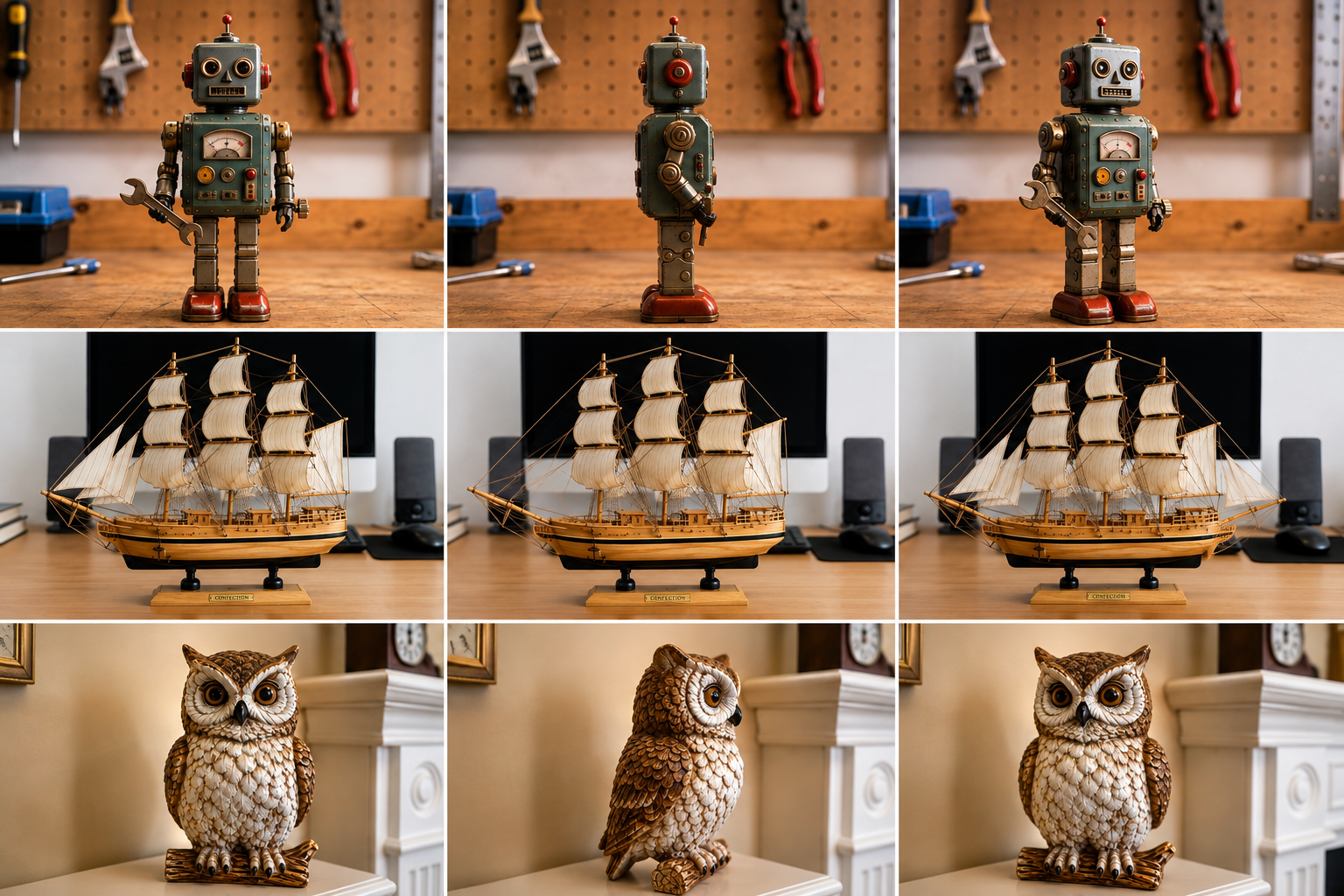
3D Angle Editor
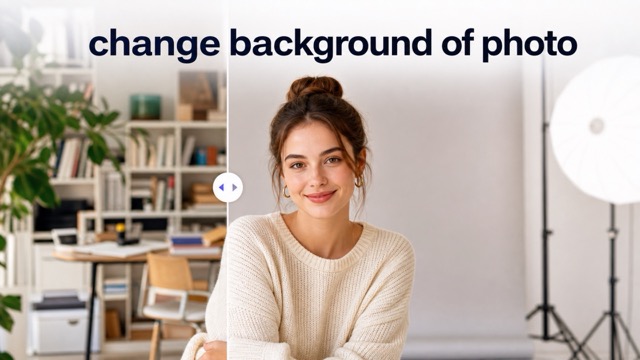
Change Background of Photo
AI Blemish Remover For Natural Portraits
Remove Pimples From Photos And Keep Real Skin Texture
A great portrait can capture the right expression and still show a distracting breakout. PicEditor's AI Blemish Remover helps reduce visible pimples, small red spots, and temporary skin imperfections in your photo while aiming to preserve the details that make you recognizable. Use Blemish Remover for a cleaner selfie, a polished professional headshot, or a more balanced beauty portrait without covering your skin in a heavy blur. Keep natural pores, original skin tone, and the character of the photograph at the center of the edit.
How To Use Blemish Remover
Move from an uploaded portrait to a reviewed result in three straightforward steps. AI Blemish Remover uses a portrait editing instruction, with room for your own preferences about subtle skin cleanup.

Upload Your Photo
Choose one clear selfie, headshot, or portrait with the face visible and evenly lit. Give AI Blemish Remover a detailed source image so small spots, natural pores, and important facial details are easier to distinguish during the photo edit.

Click Generate
Use the prepared retouching direction and add an optional English instruction if you need a lighter touch or want a specific mark preserved. Click Generate to create a variation, then compare facial features and skin detail with your original photograph.

Download Your Image
Review the generated portrait at a useful viewing size before downloading the result. Check that the face, expression, skin tone, and texture still feel natural. If the edit is too strong, adjust your direction and generate another version before saving.
Remove Blemishes With Natural Skin Retouching
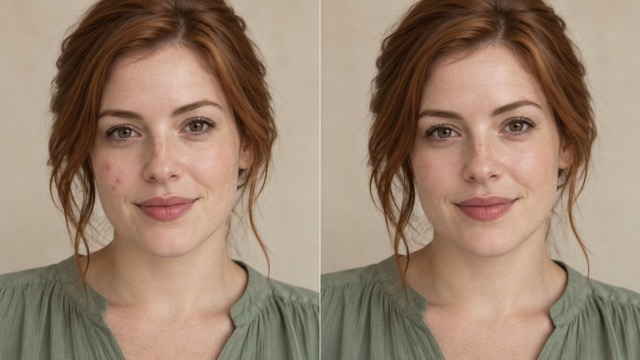
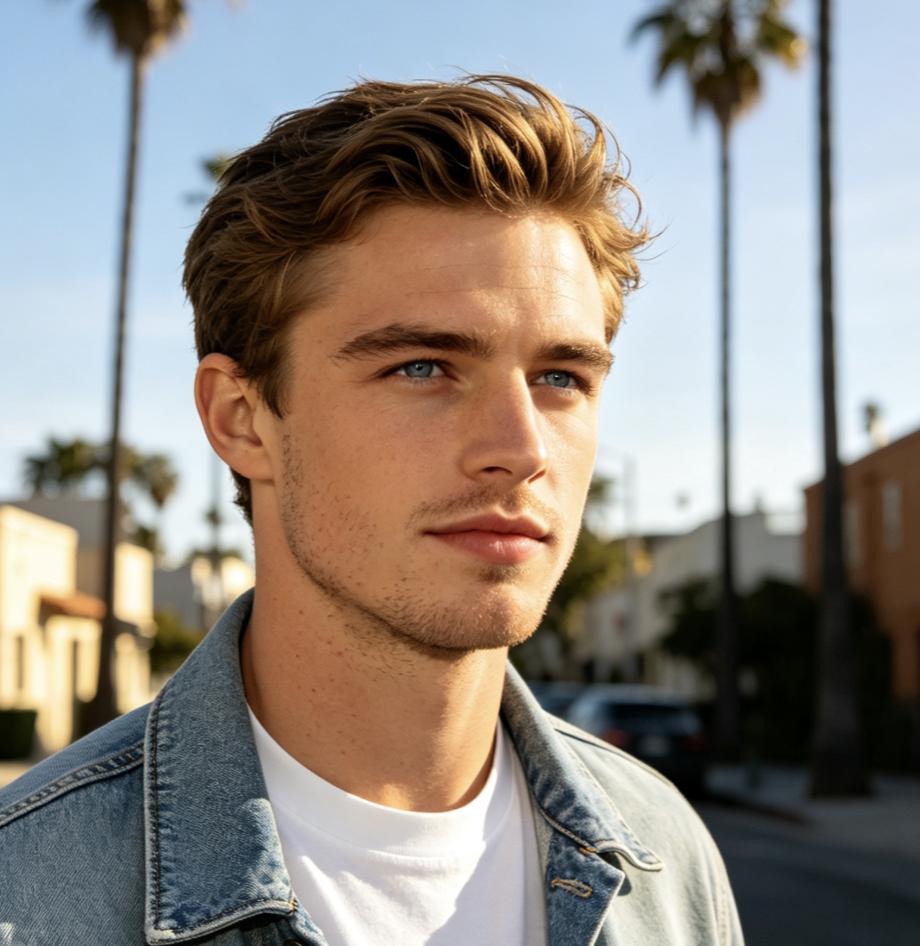
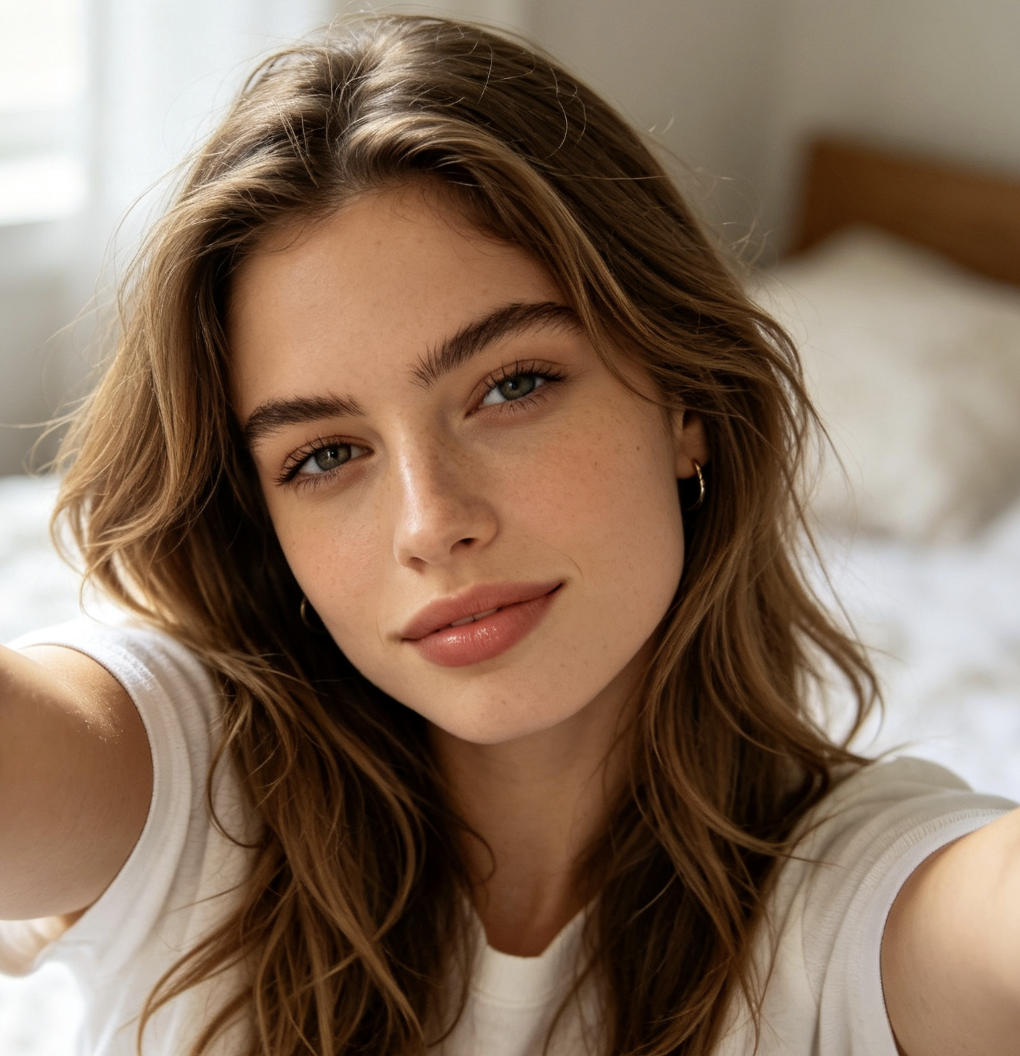
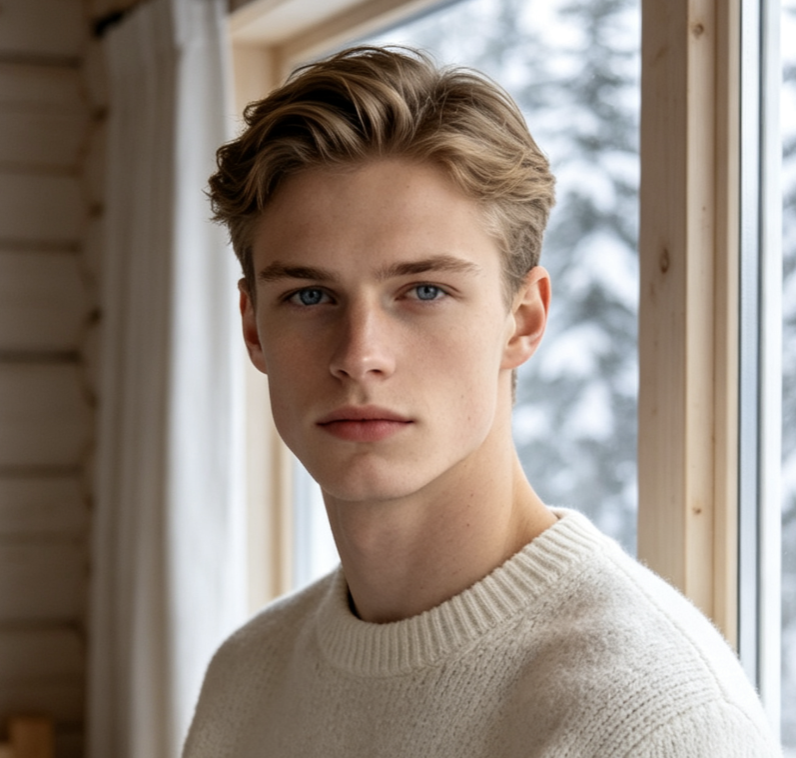
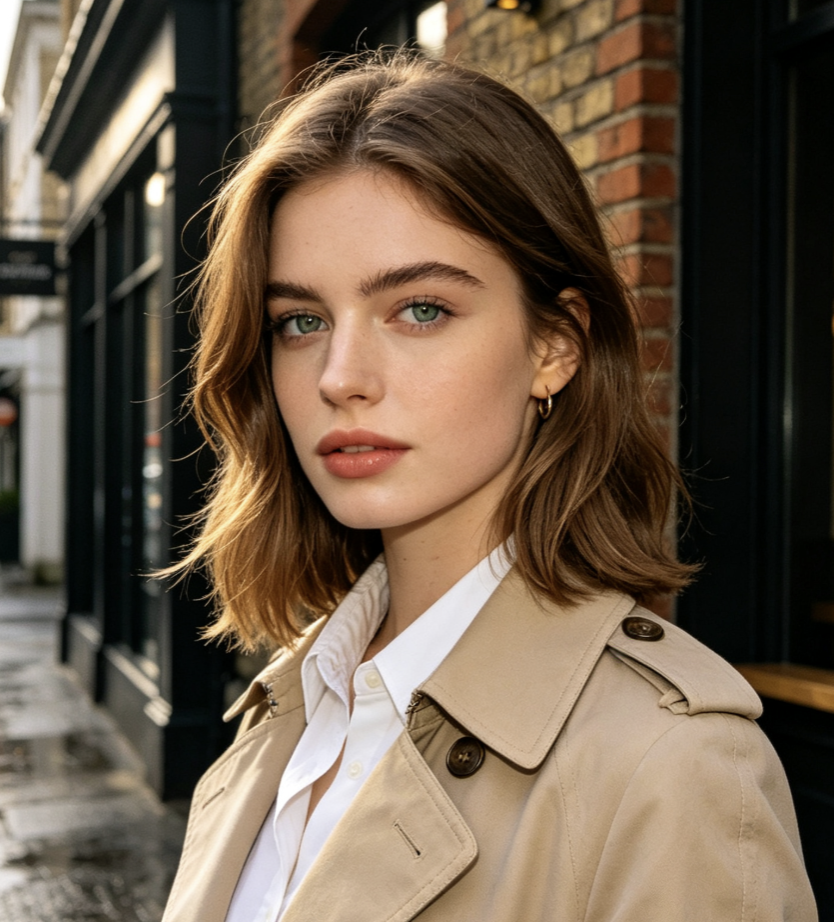
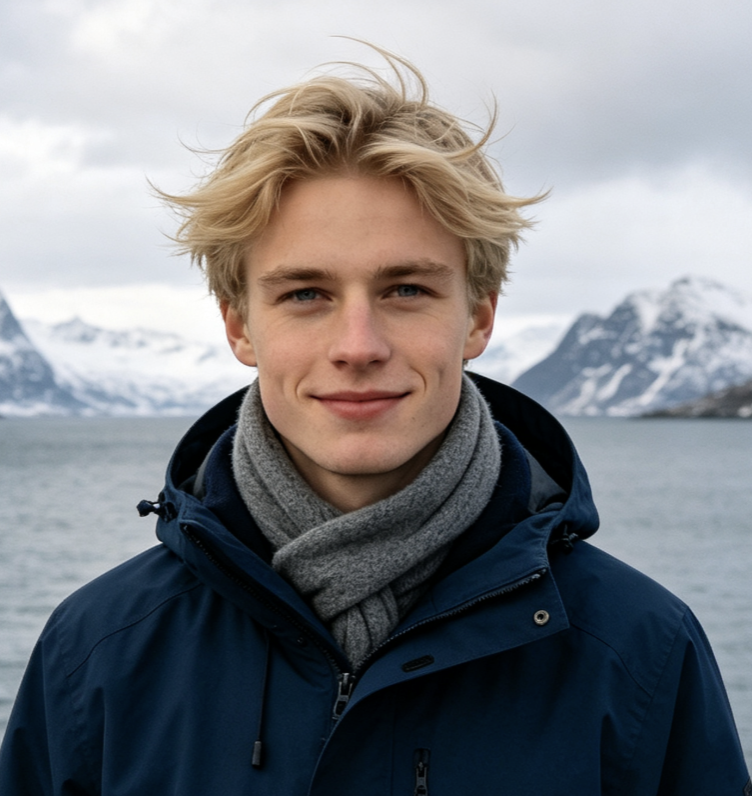
AI Blemish Remover brings targeted editing intent to an existing AI photo editing workflow. It is a portrait retouching tool, rather than a separate foundation model. These generated comparison images illustrate the intended style; they are not verified outputs or guarantees of the selected editor's performance. Actual results depend on image clarity, lighting, occlusion, and the complexity of the requested change.
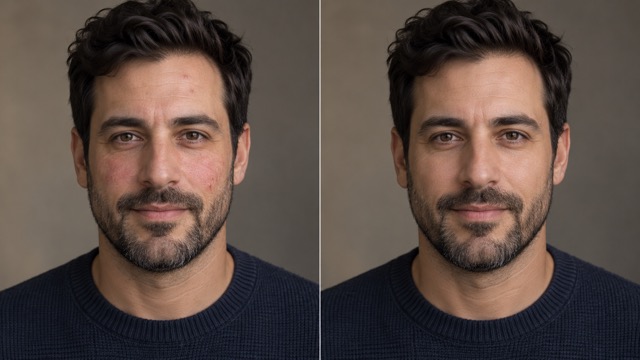
Remove Pimples And Small Red Spots
A few visible pimples can pull attention away from an otherwise expressive portrait. Use AI Blemish Remover to request subtle acne removal in the image, including scattered red spots and small temporary imperfections. The editing direction focuses on reducing those distractions while preserving surrounding skin detail. Blemish Remover works best when the source shows the affected area clearly, without heavy compression, deep shadows, or hair covering the skin. A clear request gives the AI Acne Remover direction without encouraging an artificial beauty filter.
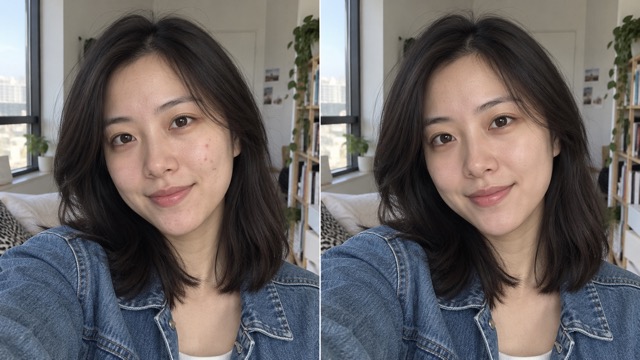
Retouch Dark Spots Without Flattening Skin
Small residual acne marks and uneven patches can look stronger in a close selfie than they did in the moment. AI Blemish Remover can be directed to soften distracting dark spots and localized redness in the photograph, while maintaining the person's original skin tone. Natural Skin Retouching means keeping believable tonal variation across the face, including the shadows that give cheeks and features their shape. Blemish Remover should not turn every freckle, beauty mark, or pore into an imperfection to erase.
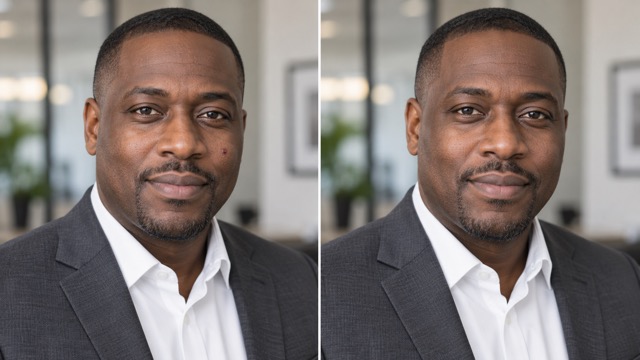
Keep Pores, Facial Features, And Identity
Recognizable features matter more than an unrealistically smooth finish. AI Blemish Remover is instructed to preserve the original expression, facial proportions, hairstyle, lighting, and realistic pores while reducing skin distractions. Blemish Remover aims for texture preservation, but AI edits can still introduce unwanted changes. Face Blemish Remover should support a portrait that feels like you, with normal skin detail still visible at the size your audience will see.
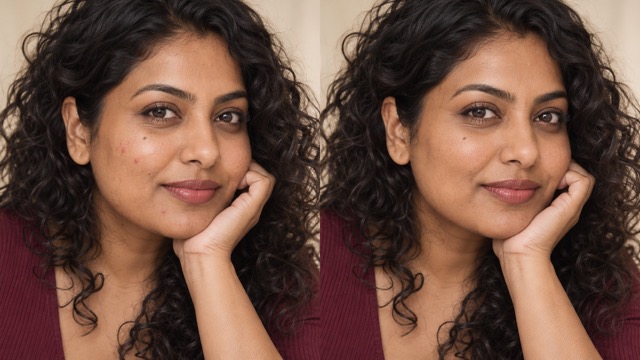
Make Portrait Editing Easier To Direct
You do not need to learn Photoshop layers or carefully clone every small mark to describe the result you want. AI Blemish Remover combines one uploaded portrait with a prepared editing instruction and optional extra direction. Ask for lighter cleanup, request that freckles remain, or specify that makeup and beard detail should be preserved. This makes Blemish Remover useful for people who want a practical starting point for portrait enhancement without a complicated manual workflow.
Photo Editing Use Cases
From an everyday selfie to a carefully lit portfolio portrait, the right edit depends on where the photograph will appear. Use AI Blemish Remover to support that purpose while keeping a believable connection to the source.

Everyday Selfies And Social Photos
Use AI Blemish Remover when a temporary breakout distracts from a favorite expression, a relaxed outing, or a photo you want to post. Keep the original lighting and everyday atmosphere so the cleaned image still belongs to the moment. Blemish Remover can help guide a subtle change without turning a casual selfie into a heavily filtered studio portrait.

Professional Headshots And Personal Branding
A profile photograph should look polished and recognizable across a website, professional network, or business introduction. AI Blemish Remover can help reduce temporary skin distractions while retaining facial structure, natural skin tone, and expression. Use Blemish Remover for ID-style profile images only when editing is appropriate for their intended use; follow the issuing organization's requirements for official documents.

Portrait Photography And Client Selections
Photographers and portrait editing enthusiasts can use AI Blemish Remover to explore a restrained retouching direction before choosing a final image. Evaluate the result against the original lighting, skin detail, and intended viewing size. Blemish Remover is especially useful as a starting point for discussing how much cleanup a person prefers.

Beauty Content And Creator Portraits
Beauty bloggers and social media creators often need clear photographs that preserve makeup detail and realistic skin color. AI Blemish Remover can be directed to reduce distracting spots while keeping the texture of foundation, brows, lips, and surrounding skin believable. Blemish Remover should complement your creative presentation without implying that edited skin is an unretouched product result.
Portrait Editing Perspectives
Demo content: the six names, roles, and comments below are fictional examples of editing preferences, not real customer reviews or verified endorsements.
I prefer a little cleanup around a breakout while keeping the expression I liked in the first place. A portrait feels more comfortable to share when the skin still looks like mine.
I prefer a little cleanup around a breakout while keeping the expression I liked in the first place. A portrait feels more comfortable to share when the skin still looks like mine.
Pores and lighting are part of a good portrait. My ideal retouch removes a few distractions and leaves enough fine detail for the photograph to hold up when viewed closely.
Pores and lighting are part of a good portrait. My ideal retouch removes a few distractions and leaves enough fine detail for the photograph to hold up when viewed closely.
I want everyday photos to feel consistent with the moment they capture. Subtle editing suits my posts much better than a strong filter that changes my face or skin tone.
I want everyday photos to feel consistent with the moment they capture. Subtle editing suits my posts much better than a strong filter that changes my face or skin tone.
A professional headshot should look like the person someone will actually meet. Clean skin detail helps, but recognizable features and a natural expression matter most to the finished photograph.
A professional headshot should look like the person someone will actually meet. Clean skin detail helps, but recognizable features and a natural expression matter most to the finished photograph.
Makeup has texture, and I want that texture to stay visible. The right portrait edit would soften distracting spots without making the whole face look flat, pale, or overly polished.
Makeup has texture, and I want that texture to stay visible. The right portrait edit would soften distracting spots without making the whole face look flat, pale, or overly polished.
Comparing a version with the original helps me notice when an edit has gone too far. I would rather keep a few natural details than lose the character of the picture.
Comparing a version with the original helps me notice when an edit has gone too far. I would rather keep a few natural details than lose the character of the picture.
Blemish Remover FAQ
Find practical answers about what AI Blemish Remover can change in a photo, how to guide a natural result, and what to review before you download.
Yes, AI Blemish Remover can be directed to reduce visible pimples, temporary acne marks, small red spots, and other distracting skin imperfections in an uploaded portrait. Results vary with source detail and the complexity of the blemishes. An Acne Remover Photo Editor changes the appearance of a photograph; it does not treat acne, cure a skin condition, or permanently change real skin. Keep expectations focused on the edited image.
The editing instruction asks AI Blemish Remover to retain original facial features, expression, proportions, hairstyle, and lighting. That is the intended behavior, but exact identity preservation is not guaranteed for every generated version. If a feature changes, request gentler retouching or try another variation before using the result as a personal or professional portrait.
Yes. Ask for realistic pores, unchanged skin tone, and subtle cleanup without excessive smoothing. Blemish Remover is configured around that natural direction. Skin Retouching Online works better when your original photo contains visible detail, so avoid heavily blurred sources or strong beauty filters. Inspect the cheeks and forehead for flat patches, and choose the version that retains believable texture instead of judging success only by how many marks disappear.
Clear selfies, evenly lit headshots, face closeups, and portrait photographs provide a useful starting point. The face should be visible with enough resolution to distinguish spots from normal texture. Blemish Remover may struggle when shadows, motion blur, compression, or obstructions hide important detail.
No Photoshop workflow is required to use this page. Upload a portrait, use the prepared instruction, add optional direction, and generate an edited variation. Blemish Remover uses the available AI image editing engine rather than asking you to manually clone individual spots.
Describe a modest change: reduce temporary pimples and redness while keeping pores, freckles, expression, and skin tone. Avoid instructions that demand flawless, textureless skin. Review the generated image beside the original, including facial edges and fine details, then use the result's download control to save your chosen version. If it looks overly smooth, ask for lighter cleanup and generate again. A natural photograph can still contain normal skin variation.
Try AI Blemish Remover On Your Photo
Bring the attention back to your expression. Upload a clear portrait to AI Blemish Remover, guide a subtle cleanup, and review the result for realistic skin texture and recognizable features. Start with the prepared instruction, add your preferences, and download the version that feels naturally right for your photograph.