Upload an image and let piceditor.ai separate it into multiple visual layers for more flexible editing.
AI Image Tools
Everything You Need to Edit Photos Faster
Open the PicEditor AI tools library for background removal, photo enhancement, object cleanup, face swap, upscaling, and more focused image workflows.
Replace Object in Photo Online
Add Object to Photo
Eyeliner Filter
AI Bust Down Filter

Image Splitter

Add White Background to Photo
Snapchat Text Remover
Realistic AI Skin Generator
Add speech bubble to photo
Change Photo Background
AI Clothes Wrinkle Remover
AI LinkedIn Profile Picture
GPT Transparent BG Image Editor
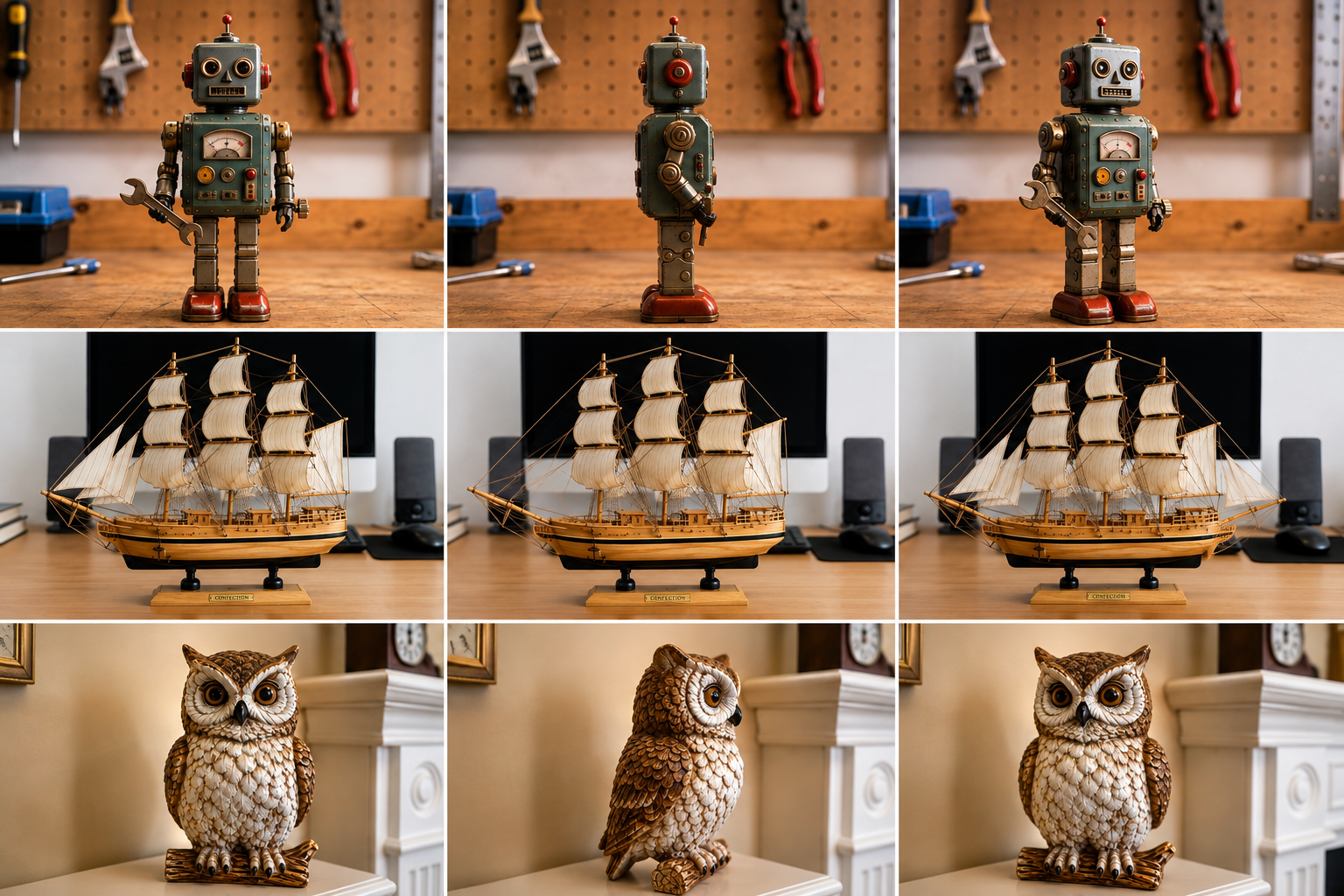
3D Angle Editor
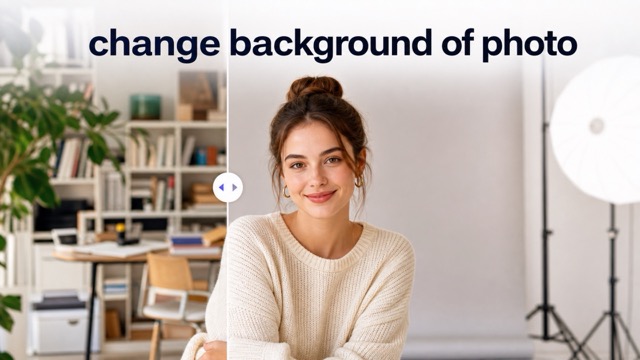
Change Background of Photo
Add Text to Image
Speech Bubble Meme Generator
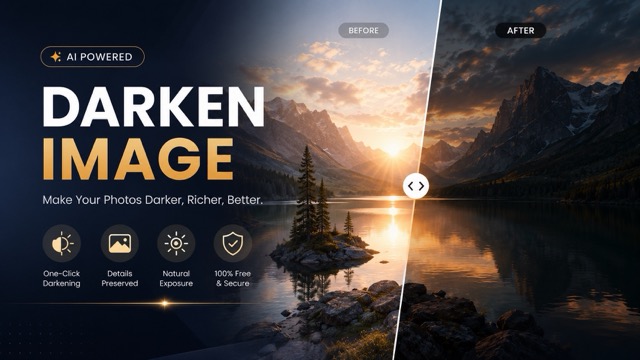
AI Image Darkener
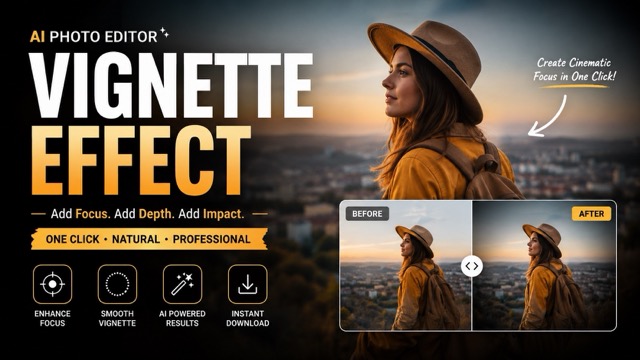
AI Vignette Effect
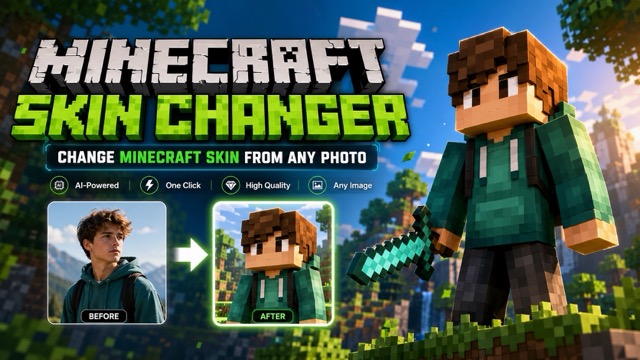
AI Change Minecraft Skin
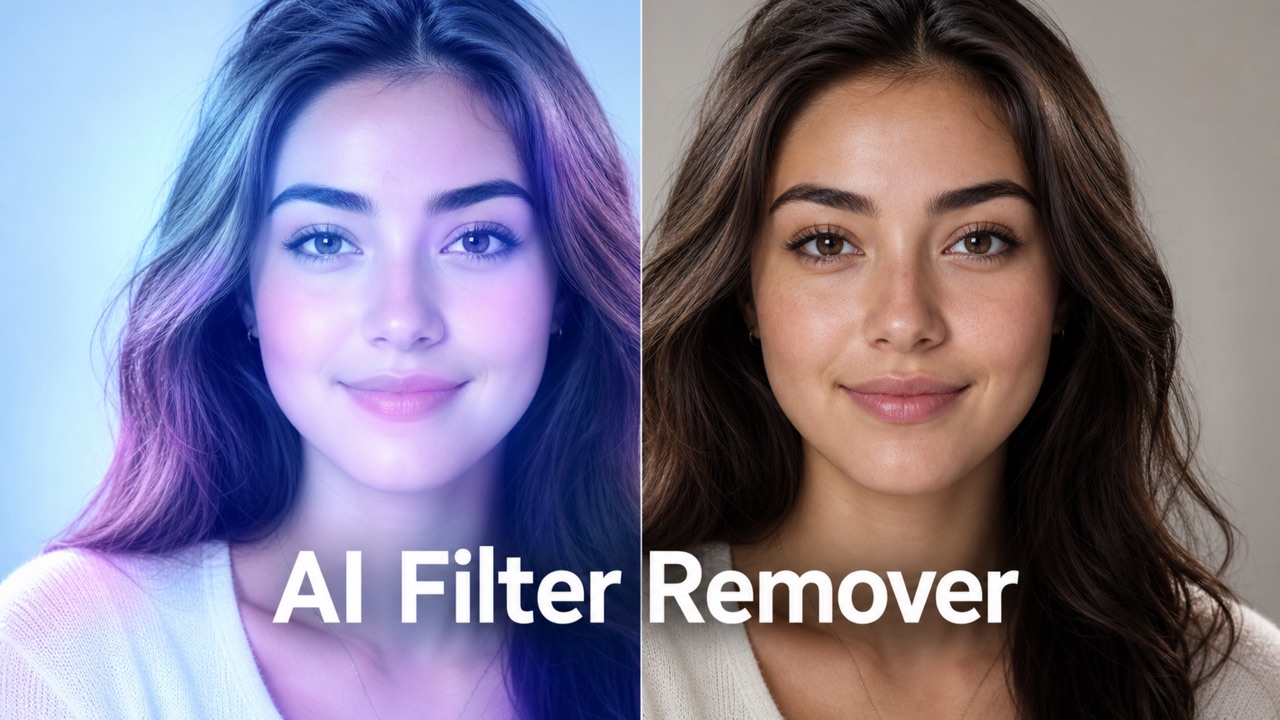
Remove Color From Image
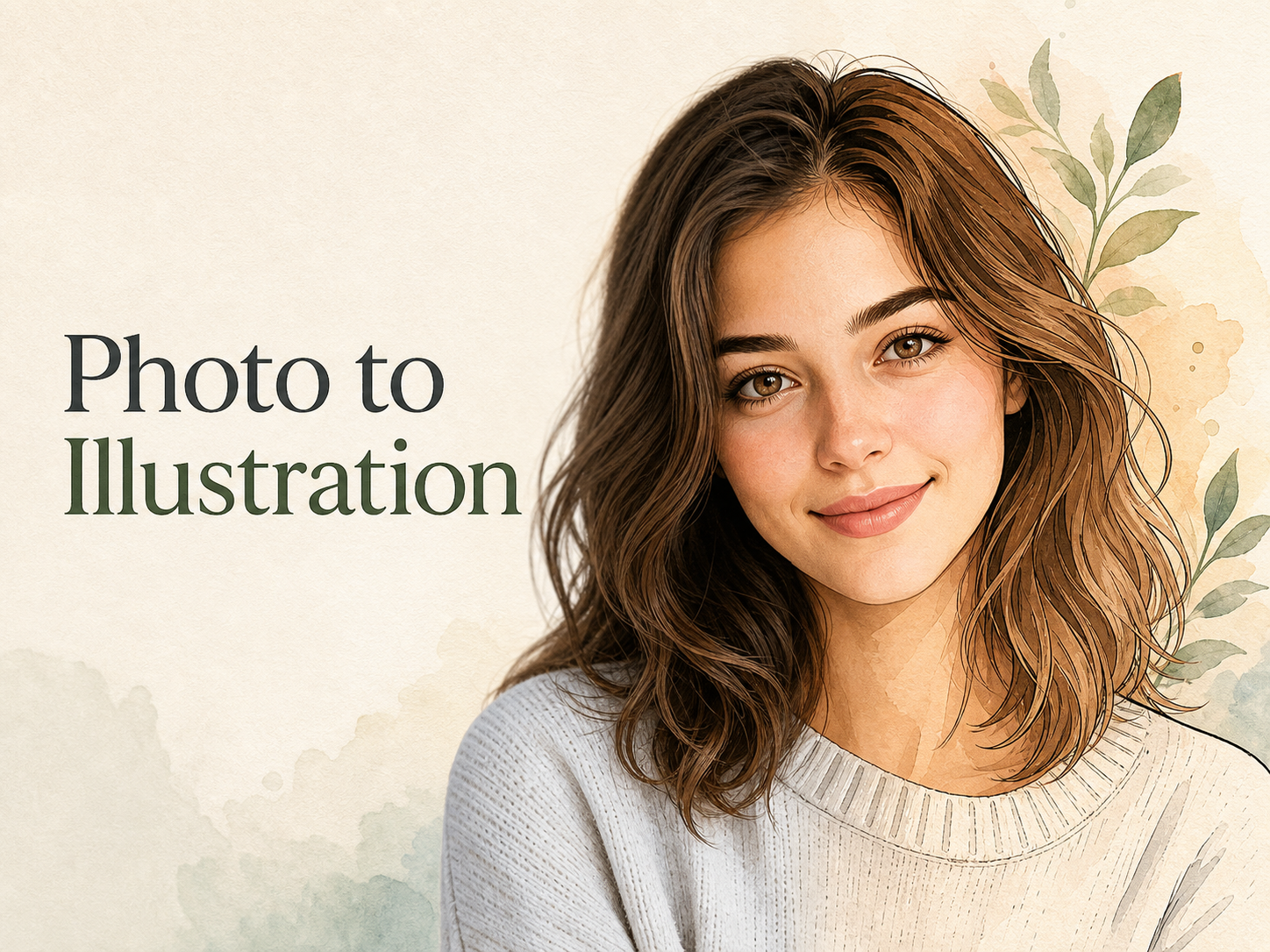
Photo to Illustration
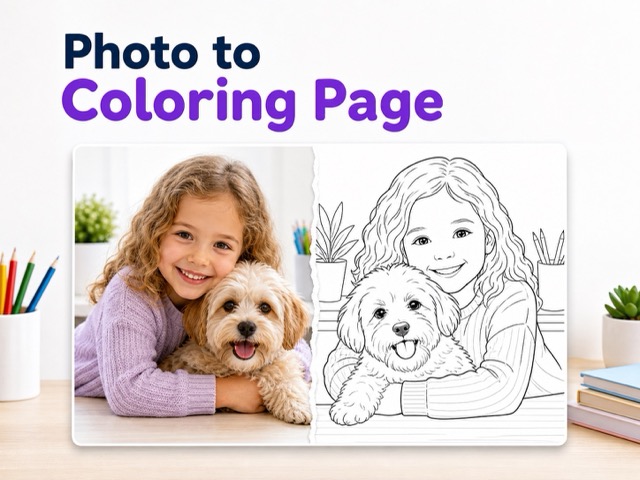
Photo to Coloring Page
Image to Layers: Separate and Reuse Image Elements with AI
Turn a Flat Image into Reusable Elements for Your Next Creation
With image to layers in Piceditor.ai, you can upload an image, select one or more elements with the selection tool or describe them in a prompt, and let AI separate them from the rest of the picture. Download each resulting layer for further use or bring the separated elements into AI Image in Piceditor.ai to create a new composition and bring your creative vision to life.
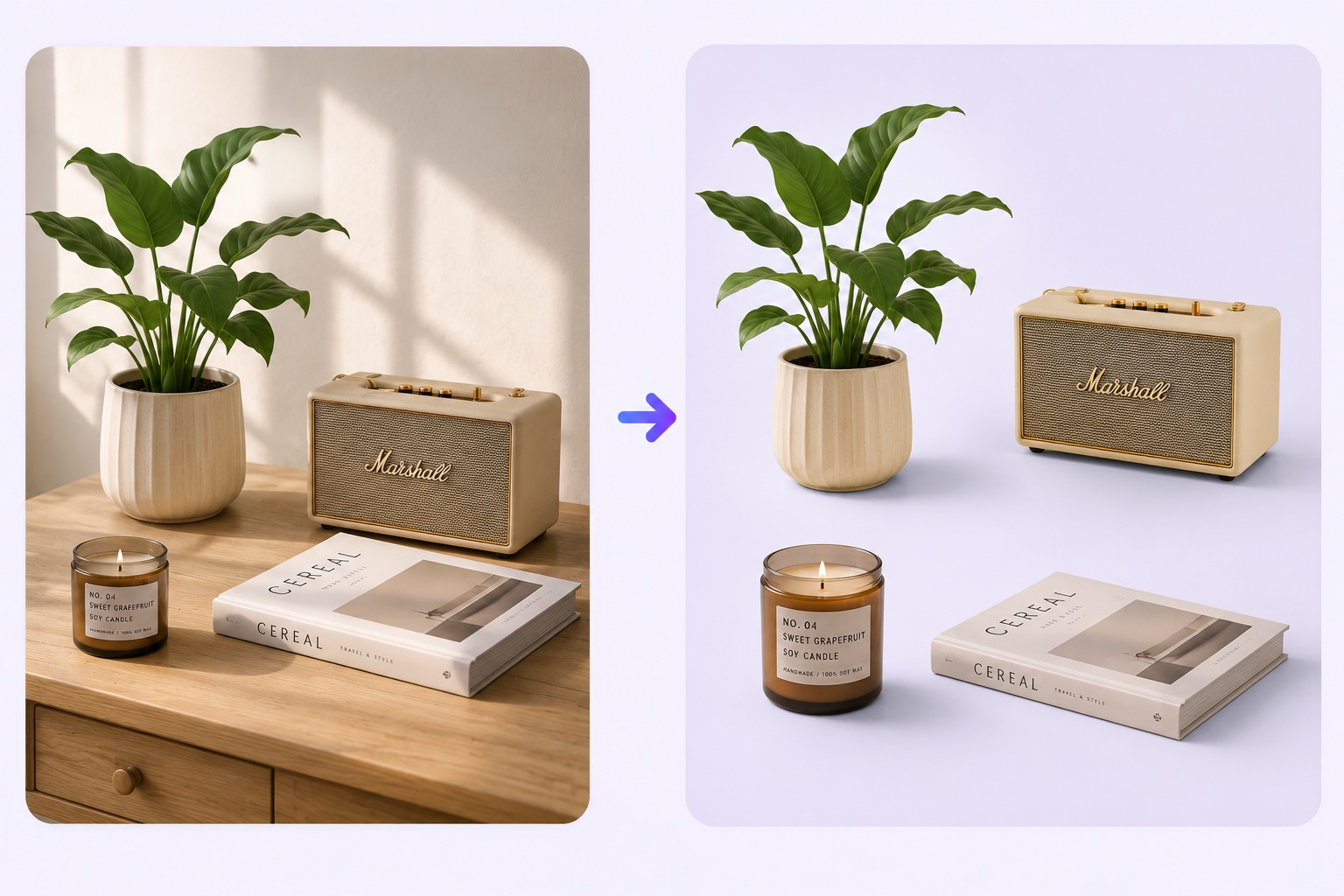
What Can You Do with Image to Layers?
With image to layers, choose the elements you want, separate them from a flat image, download the resulting layers, and reuse them in a new creative workflow.
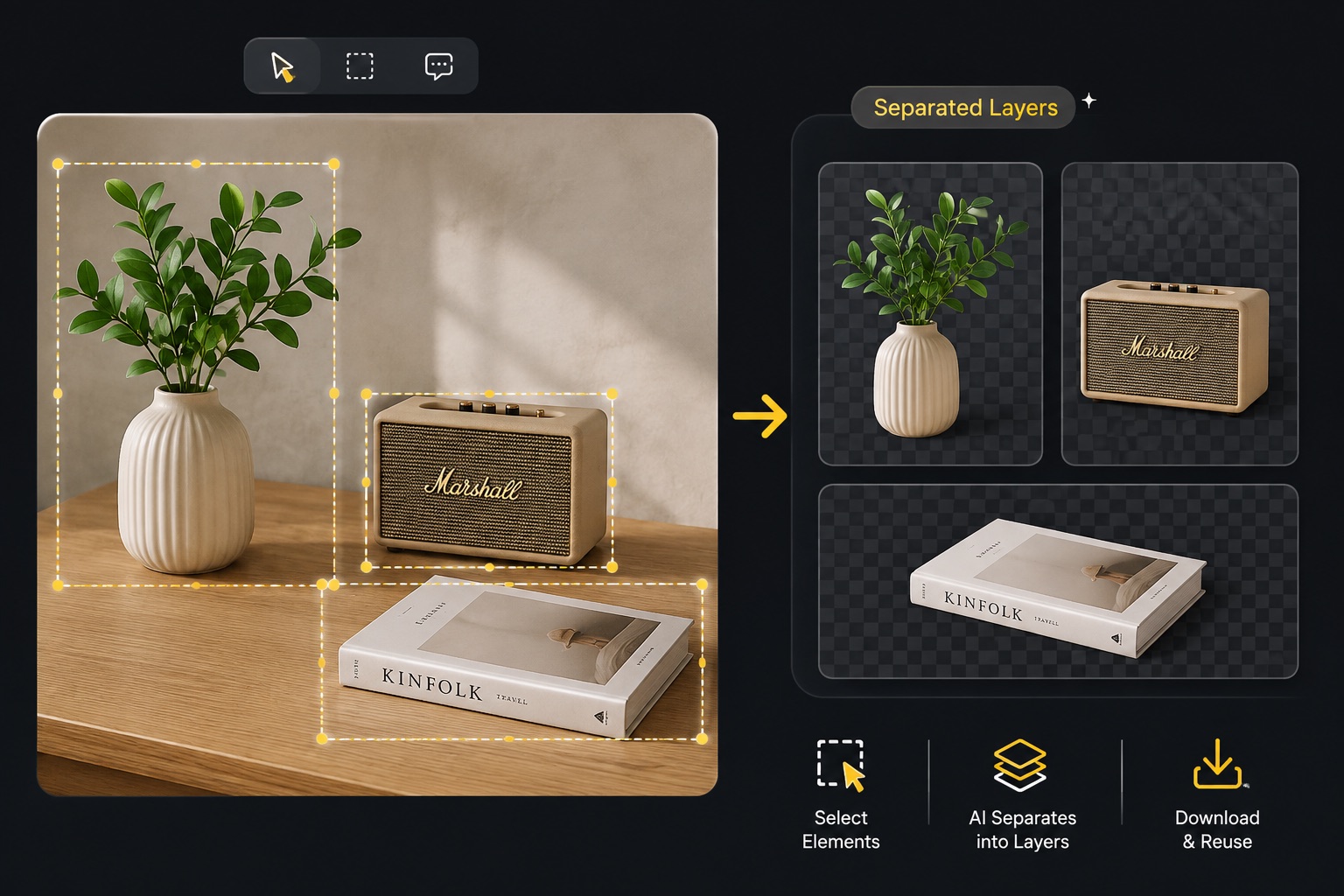
Select the Exact Elements You Want with Image to Layers
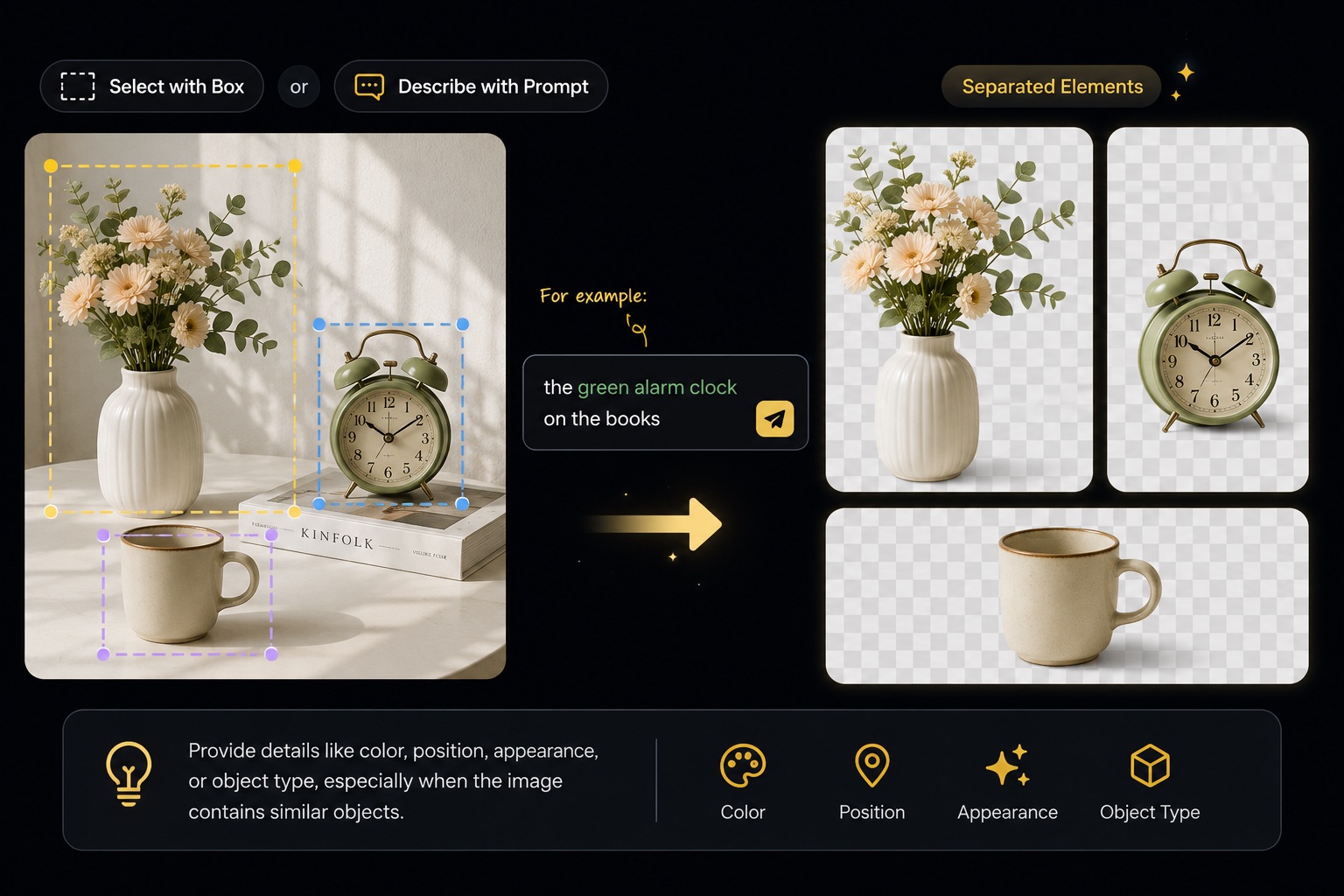
Use the selection tool to draw a box around one element or select multiple elements in the same image. This gives you direct control over what image to layers should isolate without separating every visible part of the picture.
Describe the Elements with a Prompt
With image to layers, you can also describe the element you want to separate with a prompt. Include details such as its color, position, appearance, or object type, especially when an image contains similar objects.
Separate and Download Reusable Image Layers
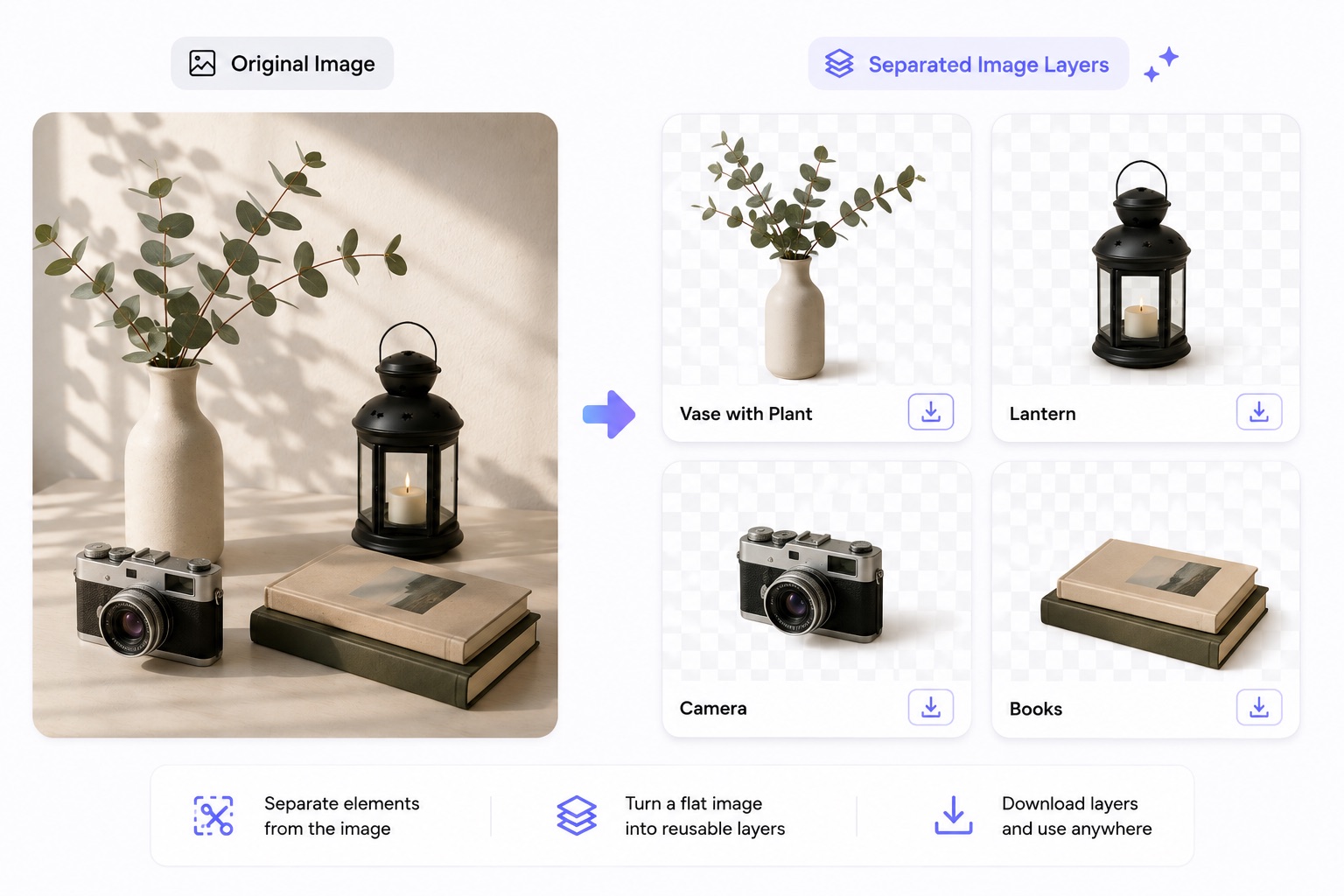
Image to layers separates the requested elements from the remaining visual content, turning a flat image into individual pieces that are easier to reuse.
How to Use Image to Layers
Upload an image, select or describe the elements you want, run image to layers, and download or recombine the separated results.
Upload Your Image
Open image to layers in Piceditor.ai and upload the image you want to process. For better separation, choose an image with clear subjects, defined boundaries, good contrast, and limited motion blur.
Select or Describe the Elements
In image to layers, use the selection tool to draw a box around one element or select multiple areas. You can also enter a prompt describing the desired elements by their color, position, appearance, material, or object type.
Run Image to Layers
Click the creation button after completing your selection or prompt. The AI analyzes your instructions and separates the requested elements from the remaining image content.
Download or Recombine Your Layers
After image to layers finishes processing, download the separated layers you want to keep and use them as visual assets in another project. You can also bring them into AI Image in Piceditor.ai as references for a new composition.
Ways to Use Image to Layers
From product visuals to new creative scenes, image to layers helps you reuse existing elements and turn a flat image into a more flexible starting point.
Create New Product Images
Use image to layers to separate a product and supporting objects from an existing image, then reuse those elements when developing a new promotional composition with AI Image.
Reuse Subjects in New Scenes
Use image to layers to extract a person, character, animal, accessory, or other visible subject, then reuse the separated result as an element or reference for a new scene.
Adapt Marketing and Social Assets
Image to layers can separate useful visual elements from an existing asset so they can support new social posts, promotional graphics, presentations, thumbnails, or campaign materials.
Explore New Creative Compositions
With image to layers, turn a finished image into flexible visual building blocks, then experiment with new arrangements and creative concepts instead of rebuilding every element manually.
How Creators Use Image to Layers
See how different creative professionals can use image to layers to separate visual elements, simplify editing, and explore new compositions.
I often need to reuse products from existing campaign images. Image to layers lets me isolate the items I need and prepare them for new store banners without rebuilding the entire composition.
I often need to reuse products from existing campaign images. Image to layers lets me isolate the items I need and prepare them for new store banners without rebuilding the entire composition.
Being able to select several elements from one image makes it much easier to create fresh layouts for different social platforms. I can keep the useful parts and experiment with a new arrangement.
Being able to select several elements from one image makes it much easier to create fresh layouts for different social platforms. I can keep the useful parts and experiment with a new arrangement.
The prompt option is useful when a scene contains several objects. I can describe the exact element I want, separate it, and use the result as a starting point for another design.
The prompt option is useful when a scene contains several objects. I can describe the exact element I want, separate it, and use the result as a starting point for another design.
Image to layers gives me a practical way to pull subjects and supporting objects out of a finished photo. The separated elements are easier to organize and reuse in later creative work.
Image to layers gives me a practical way to pull subjects and supporting objects out of a finished photo. The separated elements are easier to organize and reuse in later creative work.
I use the separated layers to explore alternative campaign concepts before committing to a final visual. Moving the elements into AI Image helps me test a new composition more efficiently.
I use the separated layers to explore alternative campaign concepts before committing to a final visual. Moving the elements into AI Image helps me test a new composition more efficiently.


Image to Layers FAQ
Find answers about selecting elements, writing prompts, reviewing results, downloading layers, and reusing them in a new composition.
Image to layers analyzes an uploaded image and separates the visual elements you select or describe. It returns the requested elements separately from the other image content so you can review, download, and reuse the results.
You can click the selection button and draw a box around one or more elements, or enter a prompt describing what you want to separate. Specific details such as color, position, material, appearance, or object type can help clarify your request.
Yes. You can select multiple areas when you want image to layers to separate several elements from the same uploaded picture.
Yes. You can describe the desired element with a prompt instead of selecting an area. Use specific visual details when the image contains several similar objects.
Images with clear subjects, defined edges, good contrast, limited motion blur, and visible separation between objects are generally easier to process and review.
It can process complex images, but overlapping objects, detailed backgrounds, transparent materials, and many small components may require a more precise selection and closer inspection.
Try narrowing or adjusting the selected area, or rewrite the prompt with clearer details about the element's color, position, appearance, or type.
Yes. After reviewing the output, you can download the available separated layers individually for use in another workflow.
You can bring the separated elements into AI Image in Piceditor.ai and use them as references when creating a new image composition.
Turn One Image into New Creative Possibilities
Upload an image, select or describe the elements you want, and use image to layers to turn them into reusable visual building blocks. Download the separated results or continue with AI Image to bring a new creative vision to life.