Image Splitter for Grids, Guided Cuts, and Custom ShapesImage Splitter
Create equal tiles, flexible line-based sections, or custom-shaped slices by dragging grid points.
Image Splitter gives you three practical ways to divide a source image. Use Image Grid Splitter when the layout should stay even, use flexible guide lines when you want more control, or use Custom Image Splitter when you want to drag grid points and reshape the inner structure. Image Slicer then turns the final layout into separate files. Whether you need to Split Image Into Grid for tiled posts or Split Image Into Parts for more creative layouts, Image Splitter keeps the process visual and easy to adjust. Image Splitter Online Free also makes it simple to test different structures before exporting the final set.
Image Splitter
Drag and drop image or Click to select image
PNG, JPG, or WebP (Max 10MB)
Or Select from
AI Image Tools
Everything You Need to Edit Photos Faster
Open the PicEditor AI tools library for background removal, photo enhancement, object cleanup, face swap, upscaling, and more focused image workflows.

Replace Text in Image

Corpse Bride AI Filter

AI Blemish Remover
FLUX 3 Image Klein
Ideogram 4.5

AI Portrait Retouching

Snatched Waist Editor

AI Facial Expression Changer

AI Texture Generator

AI Nose Piercing Filter
Replace Object in Photo Online
Add Object to Photo

Eyeliner Filter

AI Bust Down Filter

Add White Background to Photo
Snapchat Text Remover

Realistic AI Skin Generator

Add speech bubble to photo

Change Photo Background

AI Clothes Wrinkle Remover
AI LinkedIn Profile Picture
GPT Transparent BG Image Editor
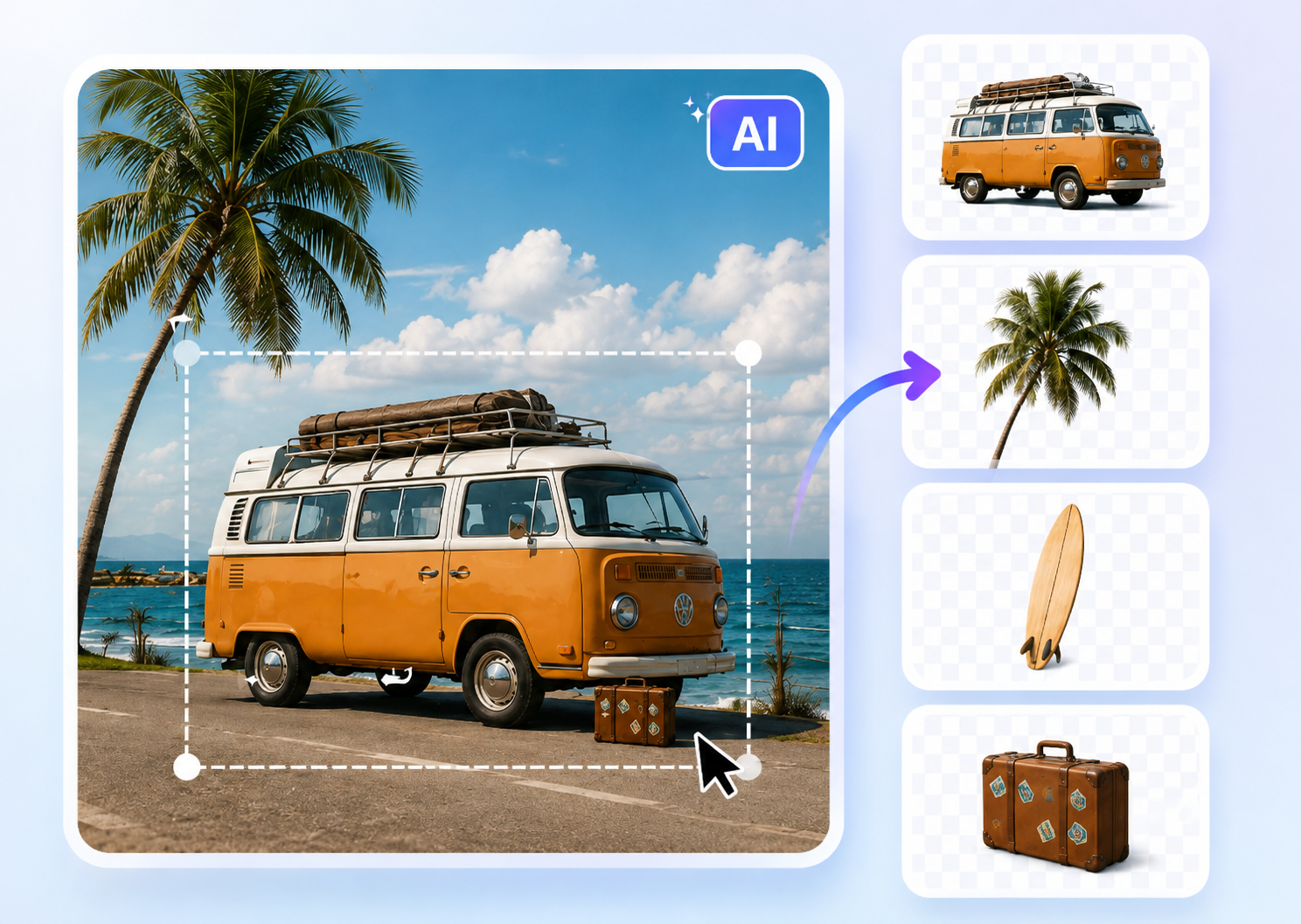
Image to Layers
Image Splitter: Split Images Into Custom Slices Online
Cut one image into equal grids, free guide-line sections, or custom-shaped slices by dragging grid points directly on the canvas.
Image Splitter helps you divide one image into clean tiles, custom sections, or irregular slices. Choose a preset grid, place guide lines, or drag grid points to shape each slice exactly the way you want.
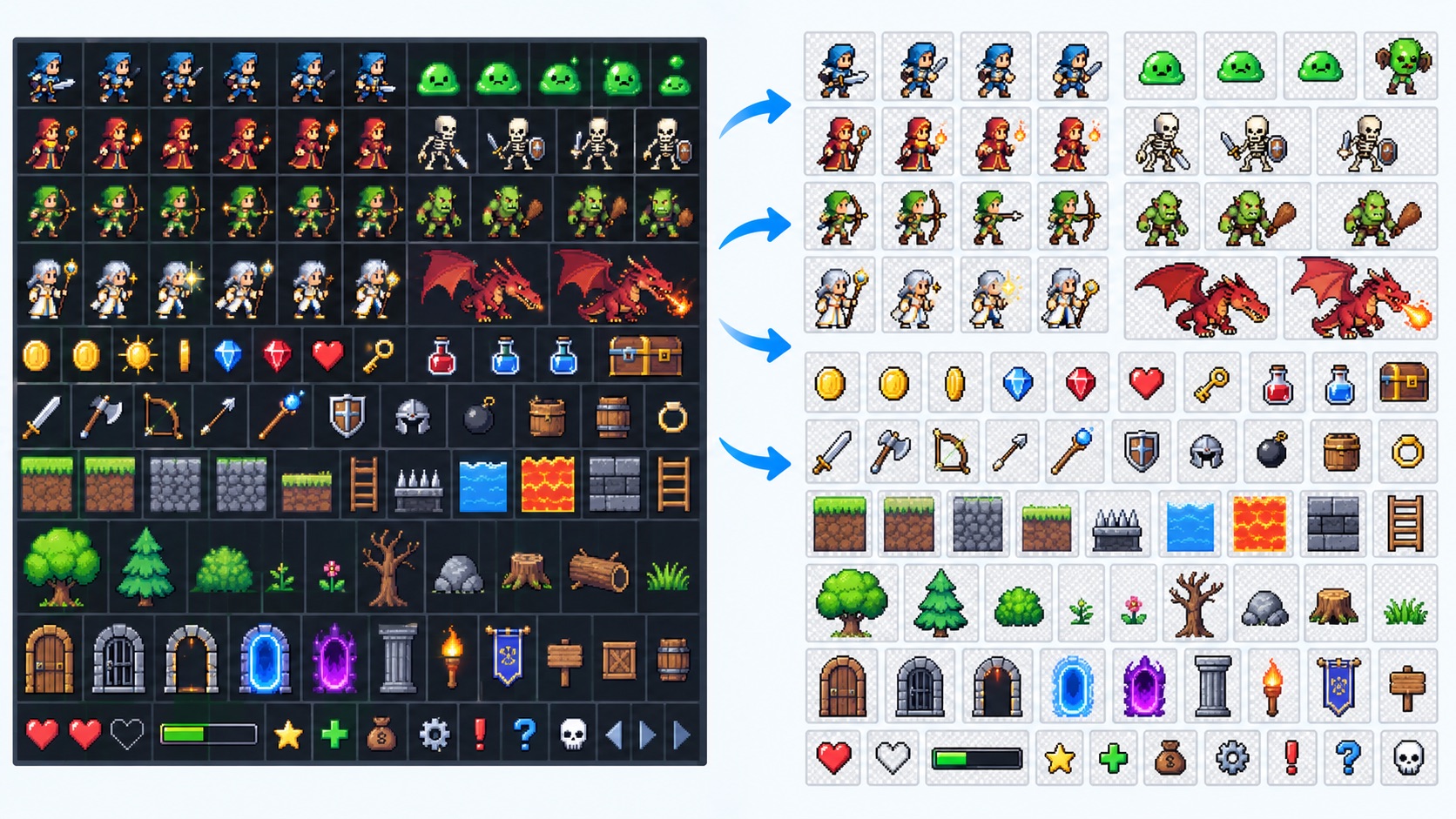
How to Use Image Splitter in 3 Steps
Image Splitter follows the same simple workflow every time: upload a source file, choose a grid or custom structure, and export the finished slices. Image Splitter Online Free makes it easy to test regular tiles, guided cuts, or custom point-based reshaping from the same page.

Upload Your Source Image
Start by uploading the image you want to edit. Image Splitter places it on the canvas instantly, and you can use Replace any time if you want to test another file. This first step is simple whether you want to Split Image Into Grid for a regular layout or use Custom Image Splitter for a more irregular result.

Choose Uniform, Free, or Custom Mode
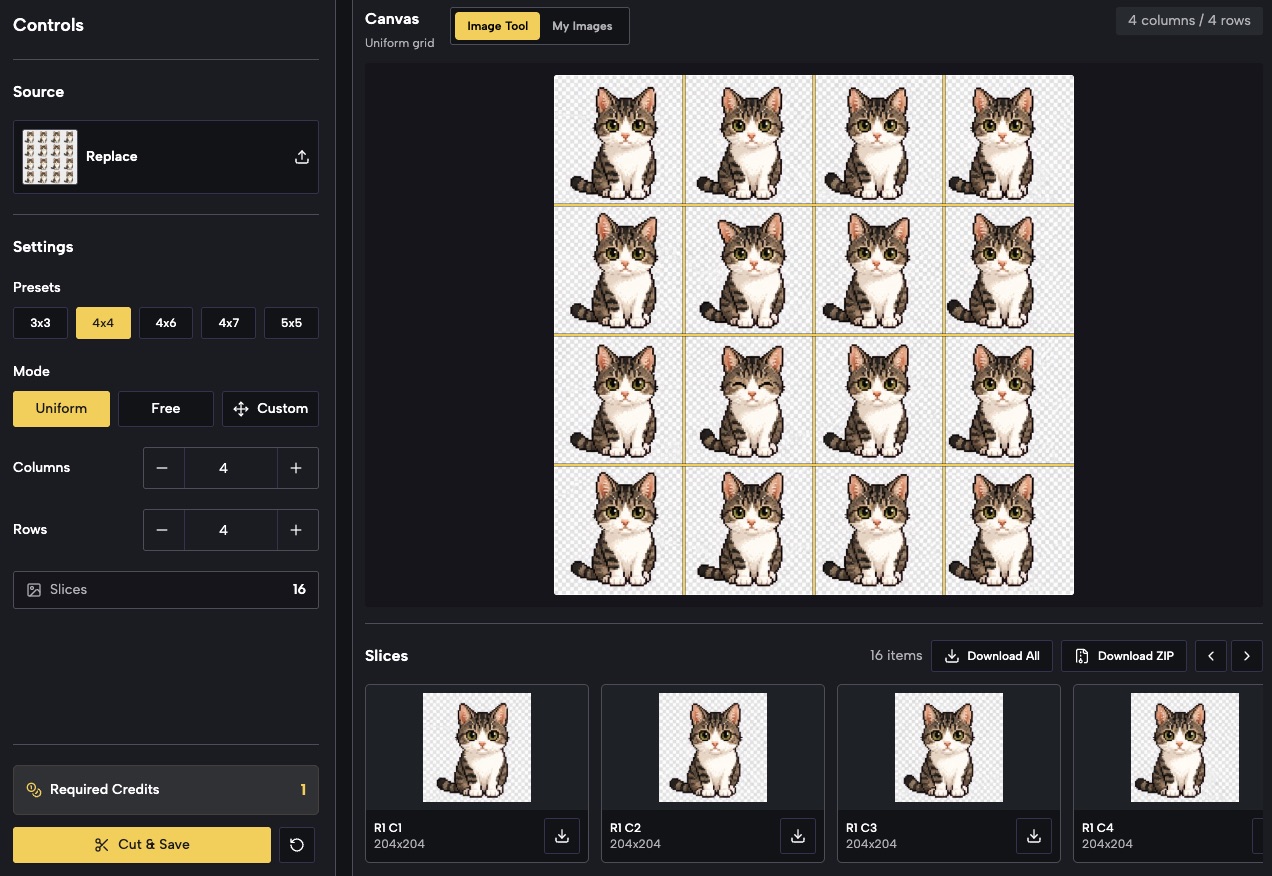
Select a preset such as 3x3, 4x4, 4x6, 4x7, or 5x5, then choose the splitting method that matches your goal. Uniform mode uses rows and columns to Split Image Into Grid with equal sections. Free mode lets you position straight cut lines more flexibly. Custom mode turns the layout into an editable mesh so you can drag grid points and reshape every slice. Image Grid Splitter is ideal for even tiles, while Custom Image Splitter gives you control over irregular boundaries.

Cut, Preview, and Save Your Slices
When the layout looks right, click Cut & Save. Image Slicer turns the design into separate outputs you can preview before downloading. Save one slice at a time, download the full set, or export everything together when you need to Split Image Into Multiple Images from a single source without repeating manual crops.
Why Image Splitter Is Useful in Real Workflows
Image Splitter supports more than simple equal cutting. Image Grid Splitter helps with orderly tile-based layouts, Image Slicer makes exporting fast, and Custom Image Splitter gives you direct control over the shape of each slice. Together, these modes let Image Splitter handle both structured layouts and more creative, irregular divisions.
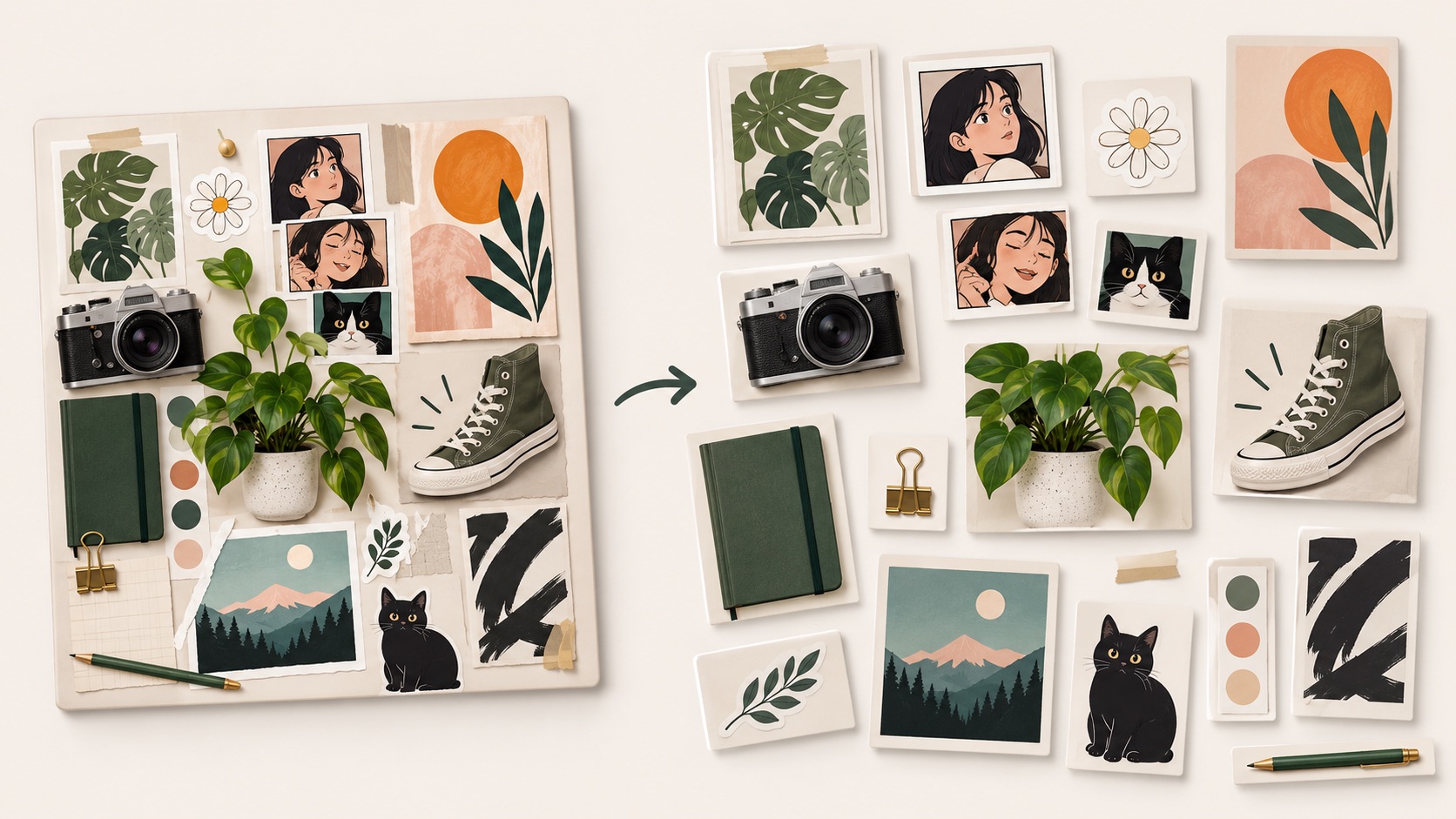
Build Clean Grids for Social Posts, Tiles, and Layouts
Image Splitter is a fast choice when you need predictable, evenly divided results. Set your rows and columns, pick a preset, and let Image Grid Splitter organize the canvas into balanced sections. This is useful for carousel planning, puzzles, tiled visuals, and creative layouts that depend on consistent spacing. If your goal is to Split Image Into Grid and save each tile separately, Image Splitter keeps the structure visible while Image Slicer handles the output. You can check whether faces, products, headlines, or focal details line up well before saving. Image Splitter also works well for creators who want to Split Image Into Multiple Images without repeating the same crop again and again.
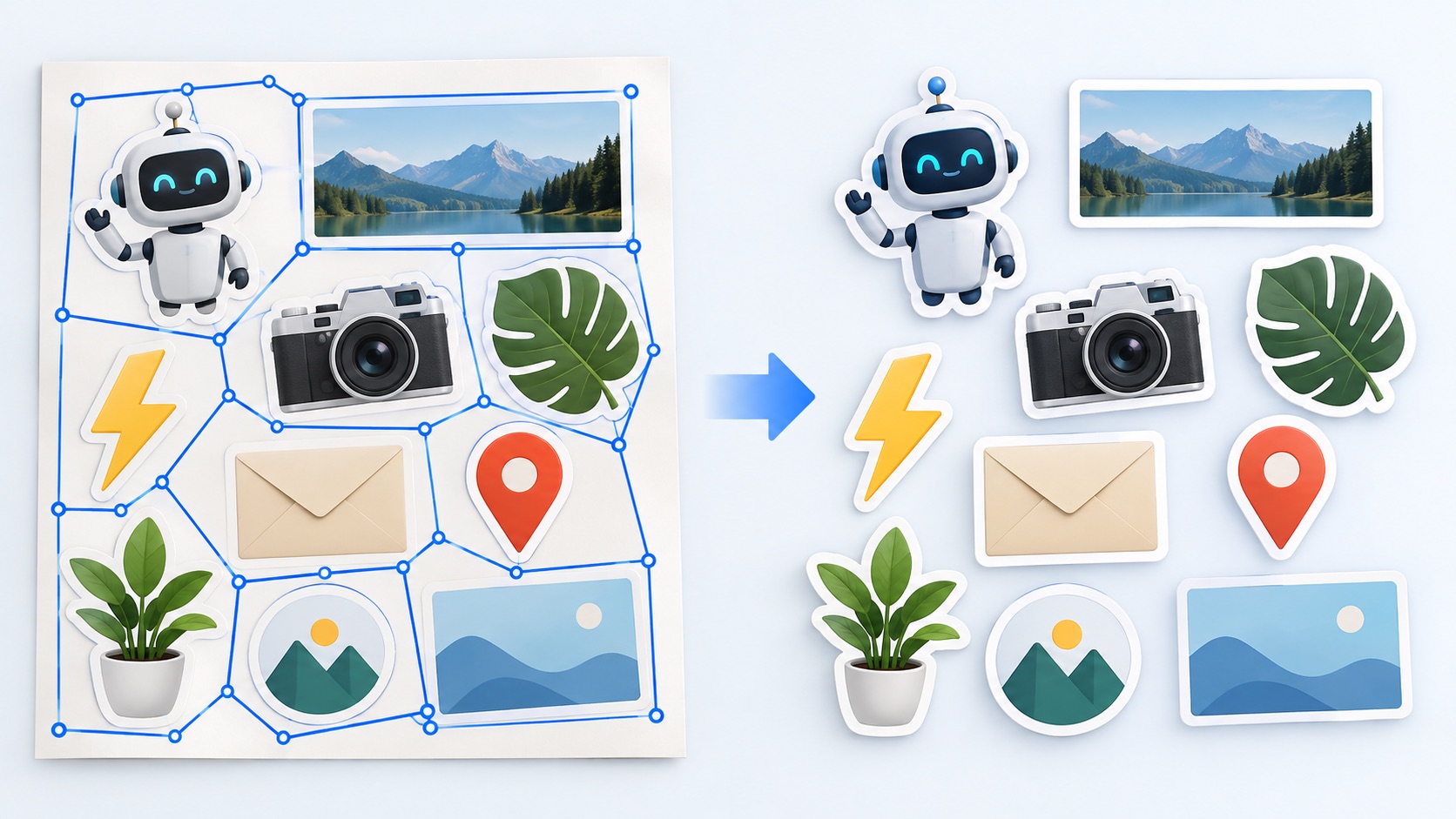
Drag Grid Points to Create Custom-Shaped Slices
Custom Image Splitter adds a new level of control for layouts that should not stay perfectly rectangular. Start with a grid, then drag the intersection points directly on the canvas to reshape the connected sections. This lets Image Splitter create angled and uneven slices that follow artwork, product edges, comic panels, or visual groupings more naturally. Unlike a basic Image Grid Splitter, this mode helps you Split Image Into Parts based on the content, not just on equal spacing. Edge points stay attached to the image, so the overall boundary remains stable while the inner structure changes. Image Slicer then converts the adjusted design into practical outputs you can download and use right away.
Export Every Section Without Re-Cropping by Hand
Once the layout is ready, Image Splitter turns each section into its own result. Download one piece, grab the entire set, or save everything in a single batch for later use. Image Slicer is especially helpful when one source image contains many useful parts and you want a quicker workflow than making separate crops manually. Whether you used Image Grid Splitter for even tiles or Custom Image Splitter for irregular sections, the export step stays straightforward. This is why Image Splitter Online Free works well for designers, sellers, teachers, and creators who need to Split Image Into Multiple Images, organize them quickly, and keep every slice ready for reuse.
Where Image Splitter Fits Best
Image Splitter works well whenever one image contains many parts you want to reuse separately. From neat tiled layouts to irregular creative boards, Image Grid Splitter, Image Slicer, and Custom Image Splitter help Image Splitter adapt to different goals without forcing one fixed cutting method.
Social Media Grids and Tiled Posts
Creators often use Image Splitter to break one design into a series of matching posts. Image Grid Splitter makes it easy to Split Image Into Grid for 3x3 or other tiled formats, while Image Slicer prepares each tile as a separate file. When a layout includes off-center subjects, Image Splitter helps you preview boundaries before exporting the final set.

Collages, Product Boards, and Menu Sheets
When a source image contains several dishes, products, or visual blocks, Image Splitter helps you Split Image Into Multiple Images without remaking each crop. Image Slicer separates the sections after you confirm the layout, and Image Splitter Online Free keeps the process simple. If the structure is uneven, Custom Image Splitter can reshape the sections more precisely.

Comics, Worksheets, and Irregular Panels
Not every page follows equal rows and columns. Image Splitter is useful when you need to Split Image Into Parts that match panel borders or content zones. Image Grid Splitter works for regular panels, but Custom Image Splitter is better when a page needs angled or uneven divisions. Image Slicer then creates separate assets for editing, teaching, or publishing.

Reference Boards and Creative Asset Prep
Mood boards, travel collages, and inspiration sheets often need to be turned into reusable files. Image Splitter lets you separate those boards efficiently, whether you want to Split Image Into Grid for equal sections or use Custom Image Splitter for a looser composition. Image Slicer keeps every selected area ready for download and later use in other projects.
What Users Say About Image Splitter
Users choose Image Splitter for both clean grids and irregular cuts. Their feedback shows how Image Grid Splitter, Image Slicer, and Custom Image Splitter each support a different part of the Image Splitter workflow.
I used Image Splitter for a tiled campaign post and it saved a lot of time. Image Grid Splitter gave me a clean 3x3 layout, and Image Slicer exported each part exactly the way I needed. I could Split Image Into Multiple Images from one design without making separate crops, and the preview made the whole Image Splitter workflow much easier to trust.
I used Image Splitter for a tiled campaign post and it saved a lot of time. Image Grid Splitter gave me a clean 3x3 layout, and Image Slicer exported each part exactly the way I needed. I could Split Image Into Multiple Images from one design without making separate crops, and the preview made the whole Image Splitter workflow much easier to trust.
My favorite part is Custom Image Splitter. I had a page with uneven visual sections, and dragging the grid points made it much easier to fit the boundaries to the content. Image Splitter felt more flexible than a normal grid tool. After I adjusted the layout, Image Slicer gave me usable files right away, which made the full Image Splitter process very practical.
My favorite part is Custom Image Splitter. I had a page with uneven visual sections, and dragging the grid points made it much easier to fit the boundaries to the content. Image Splitter felt more flexible than a normal grid tool. After I adjusted the layout, Image Slicer gave me usable files right away, which made the full Image Splitter process very practical.
I work with product sheets and food collages, so Image Splitter fits my workflow perfectly. I can Split Image Into Parts, check the slice count, and only download what I need. Image Splitter Online Free is easy to understand, and Image Grid Splitter is especially good when every section should stay consistent. Image Slicer turns the final layout into files I can use immediately.
I work with product sheets and food collages, so Image Splitter fits my workflow perfectly. I can Split Image Into Parts, check the slice count, and only download what I need. Image Splitter Online Free is easy to understand, and Image Grid Splitter is especially good when every section should stay consistent. Image Slicer turns the final layout into files I can use immediately.
I started with Image Splitter for classroom materials, but the Custom mode is what made me keep using it. Sometimes I need regular tiles, and sometimes I need irregular sections around diagrams or labels. Image Grid Splitter covers the first case, while Custom Image Splitter covers the second. Image Slicer makes exporting easy, so Image Splitter now saves me a lot of prep time.
I started with Image Splitter for classroom materials, but the Custom mode is what made me keep using it. Sometimes I need regular tiles, and sometimes I need irregular sections around diagrams or labels. Image Grid Splitter covers the first case, while Custom Image Splitter covers the second. Image Slicer makes exporting easy, so Image Splitter now saves me a lot of prep time.




Image Splitter FAQ
These answers cover how Image Splitter works, when to use Image Grid Splitter, how Image Slicer handles output, and how Custom Image Splitter reshapes slices by dragging grid points on the canvas.
Upload your image, choose Uniform, Free, or Custom mode, set the layout, then click Cut & Save. Image Splitter creates separate outputs you can preview and download.
Uniform mode creates equal rows and columns. Free mode lets you position straight cut lines more flexibly. Custom Image Splitter lets you drag grid points to reshape each slice.
Yes. Use rows and columns or a preset such as 3x3 or 4x4. Image Grid Splitter helps you Split Image Into Grid with clean, evenly spaced sections.
Yes. Custom Image Splitter lets you drag intersection points on the image so you can create angled or uneven sections while keeping the outer edges attached.
Yes. Image Slicer turns each finished section into a separate result, so you can download single slices or save the full set together.
Yes. Image Splitter Online Free supports one-by-one downloads as well as full-set export when you want to Split Image Into Multiple Images from one source quickly.
Start Cutting Images Your Way with Image Splitter
Choose a regular grid, free guide lines, or point-based custom shaping. Image Splitter gives you a flexible way to Split Image Into Parts, preview every slice, and save the results you need.