AI Image Tools
Everything You Need to Edit Photos Faster
Open the PicEditor AI tools library for background removal, photo enhancement, object cleanup, face swap, upscaling, and more focused image workflows.

Replace Text in Image

Corpse Bride AI Filter

AI Blemish Remover
FLUX 3 Image Klein

Ideogram 4.5
AI Portrait Retouching

Snatched Waist Editor
AI Facial Expression Changer

AI Texture Generator

AI Nose Piercing Filter
Replace Object in Photo Online
Add Object to Photo
Eyeliner Filter

AI Bust Down Filter

Image Splitter

Snapchat Text Remover
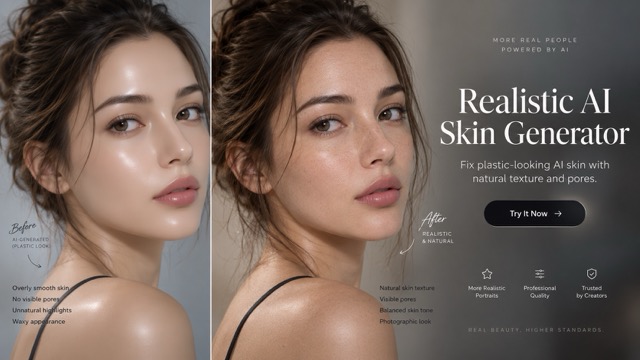
Realistic AI Skin Generator

Add speech bubble to photo
Change Photo Background
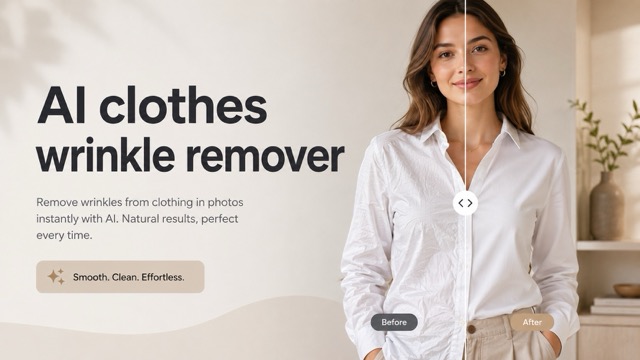
AI Clothes Wrinkle Remover
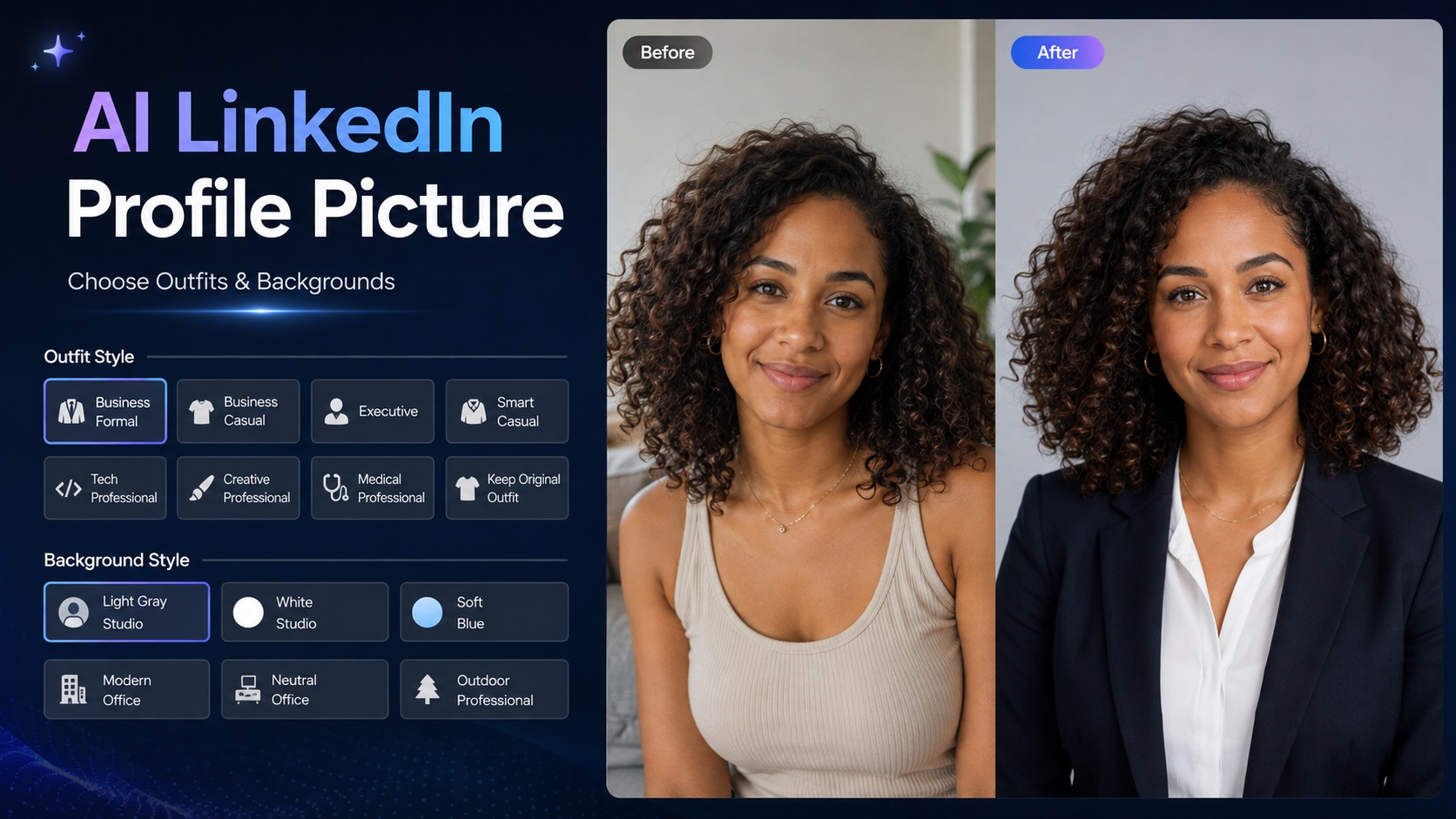
AI LinkedIn Profile Picture
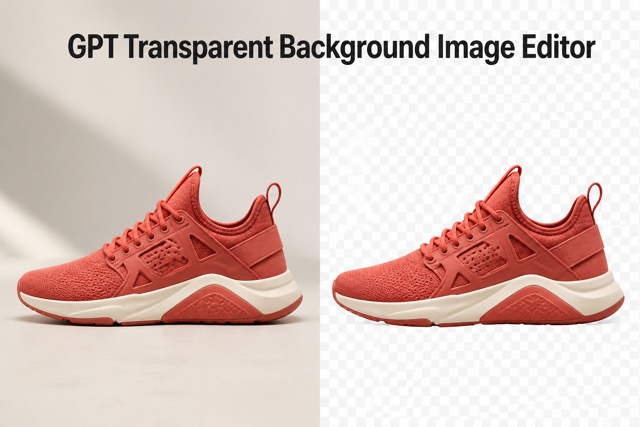
GPT Transparent BG Image Editor
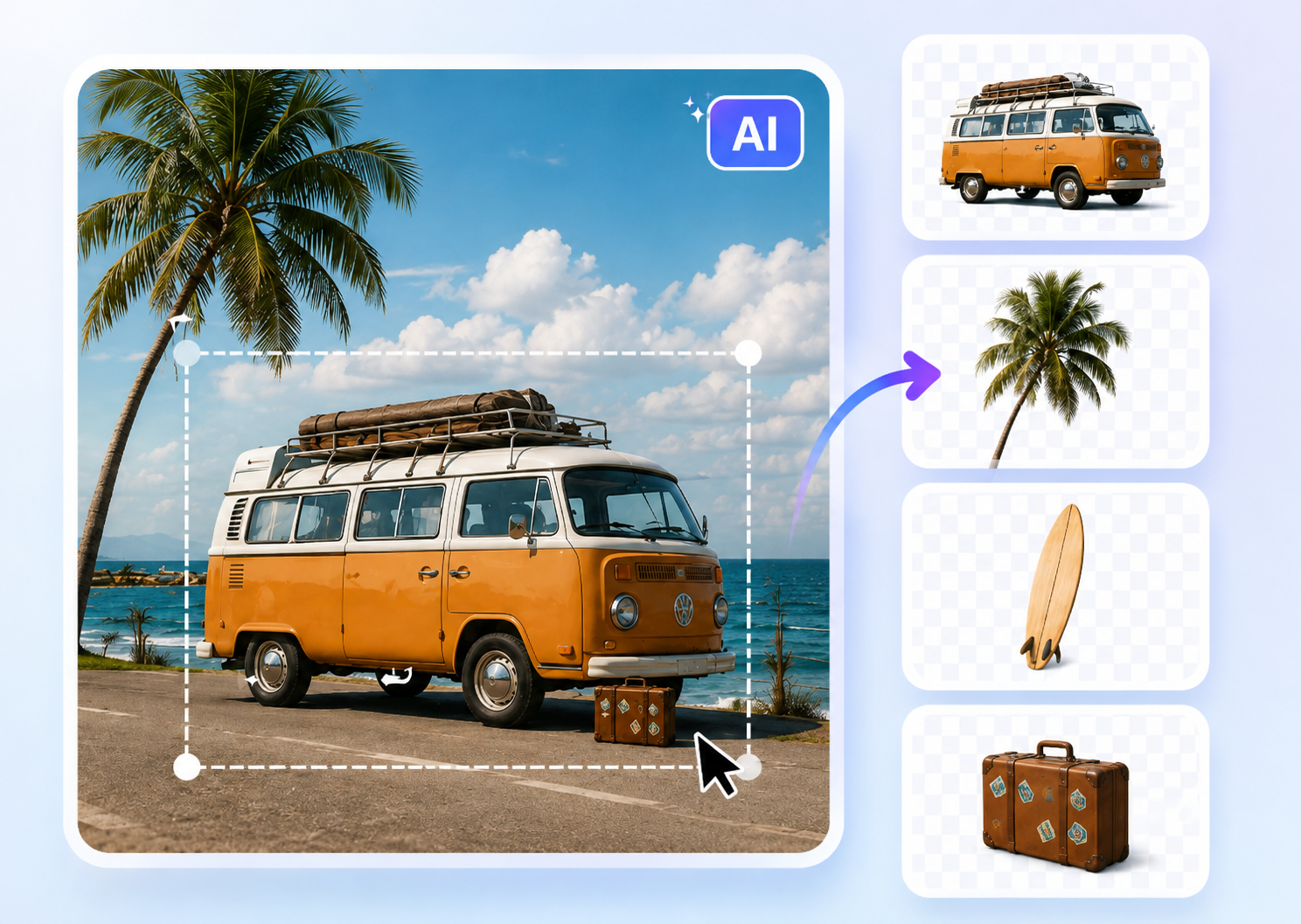
Image to Layers
Add White Background to Photo Online with AI
Create clean, polished images with an AI White Background Maker
Add White Background to Photo in seconds without manual cutouts or complex editing. Our White Background Maker detects the subject, removes distracting surroundings, and creates a clean white canvas while preserving important edges and details. Make Background White for product photos, portraits, logos, food images, and everyday pictures with a simple upload-and-download workflow.

How to Add White Background to Photo
Add White Background to Photo in three simple steps. Upload an image, let the White Background Maker detect and isolate the subject, then review and download your clean result. No Photoshop skills or manual masking are required.

Upload Your Photo
Choose a clear image of a person, product, food, logo, pet, or other subject. The White Background Maker works best when the main subject is visible and reasonably sharp.

Remove the Original Background
AI detects the foreground and removes unwanted surroundings automatically. Fine details such as hair, clothing edges, handles, and product contours are preserved as naturally as possible.

Download the White Background Image
Review the result and download your image. Use the clean white background for ecommerce listings, portraits, ads, documents, presentations, or social media content.
A Smarter Way to Add White Background to Photo
Our White Background Maker combines AI subject detection with clean background replacement. Add White Background to Photo while preserving important details and reducing rough edges, leftover objects, and repetitive manual editing.

Clean AI Background Removal
Add White Background to Photo without manually tracing the subject. AI detects curves, hair, fabric, reflective edges, and small contours to create a cleaner separation. The White Background Maker helps you Make Background White quickly while keeping the original subject clear and natural.

Consistent White for Product Images
Create consistent product photos even when the originals were taken in different locations. Make Background White for clothing, jewelry, cosmetics, electronics, food, and handmade goods so listings and catalogs look cleaner and more unified.

Keep Attention on the Main Subject
Remove busy rooms, streets, desks, or other distracting backgrounds. Add White Background to Photo to give portraits, products, food, crafts, and creative assets a cleaner focal point that is easier to reuse in different designs.

Prepare Images for More Creative Editing
Use a white background as a clean starting point for ads, banners, slides, social posts, and store graphics. After you Make Background White, it becomes easier to add shadows, text, colors, borders, or entirely new scenes.
Where to Add White Background to Photo
People search for ways to Add White Background to Photo for many different reasons, but the underlying goal is usually the same: make the subject clearer and the image easier to reuse. The White Background Maker supports practical workflows across ecommerce, content creation, work, and personal editing. Whenever you need to Make Background White, think about where the final image will appear and how much visual consistency matters.
Ecommerce and Marketplace Listings
Add White Background to Photo to create cleaner product thumbnails and more consistent listing galleries. Choose Add White Background to Photo when inventory photos were taken in different places or at different times. You can Add White Background to Photo to reduce distractions around the product and help buyers compare color, shape, packaging, and details more easily. This workflow fits online shops, resale listings, marketplace catalogs, and small-business product pages.
Portraits and Profile Images
Use Add White Background to Photo when you want a simple portrait for a profile, staff page, speaker card, resume, school project, or presentation. Add White Background to Photo to remove surroundings that may look too casual or visually busy. Choosing to Add White Background to Photo can produce a neutral result that is easy to crop, resize, or place inside a branded layout while keeping the person as the clear focus.
Logos, Objects, and Creative Assets
Add White Background to Photo for isolated objects, packaging shots, crafts, logos, stickers, toys, collectibles, or reference images. With Add White Background to Photo, you can Make Background White before importing the visual into a document, design mockup, presentation, mood board, or social post. The clean background makes the asset easier to view and reduces the chance that unrelated colors from the original scene affect the overall design.

Food, Handmade Goods, and Social Content
Creators can Add White Background to Photo when a dish, handmade item, beauty product, or small object needs to look more focused. The White Background Maker can turn a quick phone photo into a cleaner visual foundation. When you Make Background White, it becomes easier to add captions, promotional text, prices, seasonal graphics, or brand elements without competing with a complicated original background.
Why Users Choose Our White Background Maker
The best reason to Add White Background to Photo is not simply that white looks clean. It is that a predictable background can make everyday editing faster, especially when you work with many images. Users value a White Background Maker that reduces manual steps and makes it easy to Make Background White without learning a complicated design workflow.
I photograph small accessories at home, so every setup looks slightly different. I use Add White Background to Photo to make the listing images feel like one collection. Using Add White Background to Photo saves me from tracing every product by hand, and I can Add White Background to Photo before adding prices or promotional graphics.
I photograph small accessories at home, so every setup looks slightly different. I use Add White Background to Photo to make the listing images feel like one collection. Using Add White Background to Photo saves me from tracing every product by hand, and I can Add White Background to Photo before adding prices or promotional graphics.
For quick client previews, I often need to Add White Background to Photo before placing an image into a layout. I can Add White Background to Photo for a clean starting point, and Add White Background to Photo much faster than rebuilding masks for simple edits.
For quick client previews, I often need to Add White Background to Photo before placing an image into a layout. I can Add White Background to Photo for a clean starting point, and Add White Background to Photo much faster than rebuilding masks for simple edits.
I sell pre-owned items and do not have a studio. Add White Background to Photo helps my pictures look more consistent even when they were taken in different rooms. I can Add White Background to Photo quickly, then Add White Background to Photo across the rest of the set to keep buyers focused on the item.
I sell pre-owned items and do not have a studio. Add White Background to Photo helps my pictures look more consistent even when they were taken in different rooms. I can Add White Background to Photo quickly, then Add White Background to Photo across the rest of the set to keep buyers focused on the item.
Our team needs simple staff and speaker images for presentations. We Add White Background to Photo so the portraits work with different slide designs. We can Add White Background to Photo ourselves and Add White Background to Photo without sending every small edit back to a designer.
Our team needs simple staff and speaker images for presentations. We Add White Background to Photo so the portraits work with different slide designs. We can Add White Background to Photo ourselves and Add White Background to Photo without sending every small edit back to a designer.
I create product posts on my phone and want a clean base before adding text. I Add White Background to Photo first, then build the final social graphic. I can Add White Background to Photo quickly and Add White Background to Photo across a campaign while keeping the product itself easy to see.
I create product posts on my phone and want a clean base before adding text. I Add White Background to Photo first, then build the final social graphic. I can Add White Background to Photo quickly and Add White Background to Photo across a campaign while keeping the product itself easy to see.





Add White Background to Photo FAQ
Still deciding how to Add White Background to Photo? These answers explain how the White Background Maker works, when to Make Background White, and what kinds of photos are best suited to the workflow.
Upload your image, let AI identify the main subject, and replace the existing surroundings with a clean white background. The White Background Maker automates subject separation so you do not have to erase the background manually. After you Make Background White, review edges around hair, clothing, transparent areas, or reflective objects, then download the finished image.
Yes. You can Add White Background to Photo directly with an online AI workflow instead of building layers and masks in professional desktop software. The White Background Maker is designed to Make Background White with fewer steps, making it useful for beginners, ecommerce sellers, marketers, students, and creators who need a quick result.
A white background is useful when you want the product to remain the main visual focus and when you need a consistent catalog style. Many sellers Add White Background to Photo after shooting products in ordinary rooms or temporary setups. A White Background Maker can help you Make Background White across multiple images so the gallery looks more unified.
Images with a visible subject, reasonable lighting, and enough contrast around important edges are usually easier to process. You can still Add White Background to Photo when the original setting is busy, but extremely blurred edges, heavy motion, or very low resolution may reduce precision. To Make Background White cleanly, start with the clearest source image available.
The goal is to change the background while preserving the main subject. The White Background Maker focuses on separating foreground from background, not redesigning the person or object. When you Make Background White, always review fine details such as hair, fur, thin straps, jewelry, glass, or reflective edges before using the image in an important listing or design.
Add White Background to Photo in Seconds
Turn a distracting image into a clean, reusable visual with a simple AI workflow. Use the White Background Maker to Add White Background to Photo, keep attention on the subject, and Make Background White for products, portraits, listings, presentations, and creative projects. Upload your image and create a polished white-background result without complicated manual editing.