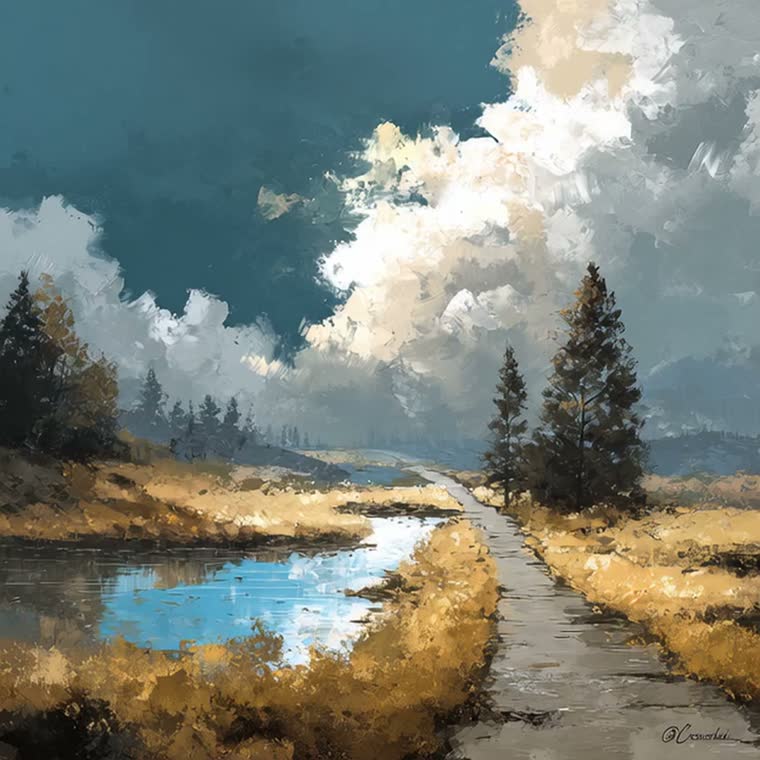
Create images from text or guide edits with visual references. Describe your scene, review the details, and refine your next idea.
AI Image Tools
Everything You Need to Edit Photos Faster
Open the PicEditor AI tools library for background removal, photo enhancement, object cleanup, face swap, upscaling, and more focused image workflows.
Ideogram 4.5
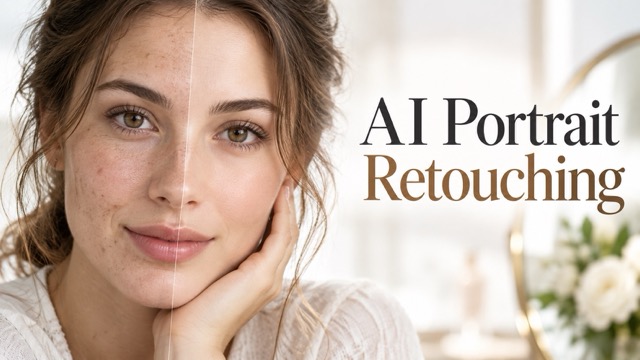
AI Portrait Retouching

Snatched Waist Editor
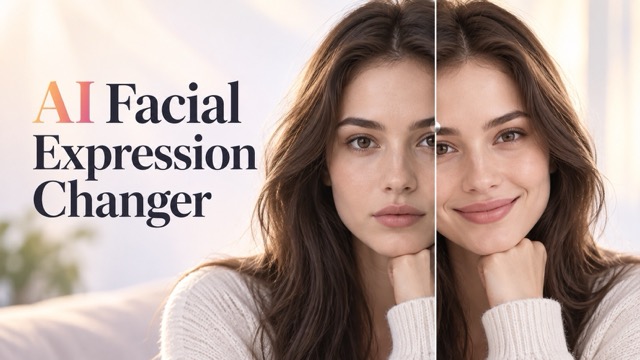
AI Facial Expression Changer

AI Texture Generator
AI Nose Piercing Filter
Replace Object in Photo Online
Add Object to Photo
Eyeliner Filter
AI Bust Down Filter

Image Splitter

Add White Background to Photo
Snapchat Text Remover
Realistic AI Skin Generator

Add speech bubble to photo

Change Photo Background

AI Clothes Wrinkle Remover
AI LinkedIn Profile Picture
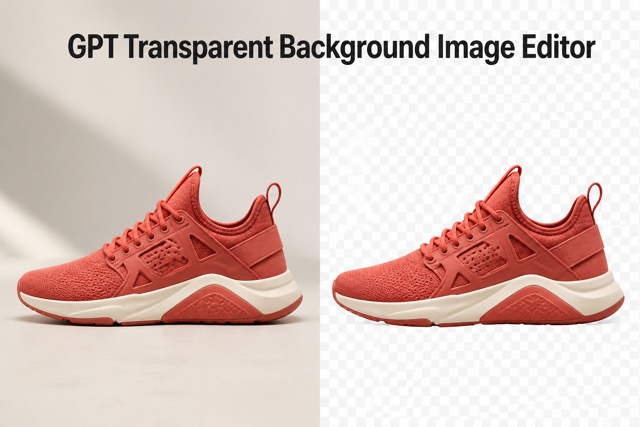
GPT Transparent BG Image Editor
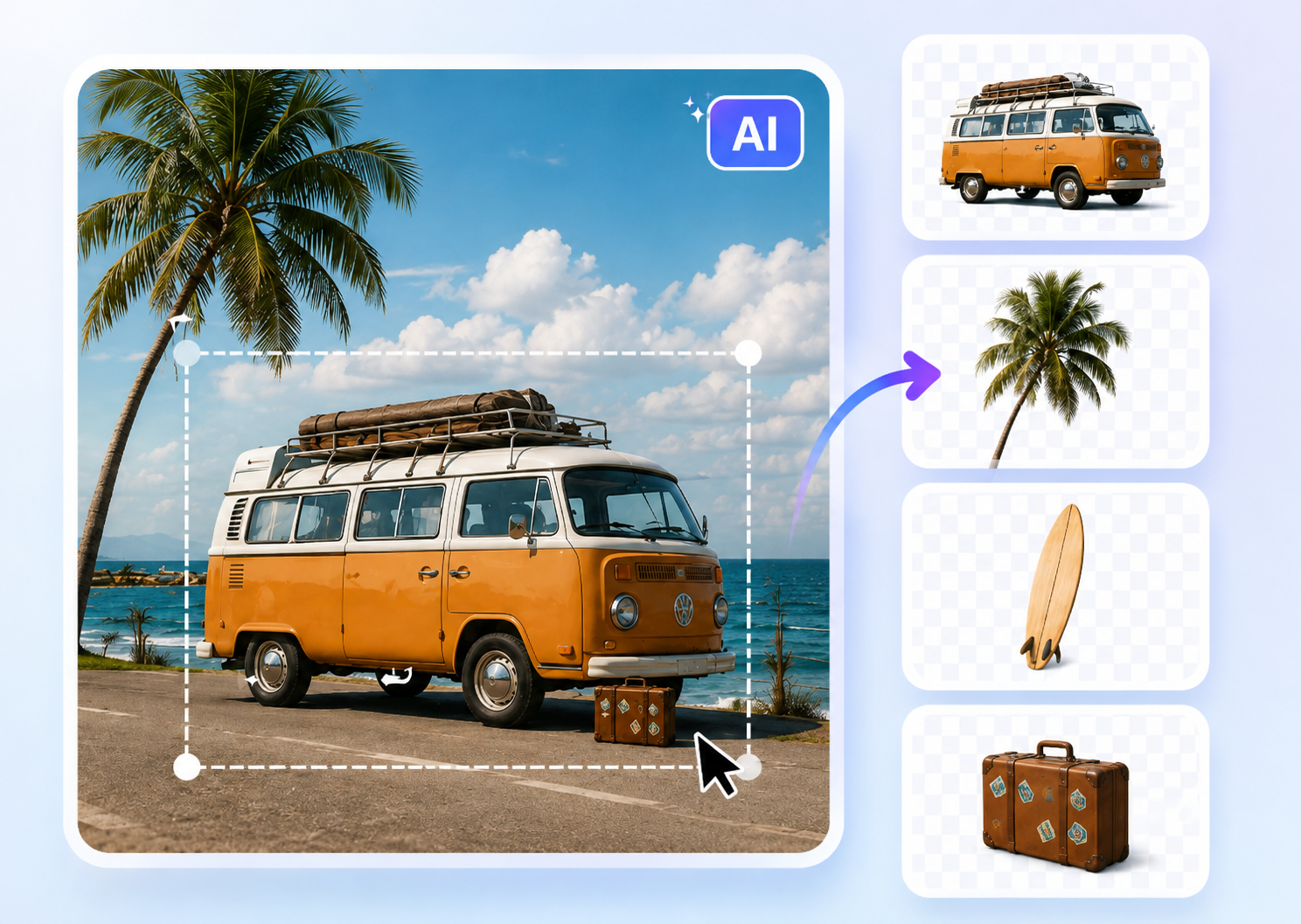
Image to Layers
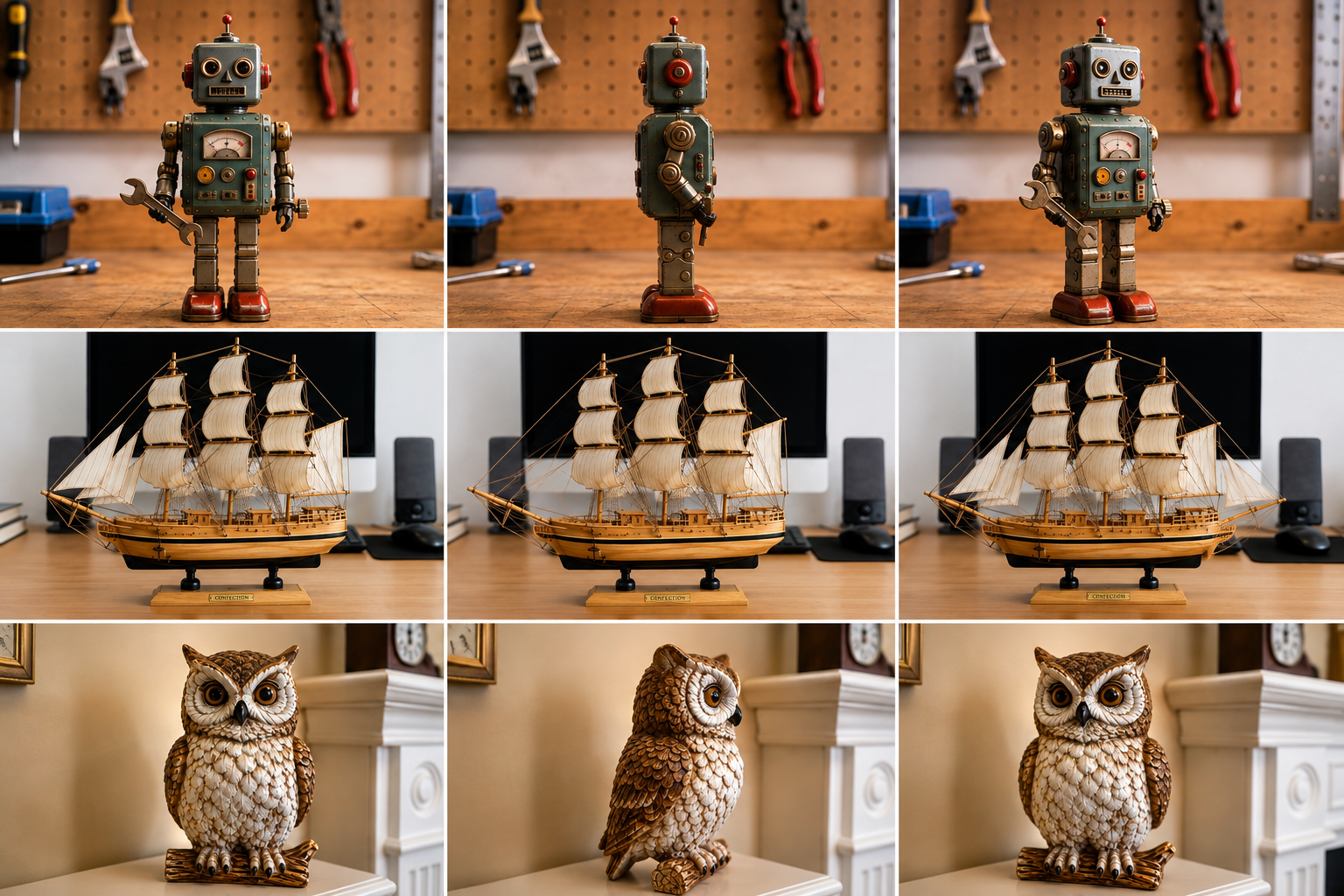
3D Angle Editor

Change Background of Photo
Add Text to Image
FLUX 3 Image Klein: Create And Edit With More Direction
Your AI Image Generator And AI Image Editor For Detailed Creative Briefs
FLUX 3 Image Klein brings image creation and editing into one compact model. Start with a written idea, guide a change with a reference, or develop a composition around the details that matter to your project. Use this AI image generator to explore product scenes, editorial portraits, illustrations, and campaign concepts. Use its AI image editor capabilities to describe a different color, setting, or treatment in an existing picture. FLUX 3 Image Klein online gives your creative brief a practical starting point: explain the subject, define the scene, and review the result before making your next decision. Keep each request focused so the image has a clear visual purpose.
How To Create With FLUX 3 Image Klein
A useful result starts with a clear brief. FLUX 3 Image Klein can work from text or reference images, so choose the starting point that best communicates your idea. These four steps help you direct an AI image generator and review an AI image editor without turning every revision into a new project.

Choose Your Starting Point
Start FLUX 3 Image Klein with a scene description when you want an original image. For a change to an existing picture, supply a clear reference through the available upload controls. Choose a clear source with useful lighting and readable details. Your AI image generator needs a precise subject; your AI image editor needs an understandable source. Before using FLUX 3 Image Klein online, decide if you are exploring a new concept or revising an existing visual.

Describe The Result You Want
Tell FLUX 3 Image Klein what the finished picture should show. Include the main subject, action, camera angle, background, lighting, and visual style. For edits, explain the change and the details you want to retain. Treat your AI image generator brief like a photographer’s assignment. Treat your AI image editor brief like a focused revision note. FLUX 3 Image Klein works best with a coherent scene rather than a loose collection of fashionable adjectives.

Generate A Focused Variation
Run FLUX 3 Image Klein with the options available in the generator. Start with one clear direction, then compare the result with your original goal. If you need a softer mood, a different arrangement, or a stronger color relationship, adjust that part of the brief first. An AI image generator becomes easier to direct when changes have a purpose. FLUX 3 Image Klein image editing is also easier to assess when each request has one main objective.

Review Details And Refine
Inspect the result from FLUX 3 Image Klein at a useful viewing size. Check subject shape, hands, edges, lettering, reflections, and any reference details that matter. Use your AI image editor to explore another version when the picture needs refinement. Keep a copy of the strongest result and the prompt that produced it. FLUX 3 Image Klein online supports an iterative creative approach: compare carefully, describe the next improvement, and stop when the image communicates your intended idea.
What You Can Create With FLUX 3 Image Klein
FLUX 3 Image Klein combines original generation, reference based changes, and multi-reference composition in the same model family. That gives an AI image generator a wider creative role and makes an AI image editor useful earlier in the process. Build a direction from scratch, revise a promising picture, or describe how selected references should contribute to one scene.
Build A Complete Scene From Your Prompt With FLUX 3 Image Klein
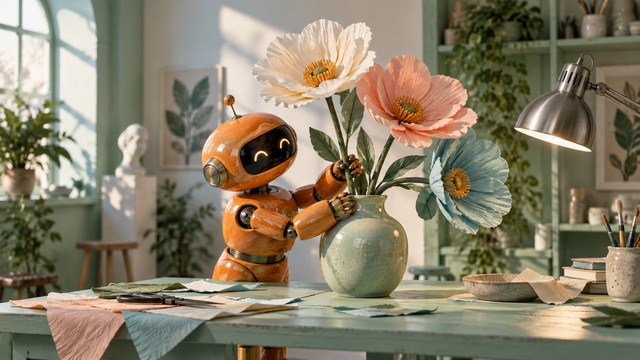
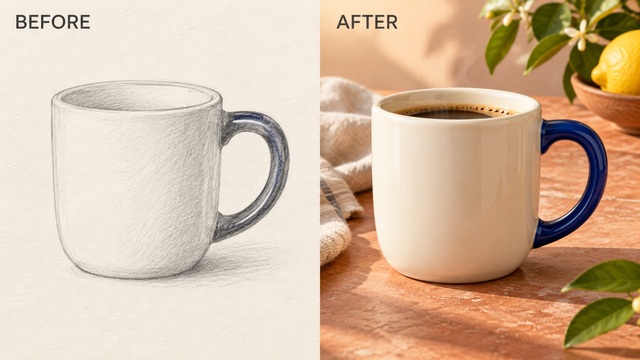
Use FLUX 3 Image Klein to describe an image before you have a source photo. Give the AI image generator a concrete visual assignment: a subject, a setting, an arrangement, and a lighting direction. Describe materials and proportions when they carry the idea. FLUX 3 Image Klein supports varied visual treatments, but the brief should still read as one coherent picture. You can later use its AI image editor capabilities to explore changes to a selected result.
Revise The Details That Matter With FLUX 3 Image Klein
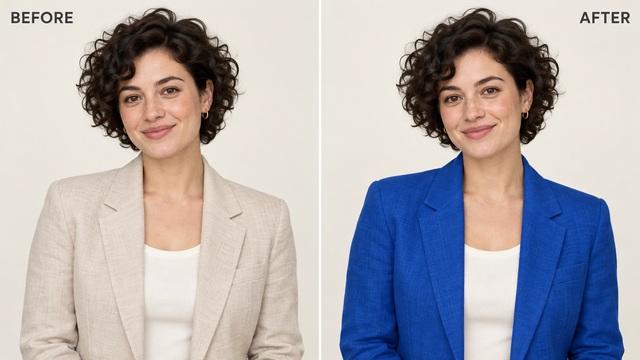
FLUX 3 Image Klein image editing lets you describe a change using an existing picture as context. Try a different product color, a quieter background, or another visual treatment while explaining what should remain recognizable. Ask the AI image editor for a specific result and compare it closely with the source. A focused instruction such as changing a jacket to cobalt blue gives you a clearer review task than asking for a completely better portrait. FLUX 3 Image Klein can also serve as an AI image generator for a replacement concept when the original framing no longer fits. Reference guidance helps communicate your intent, but individual features and nearby content can still change. Review important details before using an edited image in a finished project, especially when lettering, likeness, or exact product specifications are essential.
Combine References With A Clear Visual Plan With FLUX 3 Image Klein
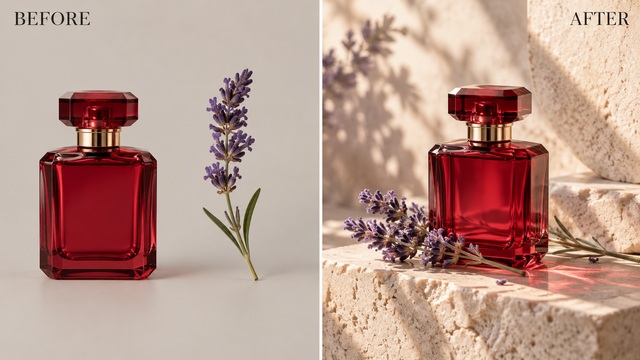
Give FLUX 3 Image Klein a defined role for each reference: one might establish the subject, another the visual treatment, and another the setting. Describe the finished scene and explain which elements belong together. The model supports up to ten reference images, although the upload controls available in a particular interface determine what you can supply there. Your AI image generator brief should resolve competing colors, viewpoints, and lighting directions. Your AI image editor brief should identify which picture is the starting point for the revision. FLUX 3 Image Klein also supports prompt based bounding boxes in compatible workflows to guide placement and scale. Those boxes guide composition rather than creating strict pixel masks. Keep the arrangement simple enough to review, then check that the final image follows the relationships you intended.
Put FLUX 3 Image Klein To Work
Use FLUX 3 Image Klein for projects with a defined audience and purpose. Explore an idea with an AI image generator, then develop a selected direction with an AI image editor. These are creative suggestions, not result guarantees.

Product And Campaign Concepts
Explore a product scene with FLUX 3 Image Klein before committing to a larger shoot. Describe the product, surface, background, mood, and space needed around the subject. An AI image generator can help you compare a clean studio treatment with a more expressive seasonal concept. Use an AI image editor to investigate a different color relationship or setting. FLUX 3 Image Klein image editing is useful for exploring direction, but product dimensions, labels, and identifying details still need a careful final review.

Portraits With A Different Mood
Give FLUX 3 Image Klein a portrait reference and explain the lighting, background, or artistic treatment you want to explore. Keep your notes specific about the expression, pose, and details that matter. An AI image editor can help develop an editorial direction, while an AI image generator can help you imagine a different scene around that brief. FLUX 3 Image Klein may alter facial details, so compare the result with the source and use appropriate permission for identifiable people.

Illustration And Story Concepts
Build a scene around a character, object, or moment with FLUX 3 Image Klein. Explain the action and the visual relationships before specifying texture or style. Your AI image generator can explore a playful paper treatment, a detailed painted scene, or a restrained graphic approach. Use your AI image editor to revise a selected direction. FLUX 3 Image Klein works as a concept partner when you keep a record of character details and inspect consistency between images.

Social And Editorial Visuals
Use FLUX 3 Image Klein online to develop a visual around one message rather than filling the frame with competing ideas. Decide where the subject should sit and where later design work needs breathing room. An AI image generator can help test a campaign composition; an AI image editor can help simplify a busy source. FLUX 3 Image Klein gives you another way to explore visual direction before adding final typography, checking rights, and preparing the finished layout.
Creative Perspectives On FLUX 3 Image Klein
The names and reactions below are fictional examples of creative priorities, not verified customer endorsements or reports of measured results.
I like how FLUX 3 Image Klein connects a detailed scene description with a focused revision. My priority is a composition that gives the subject room to breathe and makes the intended message clear.
I like how FLUX 3 Image Klein connects a detailed scene description with a focused revision. My priority is a composition that gives the subject room to breathe and makes the intended message clear.
FLUX 3 Image Klein interests me as an AI image generator and AI image editor for product concepts. I want useful variations in atmosphere while checking the shape, labels, and details that matter.
FLUX 3 Image Klein interests me as an AI image generator and AI image editor for product concepts. I want useful variations in atmosphere while checking the shape, labels, and details that matter.
FLUX 3 Image Klein gives a character concept a concrete visual starting point. I prefer a coherent story over a picture packed with effects, with reference details guiding each revision.
FLUX 3 Image Klein gives a character concept a concrete visual starting point. I prefer a coherent story over a picture packed with effects, with reference details guiding each revision.
I value the deliberate creative approach of FLUX 3 Image Klein: choose a promising composition, identify the next improvement, and keep the prompt clear. The final image still needs a careful review.
I value the deliberate creative approach of FLUX 3 Image Klein: choose a promising composition, identify the next improvement, and keep the prompt clear. The final image still needs a careful review.

FLUX 3 Image Klein Questions Answered
Use an AI image generator to explore a new scene and an AI image editor to revise a selected picture. Understand the model, write a clearer brief, and know what to check in the finished result.
FLUX 3 Image Klein is an open weights AI image generator and AI image editor from Black Forest Labs for text-to-image generation, image editing, and multi-reference composition. Its image generator has 5.6 billion parameters, with a separate text encoder. A distilled checkpoint is intended for generation and editing, while a base checkpoint supports training and research. For everyday creative work, the important point is the unified workflow: describe a new image or supply references and explain the result you want.
Describe a complete scene: subject, action, setting, composition, lighting, materials, and visual treatment. FLUX 3 Image Klein responds to detailed captions, and the official workflow recommends expanding short requests before generation. Keep the details consistent and put the main creative goal first. For revisions, say what should change and what should remain recognizable. Specific visual direction gives you a better basis for comparing the generated result with your brief. Give your AI image generator one clear goal, and keep each AI image editor revision focused.
Yes. FLUX 3 Image Klein image editing uses references and a written instruction to guide a new result. The same model can handle original generation and reference based work. Explain the requested change clearly and review the whole picture afterward. A direction to modify one element does not guarantee that every surrounding pixel will remain identical. Exact preservation depends on the workflow and any restoration features provided by the service.
FLUX 3 Image Klein supports up to ten reference images at the model level. The interface you use may expose a smaller number, so follow its visible upload options. Explain the role of each reference and describe the final composition. Conflicting viewpoints or styles make a brief harder to follow. A few carefully chosen references can communicate more clearly than a larger set without a defined purpose.
The model supports native 4K generation and bounding box guidance in compatible workflows. Available resolution choices and layout controls depend on the service you use. FLUX 3 Image Klein boxes guide position and scale; they are not strict masks. A subject can extend beyond a requested box. Check the available settings, inspect small details, and avoid assuming that a model capability is exposed identically in every interface.
FLUX 3 Image Klein weights use the FLUX Kommunity License, with conditions for non-commercial use and commercial output generation by qualifying users. Hosted services apply their own access and billing terms, so open weights do not mean free online generation. Commercial training, redistribution, and other uses need a separate review of the applicable license. Check the current service terms and the rights to any uploaded images before using a result commercially.
Create Your Next Image With FLUX 3 Image Klein
Bring FLUX 3 Image Klein a clear visual idea. Use this AI image generator for a new composition or its AI image editor capabilities for a focused revision. Describe the result, inspect the details, and refine the strongest version. Use the AI image generator to compare a new direction, then the AI image editor to develop your preferred result.