AI Image Tools
Everything You Need to Edit Photos Faster
Open the PicEditor AI tools library for background removal, photo enhancement, object cleanup, face swap, upscaling, and more focused image workflows.
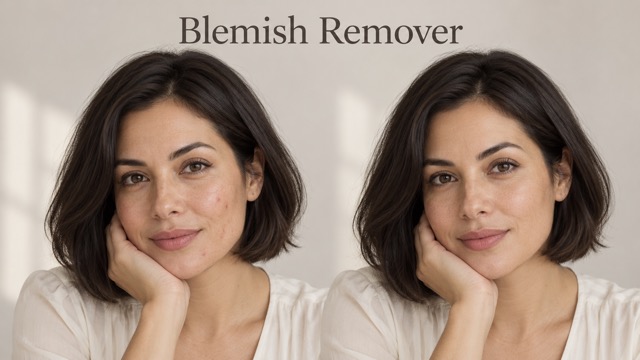
AI Blemish Remover
FLUX 3 Image Klein
Ideogram 4.5
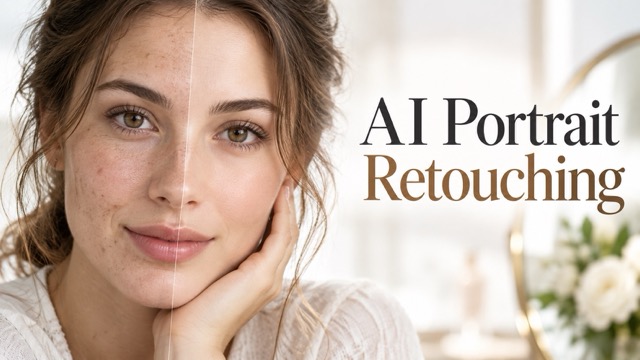
AI Portrait Retouching
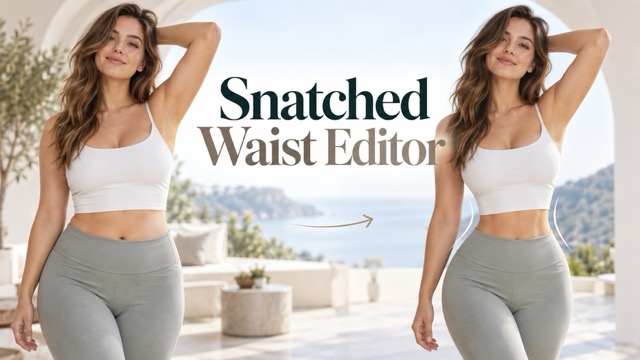
Snatched Waist Editor
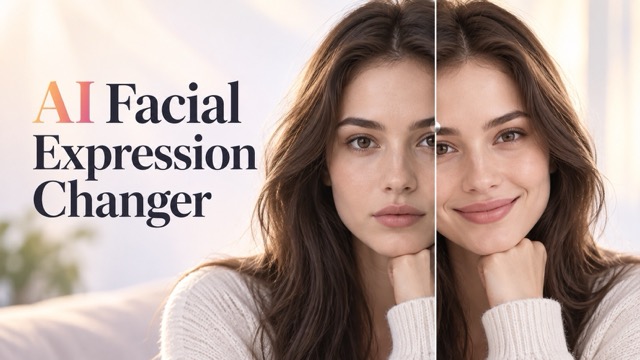
AI Facial Expression Changer

AI Texture Generator
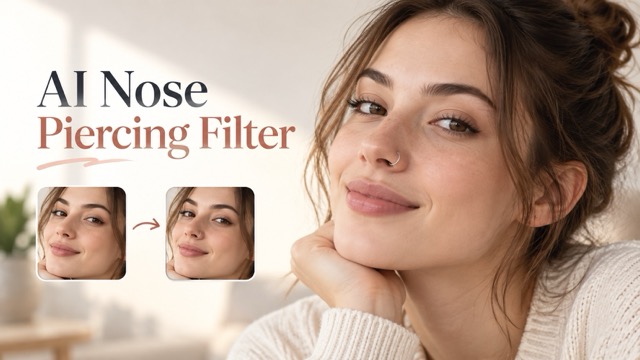
AI Nose Piercing Filter
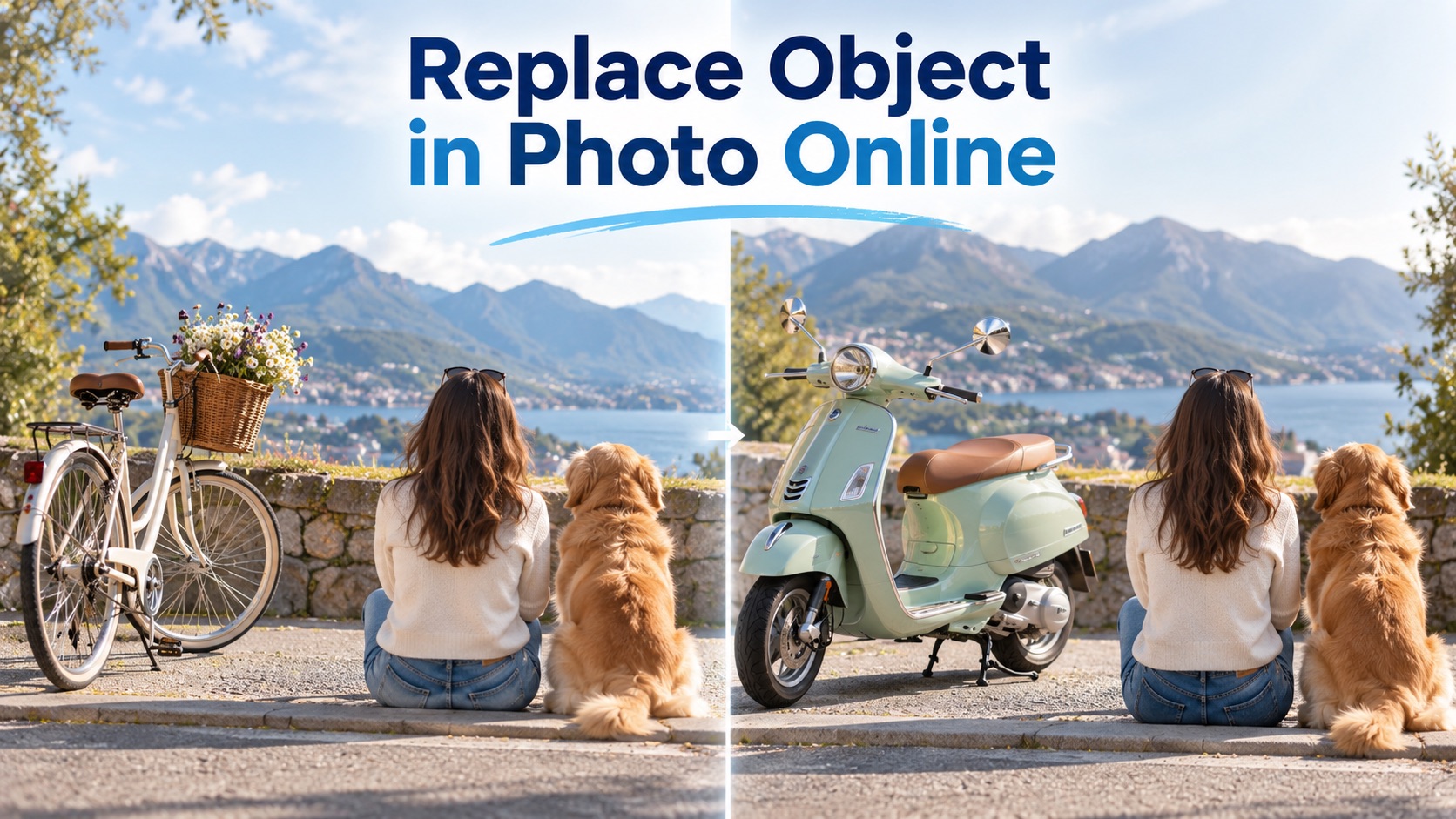
Replace Object in Photo Online
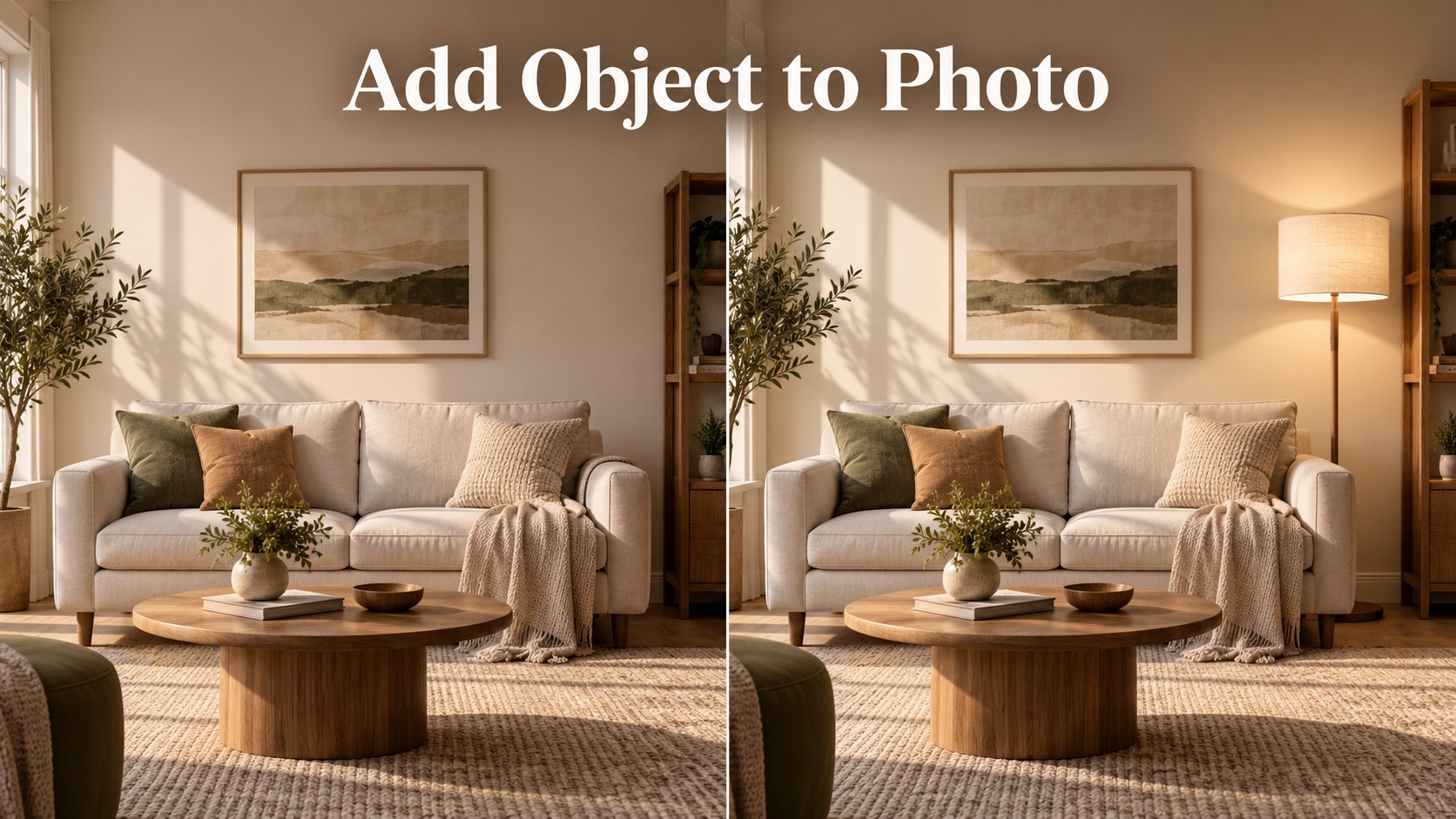
Add Object to Photo
Eyeliner Filter
AI Bust Down Filter

Image Splitter

Add White Background to Photo
Snapchat Text Remover
Realistic AI Skin Generator
Add speech bubble to photo
Change Photo Background
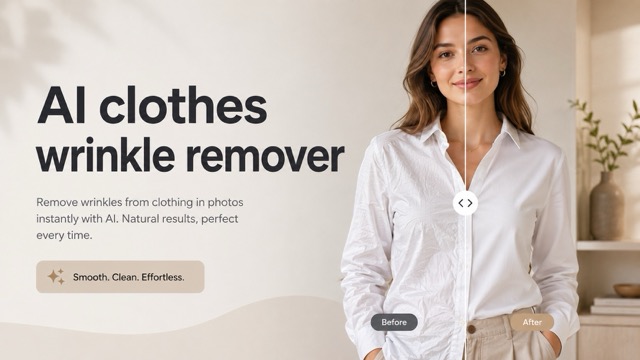
AI Clothes Wrinkle Remover
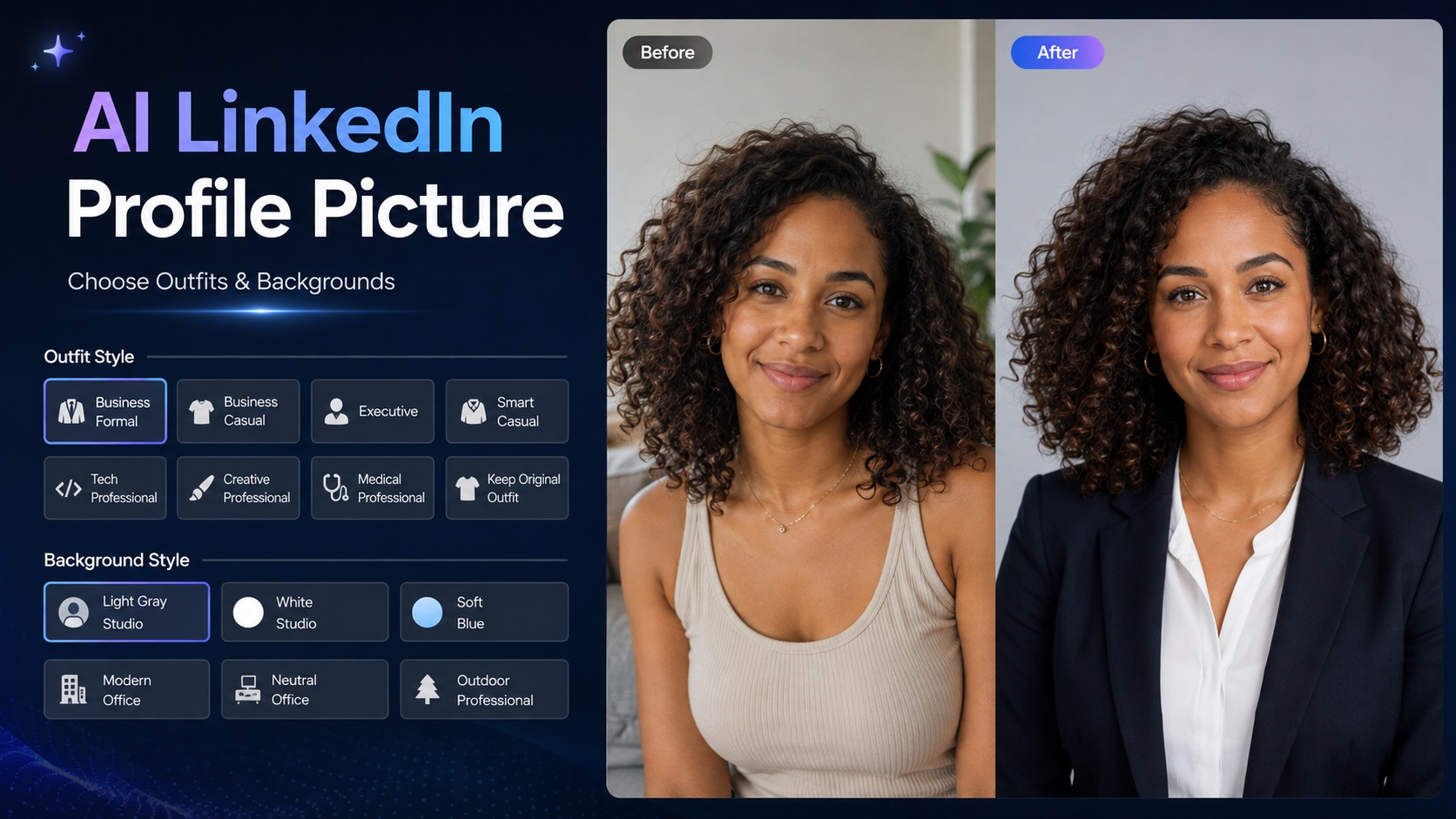
AI LinkedIn Profile Picture
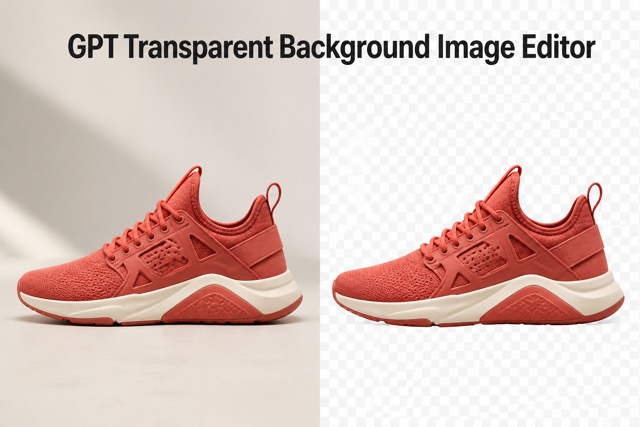
GPT Transparent BG Image Editor
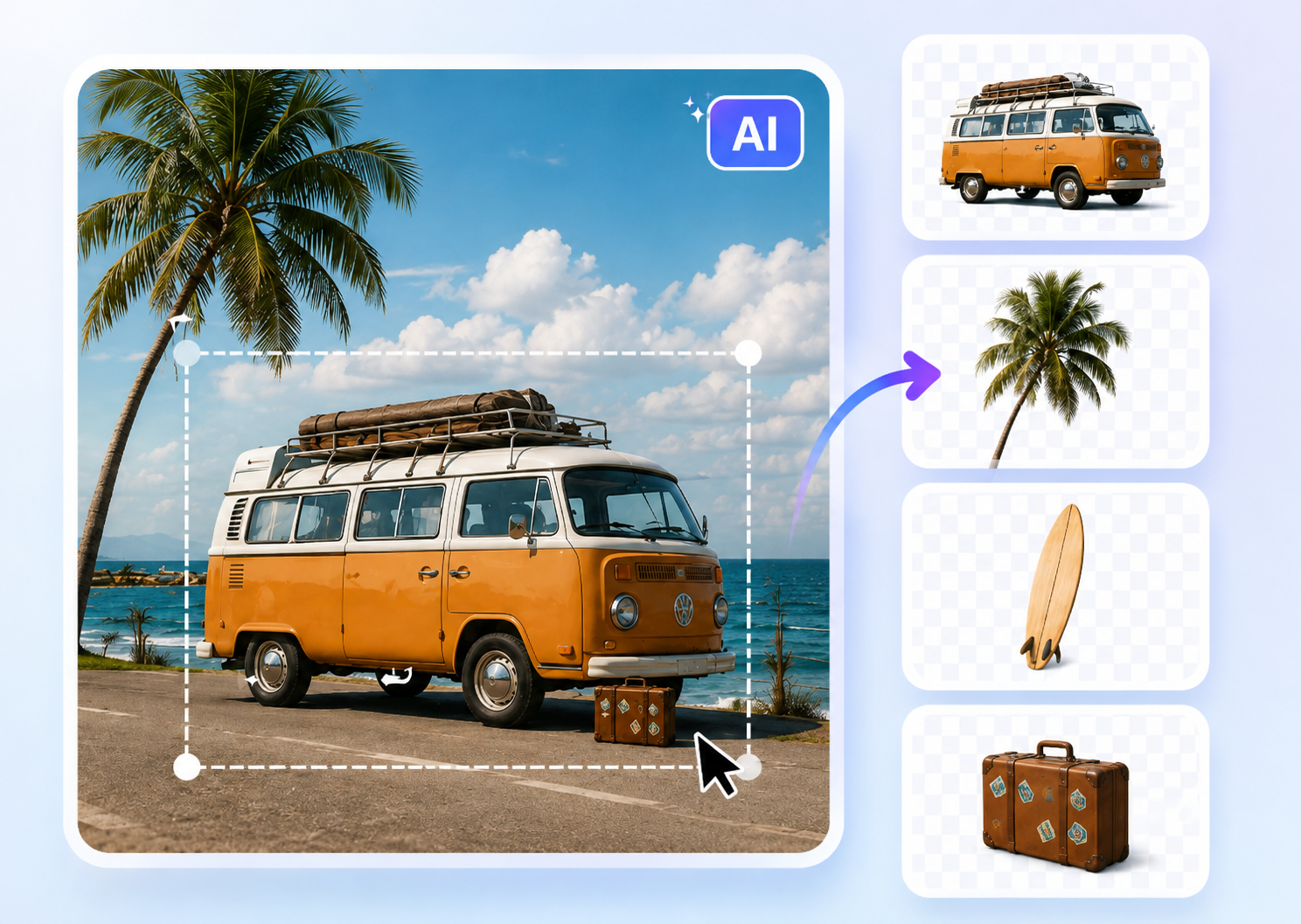
Image to Layers
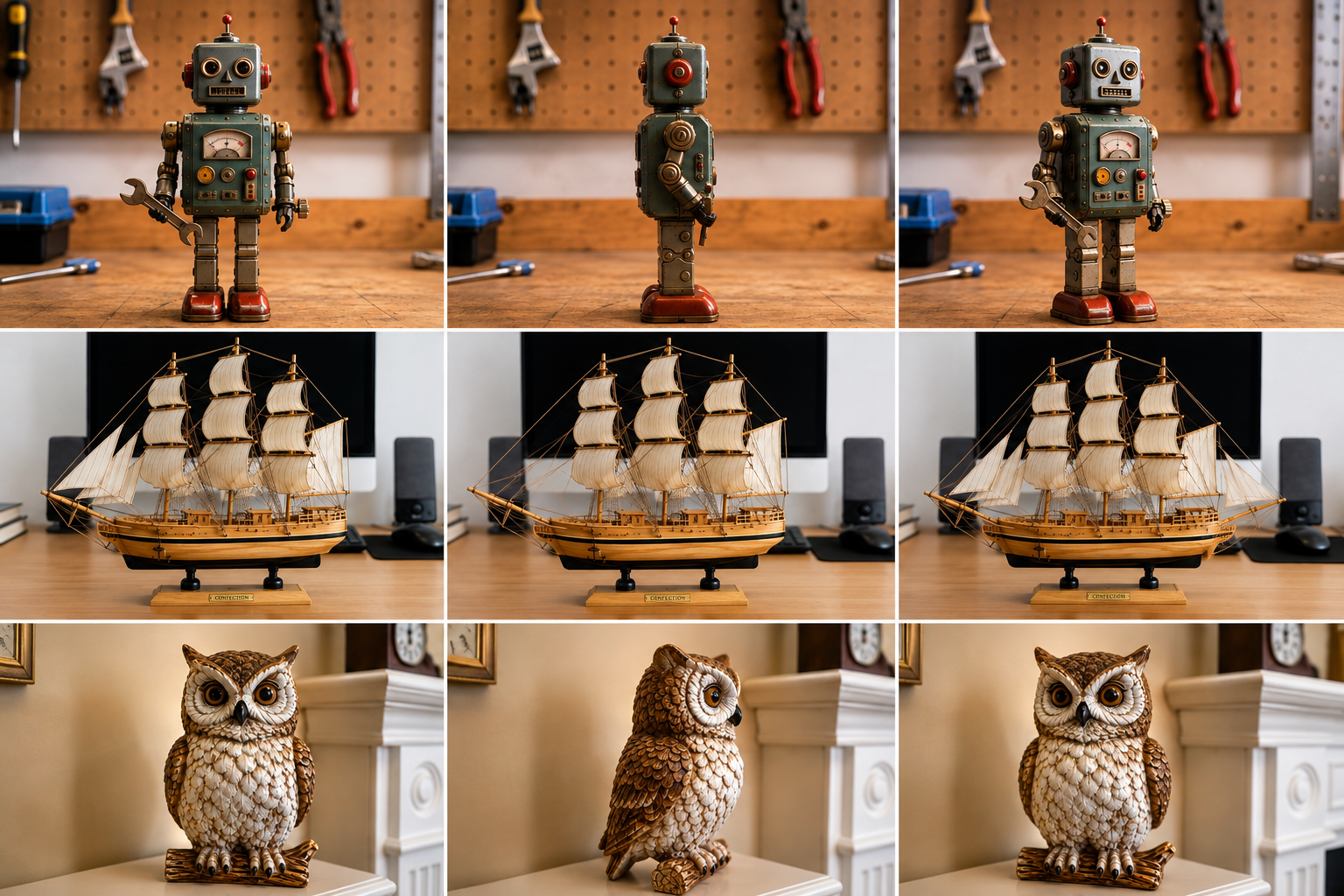
3D Angle Editor
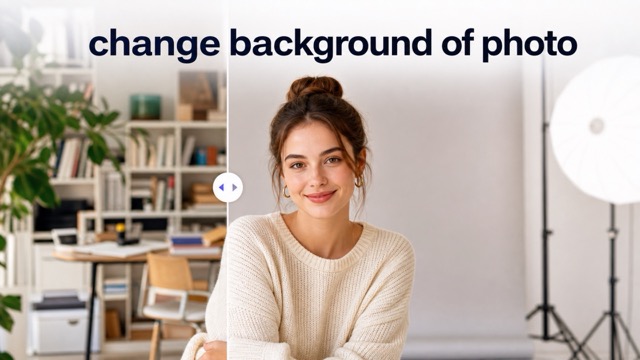
Change Background of Photo
Add Text to Image Online with AI
Create Natural, Style-Matched Text in Any Photo
Use PicEditor to add text to image content in seconds. Upload a photo, enter the exact words you want, describe the preferred placement, and let AI blend the new lettering into the image. From a small caption in one corner to a bold headline across the center, PicEditor makes it easier to add text to image files while keeping the overall composition balanced and believable.
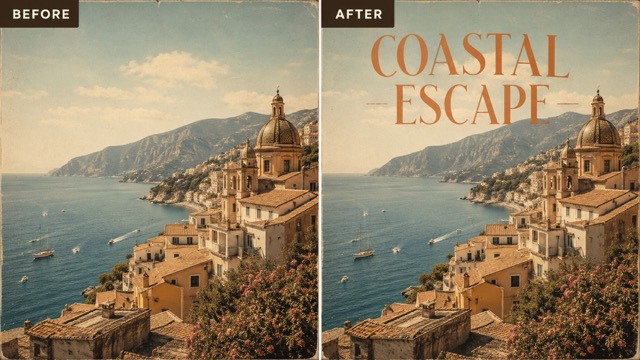
How to Add Text to Image in Three Steps
PicEditor gives you a direct workflow to add text to image files without opening a complex design editor.

Upload Your Image
For the clearest result, upload a photo with enough visible space around the intended text area. You can add text to image content with people, products, landscapes, architecture, food, artwork, or existing graphic layouts. A sharp source image helps the AI preserve important details while creating clean, readable lettering.

Enter the Text and Position
Type the exact words you want to appear. You can also describe where the AI should add text to image content, such as the top center, lower-left corner, empty sky, wall, signboard, packaging label, or space behind the subject. For example: “Add ‘Summer Escape’ in elegant white lettering across the upper sky” or “Place ‘Fresh Daily’ on the café sign in realistic painted letters.”

Generate and Download
Click generate and let AI add text to image content based on your request. The model analyzes the scene and aims to match the new typography with the image’s lighting, angle, depth, surface, and overall design language. Review the output, refine your wording if needed, then download the finished image for social media, marketing, ecommerce, presentations, personal projects, or print.
Add Text to Image Without Making It Look Pasted On
PicEditor is designed to add text to image scenes in a more integrated way. Instead of treating typography as a separate overlay, AI considers the visual environment around it. This makes it useful for both clean digital layouts and realistic in-scene text.
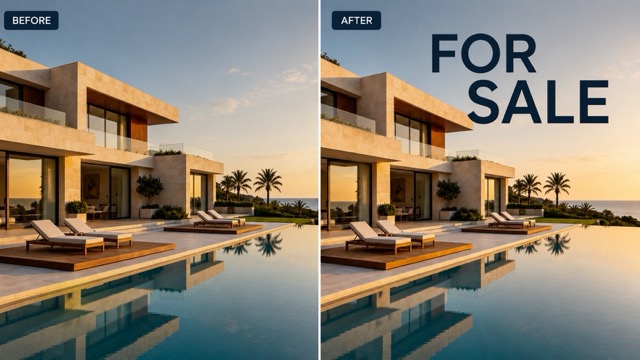
Match Text to the Image Style
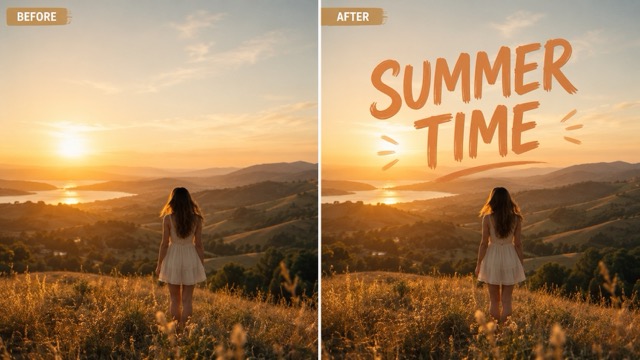
When you add text to image content, the lettering should support the visual rather than fight against it. PicEditor can create text that follows the mood and design language of the source image, from minimal modern type to playful handwritten lettering, cinematic titles, vintage print, glowing neon, embossed metal, painted signage, or soft editorial typography. This helps you add text to image designs that feel more intentional, especially when the original photo already has a strong aesthetic.
Place Words in a Specific Area
Use natural language to tell the AI exactly where to add text to image content. You might request a headline in the open sky, a price on a product label, a name on a birthday card, a slogan on a wall, or a title below the main subject. You can describe relative positions such as top right, center, foreground, background, beside the subject, or inside an existing blank area. This location-aware workflow makes it much easier to add text to image files without repeatedly dragging and resizing a text box.

Create Realistic Text Inside a Scene
PicEditor can add text to image surfaces so the words appear to belong in the photographed environment. The generated lettering may follow perspective, material, lighting, shadows, and surface direction. This is useful when you want text painted on a wall, printed on packaging, displayed on a sign, engraved into an object, or formed from light. By connecting the letters to the physical scene, the tool helps you add text to image content that looks more like part of the original shot and less like a basic digital overlay.
Edit the Message Without Rebuilding the Design
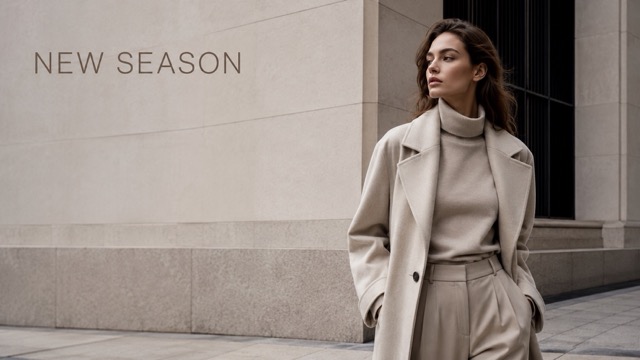
A campaign image may need a new date, slogan, product name, location, or language. Instead of recreating the full visual, use PicEditor to add text to image content with the updated message. Describe what should appear and where it belongs, then generate a new version that preserves the overall visual direction. For best results, keep the requested wording exact and avoid asking for too many separate text blocks at once. A focused prompt gives the AI more room to produce clean lettering and maintain a strong composition.
Frequently Asked Questions About Adding Text to Images
Learn how to add text to image files, write clearer prompts, control placement, and improve the visual quality of your results.
The add text to image tool combines a built-in instruction with your custom request. The built-in instruction keeps the task focused on adding text, while your input provides the exact wording and placement. AI then analyzes the uploaded image and generates a new version with the requested text. It considers composition, lighting, color, surface, perspective, and visual style so the result can fit the scene more naturally.
Yes. Describe the location in direct language, such as “top center,” “lower-right corner,” “inside the empty sky,” “on the product label,” or “on the wall behind the subject.” You can also mention areas that must remain clear. Specific placement instructions make it easier to add text to image content without covering faces, products, or other important details.
Include the exact text in quotation marks, followed by the desired location and style. A useful format is: Add “YOUR TEXT” in the upper-left corner using clean white editorial lettering.
Yes. The AI is designed to add text to image content in a way that reflects the source image’s mood and visual character. It may adapt color, weight, texture, perspective, and lighting.
Yes. Ask the AI to use an open or low-detail area and explicitly protect the subject. For example: Add “New Collection” in the empty space above the model and keep the face and clothing unchanged. Uploading an image with natural negative space also improves the chance of a clean layout.
Clear, high-resolution images with visible space for lettering usually work best. Product photos, landscapes, portraits with negative space, posters, invitations, storefronts, packaging, menus, and social graphics are all suitable. You can still add text to image files with busy backgrounds, but a shorter phrase and a clearly named placement area will usually produce a stronger result.
You can add text to image content for ads, social posts, product graphics, banners, announcements, thumbnails, and other marketing materials. Review the final image carefully for spelling, brand accuracy, and visual consistency before publishing.
How Creators Use PicEditor to Add Text to Image Content
Users across marketing, ecommerce, content creation, events, education, and design use the tool to turn ordinary photos into clearer, more useful visuals.
I use PicEditor to add text to image assets for weekly social campaigns. I can name the message and placement, then get a design that already feels connected to the photo. It saves me from opening a full editor for every small content request.
I use PicEditor to add text to image assets for weekly social campaigns. I can name the message and placement, then get a design that already feels connected to the photo. It saves me from opening a full editor for every small content request.
The scene-aware text is the biggest advantage for product promotions. I can add text to image packaging or signs and get a much more natural result than a flat overlay. It is useful for testing creative directions before a full photoshoot.
The scene-aware text is the biggest advantage for product promotions. I can add text to image packaging or signs and get a much more natural result than a flat overlay. It is useful for testing creative directions before a full photoshoot.
I create event announcements from photos supplied by clients. The tool helps me add text to image backgrounds while keeping people and key details visible. Clear location prompts make the layout process much faster.
I create event announcements from photos supplied by clients. The tool helps me add text to image backgrounds while keeping people and key details visible. Clear location prompts make the layout process much faster.
For video thumbnails, I need strong wording that fits the visual immediately. PicEditor helps me add text to image files without spending time comparing fonts and effects. I can generate several visual approaches from one photo.
For video thumbnails, I need strong wording that fits the visual immediately. PicEditor helps me add text to image files without spending time comparing fonts and effects. I can generate several visual approaches from one photo.
I often need quick quote cards and lesson graphics. Being able to add text to image content through a simple prompt makes it easier to prepare visual materials without learning a complicated design workflow.
I often need quick quote cards and lesson graphics. Being able to add text to image content through a simple prompt makes it easier to prepare visual materials without learning a complicated design workflow.
The tool is especially helpful when clients ask for last-minute message changes. I can add text to image concepts, update the wording, and keep the visual style consistent enough for rapid review and iteration.
The tool is especially helpful when clients ask for last-minute message changes. I can add text to image concepts, update the wording, and keep the visual style consistent enough for rapid review and iteration.
Popular Ways to Add Text to Image Files
Use one uploaded image to create clear, message-driven visuals for personal, commercial, educational, and creative projects.

Social Media Posts
Add text to image content for Instagram posts, TikTok covers, Facebook graphics, Pinterest pins, LinkedIn updates, and story announcements. Create a headline or short message that fits the image instead of relying on a generic template.

Product Promotions
Add text to image product photos with launch messages, benefits, prices, sale information, or calls to action. Place the wording in open space or integrate it into packaging, labels, display boards, and branded surfaces.

Posters and Invitations
Turn a photo into an event poster, party invitation, wedding announcement, holiday card, or community notice. Add text to image layouts with names, dates, locations, and short event details while keeping the main visual prominent.

Thumbnails and Covers
Add text to image files for YouTube thumbnails, podcast covers, blog headers, course covers, and video previews. Ask for bold, readable wording in a specific area so the message remains visible at smaller sizes.
Add Text to Image Content with One Simple Prompt
Use PicEditor to add text to image tool and upload your image, enter the exact words, describe where they should appear, and generate a style-matched result.