AI Image Tools
Everything You Need to Edit Photos Faster
Open the PicEditor AI tools library for background removal, photo enhancement, object cleanup, face swap, upscaling, and more focused image workflows.

Ideogram 4.5
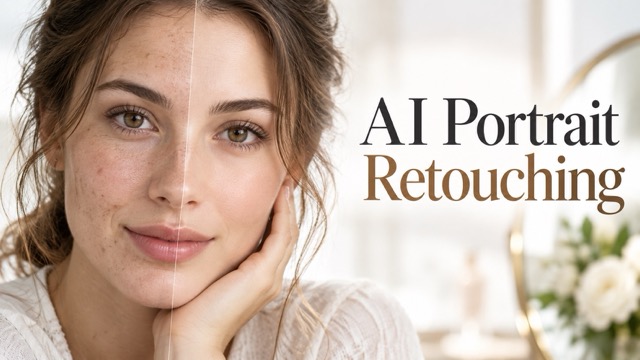
AI Portrait Retouching

Snatched Waist Editor
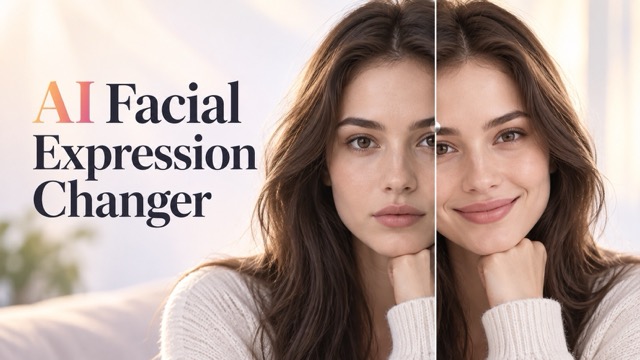
AI Facial Expression Changer

AI Texture Generator

AI Nose Piercing Filter
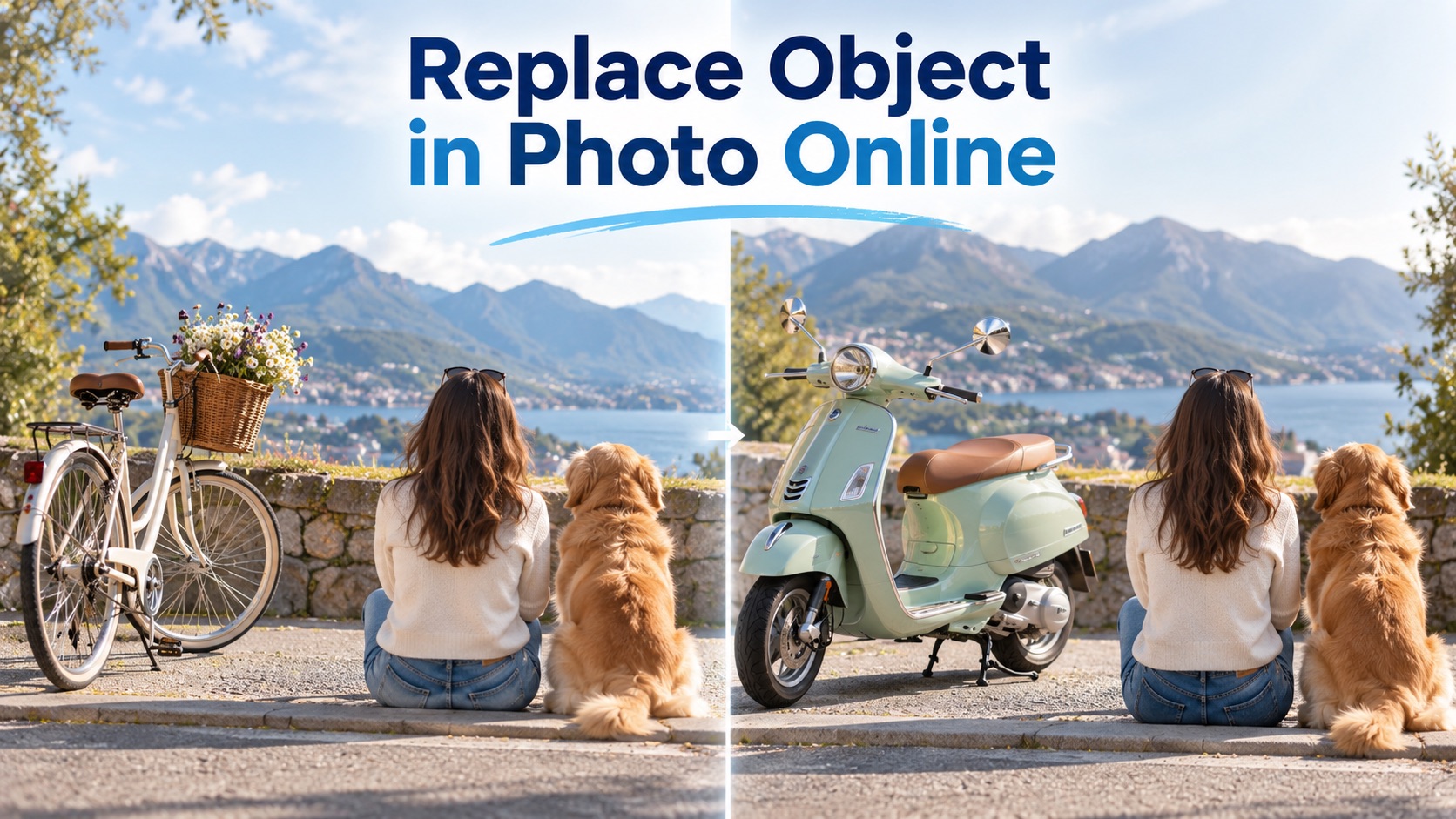
Replace Object in Photo Online
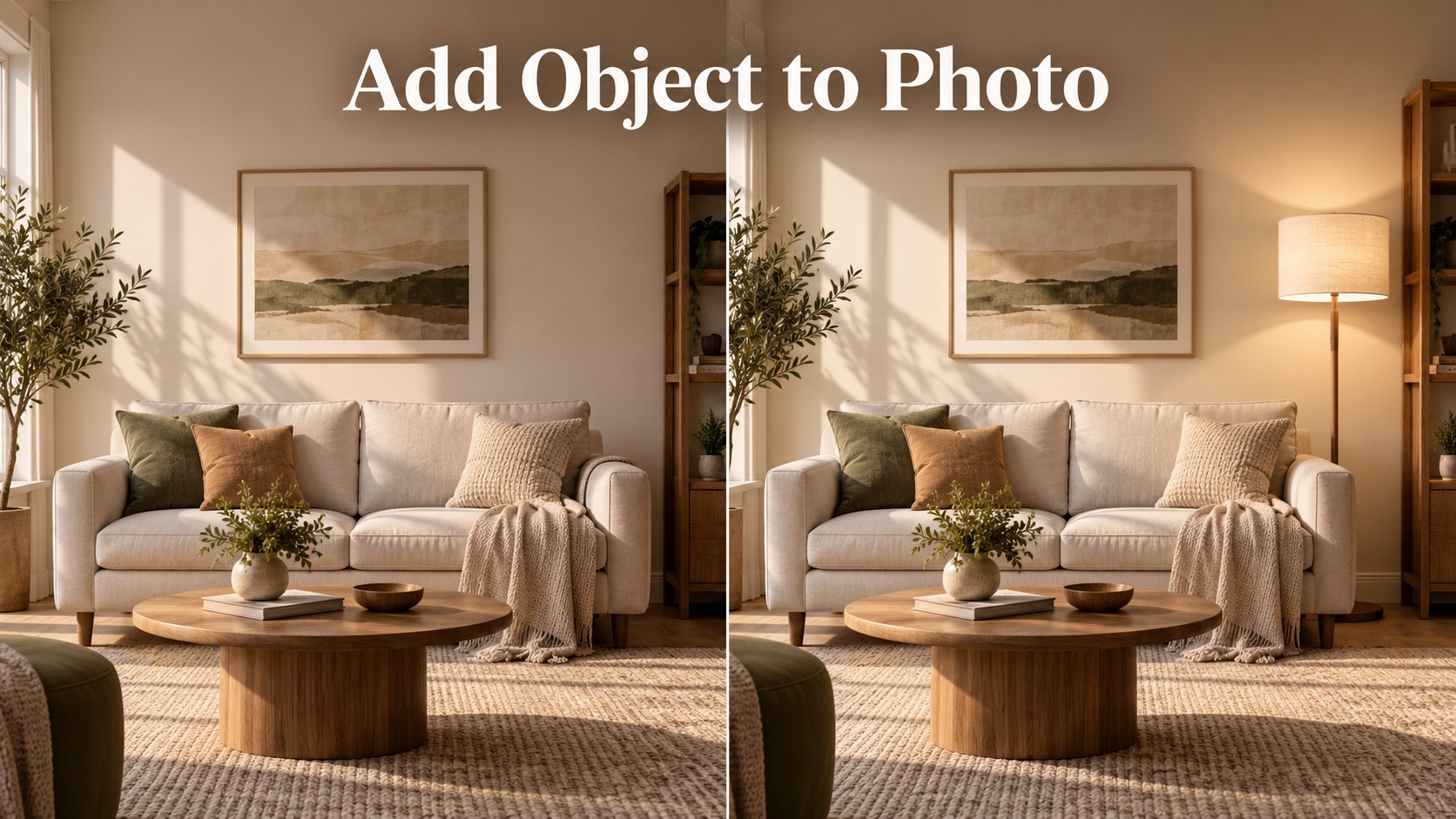
Add Object to Photo

Eyeliner Filter

AI Bust Down Filter

Image Splitter

Add White Background to Photo

Snapchat Text Remover
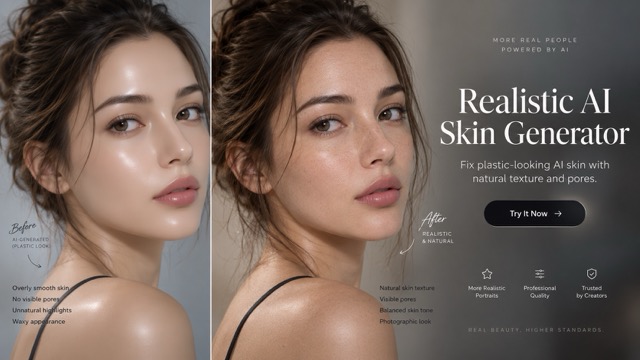
Realistic AI Skin Generator

Add speech bubble to photo

AI Clothes Wrinkle Remover
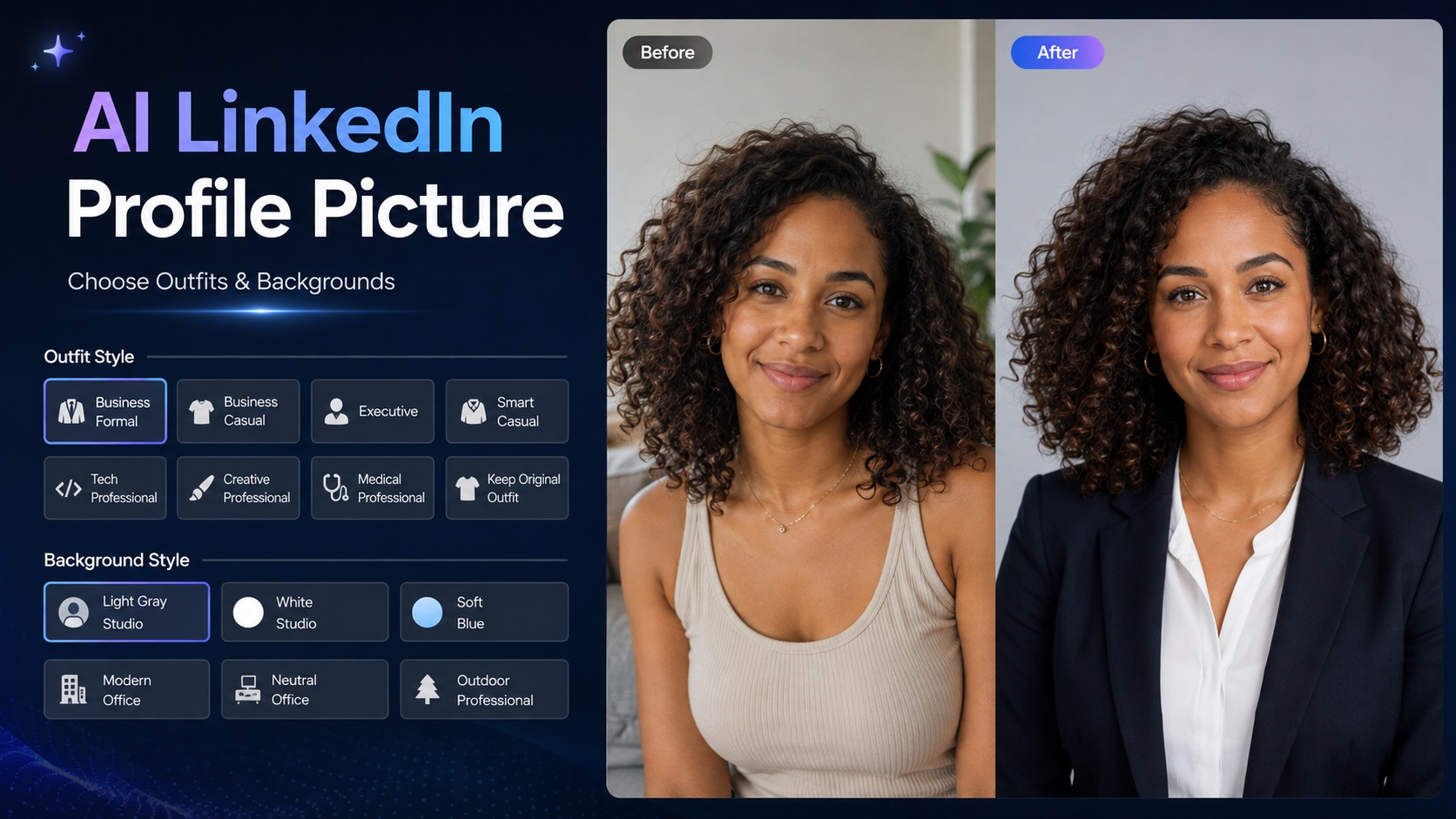
AI LinkedIn Profile Picture
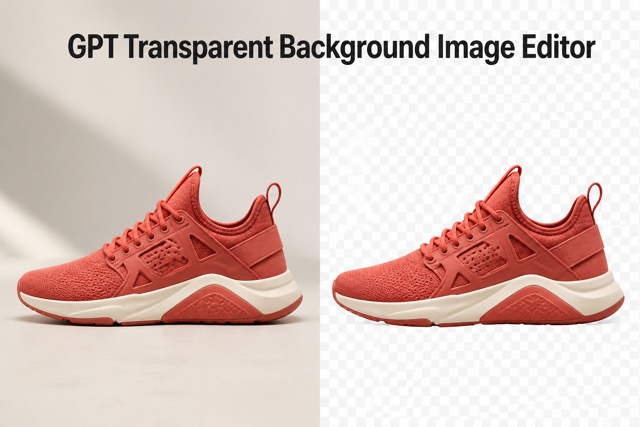
GPT Transparent BG Image Editor
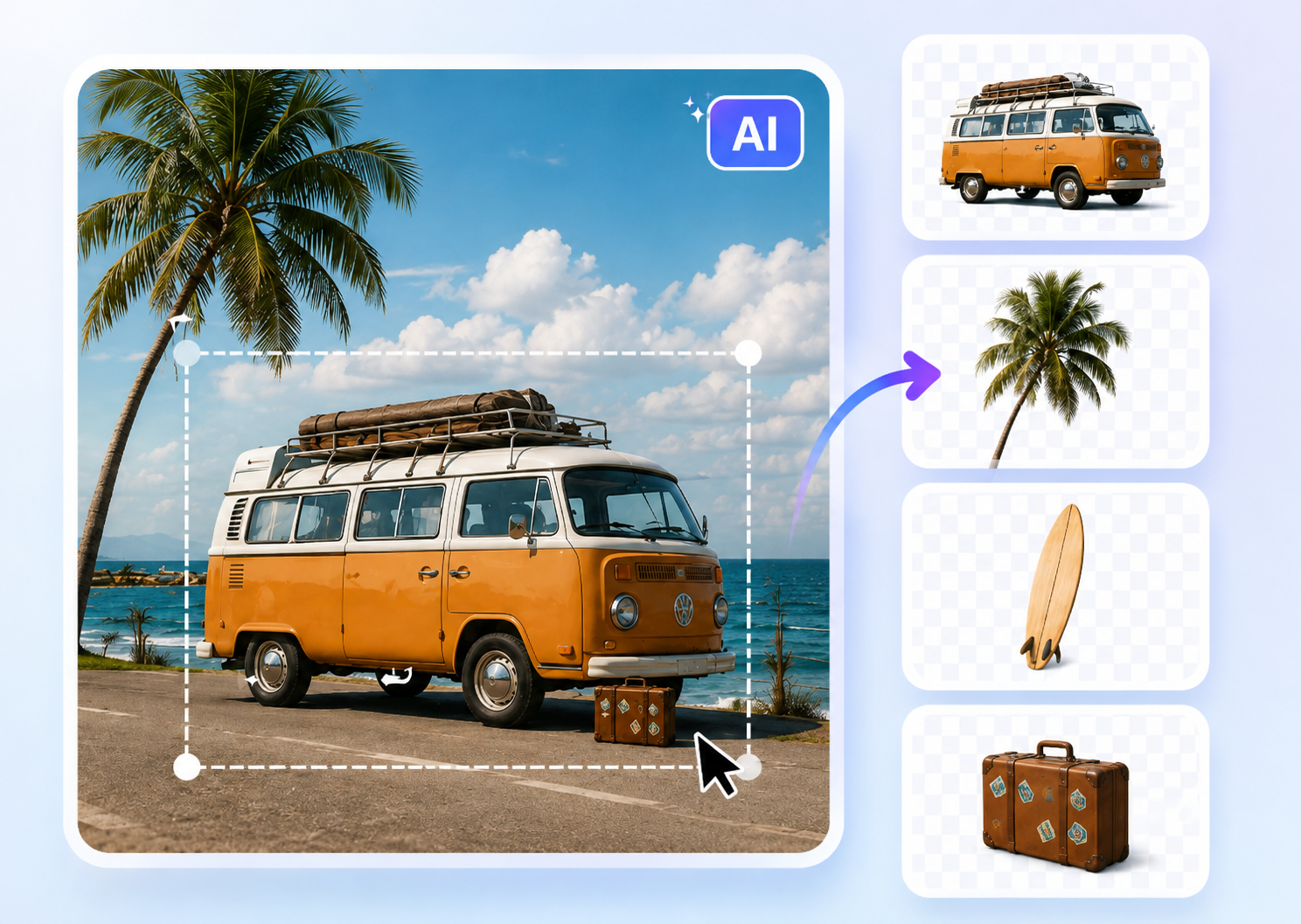
Image to Layers
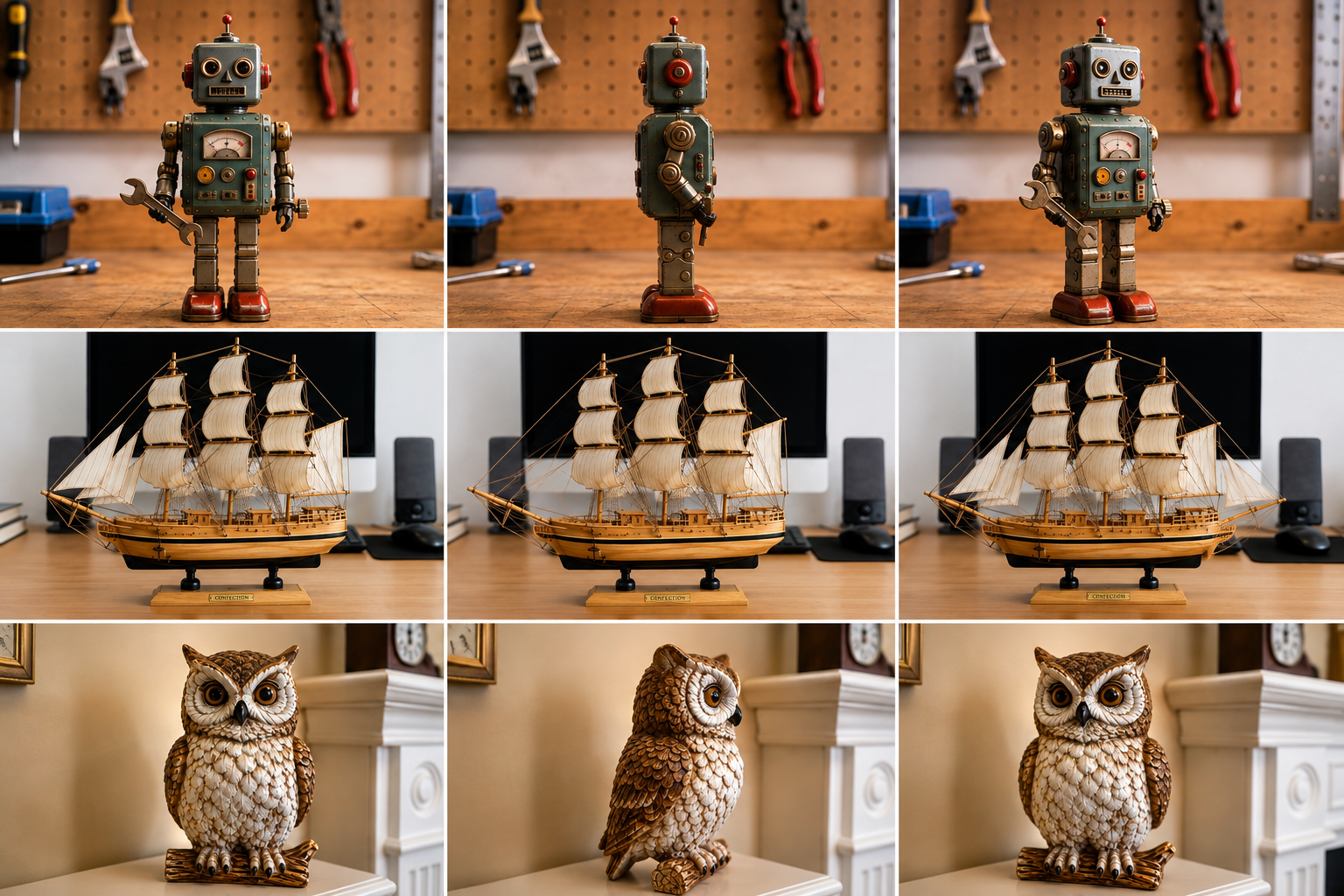
3D Angle Editor

Change Background of Photo
Add Text to Image

Speech Bubble Meme Generator
Change Photo Background with a Simple Prompt
Upload an image, describe the setting you want, and let Change Photo Background create a new scene.
Change Photo Background turns a simple text direction into a focused photo background change. Replace a distracting location, build a polished setting, or explore a fresh atmosphere while keeping the person, product, or object at the center of the image.
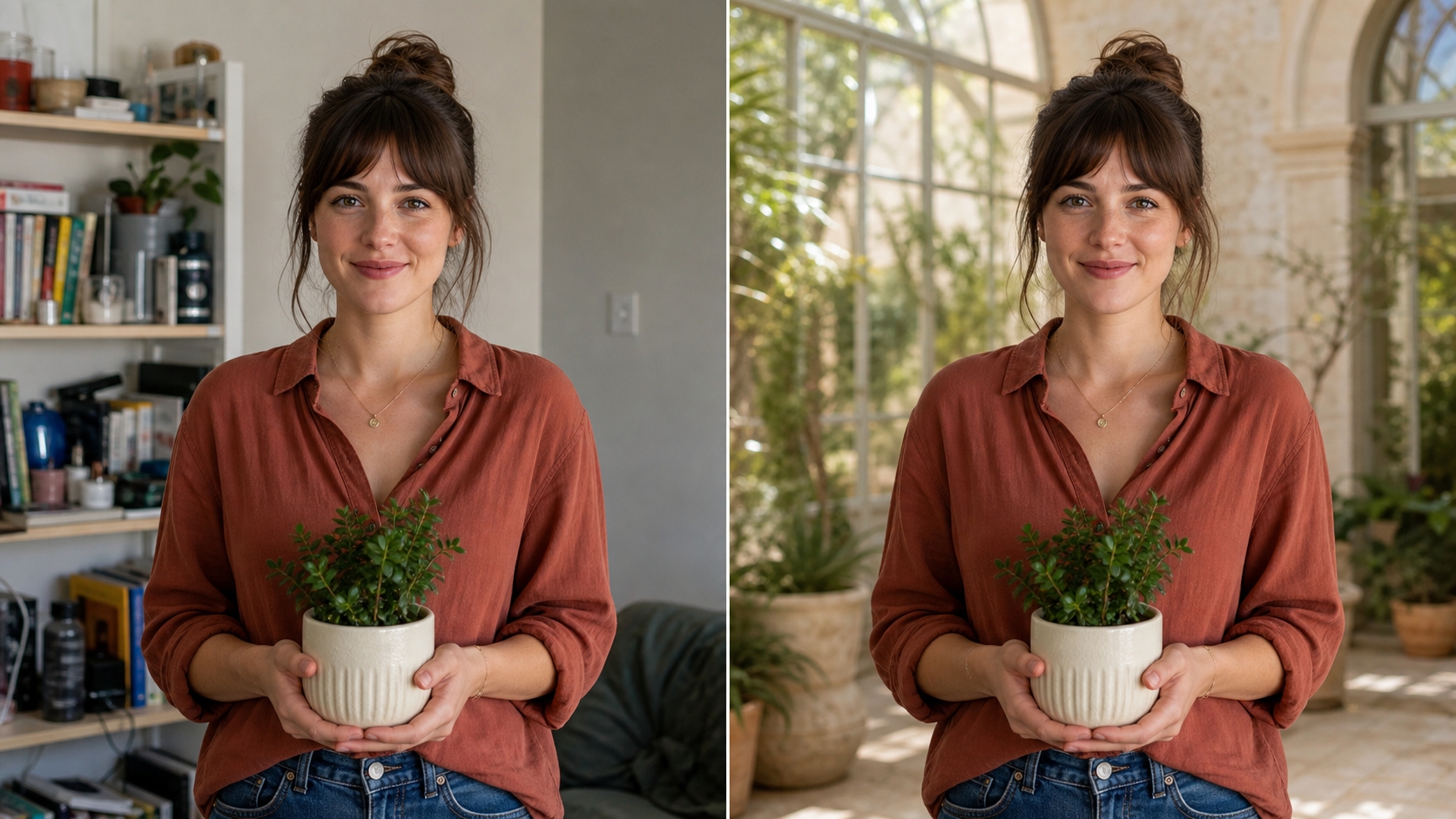
How to Use Change Photo Background
The Change Photo Background workflow has three practical stages: upload a clear source image, describe the replacement scene, and review the generated edit. A thoughtful prompt makes each photo background change easier to direct and evaluate.

Upload to Change Photo Background
Choose a clear image in which the main person, product, pet, or object is easy to distinguish from the existing setting. A complete subject, visible edges, and balanced lighting give Change Photo Background better context for the edit. Start with the framing you want to keep, because the Background Changer uses that uploaded photo as the foundation for the generated result.

Describe the Background You Want
Write a direct prompt that names the setting, time of day, lighting, colors, and mood. You might request a bright studio, a quiet library, or a garden after rain. Change Photo Background uses those details to guide the new environment. For a more controlled photo background change, mention the surface beneath the subject and the direction of the light as well.

Generate, Review, and Save the Result
Generate the edit, then compare it with the uploaded image. Check the subject’s identity, shape, fine edges, contact shadows, perspective, and color balance before saving. If the scene feels disconnected, revise the prompt with one specific correction and run Change Photo Background again. This simple review helps Change Photo Background results look deliberate instead of pasted together for final use.
What Change Photo Background Helps You Control
Change Photo Background combines prompt-led scene direction with a subject-focused edit. These capabilities help you plan the environment, preserve important source details, and judge whether the new light, perspective, and atmosphere belong in one photograph.
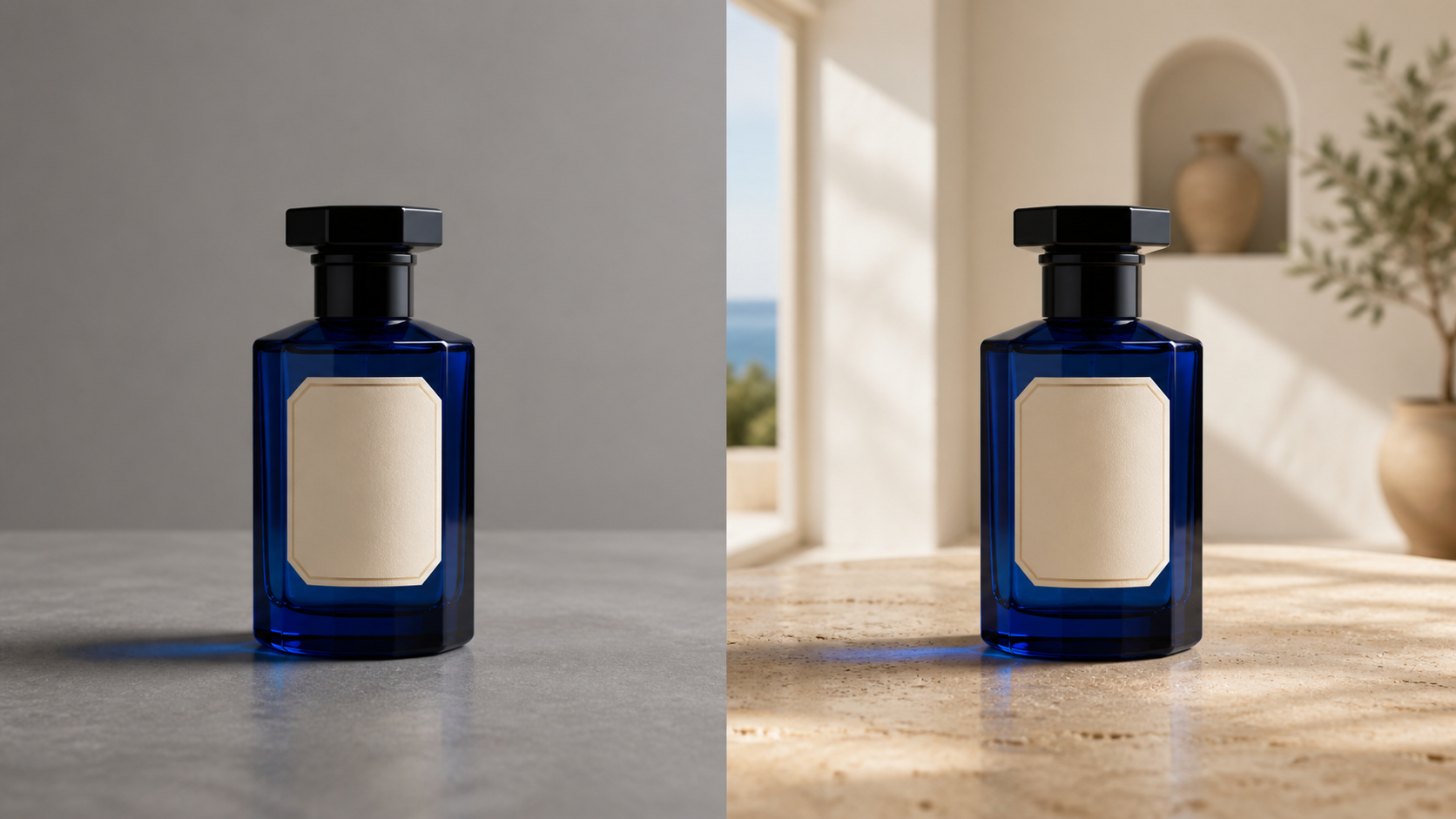
Direct Change Photo Background with Natural Language
A written description gives you more creative control than choosing a generic preset. With Change Photo Background, you can name the place, season, weather, palette, and visual tone that support your subject. Add concrete details such as warm window light, pale stone flooring, or distant city lights. Change Photo Background can then interpret one coherent direction rather than guess from a vague request.
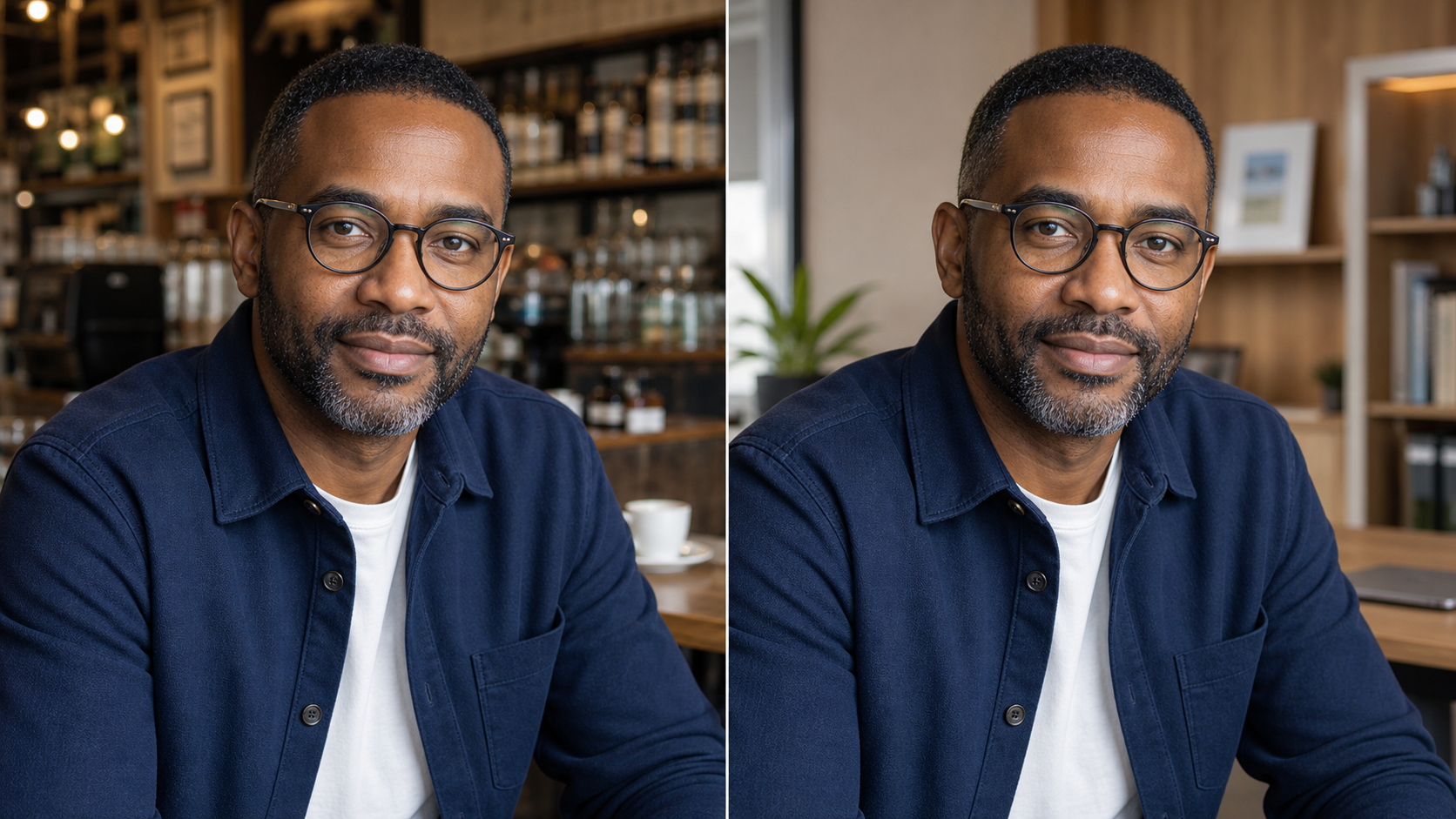
Keep the Subject Central and Recognizable
A successful background replacement changes the environment without redesigning the subject. Change Photo Background should preserve the face, body, pose, clothing, product shape, camera angle, and crop unless your prompt asks for something else. This focus makes the before-and-after comparison meaningful. Use Change Image Background to remove visual competition while keeping the original subject as the clear point of attention.
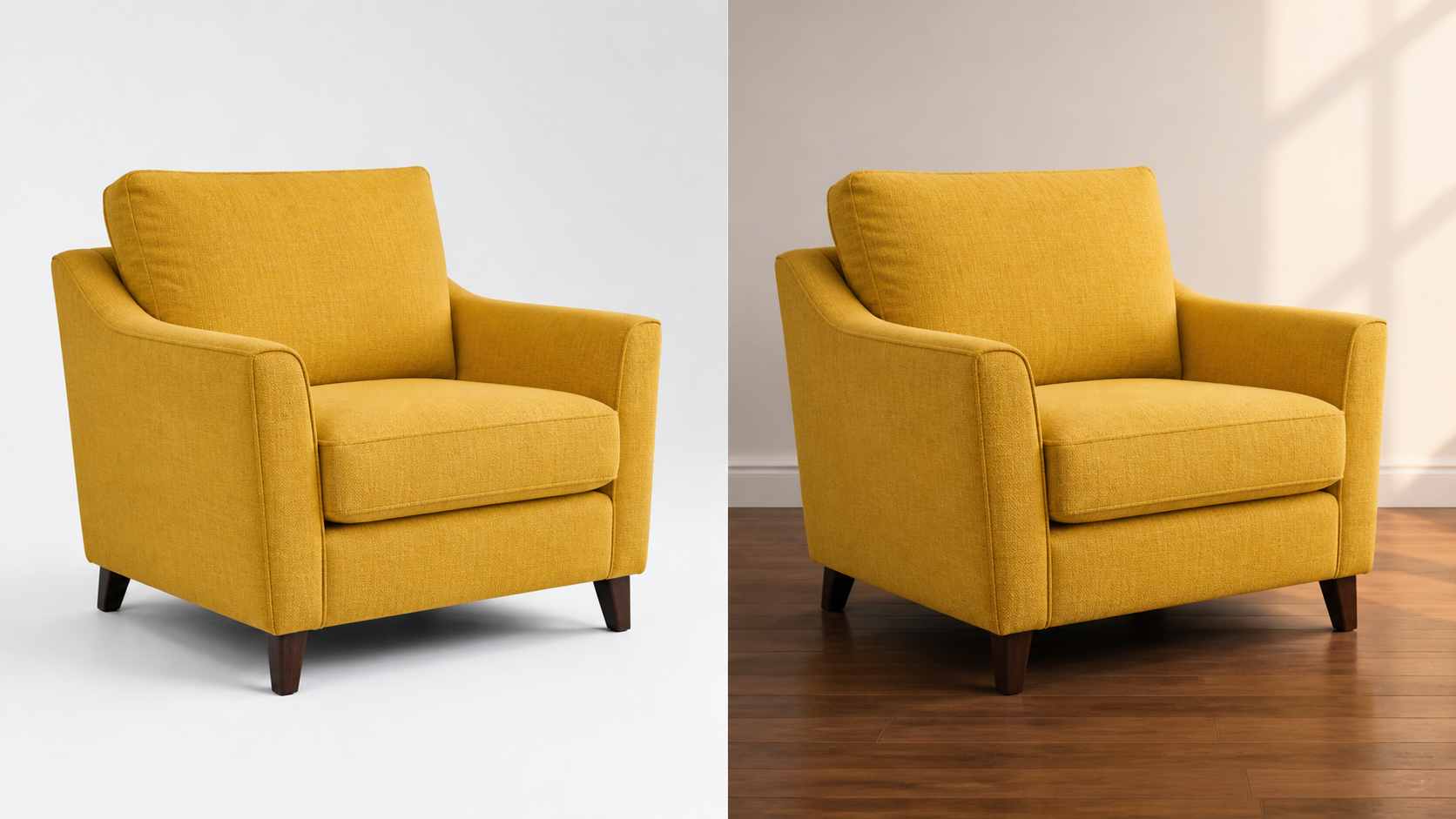
Match Light, Perspective, and Contact Shadows
Believable composites depend on more than a clean outline. The replacement environment should share the subject’s viewing angle, light direction, depth, and color temperature. Change Photo Background can use prompt details about these relationships to build a more unified scene. For a convincing photo background change, check that feet or products meet the surface naturally and that soft shadows follow the new lighting.
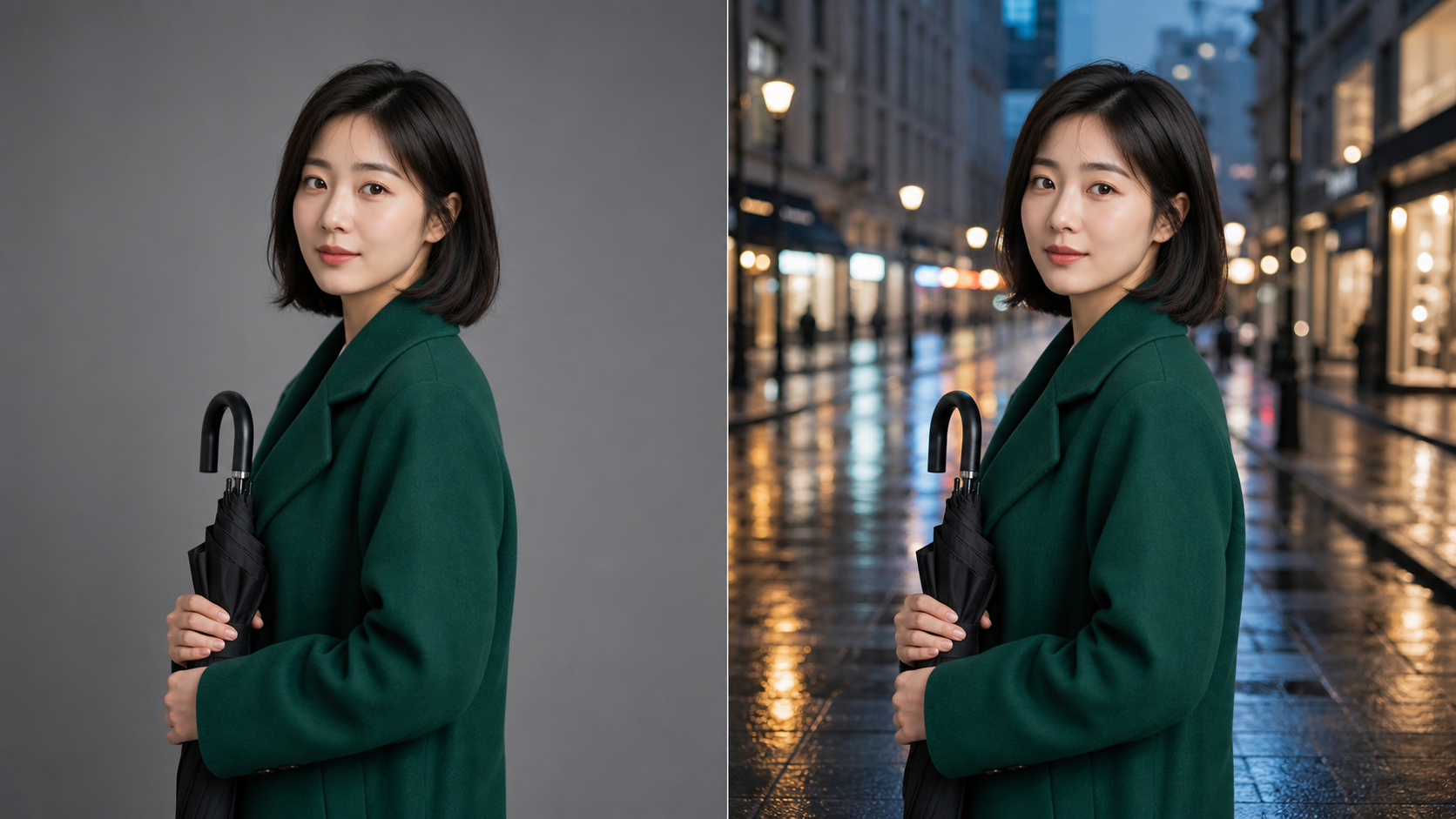
Explore Different Scenes from One Source Photo
One well-composed source image can support several visual directions. Use Change Photo Background to test a clean commercial studio, a lived-in interior, an outdoor destination, or a cinematic evening scene without arranging a new shoot for each concept. Every generation is an interpretation, so compare variations carefully. The best Change Image Background result should support the subject rather than overwhelm it with unnecessary detail.
Practical Ways to Use Change Photo Background
Change Photo Background supports products, portraits, campaigns, travel edits, and story development. Each use case begins with a source image and benefits from a focused prompt plus careful final review.

Product Scenes with Change Photo Background
A strong product image needs a setting that supports the item without competing for attention. Change Photo Background can place an item in a clean studio, on a surface, or within a lifestyle scene described by you. Use Change Photo Background to explore a direction, then inspect edges, reflections, scale, and contact shadows before using the result in a campaign.

Portraits with Change Photo Background
A cluttered room or unrelated location can distract from a useful portrait. Change Photo Background lets you describe a calmer office, softly lit studio, or outdoor scene while keeping the person central. A photo background change should preserve facial identity, hair detail, clothing, pose, and expression, then harmonize the replacement setting with the original direction and softness of the light.

Travel Photos with Change Photo Background
Sometimes the subject works but the surroundings feel busy, accidental, or out of step with the story you want to share. Change Photo Background can turn a portrait into an intentional scene guided by your description. Use Change Image Background for creative reframing, while keeping the edit transparent in contexts where the location or documentary accuracy matters to the audience.

Campaign Concepts with Change Photo Background
Creative teams need to compare seasonal directions before committing to a production. Change Photo Background can help visualize a spring garden, warm autumn interior, snowy storefront, or festive studio around a subject. Treat each generated scene as a concept for review. The result can clarify color, mood, prop, and lighting choices before designers or photographers develop the final campaign assets.
How Creators Use Change Photo Background
People use Change Photo Background to turn an existing image into a clearer creative reference. Their workflows show the value of specific prompts, stable subjects, purposeful settings, and a careful review before any generated result moves forward.
I had a strong ceramic product shot, but the tabletop did not fit our new collection. Change Photo Background let me test a pale limestone setting before briefing the photographer. The Background Changer result was useful because it kept the glaze pattern and silhouette central, giving our team a specific lighting and surface reference instead of another vague mood-board note.
I had a strong ceramic product shot, but the tabletop did not fit our new collection. Change Photo Background let me test a pale limestone setting before briefing the photographer. The Background Changer result was useful because it kept the glaze pattern and silhouette central, giving our team a specific lighting and surface reference instead of another vague mood-board note.
My portrait had the right expression, but the busy café behind me made it hard to use. With Change Photo Background, I described a quiet office with soft daylight and created a much clearer visual direction. The photo background change kept my clothing and pose recognizable, so I could focus on whether the new setting felt appropriate for my professional profile.
My portrait had the right expression, but the busy café behind me made it hard to use. With Change Photo Background, I described a quiet office with soft daylight and created a much clearer visual direction. The photo background change kept my clothing and pose recognizable, so I could focus on whether the new setting felt appropriate for my professional profile.
We were comparing three concepts for a winter promotion and needed something more concrete than written descriptions. Change Photo Background helped us place the same product in each setting while preserving the original angle. I used Change Image Background previews in our internal review, and the team quickly agreed on the palette and shadow direction for the actual campaign shoot.
We were comparing three concepts for a winter promotion and needed something more concrete than written descriptions. Change Photo Background helped us place the same product in each setting while preserving the original angle. I used Change Image Background previews in our internal review, and the team quickly agreed on the palette and shadow direction for the actual campaign shoot.
A location portrait worked emotionally, but parked cars in the distance pulled attention away from the subject. Change Photo Background gave me a way to explore a quieter tree-lined backdrop without changing the pose. I still checked the hair edges and light carefully, but the result became a practical reference for how I wanted to finish the composition in post-production.
A location portrait worked emotionally, but parked cars in the distance pulled attention away from the subject. Change Photo Background gave me a way to explore a quieter tree-lined backdrop without changing the pose. I still checked the hair edges and light carefully, but the result became a practical reference for how I wanted to finish the composition in post-production.
For a packaging presentation, I needed to show how the same bottle might feel in a spa-inspired environment. Change Photo Background turned my prompt into a scene with warm stone and diffused window light. The Background Changer preview helped stakeholders react to an actual composition, and I could refine the final brief around the details they consistently noticed with confidence.
For a packaging presentation, I needed to show how the same bottle might feel in a spa-inspired environment. Change Photo Background turned my prompt into a scene with warm stone and diffused window light. The Background Changer preview helped stakeholders react to an actual composition, and I could refine the final brief around the details they consistently noticed with confidence.
I was developing a character poster and wanted to compare a subway platform with a rain-soaked street. Change Photo Background kept the figure and camera angle stable enough for early composition tests. The second photo background change had the stronger atmosphere, which gave me a clear direction for the color script, environmental details, and final illustration work with confidence later.
I was developing a character poster and wanted to compare a subway platform with a rain-soaked street. Change Photo Background kept the figure and camera angle stable enough for early composition tests. The second photo background change had the stronger atmosphere, which gave me a clear direction for the color script, environmental details, and final illustration work with confidence later.



FAQs About Change Photo Background
These answers explain how Change Photo Background uses an image and text prompt, what makes a source photo, and how to evaluate a scene. Review points before creating your edit.
Change Photo Background is an image-editing tool that works from an uploaded picture and written scene description. The model interprets the subject and composition, then generates a replacement environment around the foreground. Unlike a color fill, the result can include a location, surface, lighting, depth, and atmosphere. Review the final image carefully for accuracy and unintended changes before using it.
Start with the setting, then add details that connect it to the subject. Name location, time of day, light direction, palette, mood, and the surface beneath the subject. Describe an editorial studio with side light and a stone floor. Change Photo Background responds better to a coherent scene than to a long list of conflicting places, styles, and lighting conditions.
Choose a clear, well-lit photo with a complete subject, visible edges, and usable framing. Heavy blur, compression, cropped limbs, tangled objects, or deep shadows can make subject separation difficult. Change Photo Background needs clues about perspective and light. A straightforward source image gives the model a stronger foundation for a coherent scene and makes the final comparison easier to judge.
The edit replaces the environment while keeping the person, product, pet, or object recognizable. Generated images can introduce variations in details, edges, textures, or lighting. Compare the result with the upload and check identity, shape, colors, text, logos, and product parts. If Change Photo Background alters something, refine your instruction and generate again rather than accepting a result without review.
Portraits work well when the face, hair, shoulders, and clothing are clearly visible. Ask for a setting matching the original source light and viewpoint. During review, pay close attention to hair, glasses, hands, jewelry, and clothing edges. A photo background change should keep the person recognizable and avoid smoothing, reshaping, or restyling details that were not part of your request.
Each generation is an interpretation of your image and description, so composition, lighting, scenery, and edge treatment may vary. Use variation to compare directions, then make your prompt specific about what you want to retain or correct. Change Photo Background is easiest to steer when you change one instruction at a time instead of rewriting the concept after every result.
Create a New Scene with Change Photo Background
Upload a clear image, describe the setting you have in mind, and use Change Photo Background to build a focused new composition. Compare the details, refine one direction, and let Change Photo Background turn your idea into a visual result.