Chat GPT Image Editor: Make Every Photo Look Its Best
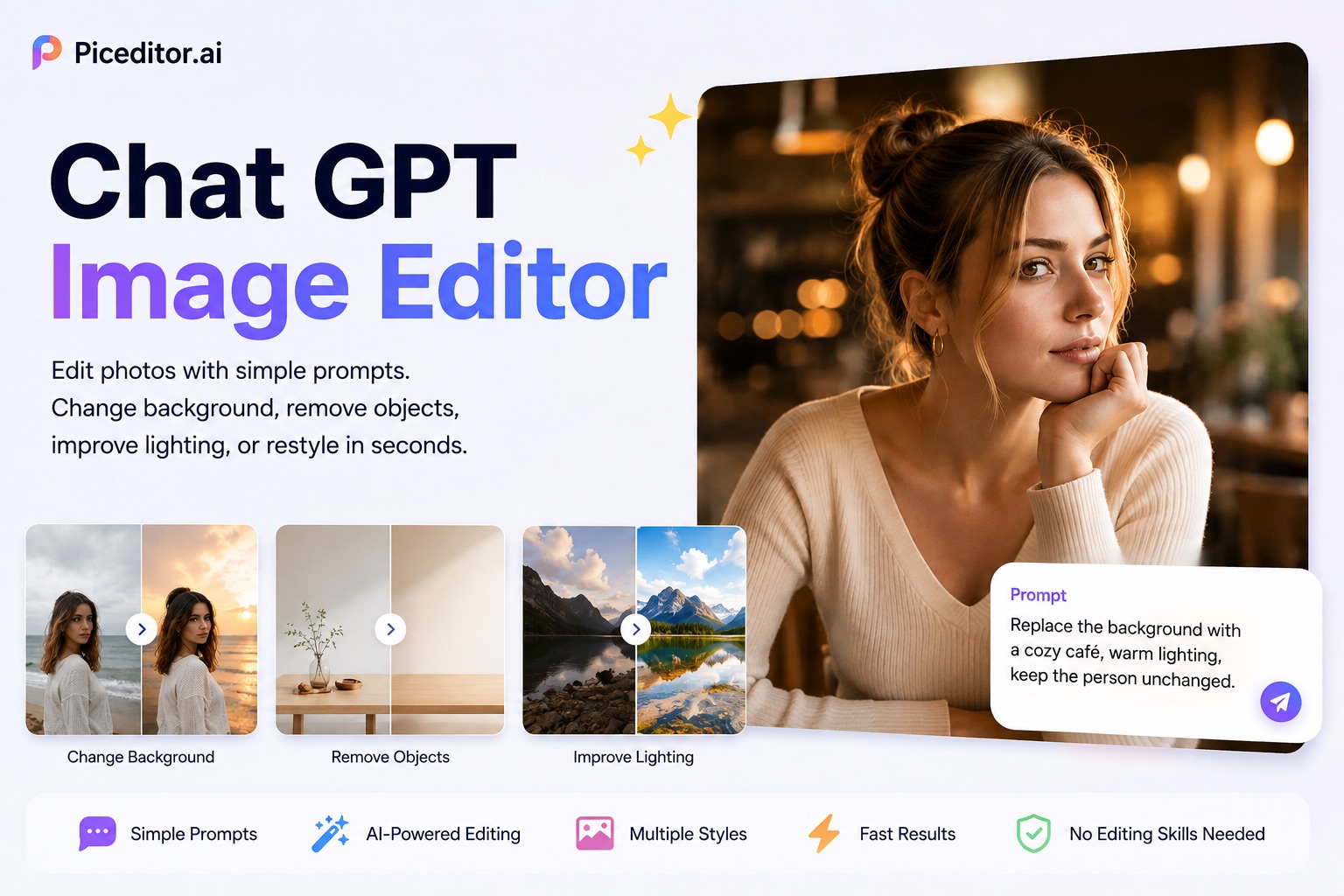
Learn how to use chat gpt image editor to improve ordinary photos with simple prompts. This guide covers background replacement, object removal, lighting enhancement, product photo editing, image restyling, and practical prompt-writing tips to help you create better results.
Introduction
A good photo can still suffer from poor lighting, an unsuitable background, unwanted objects, or an unfinished style, while fixing these issues with traditional software often requires editing skills and time. With chat gpt image editor, you can simply upload a reference image and describe the changes you want in a clear prompt—whether improving a portrait, redesigning a product photo, replacing a background, removing distractions, or creating a new visual style—and the AI will generate an edited version based on your instructions. This guide explains how the tool works, what you can create, and how to write effective prompts for better results.
What Is Chat GPT Image Editor?
Chat gpt image editor is a Piceditor.ai tool that edits uploaded images using natural-language prompts. You provide a reference image, explain what should change, and let it generate a new version.
The biggest advantage is accessibility. You do not need to understand layers, masks, brushes, or advanced editing controls. If you can describe your desired result, you can start editing.
Why Use Chat GPT Image Editor?
Make Photo Editing Accessible to Everyone
Traditional photo editors give users detailed manual control, but they often require time and experience. Chat gpt image editor offers a prompt-based workflow that is more approachable for beginners, creators, marketers, and small businesses.
Edit Photos Without Complicated Software
You do not have to learn complex editing techniques before improving a photo. With chat gpt image editor, a request can guide the entire transformation.
Create More from Existing Photos
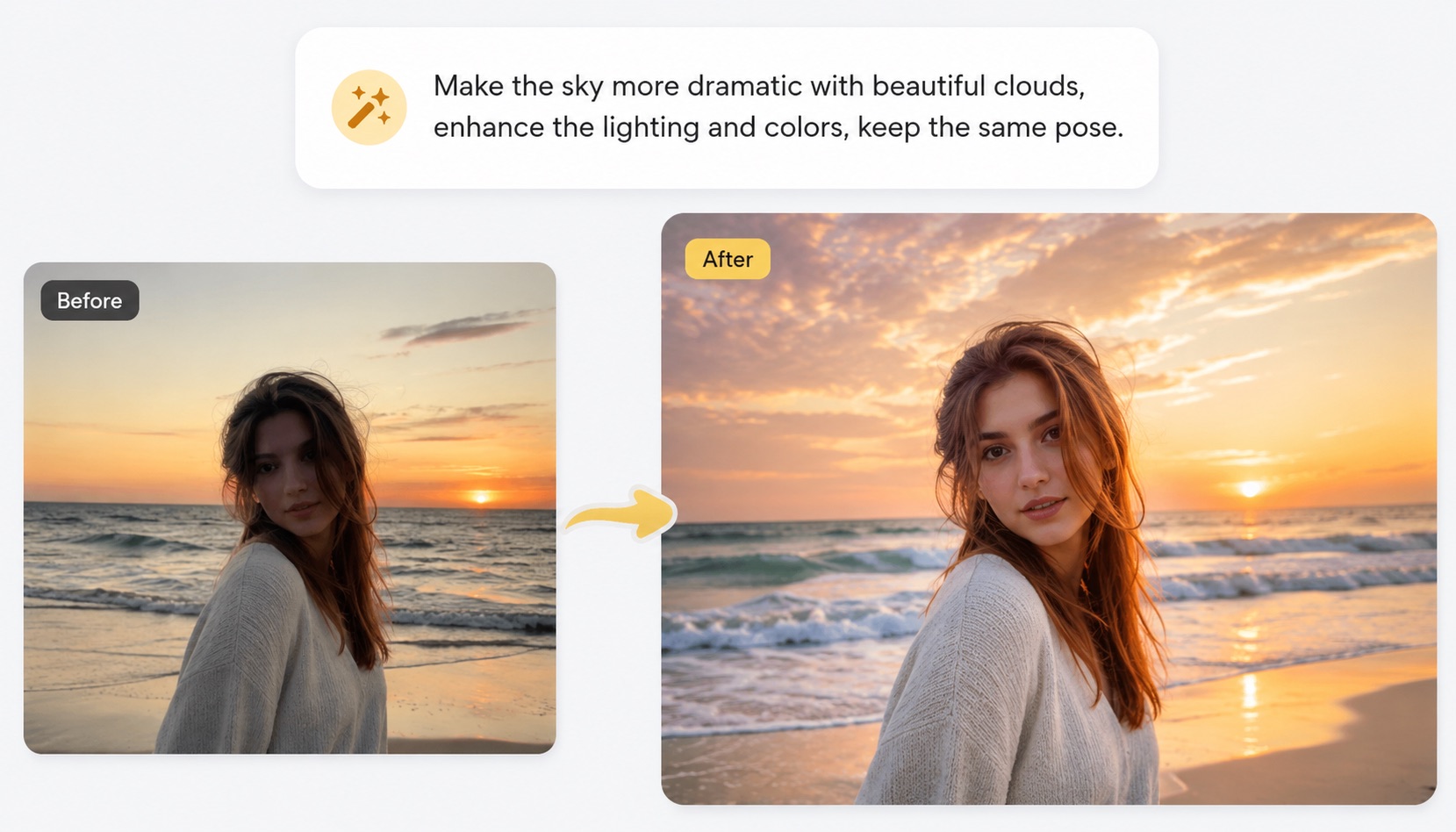
You do not always need to generate an image from scratch. An existing photo may already contain the right subject, pose, or product. Chat gpt image editor allows you to preserve those useful elements while changing the weaker parts of the image.
How to Use Chat GPT Image Editor
The editing process can be completed in three main steps.
1. Upload a Reference Image
Open the Chat GPT Image Editor and upload the photo you want to improve.
Choose a clear image in which the main subject is easy to see. High-quality references usually help chat gpt image editor understand the face, product, clothing, composition, and background more accurately.
You may also add extra reference images when you want to provide a specific style, outfit, scene, or visual direction.
2. Describe the Changes You Want
Write a prompt explaining what should change. A useful chat gpt image editor prompt should identify:
- The main subject
- The elements that should change
- The details that must remain unchanged
- The desired background
- The preferred lighting and mood
- The expected visual style
- The level of realism or detail
Avoid vague instructions such as “make it better.”
3. Generate
After choosing your settings, start the generation. Chat gpt image editor will process the reference and prompt to create an edited result. If something is incorrect, update the prompt with more specific instructions and generate another version.
Best Ways to Use Chat GPT Image Editor
The tool supports many practical editing scenarios. Here are some of the most useful ways to try it.
Change Photo Backgrounds
Background replacement is one of the easiest ways to transform an ordinary image. Chat gpt image editor can place the main subject in a studio, city, beach, office, luxury interior, or imaginative environment.
Example prompt:
Replace the current background with an elegant modern café. Keep the person’s identity, facial features, pose, and clothing unchanged. Use warm window light and realistic depth of field.
When editing people, clearly state which identity details should be preserved. This helps chat gpt image editor focus on changing the scene instead of redesigning the subject.
Remove Unwanted Objects
Small distractions can make an otherwise strong photo look unprofessional. You can ask chat gpt image editor to remove people, signs, cables, clutter, reflections, or unwanted objects.
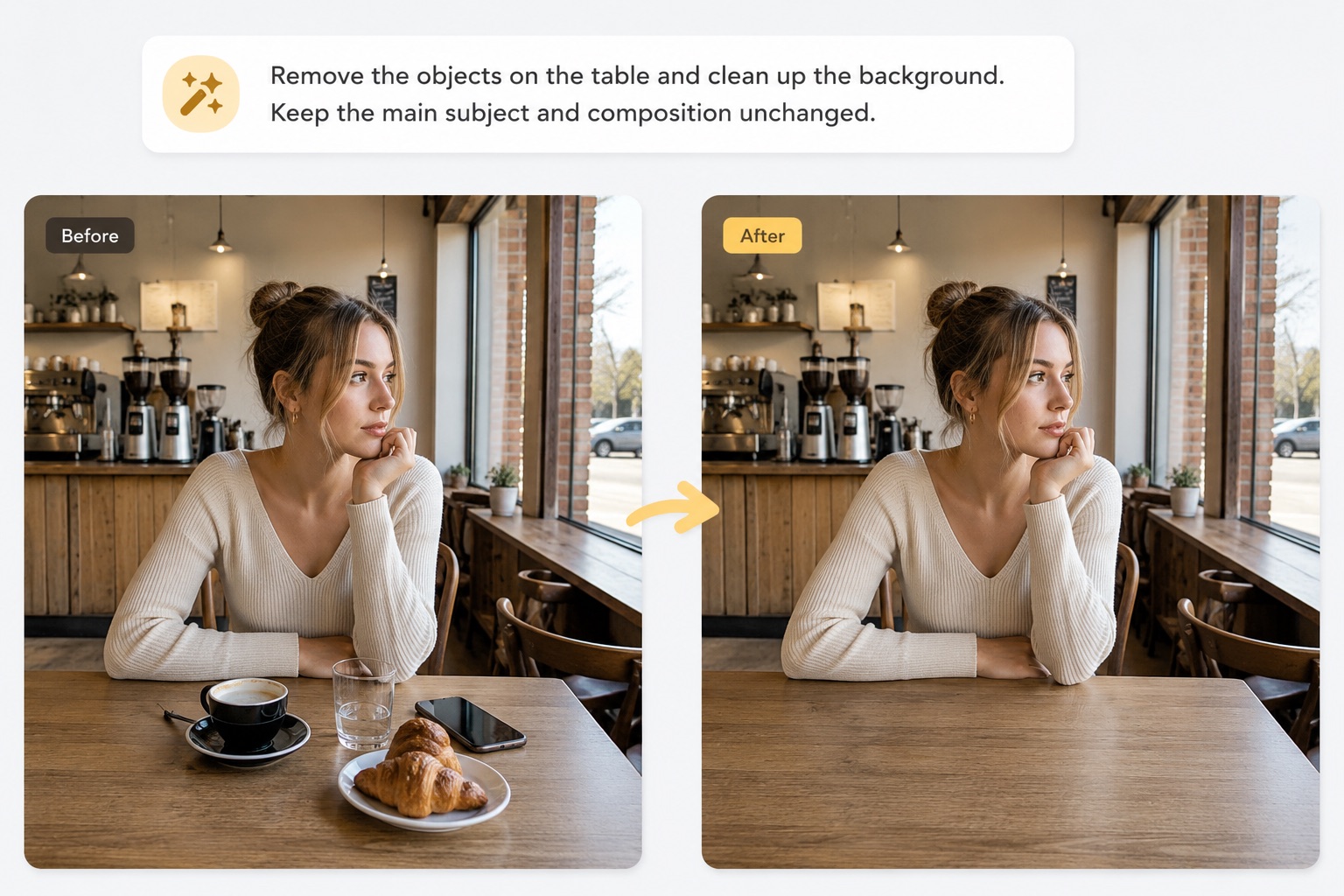
For the best result, describe the exact object and its position instead of saying only “remove unwanted things.”
Improve Lighting and Atmosphere
Lighting has a major influence on the quality and emotion of an image. Chat gpt image editor can help brighten a dark photo, soften harsh shadows, or introduce a more cinematic atmosphere.
Example prompt:
Improve the lighting with soft golden-hour sunlight. Add natural highlights and realistic shadows while keeping the subject, pose, background structure, and camera angle unchanged.
Create Better Product Photos
Professional product photography can be expensive and time-consuming. With chat gpt image editor, businesses can turn a basic product photo into a cleaner marketing visual.
Example prompt:
Place the product on a polished stone surface in a premium studio. Keep its shape, color, label, logo, and proportions unchanged. Add soft commercial lighting and realistic shadows.
Restyle an Existing Image
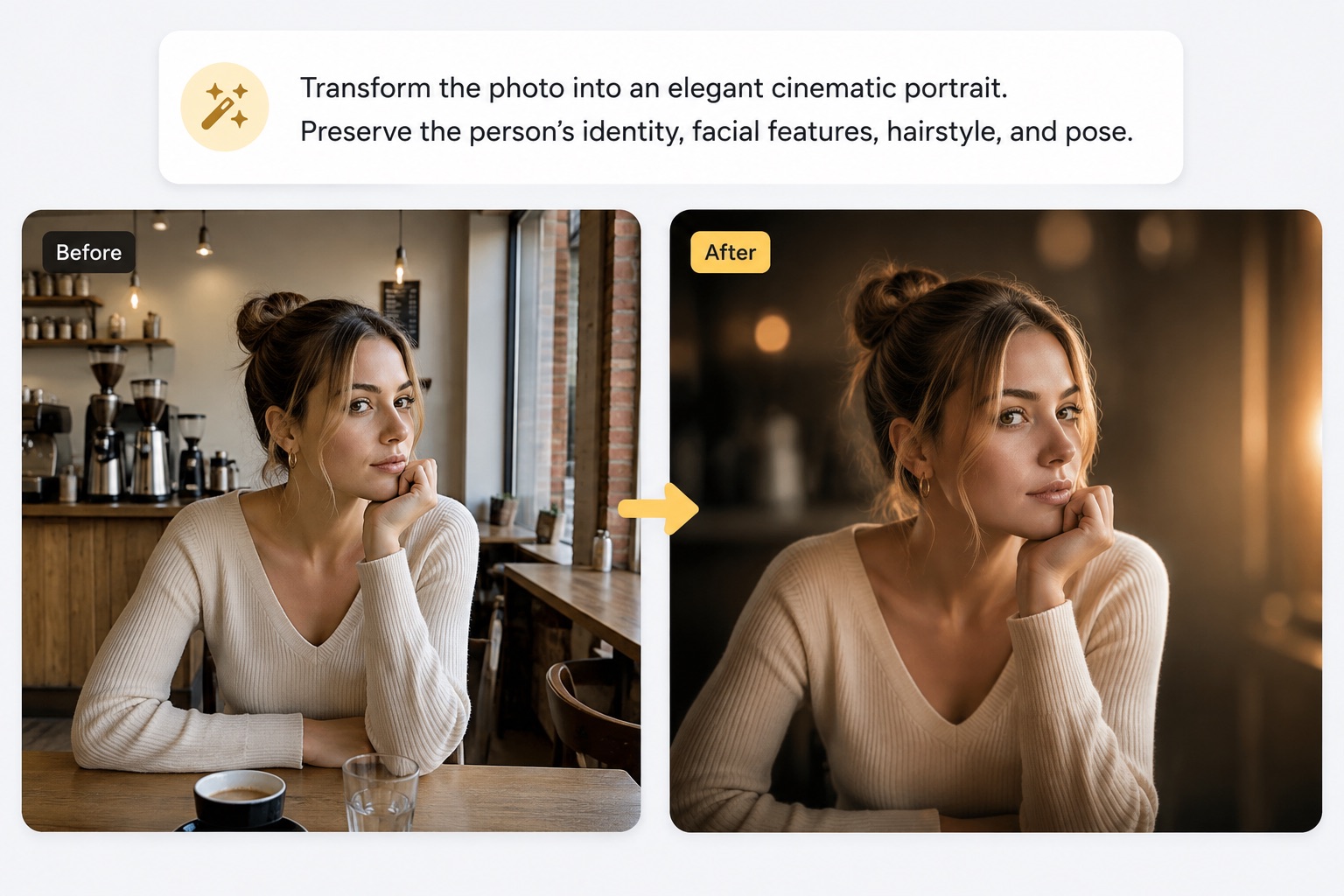
You can use chat gpt image editor to explore different creative directions without changing the original file. A photo can be transformed into an illustration, cinematic still, fantasy scene, anime image, watercolor painting, or editorial visual.
How to Write Better Prompts
The quality of an AI edit depends heavily on the prompt. These practices can help chat gpt image editor produce a more controlled result.
Separate Changes from Preserved Details
Explain what should change and what should remain the same in separate sentences.
For example:
Change the background into a luxury hotel lobby. Keep the face, hairstyle, body position, dress, and camera angle unchanged.
Request One Main Change at a Time
A prompt containing too many unrelated changes may produce inconsistent results. Start with the most important edit. Once the main change looks correct, create another version with additional refinements.
Be Specific About Visual Quality
Words such as “beautiful” and “professional” can mean different things. Specific descriptions give chat gpt image editor a clearer visual target.
Mention What Must Not Change
If the original image contains important details, list them directly. Preservation instructions are especially important when using chat gpt image editor for portraits, products, and branded content.
Common Prompt Mistakes to Avoid
-
Don't write a prompt that is too short. “Improve this image” does not explain which parts need improvement.
-
Don't request several major transformations at once.
-
Avoid contradictory instructions.
Who Can Benefit from Chat GPT Image Editor?
Content Creators and Bloggers
Content creators can use chat gpt image editor to improve portraits, thumbnails, blog images, and social media posts. Bloggers can also make ordinary or stock-like images feel more original and better suited to their content.
Online Sellers and Marketers
Online sellers can create cleaner product scenes without arranging a new photo shoot for every concept. Marketers can quickly test different backgrounds, advertising concepts, and campaign styles.
Designers
Designers can use AI edits to explore different backgrounds, styles, and visual directions before completing detailed manual refinements.
Beginners
Chat gpt image editor is also suitable for beginners who want to experiment with AI photo editing. Because it responds to written instructions, users can focus on their desired results without learning complicated professional editing controls.
Start Creating Better Photos
A photo does not need to be perfect before you begin. It only needs a useful subject and a clear editing direction.
Upload your image, explain what you want to change, and identify the details that should stay the same. With a specific prompt, chat gpt image editor can help you replace backgrounds, remove distractions, improve lighting, restyle scenes, and create polished visual variations.
Ready to see what your photo could become?