Pixverse V6 AI Video Generator
Direct Every Frame from Text or an Image
Bring a visual idea to life with Pixverse V6 AI in a simple online workspace. Pixverse V6 image to video gives still artwork, product photography, portraits, and concept frames a clear sense of motion while preserving the creative direction you provide. Use Pixverse V6 AI to explore scenes, develop story beats, test visual concepts, and make polished short-form content with a faster creative loop.
How to Create with Pixverse V6 AI
Move from an initial idea to a usable video in four focused steps. Pixverse V6 AI keeps the workflow approachable for first-time creators while giving experienced teams room to write precise visual direction. Choose the input that best matches your starting material, define the motion you want, generate a result, and refine the prompt when you need another interpretation. The same process supports text-led concepts and reference-image projects.

Choose Text or Image Input
Begin with a written concept when the scene exists only in your imagination, or upload a strong reference frame for image-led animation. A clear source helps Pixverse V6 AI understand the subject, setting, composition, and visual priorities you want to carry into motion.

Write the Scene and Motion
Describe what happens, how the camera behaves, and how the environment should feel. With Pixverse V6 AI, useful details include subject movement, lens direction, pace, lighting, atmosphere, and audio cues. For an image-led workflow, explain which elements should move and which details should remain stable.

Generate Your Video
Submit the prompt and let Pixverse V6 AI translate your direction into a complete clip. The generator interprets the relationship between action, camera motion, and scene mood. The image-to-video mode adds temporal movement to the uploaded frame while using your words to guide the transformation.

Review and Refine
Watch the result, identify the strongest moments, and adjust your wording when you want a different pace or composition. Pixverse V6 AI makes iteration practical because each prompt can focus on one creative change. In reference-image work, small edits to motion and camera instructions can produce distinctly different outcomes.
Creative Control for Cinematic AI Video
Pixverse V6 AI combines accessible generation with detailed visual direction. Use it to plan camera behavior, create connected scene beats, pair motion with sound-aware prompting, and animate reference images without building a traditional production pipeline. Each feature below is designed around a practical creative decision rather than a technical setup step.
Direct Camera Movement with Natural Language
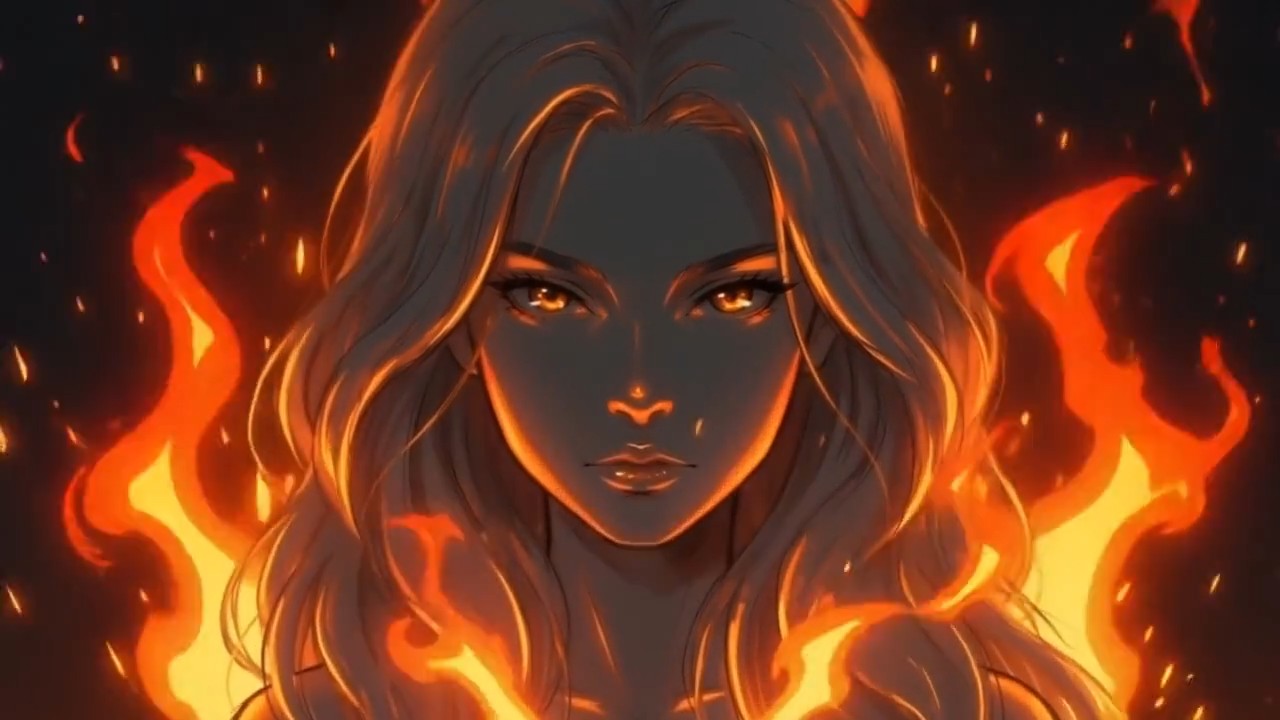
Give the scene a deliberate point of view instead of accepting generic motion. Pixverse V6 AI understands prompts that describe pushes, pulls, pans, tilts, tracking, following, focal feeling, depth, and lens-like effects.
This makes Pixverse V6 AI useful when camera behavior carries as much meaning as the action itself. With Pixverse V6 image to video, the uploaded composition becomes the opening visual anchor, while your camera instructions define how the viewer discovers depth and detail.
Write the movement, pace, subject behavior, lighting change, and final emphasis as one coherent direction. The reference-image workflow can then turn a static frame into a shot that feels planned rather than randomly animated.
Build Multi-Shot Ideas from One Clear Prompt
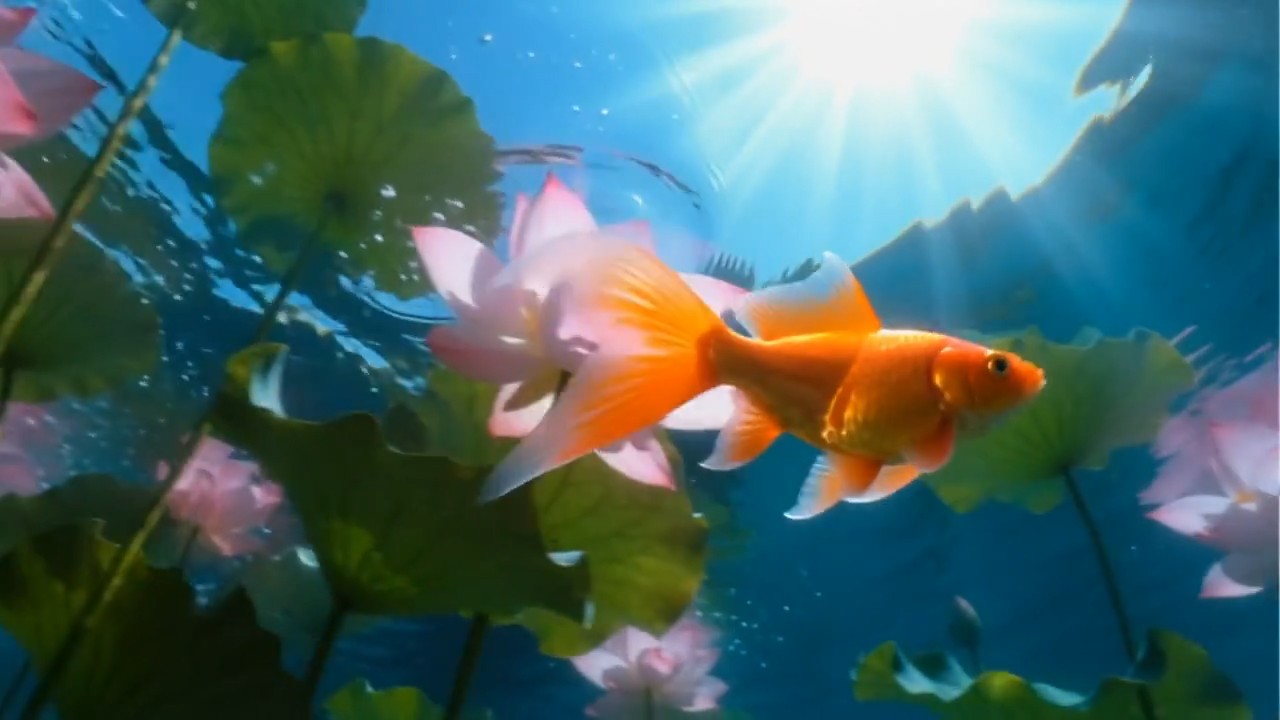
Develop a short visual story with connected beats, changing viewpoints, and a consistent subject. Pixverse V6 AI supports multi-shot storytelling that can help creators express a sequence instead of a single isolated moment.
Describe the order of events, the relationship between shots, the subject details that must remain recognizable, and the transition in energy from one beat to the next. Pixverse V6 AI is especially useful for product demos, character moments, location reveals, fashion concepts, and compact branded narratives where continuity matters.
That workflow helps teams explore movement from an approved still before committing to a full shoot or animation pass. By combining a strong source frame with a structured prompt, Pixverse V6 AI becomes a flexible previsualization and content-production partner.
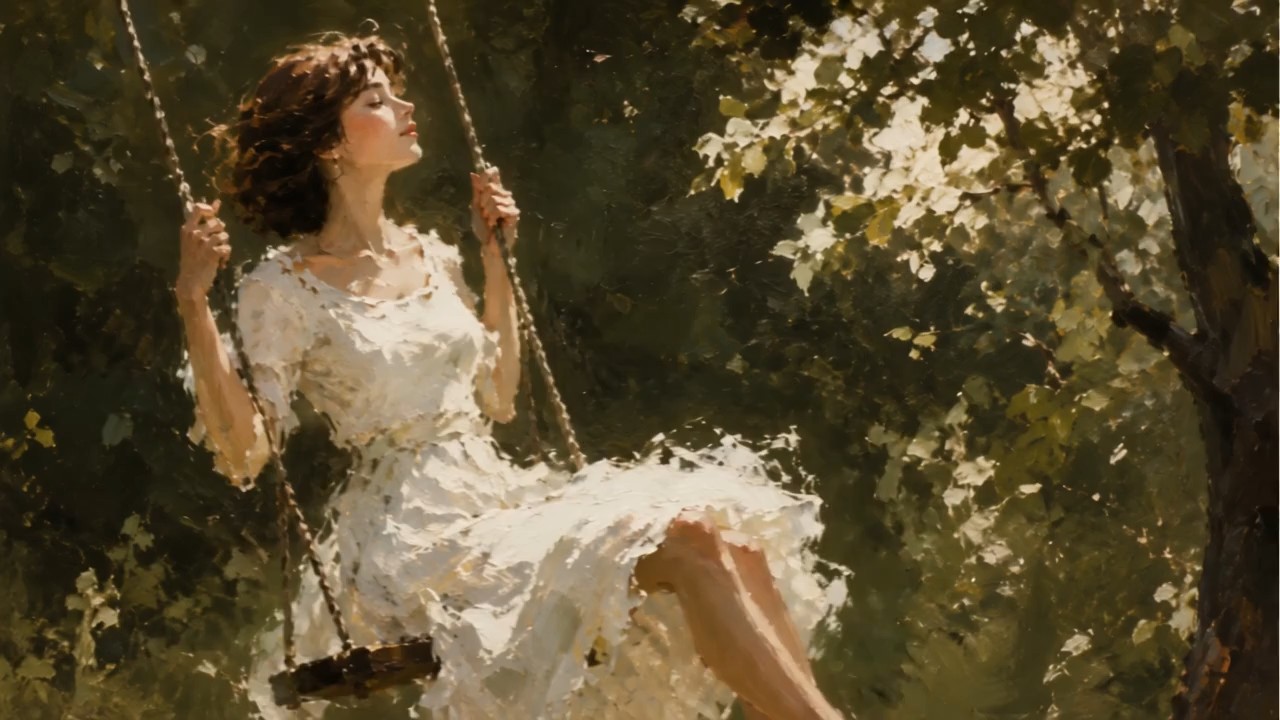
Prompt Visuals and Sound as One Experience
Design a scene around what the audience should feel as well as what they should see. Pixverse V6 AI can interpret prompts that combine movement with dialogue, ambient texture, sound effects, music cues, and moments of silence.
Pixverse V6 AI gives filmmakers and marketers a direct way to describe this audiovisual intention in everyday language. For Pixverse V6 image to video, use the still image to establish the visual world, then add sound-aware notes that match the location and action.
Keep audio requests relevant to the visible scene and describe their timing when it matters. This gives Pixverse V6 AI a clearer creative target and helps the finished clip feel like one designed moment.
Ways to Use Pixverse V6 AI
From fast concept exploration to publishable short-form media, Pixverse V6 AI adapts to different creative roles and business goals. Start from text when you need to invent a world, or use Pixverse V6 image to video when an approved visual should lead the result.

Social Video Campaigns
Create scroll-stopping openings, visual hooks, and atmospheric clips for feeds and ads. Pixverse V6 AI helps social teams test multiple creative directions without rebuilding a timeline for every idea. When a campaign already has key art, Pixverse V6 image to video turns that image into a moving extension of the same visual system.

Product Showcases
Use Pixverse V6 AI to describe clean reveals, close-up details, camera orbits, and stylized environments for a product story. Pixverse V6 image to video can animate a product photograph while keeping the approved design, color, and framing central to the shot.

Film and Story Previsualization
Explore mood, blocking, camera direction, and scene transitions before production. Pixverse V6 AI gives directors and storyboard artists a fast way to communicate visual intent. Pixverse V6 image to video can bring a storyboard panel or concept frame into motion for clearer team review.

Music and Entertainment Visuals
Generate performance atmospheres, surreal cutaways, looping worlds, and cover-art motion with Pixverse V6 AI. Start from existing artwork with Pixverse V6 image to video, then direct particles, lighting, camera drift, and rhythmic movement to match the track.
Creators on Working with Pixverse V6 AI
Different creative roles use Pixverse V6 AI to move from a visual direction to a reviewable clip. These perspectives focus on workflow and creative control without promising identical outcomes for every prompt.
I use Pixverse V6 AI when a campaign idea needs motion before we commit to production. The ability to describe camera pacing in plain language makes early creative reviews much more concrete. Pixverse V6 image to video is particularly helpful when the team has already approved a hero frame and wants to explore how it could move.
I use Pixverse V6 AI when a campaign idea needs motion before we commit to production. The ability to describe camera pacing in plain language makes early creative reviews much more concrete. Pixverse V6 image to video is particularly helpful when the team has already approved a hero frame and wants to explore how it could move.
Pixverse V6 AI gives me a quick way to test visual rhythm, atmosphere, and transitions for branded stories. I can keep the prompt focused on the shot rather than the software. For reference-led work, Pixverse V6 image to video helps me preserve the original composition while exploring a more cinematic camera path.
Pixverse V6 AI gives me a quick way to test visual rhythm, atmosphere, and transitions for branded stories. I can keep the prompt focused on the shot rather than the software. For reference-led work, Pixverse V6 image to video helps me preserve the original composition while exploring a more cinematic camera path.
Our social calendar needs variety, but every clip still has to feel connected to the campaign. Pixverse V6 AI lets us explore several hooks from one creative brief. When the source is key art, Pixverse V6 image to video gives that static asset a useful second life in short-form content.
Our social calendar needs variety, but every clip still has to feel connected to the campaign. Pixverse V6 AI lets us explore several hooks from one creative brief. When the source is key art, Pixverse V6 image to video gives that static asset a useful second life in short-form content.
For product launches, Pixverse V6 AI helps me translate messaging into visual moments the team can react to. It is useful for reveal ideas, close-up sequences, and environment concepts. Pixverse V6 image to video also lets us start from an approved product render instead of describing every design detail again.
For product launches, Pixverse V6 AI helps me translate messaging into visual moments the team can react to. It is useful for reveal ideas, close-up sequences, and environment concepts. Pixverse V6 image to video also lets us start from an approved product render instead of describing every design detail again.
Pixverse V6 AI Frequently Asked Questions
Learn how to choose an input, write clearer direction, and get more useful results from Pixverse V6 AI and Pixverse V6 image to video.
Pixverse V6 AI is an online AI video experience for turning written ideas or reference images into directed short-form video. It is designed for creators who want to describe subject action, camera movement, atmosphere, pacing, and story beats without beginning in a traditional editing timeline.
Yes. Choose text input, describe the subject, setting, action, camera behavior, and mood, then generate the scene with Pixverse V6 AI. A structured prompt usually gives the model a clearer target than a short list of unrelated visual words.
Upload one reference image and explain how the shot should develop. Pixverse V6 image to video uses the frame as the visual starting point while your prompt guides subject movement, environmental motion, camera direction, pace, and the intended ending.
Use a clear, well-composed image with a recognizable subject and enough visual information to support the motion you request. Pixverse V6 image to video benefits from prompts that separate the main action from subtle secondary movement and identify any details that should stay stable.
You can write camera instructions directly into the prompt. Pixverse V6 AI can respond to direction such as pan, tilt, push, pull, track, follow, or a static camera, along with lens-like details, depth, and pacing. Keep the camera request consistent with the subject action for a more coherent shot.
Pixverse V6 AI supports prompts for multi-shot storytelling and dynamic camera transitions. Describe the sequence in order, note the character or product details that must remain consistent, and explain how each shot advances the scene instead of listing disconnected clips.
Pixverse V6 AI can work with prompts that describe dialogue, ambience, sound effects, music, and silence alongside the visuals. Tie each sound cue to the visible setting or action and indicate timing when a sound should mark a specific moment.
Begin by identifying the subject and composition already present in the image. Then tell Pixverse V6 image to video what moves, what remains steady, how the camera travels, how fast the action unfolds, and what visual state should conclude the clip.
Use Pixverse V6 AI for social clips, product showcases, concept films, story previews, ecommerce motion, music visuals, pitch materials, and creative experiments. The best use case is one with a clear visual goal and a prompt that describes both action and presentation.
Yes. Pixverse V6 image to video lets you explore different camera moves, subject actions, atmosphere changes, and pacing from the same source frame. Change one major direction at a time when you want comparisons that are easy to evaluate.
Generation is interpretive, so the first result may reveal which parts of the direction need more precision. With Pixverse V6 AI, refine the most important variable first: subject action, camera movement, scene order, mood, or timing. Clearer priorities usually make the next result easier to judge.
No traditional editing experience is required to begin. Pixverse V6 AI uses written direction and an optional image input, so designers, marketers, filmmakers, and independent creators can test motion ideas. Editing skills may still be useful later if you want to combine clips into a larger production.
Start Creating with Pixverse V6 AI
Turn your next scene description or favorite still into purposeful motion. Pixverse V6 AI gives you a direct path from creative intent to a reviewable video, while Pixverse V6 image to video helps an existing visual become a cinematic shot. Write the movement, guide the camera, and create your first clip online.