Qwen Image 2.1 Prompt Guide: 20+ Copy-Paste Templates & Examples
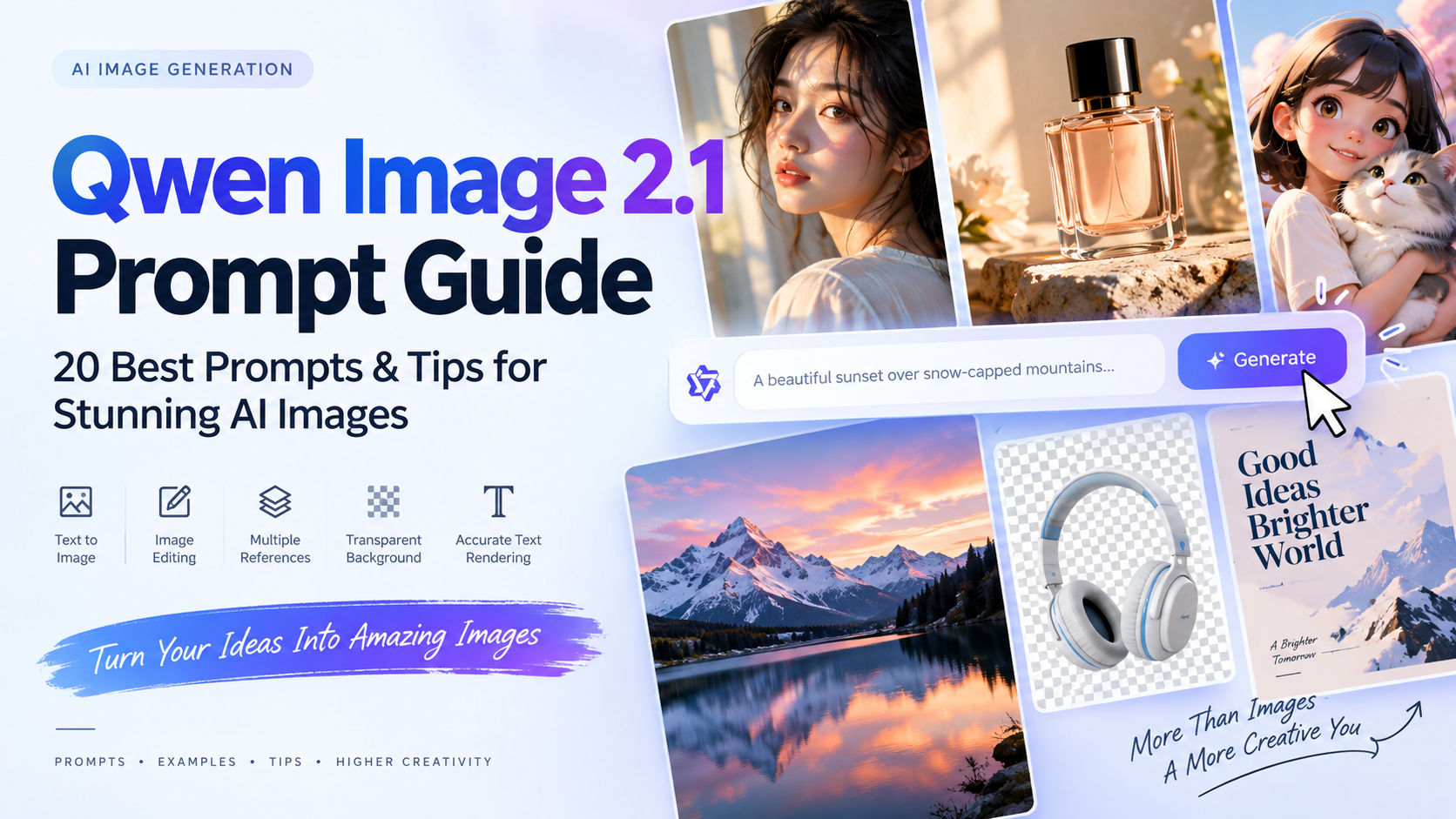
Stop guessing with your AI prompts. This guide provides 20+ copy-paste Qwen Image 2.1 templates and a proven formula to reliably generate commercial product photos, transparent PNGs, and precise image edits.
What Is a Qwen Image 2.1 Prompt?
A Qwen Image 2.1 prompt is a written instruction that tells the model what to generate or how to edit an existing image. You can use it to create a new image from text, modify an uploaded image, combine reference images, or produce transparent visual assets.
To put these examples into practice, start with Qwen Image 2.1 on PicEditor and choose a prompt that matches the image you want to create or edit.
The strongest prompts prioritize the main subject and visual hierarchy. Add detail where it clarifies the result you want.
Quick rule: Describe what you want to see first. Then add only the details needed to control the result.
How to Write a Qwen Image 2.1 Prompt
For most text-to-image tasks, use this foundational structure:
[Image type] + [main subject] + [setting] + [composition] + [lighting] + [style] + [important details] + [restrictions]
Copy-and-Paste Prompt Formula
Create an image in the style of [image type], featuring [main subject].
The subject is [appearance, action, pose, clothing, or product details].
Place it in [environment or background].
Composition: [framing, camera angle, subject placement, aspect ratio].
Lighting: [lighting direction, time of day, and mood].
Style: [photorealistic, cinematic, editorial, 3D, illustration, etc.].
Include [important materials, textures, colors, or visual details].
Do not include [unwanted objects, logos, watermarks, distorted anatomy, or extra text].
Example: From Vague to Specific
A structured prompt makes your intended result clearer and gives you specific details to adjust between attempts. Notice the difference below:
| Approach | Prompt Example | What the Prompt Specifies |
|---|---|---|
| Too Vague | A beautiful perfume product photo. | Names the subject but leaves the bottle design, lighting, and background unspecified. |
| Highly Specific | Create a premium perfume product photograph. Place one clear glass perfume bottle with a matte black cap at the center of a dark marble surface. Use a soft charcoal background with subtle smoke and faint reflections. Composition: close-up product shot, centered, 4:5 vertical format. Lighting: dramatic studio lighting from the left, warm highlights on the glass, soft shadows. Style: high-end luxury advertising photography, minimal and refined. Do not add logos, readable brand names, extra bottles, people, watermark, or random text. | Specifies the bottle design, setting, light direction, intended framing, and unwanted elements. |
Control Composition Without Making Prompts Too Long
You do not need to list every possible composition term in every prompt. Choose only the directions that matter for the placement where the image will be used.
Use this simple format: [Framing] + [camera angle] + [subject placement] + [aspect ratio]
Example: "Medium portrait, eye-level camera angle, subject positioned on the right, large empty space on the left for headline text, 16:9 landscape composition."
If the interface provides an aspect-ratio setting, select the matching ratio there as well.
Add Restrictions at the End
Use restrictions to identify unwanted changes. For ecommerce visuals, name the product details you want to preserve:
Example: "Do not change the product packaging, label placement, product color, shape, or proportions. Do not add watermarks, unreadable text, or clutter."
Core Text-to-Image Prompt Templates
Choose one template and replace the bracketed details with your own subject, setting, and visual requirements. You can try a completed prompt with PicEditor's Qwen Image 2.1 tool, then refine the result by changing one detail at a time.
Product Photography Prompt
Create a premium commercial product photograph featuring [product name].
The product is [product appearance, color, packaging, material, and key details].
Place it on [surface] with [background description].
Composition: [close-up / centered / top-down / side angle], [aspect ratio].
Lighting: [soft natural light / studio light / dramatic side light].
Style: luxury ecommerce advertising, realistic materials, polished details, clean composition.
Do not add logos, watermark, unreadable text, extra products, hands, or clutter.
Example:
Create a premium skincare product advertising image.
Place one transparent glass serum bottle at the center of a light beige stone surface.
The bottle has a minimal white label with no readable brand name.
Use a warm cream wall in the background with a subtle tonal gradient.
Composition: centered close-up product shot, 4:5 vertical format.
Lighting: soft natural sunlight from the left, realistic shadows, gentle highlights, and accurate glass reflections.
Style: high-end commercial product photography, clean luxury aesthetic.
Add a few small water droplets and pale green botanical leaves around the bottle without covering it.
Do not add extra products, random text, logos, watermark, or distorted packaging.
Cinematic Portrait Prompt
Create a cinematic editorial portrait of [person description].
The subject is [pose, expression, hairstyle, clothing, and accessories].
Place the subject in [location or background].
Composition: [medium close-up / full body / profile], [camera angle], [aspect ratio].
Lighting: [lighting direction and mood].
Style: photorealistic fashion editorial, realistic skin texture, shallow depth of field.
Do not add extra people, distorted facial features, extra fingers, watermark, or text.
Example:
Create a cinematic editorial portrait of a young Asian woman standing beside a rain-covered window at night.
She wears a black tailored blazer and silver earrings. Her expression is calm and thoughtful as she looks slightly away from the camera.
Neon blue and warm orange city lights reflect softly on the wet glass behind her.
Composition: medium close-up, eye-level view, 4:5 vertical format.
Lighting: soft blue rim light with warm orange highlights on one side of the face.
Style: high-fashion magazine photography, realistic skin texture, subtle film grain, dramatic mood.
Do not add text, watermark, extra people, distorted facial features, or extra fingers.
Social Media Ad Prompt
Create a social media advertising image for [product or service].
Show [main visual subject] in [background or setting].
Add [supporting visual elements], while keeping the scene clear and uncluttered.
Composition: [subject placement] with [empty-space location] reserved for a headline.
Lighting: [lighting direction and mood].
Style: modern commercial advertising, polished, premium, and easy to understand.
Use [aspect ratio].
Do not include logos, watermark, unreadable text, or unrelated objects.
Example:
Create a clean social media advertising image for an AI image generation platform.
Show a modern smartphone floating against a deep purple-to-blue gradient background.
The phone screen displays abstract AI-generated artwork with no readable text.
Add subtle glowing particles and soft light trails.
Composition: smartphone positioned on the right, with generous empty space on the left for headline copy.
Lighting: cool futuristic glow with soft reflected light around the phone edges.
Style: polished 3D commercial advertising, premium and visually clear.
Use a 16:9 landscape composition.
Do not include logos, watermark, unreadable text, or clutter.
Cinematic Scene Prompt
Create a cinematic scene of [main subject] in [environment].
The subject is [action, clothing, mood, or story detail].
The environment includes [important objects and atmosphere].
Composition: [wide / medium / aerial shot], [camera angle], [aspect ratio].
Lighting: [time of day, source, and mood].
Style: cinematic realism, detailed environment, atmospheric depth.
Do not include text, watermark, extra main characters, or clutter.
Example:
Create a cinematic scene of a lone astronaut walking through tall grass on an alien planet.
The astronaut wears a weathered white exploration suit with a reflective helmet visor.
A giant ringed planet rises above the horizon. The field has soft blue grass, low fog, and glowing plants near the path.
Composition: wide landscape shot, low camera angle, astronaut positioned on the right third of the frame.
Lighting: soft violet sunset light with a pale blue glow from the plants.
Style: realistic science-fiction concept art, cinematic scale, detailed textures, atmospheric depth.
Use a 16:9 landscape composition.
Do not include text, watermark, spaceships, or extra characters.
Illustration Prompt
Create a [illustration style] illustration of [subject].
The subject is [appearance, pose, activity, clothing, and important details].
Place it in [background or scene].
Color palette: [colors].
Composition: [framing and layout].
Style: [flat vector / watercolor / hand-drawn / anime / storybook / retro poster].
Do not include text, watermark, photorealistic rendering, or unnecessary objects.
Example:
Create a cozy hand-drawn illustration of a small orange cat working at a laptop in a home office.
The cat sits on a wooden chair with a green cushion and wears round glasses.
A cup of tea, a small plant, and several books sit on the desk. Outside the window, it is raining softly at night.
Color palette: warm orange, forest green, cream, and muted blue.
Composition: medium-wide interior scene with the cat centered at the desk.
Style: soft storybook illustration, textured brush strokes, warm and calming atmosphere.
Do not include text, watermark, photorealistic rendering, or extra animals.
Poster Template
Create a [poster type] for [event, campaign, or topic].
Display the headline "[EXACT HEADLINE]" at [position].
Display the subtitle "[EXACT SUBTITLE]" at [position].
Typography: [bold sans-serif / elegant serif / handwritten / futuristic], [text color], clear hierarchy, clean spacing, high readability.
Background: [background description].
Style: [design style].
Use [aspect ratio].
Ensure all visible text is correctly spelled, clear, and easy to read.
Do not add extra text, logos, watermark, or unrelated elements.
Example:
Create a modern event poster for a creative technology conference.
Display the headline "CREATE THE FUTURE" at the top center.
Display the subtitle "AI, Design, and New Ideas" below it in smaller white text.
Typography: large bold sans-serif type, clean spacing, strong visual hierarchy, high readability.
Background: a dark black-to-purple gradient with abstract flowing chrome shapes.
Style: minimal, premium, futuristic editorial design.
Use a 4:5 vertical poster layout.
Ensure all visible text is correctly spelled, clear, and easy to read.
Do not add logos, watermark, extra text, or unrelated objects.
Packaging Label Template
Create a clean packaging label concept for a premium [product category].
Display the brand name "[BRAND NAME]" at the top.
Display the product name "[PRODUCT NAME]" in the center.
Display the supporting line "[SHORT DESCRIPTION]" below the product name.
Use [color palette], [font mood], and [design style].
Include subtle decorative elements related to [ingredient, category, or product benefit].
Keep the layout minimal, balanced, and suitable for premium retail packaging.
Ensure all visible text is correctly spelled and legible.
Do not add watermark, unrelated logos, or excessive text.
Example: Minimal Tea Packaging Label
Use this example for a label concept with a short brand name, product name, and supporting line.
Create a flat, front-facing packaging label concept for a premium loose-leaf tea.
Display the brand name "MORNING LEAF" at the top.
Display the product name "JASMINE GREEN TEA" in the center.
Display the supporting line "A Quiet Moment in Every Cup" below the product name.
Use an ivory background, deep green lettering, and a thin muted gold border.
Add a small botanical illustration of jasmine flowers near the bottom without overlapping the text.
Typography: an elegant serif for the brand name and a simple sans-serif for the supporting line.
Keep the layout balanced, spacious, and easy to read. Use a 4:5 vertical composition.
Do not add extra wording, certification symbols, barcodes, watermark, or a packaging mockup.
Image Editing & Style Transfer Prompts
For image editing, start with what must stay unchanged. Then describe the requested modification. When trying image editing with Qwen Image 2.1, focus on one primary change at a time and compare the result with the source, especially around faces, labels, hands, and fine product details.
Change Background Prompt
Keep the [person / product / object] shape, color, material, proportions, camera angle, and placement unchanged.
Replace the original background with [new background].
Maintain realistic contact shadows, accurate reflections, matching perspective, and consistent lighting.
Do not add text, logos, watermark, extra objects, people, or changes to the main subject.
Example:
Keep the product’s shape, color, material, packaging, proportions, and camera angle unchanged.
Replace the original background with a modern living room featuring a light wooden table, soft beige walls, and warm natural daylight.
Maintain realistic contact shadows, accurate reflections, and consistent perspective.
Do not add text, logos, extra products, people, or changes to the packaging.
Remove Object Prompt
Remove [object to remove] from the image.
Keep [subjects and elements to preserve] unchanged.
Reconstruct the removed area naturally with realistic texture, lighting, shadows, and perspective.
Do not alter the person’s face, clothing, body position, product details, or overall image style.
Example:
Remove the coffee cup from the table.
Keep the person, table texture, lighting direction, background, shadows, and overall composition unchanged.
Reconstruct the removed area naturally with realistic wood texture and soft shadows.
Do not alter the person’s face, clothing, body position, or image style.
Replace an Object Prompt
Keep the original composition, camera angle, lighting, and all elements except [object to replace] unchanged.
Replace [original object] with [new object].
The new object should have [appearance, material, color, size, and placement].
Match the lighting, shadows, reflections, scale, and perspective of the original image.
Do not change the background, people, text, or other objects.
Example: Replace a Desk Lamp
Upload a desk photograph containing the lamp you want to replace. Specify its position so the requested edit is easy to locate.
Replace the black desk lamp on the left side of the wooden desk with a small cream ceramic table lamp.
The replacement lamp has a rounded ceramic base and a simple beige linen shade.
Keep it in the same position and approximately the same size as the original lamp.
The lamp should remain switched off.
Match the daylight direction, perspective, and material reflections in the original photograph.
Update the local contact shadow beneath the replacement lamp.
Keep the desk, laptop, books, plant, wall, camera angle, and overall composition unchanged.
Do not add extra objects, text, logos, or watermark.
Change Clothing Prompt
Keep the person’s face, hairstyle, body shape, pose, camera angle, and background unchanged.
Replace the current clothing with [new clothing description].
Make the fabric texture, folds, buttons, shadows, and fit look realistic.
Do not change facial features, skin tone, hands, body proportions, or the original lighting.
Example:
Keep the person’s face, hairstyle, body shape, pose, camera angle, and background unchanged.
Replace the current jacket with a dark navy tailored wool blazer.
Make the fabric texture, folds, buttons, shadows, and fit look realistic.
Do not change facial features, skin tone, hands, body proportions, or the original lighting.
Relight an Image Prompt
Keep the subject, pose, background, and composition unchanged.
Preserve the underlying material and clothing colors while allowing natural color changes from the new lighting.
Change the lighting to [new lighting direction and mood].
Add [specific lighting effect], while preserving realistic shadows, skin tones, reflections, and material appearance.
Do not change facial features, object shapes, clothing, text, or scene layout.
Example:
Keep the subject, pose, background, and composition unchanged.
Preserve the underlying material and clothing colors while allowing natural color changes from the new lighting.
Change the lighting to warm golden-hour sunlight entering from the left.
Add soft rim light around the hair, gentle warm highlights on the face, and longer natural shadows on the ground.
Do not change facial features, object shapes, clothing, text, or scene layout.
Correct Text in an Image Prompt
Replace the text on [object or location] with "[EXACT TEXT]".
Keep the original font style, text color, size, alignment, perspective, material, and lighting consistent with the image.
Ensure the new text is correctly spelled and clearly readable.
Do not change the signboard, background, objects, or overall composition.
Example: Correct a Café Sign
Use a source image with a clearly visible sign. After generating the edit, zoom in and check every letter before using the image.
Replace only the lettering on the wooden café sign with "FRESH COFFEE".
Use uppercase warm white letters with the same hand-painted appearance as the original lettering.
Center the words on the sign with balanced spacing and comfortable margins.
Keep the sign's wood grain, shape, mounting position, perspective, and weathered texture unchanged.
Match the existing lighting and shadows.
Preserve the storefront, windows, plants, pavement, and background.
Include only the words "FRESH COFFEE" on the sign.
Do not add subtitles, extra lettering, logos, or watermark.
Style Transfer Prompt
Keep the subject, composition, pose, and important objects unchanged.
Transform the visual style into [target style].
Use [specific color palette, texture, brushwork, rendering method, or design language].
Maintain recognizable subject details and preserve the original composition.
Do not add text, watermark, extra objects, or major content changes.
Example: Turn a Portrait into a Watercolor Illustration
Use this example to reinterpret an existing portrait with a softer, handmade appearance.
Transform the uploaded portrait into a soft watercolor illustration.
Preserve the adult subject's recognizable facial features, hairstyle, expression, pose, and clothing design.
Keep the original framing and subject placement.
Use translucent watercolor washes, delicate pencil details, subtle paper texture, and soft unfinished edges.
Keep the colors close to the original photograph while simplifying the background into gentle washes.
Maintain clear eyes and a natural face shape without a glossy or airbrushed finish.
Do not add extra people, accessories, text, logos, watermark, or decorative borders.
Transparent Background Prompts (PNGs)
Transparent images are useful for ecommerce cutouts, stickers, app icons, website overlays, and social-media assets. When using a workflow that supports transparent output, be explicit: request an RGBA image, an alpha channel, and a fully transparent background.
Check that the downloaded file contains real transparency by placing it over a colored background. A white background or a painted checkerboard pattern is not an alpha channel; use a supported transparent export or a background-removal step if needed.
Transparent PNG Template
This is an RGBA image with transparency.
Create a [subject] in [style].
The image has an alpha channel and the background is fully transparent.
Use clean edges and accurate cutout details.
Do not add a white background, colored background, text, watermark, border, or shadows outside the subject.
Sticker Example
This is an RGBA image with transparency.
Create a cute 3D robot mascot holding a glowing paintbrush.
The robot has rounded white metallic surfaces, purple LED details, and a friendly expression.
The image has an alpha channel and the background is fully transparent.
Use clean sticker-like edges, polished 3D rendering, and soft internal lighting.
Do not add a background, text, watermark, border, or extra objects.
Ecommerce Cutout Example
This is an RGBA image with transparency.
Extract and preserve only the red leather handbag from the source image.
Keep its exact shape, stitching, color, material texture, handles, and metal details unchanged.
The output has an alpha channel and the background is completely transparent.
Use clean and accurate edges around the handbag.
Do not include the original background, hands, props, text, watermark, or shadows.
Transparent App Icon Example
This is an RGBA image with transparency.
Create a polished 3D icon of a purple magic wand with a small glowing star at the tip.
Use rounded forms, soft glossy material, and subtle blue highlights.
The icon has an alpha channel and the background is fully transparent.
Center the icon with clean edges and no cast shadow outside the object.
Do not add text, watermark, border, or background.
Multi-Reference Image Prompts
When you use multiple images, give each reference a precise role. Tell the model what to preserve from each image and what the final scene should look like. Before trying a multi-reference prompt with Qwen Image 2.1 on PicEditor, check the reference-image controls available for your selected workflow.
The labels <image1> and <image2> below describe reference roles. Use the image names, upload order, or reference controls recognized by your interface.
Character + Clothing Reference Prompt
Use <image1> as the character reference and <image2> as the clothing reference.
Keep the character’s face, hairstyle, body proportions, skin tone, and standing pose from <image1> unchanged.
Dress the character in the clothing shown in <image2>.
Preserve the clothing color, fabric texture, collar, buttons, stitching, and overall design.
Create a realistic studio fashion photograph with soft natural lighting.
Do not change the character’s identity, pose, or facial features.
Example: Linen Outfit for an Outdoor Portrait
Upload an adult man's portrait as the first reference and a photograph of a beige linen shirt as the second reference.
Use the first uploaded image as the identity, pose, and background reference for the adult man.
Use the second uploaded image only as the reference for the beige linen shirt.
Replace the man's current shirt with the shirt from the second image.
Preserve its beige color, linen texture, collar shape, button placement, sleeve length, and cuff design.
Fit the shirt naturally to the man's existing pose, with realistic folds and shadows.
Keep his recognizable face, hairstyle, skin tone, body proportions, trousers, hands, and background consistent with the first image.
Match the original outdoor lighting and camera angle.
Do not introduce the person or background from the clothing reference, extra accessories, text, or watermark.
Product + Background Reference Prompt
Use <image1> as the product reference and <image2> as the lifestyle background reference.
Place the product from <image1> naturally into the setting shown in <image2>.
Keep the product’s packaging, color, label layout, material, and proportions exactly unchanged.
Match the product lighting, shadows, reflections, and camera perspective to the scene in <image2>.
Do not add extra products, text, logos, people, or changes to the package design.
Example: Place a Ceramic Mug in a Kitchen Scene
Upload a product photograph of a blue ceramic mug and a separate photograph of the kitchen setting you want to use.
Use the first uploaded image as the reference for the blue ceramic mug.
Use the second uploaded image as the reference for the kitchen setting.
Place one mug on the clear section of the kitchen counter, with its handle facing right.
Preserve the mug's blue glaze, rounded shape, handle design, rim thickness, and visible surface texture.
Match the camera perspective and daylight direction of the kitchen photograph.
Add a natural contact shadow beneath the mug and keep its scale realistic for the counter.
Keep the kitchen layout and surrounding objects consistent with the background reference.
Do not add extra mugs, steam, text, logos, or unrelated props.
Character Consistency Prompt
Use <image1> as the character identity reference.
Create a full-body scene of the same character walking through a modern Tokyo street at night in light rain.
Preserve the character’s facial features, hairstyle, skin tone, body proportions, and outfit design from <image1>.
Use cinematic street photography, neon reflections on wet pavement, soft depth of field, and realistic lighting.
Do not change the character’s identity or add other main characters.
Product + Hand Model Reference Prompt
Use <image1> as the product reference and <image2> as the hand model reference.
Create a realistic beauty advertisement in which the hand from <image2> gently holds the product from <image1>.
Keep the product packaging, material, label layout, shape, and color unchanged.
Keep the hand skin tone, nail style, and proportions consistent with <image2>.
Use soft beige studio lighting, realistic contact shadows, and a clean editorial composition.
Do not add text, logos, extra products, or changes to the product design.
14 Extra Qwen Image 2.1 Prompt Examples (Categorized)
Here are 14 additional examples organized by use case. Choose the closest match to your project and adjust the subject, colors, framing, or lighting.
Web & UI Design
1. SaaS Website Hero Image
Create a modern SaaS website hero image for an AI productivity platform. Show a floating glass dashboard interface surrounded by soft abstract blue and violet shapes. The interface contains charts, task cards, and AI-generated visual blocks, but no readable text. Composition: dashboard on the right, large empty space on the left for website headline copy. Lighting: soft futuristic glow, clean shadows, premium glassmorphism effect. Style: modern B2B technology branding, polished 3D illustration. Use a 16:9 landscape composition. Do not include logos, watermark, unreadable words, or clutter.2. Abstract Technology Background
Create an abstract premium background using flowing translucent glass ribbons in purple, blue, and silver. The ribbons curve through a dark gradient background with subtle glowing particles. Composition: clean and spacious, with a large quiet area in the center for text overlay. Lighting: soft ambient glow with reflective highlights. Style: high-end 3D abstract design, smooth materials, modern technology branding. Use a 16:9 landscape composition. Do not include text, logos, watermark, or recognizable objects.3. AI Tool Blog Header
Create a clean blog header image for an article about AI image prompts. Show a glowing prompt input box transforming into several polished visuals: a product photo, a portrait, a poster, and a transparent 3D icon. Use a dark blue-to-purple gradient background with soft light trails. Composition: visual elements on the right, generous empty space on the left for article title text. Style: polished SaaS illustration, modern, premium, and visually clear. Use a 16:9 landscape composition. Do not include readable text, logos, watermark, or clutter.Marketing & Social Media
4. Restaurant Food Photography
Create a professional food photograph of handmade truffle pasta served in a shallow ceramic bowl. The pasta is topped with shaved black truffle, parmesan, and small green herbs. Place the bowl on a rustic wooden table with a folded linen napkin and a blurred wine glass in the background. Composition: close-up, three-quarter camera angle, shallow depth of field. Lighting: warm natural window light from the left. Style: high-end restaurant photography, realistic food texture, elegant and appetizing. Do not add text, watermark, extra dishes, or artificial-looking ingredients.5. YouTube Thumbnail Background
Create a bold YouTube thumbnail background about AI image generation. Show a futuristic glowing image canvas in the center with colorful particles emerging from it. Use high-contrast purple, pink, and electric blue lighting. Composition: leave large empty space on the left for a headline and a person cutout. Style: energetic technology thumbnail design, crisp details, strong visual impact. Use a 16:9 landscape composition. Do not include text, logos, watermark, faces, or clutter.6. Fitness Campaign Image
Create a motivational fitness campaign image featuring an athletic woman running on a coastal road at sunrise. She wears a black sports jacket and running shoes. The ocean is visible on one side, with warm sunlight and light mist in the distance. Composition: dynamic full-body side view, runner on the right, empty space on the left for headline text. Lighting: energetic golden sunrise light. Style: premium sports advertising photography, realistic motion, crisp and inspiring. Use a 16:9 landscape composition. Do not add text, watermark, extra runners, or distorted body proportions.7. Flat Lay Workspace
Create a clean top-down flat lay of a creative workspace. Include a silver laptop, sketchbook, black pen, ceramic coffee cup, small plant, headphones, and smartphone. Arrange the objects neatly on a warm light-wood desk. Composition: top-down view, balanced spacing, room for text in the upper-right corner. Lighting: soft natural daylight. Style: modern lifestyle photography, calm neutral colors, realistic materials. Use a 4:5 vertical composition. Do not include logos, watermark, hands, or clutter.Art, Concept & Lifestyle
8. Travel Poster
Create a vintage-inspired travel poster for Kyoto in spring. Display the headline "KYOTO IN BLOOM" at the top. Show a quiet street lined with cherry blossom trees, a traditional wooden building, and a distant pagoda. Typography: elegant retro serif font, warm cream text, clear and readable. Color palette: soft pink, muted red, cream, and deep indigo. Style: refined vintage travel illustration with subtle print texture. Use a 4:5 vertical poster layout. Do not add watermark, extra text, modern skyscrapers, or unrelated logos.9. Editorial Fashion Scene
Create a high-fashion editorial scene featuring a model in a sculptural white dress standing in a minimalist concrete gallery. The dress has flowing layered fabric and clean architectural shapes. The gallery has tall windows and long shadows across the floor. Composition: full-body fashion photograph, centered subject, wide-angle view. Lighting: bright natural morning light with sharp but elegant shadows. Style: premium fashion magazine photography, muted neutral palette, refined composition. Do not add text, watermark, extra people, or distorted anatomy.10. Book Cover Concept
Create a science-fiction book cover. Display the title "THE LAST SIGNAL" at the top center. Show a lone radio tower on a frozen mountain peak beneath a sky filled with aurora lights and distant stars. Typography: bold condensed sans-serif, white lettering with a subtle blue glow, clear and readable. Style: cinematic science-fiction cover art, atmospheric, dramatic, premium. Use a vertical 2:3 book-cover composition. Do not add watermark, extra text, logos, or people.11. Fantasy Character Concept
Create a fantasy character concept of a desert mage. The character wears layered sand-colored robes, a deep blue scarf, leather belts, and carries a glowing crystal staff. The mage stands in front of ancient sandstone ruins during a windstorm. Composition: full-body character design, three-quarter pose, centered. Lighting: warm sunset with magical blue light from the staff. Style: detailed fantasy concept art, realistic fabric textures, cinematic atmosphere. Do not add text, watermark, extra characters, or distorted hands.12. Modern Interior Design
Create a photorealistic interior design image of a modern Japandi living room. Include a low beige sofa, light oak coffee table, textured cream rug, indoor plants, and a large abstract artwork on the wall. Use warm neutral colors and uncluttered styling. Composition: wide interior shot from eye level. Lighting: soft afternoon daylight through large windows. Style: premium architectural photography, realistic materials, calm and spacious. Do not add people, text, watermark, or excessive furniture.Pets & Accessories
13. Natural Pet Portrait
Create a photorealistic portrait of one golden retriever sitting beside an open garden door.
The dog has soft golden fur, relaxed ears, a closed mouth, and a calm, curious expression as it looks slightly toward the camera.
Place it on a pale stone floor with a softly blurred green garden in the background.
Composition: medium portrait at the dog's eye level, with the full head, chest, and front paws visible, 4:5 vertical format.
Lighting: gentle morning daylight from the doorway, natural catchlights, and soft shadows.
Style: warm lifestyle pet photography with detailed fur and natural colors.
Do not add clothing, extra animals, people, toys, text, logos, or watermark.
14. Jewelry Detail Photography
Create a premium jewelry photograph featuring one gold ring with a small oval green gemstone.
Place the ring upright on a gently folded ivory linen surface, with its setting and band clearly visible.
Composition: close-up three-quarter view, ring slightly right of center, shallow depth of field, 4:5 vertical format.
Lighting: a large soft studio light from the left with controlled reflections on the gold and a subtle highlight inside the gemstone.
Style: refined accessories photography with realistic metal texture, precise gemstone facets, and a warm neutral palette.
Keep the ring's shape continuous and the gemstone setting structurally plausible.
Do not add extra jewelry, floating stones, hands, text, logos, or watermark.
Frequently Asked Questions
What is the best Qwen Image 2.1 prompt format?
A useful Qwen Image 2.1 prompt defines the subject, setting, composition, lighting, style, key details, and restrictions. For image editing, first describe what must remain unchanged, then explain the requested modification.
Can Qwen Image 2.1 generate transparent PNGs?
Qwen Image 2.1 supports RGBA image workflows, but the generation and export options available in your chosen interface determine whether you can download a transparent PNG. Request a fully transparent background and check the exported file over a colored background. Prompt wording alone does not guarantee that the downloaded image contains an alpha channel.
Can Qwen Image 2.1 edit images?
Yes. You can use natural-language prompts to replace backgrounds, remove objects, change clothing, add new elements, correct text, adjust lighting, apply a visual style, or combine multiple reference images.
How do I use multiple reference images in Qwen Image 2.1?
Give each image a specific role, such as the first image for character identity and the second for clothing. Use the reference labels or upload order recognized by your interface, then specify which facial features, product details, materials, poses, or style elements should come from each image.
How do I make product images more accurate?
Describe the product’s shape, color, materials, label constraints, surface, background, camera angle, and lighting. If editing a source image, explicitly instruct the model not to change the packaging, logo area, label layout, or proportions.
Ready to Elevate Your AI Workflow?
A useful Qwen Image 2.1 prompt makes the subject, composition, and requested changes easy to understand. Start with the closest example above, replace the details that matter to your project, and review the result before changing one variable at a time.
Choose a product photo, portrait, illustration, or image edit and try Qwen Image 2.1 on PicEditor. Keep the prompt versions that work well so you can reuse the same visual direction across future projects.
Want to keep these formulas handy? Bookmark this page or save the prompt structures to your swipe file for your next AI creative session.