ChatGPT Photo Editor: 10 Easy Ways to Edit Photos Online
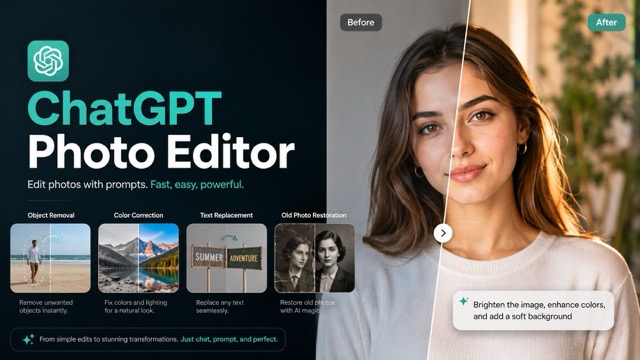
A ChatGPT Photo Editor simplifies photo editing with natural-language prompts. Upload a photo, describe the change you want, and specify what should stay unchanged. From background replacement and object removal to portrait retouching, color correction, text replacement, image expansion, product scenes, and photo restoration, better results come from making one clear edit at a time while preserving important details like faces, products, composition, and lighting.
Editing a photo no longer has to mean learning layers, masks, brushes, and dozens of adjustment sliders. With a prompt-based AI photo editor, you can upload an existing image, describe the change in plain English, and generate a new version in a few steps.
The challenge is not usually knowing what you want. It is explaining the edit without accidentally changing the face, product, composition, or other details that already look right.
This guide shows how to edit a photo with ChatGPT-style prompts through ten practical Before-and-After examples. You will learn how to replace a background, remove an object, retouch a portrait, correct lighting, change colors, create product scenes, replace text, restyle photos, expand images, and restore old pictures.
Quick answer: Upload a clear source image, state exactly what should change, list everything that must stay the same, and request one main edit at a time. You can test the workflow in the PicEditor Chat GPT Image Editor.
What Is a ChatGPT Photo Editor?
“ChatGPT photo editor” is commonly used to describe an image-editing workflow controlled by natural-language prompts. Instead of selecting a background with a manual tool or painting over an unwanted object, you describe the result you want.
For example:
Replace the plain gray wall with a warm café terrace. Keep the woman, her face,
hair, cream sweater, pose, framing, and expression unchanged.
The AI reads both the uploaded image and the instruction, then generates an edited result. This makes prompt-based editing especially useful when you want to:
- Try a new background without arranging another photo shoot.
- Clean up a distracting object.
- Explore product and marketing concepts.
- Improve an image without learning advanced editing software.
- Create several visual directions from one reference photo.
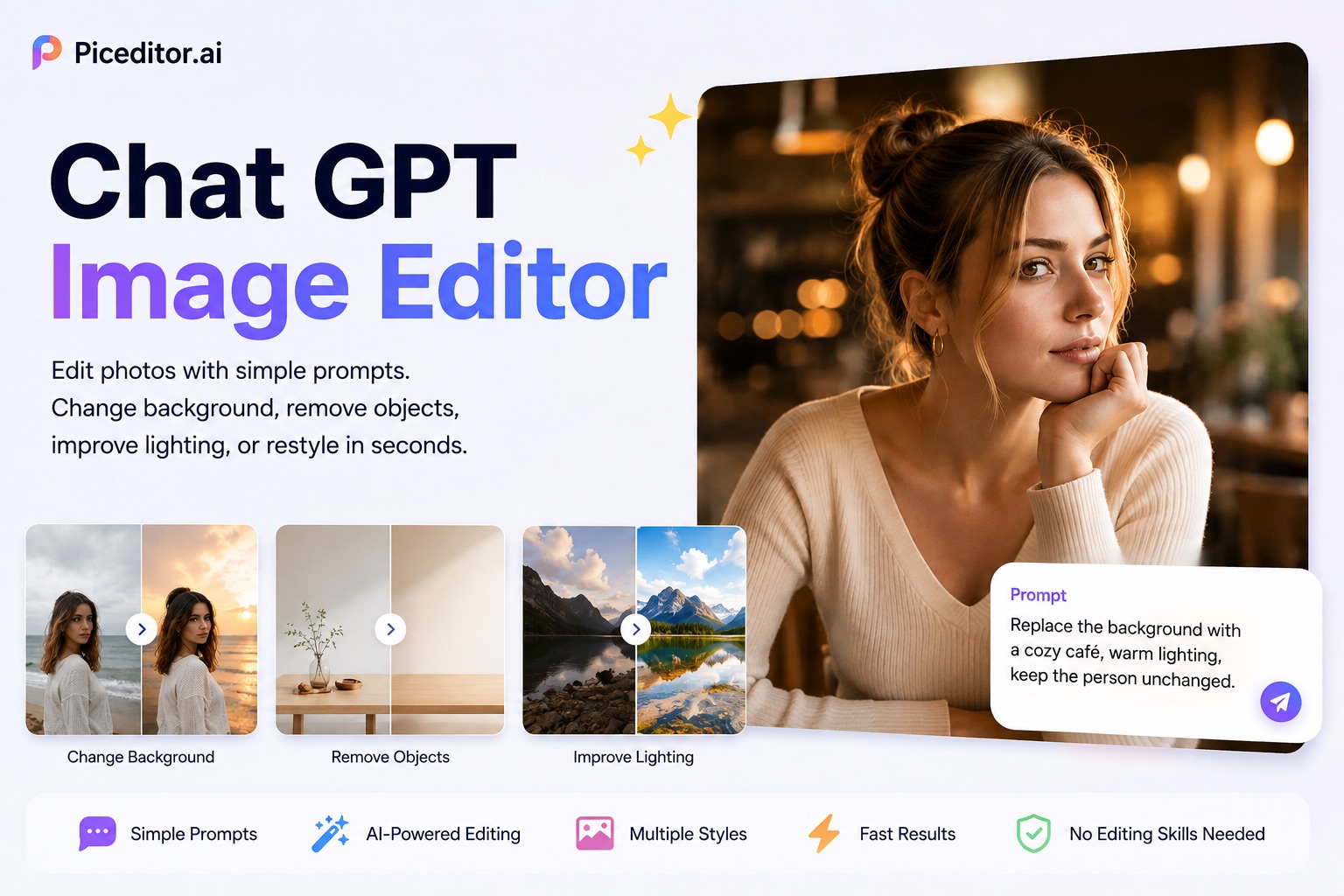
The examples in this article use PicEditor’s online Chat GPT Image Editor. It is a separate web-based editing tool, so its interface, settings, and credit requirements may differ from editing directly inside ChatGPT.
How to Edit a Photo Online in Four Steps
1. Upload a clear reference image
Start with the highest-quality version available. A visible subject, sharp edges, balanced exposure, and an uncluttered composition make it easier for the editor to understand what should be preserved.
For identity-sensitive edits, use an image where the face is large enough to see clearly. For products, make sure the shape, packaging edges, label position, and important surface details are visible.
2. Describe the edit and the invariants
A strong editing prompt contains two equally important parts:
- What should change.
- What must remain unchanged.
Use this reusable formula:
Keep [subject and important details] unchanged. Change only [target element].
Make the result [style, lighting, or realism requirement]. Preserve [identity,
pose, product shape, text placement, perspective, and composition].
“Keep” instructions are not optional. Without them, an image model may treat the request as permission to reinterpret the entire picture.
3. Choose the output settings
Choose an aspect ratio that matches the destination. A 16:9 image works well for blog sections, presentations, landscape ads, and YouTube-style visuals. Square and portrait ratios are better for marketplace thumbnails and social feeds.
The PicEditor Chat GPT Image Editor currently provides visible controls for aspect ratio, resolution, the number of generated images, and public visibility. Select the settings before generating so that you do not have to crop a good result later.
4. Review and refine one problem at a time
Do not immediately rewrite the entire prompt if the first result is close. Identify the single largest problem and correct it specifically.
For example:
Keep the current background and composition. Restore the original facial features,
eye shape, hairstyle, and expression from the uploaded image. Do not make any other changes.
Small corrections are easier to control than a second long prompt containing five new requests.
1. Change the Photo Background
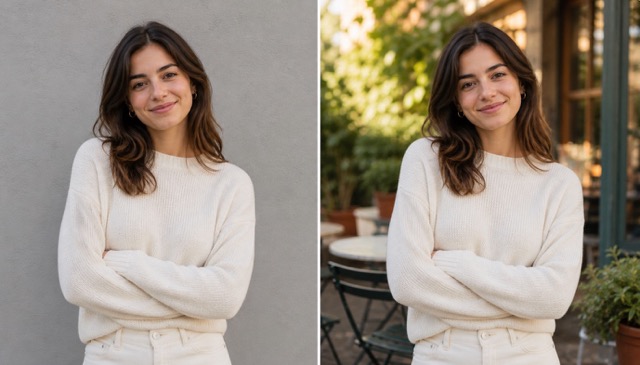
Original problem
The portrait subject looks good, but the flat gray wall makes the photo feel unfinished. The goal is to create a more inviting setting without changing the person.
Copyable prompt
Replace only the plain gray wall with a warm, sunlit café terrace with softly
blurred greenery. Keep the woman’s face, hairstyle, cream sweater, pose, body
proportions, expression, camera angle, and framing unchanged. Match the new
background lighting naturally to the subject. Make the result photorealistic.
If the edit fails
If the face or clothing changes, shorten the request and lead with preservation:
Preserve the woman exactly as she appears in the uploaded photo. Change only the
background. Do not alter her face, hair, clothing, hands, pose, or expression.
2. Remove an Unwanted Object
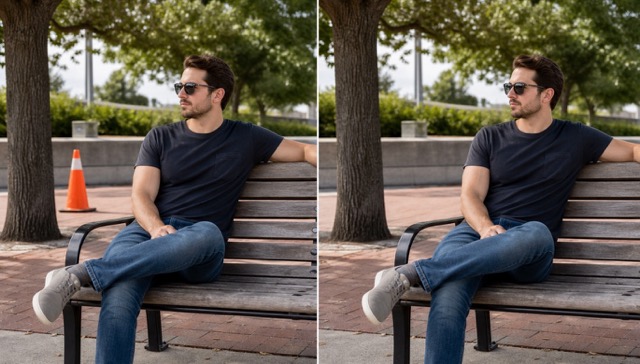
Original problem
The bright traffic cone competes with the main subject and makes an otherwise natural park portrait look accidental.
Copyable prompt
Remove only the orange traffic cone behind the man. Reconstruct the pavement,
wall, and greenery naturally so there is no visible patch or blur. Keep the man,
bench, trees, shadows, perspective, colors, and crop unchanged.
If the edit fails
Describe both the object and its location. “Remove the object” may be too vague when several items appear in the image.
Remove the orange-and-white traffic cone positioned behind the left side of the
bench. Fill that exact area using the surrounding brick pavement and low wall.
Do not remove or move anything else.
3. Retouch a Portrait Naturally
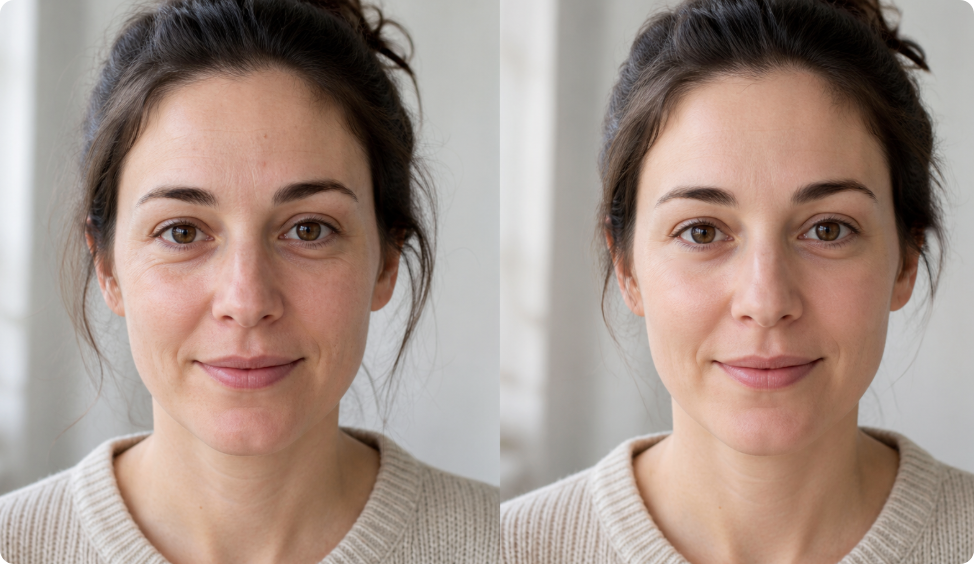
Original problem
Minor blemishes, under-eye shadows, flyaway hairs, and uneven color can distract from a portrait. The objective is a polished result that still looks like a real person—not a plastic face.
Copyable prompt
Apply subtle professional portrait retouching. Reduce temporary blemishes, soften
under-eye shadows, tidy a few flyaway hairs, and balance uneven skin tone. Keep the
woman’s identity, face shape, features, pores, fine lines, hairstyle, expression,
and natural skin texture unchanged. Do not airbrush or add heavy makeup.
If the edit fails
If the skin becomes overly smooth, request texture restoration instead of repeating the entire retouch:
Restore realistic pores, fine facial detail, and natural tonal variation. Keep the
current correction, but remove the airbrushed or plastic-skin appearance.
4. Improve Lighting and Colors
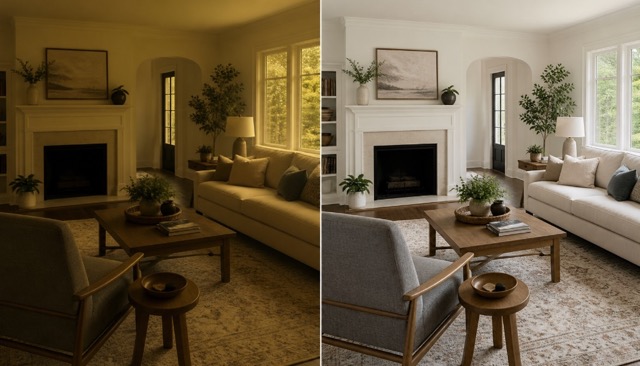
Original problem
The room is too dark and has a heavy yellow cast. Its furniture and layout are already attractive, so a new interior is unnecessary.
Copyable prompt
Correct the lighting and white balance in this living room. Remove the strong
yellow color cast, gently brighten the exposure, lift muddy shadows, and restore
clean natural colors. Keep every object, material, piece of furniture, window,
camera angle, and architectural detail unchanged. Do not redesign the room.
If the edit fails
AI may interpret “make it brighter” as adding lamps or changing the windows. Use explicit adjustment language:
Change only exposure, contrast, shadow brightness, and white balance. Do not add,
remove, replace, or move any object.
5. Change Clothing or Product Colors
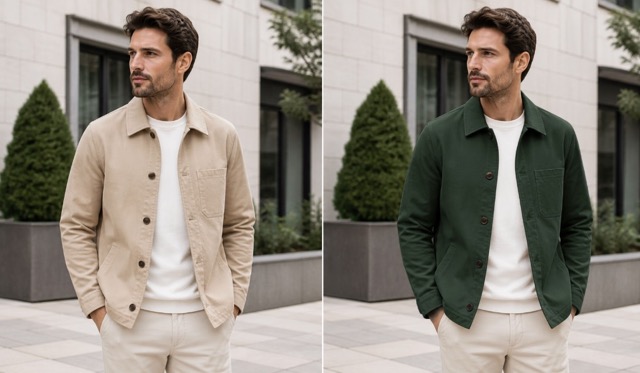
Original problem
The photo is suitable for a clothing color test, but the garment’s construction, folds, buttons, and fabric texture must remain believable.
Copyable prompt
Change only the beige jacket fabric to deep forest green. Preserve the jacket’s
collar, seams, buttons, pockets, folds, texture, highlights, and shadows. Keep the
man’s face, hair, body, pose, white shirt, trousers, background, and framing unchanged.
If the edit fails
If the shirt or trousers also change, identify the exact boundaries of the target garment:
Apply forest green only to the outer jacket from the collar to the lower hem and
sleeves. Keep the white shirt and beige trousers in their original colors.
The same structure works for product variations: replace “jacket” with the product part and specify the exact finish, such as matte black, brushed silver, or translucent blue.
6. Turn a Product Photo into a Lifestyle Image
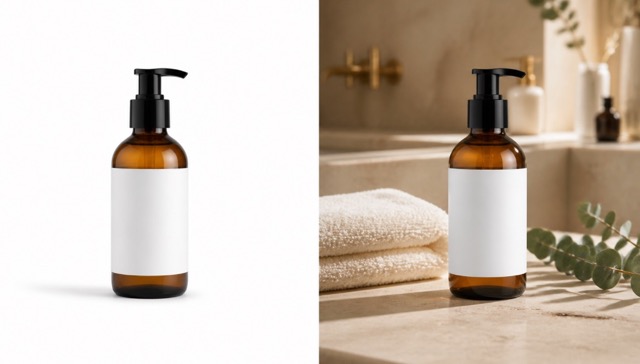
Original problem
A clean white-background product image is useful for a catalog, but it may feel too plain for an advertisement, landing page, or social post.
Copyable prompt
Place this exact amber skincare pump bottle on a warm travertine bathroom counter.
Add a folded cream towel and a small eucalyptus sprig, with a softly blurred premium
bathroom in the background. Preserve the bottle shape, pump, amber glass color,
blank label, proportions, camera angle, and scale. Match all reflections and shadows naturally.
If the edit fails
Product identity often drifts when a prompt over-describes the new scene. Put the preservation instruction first:
Use the uploaded bottle without redesigning it. Preserve its silhouette, pump,
glass color, label size, and proportions exactly. Change only the setting to a
warm bathroom lifestyle scene.
7. Add or Replace Text in an Image
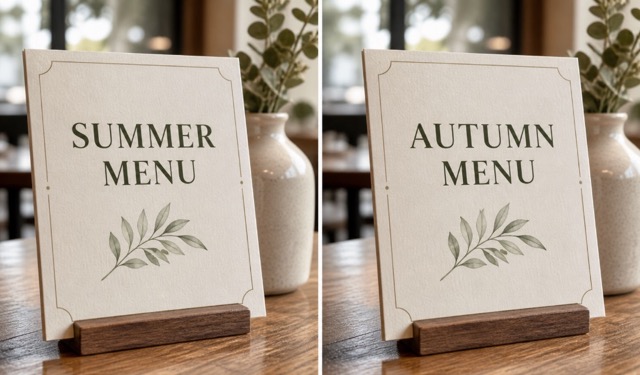
Original problem
The design, typography, paper, and layout are correct, but the seasonal headline needs to change from “SUMMER MENU” to “AUTUMN MENU.”
Copyable prompt
Replace the headline "SUMMER MENU" with "AUTUMN MENU". Render the new wording
exactly as written. Match the original serif typography, letter spacing, dark green
color, size, alignment, print texture, and perspective. Preserve the card, border,
leaf illustration, table, lighting, and background unchanged. Add no other text.
If the edit fails
Use short replacement text, put both the old and new phrases in quotation marks, and spell difficult words if necessary.
Replace only "SUMMER" with "AUTUMN"—A-U-T-U-M-N. Keep "MENU" and every other
design element unchanged. Do not add extra letters or words.
8. Restyle a Photo
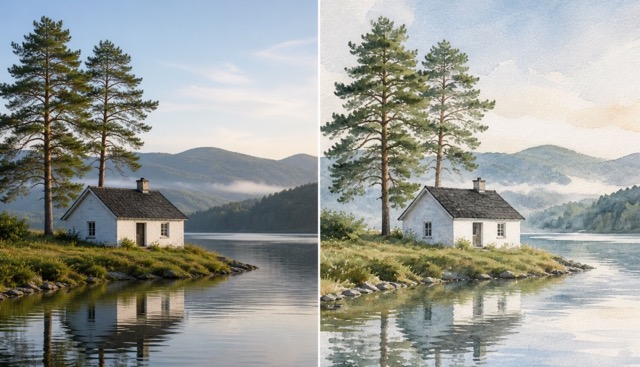
Original problem
The original landscape has a strong composition, but the project needs an illustrated watercolor version rather than another photorealistic image.
Copyable prompt
Transform this lakeside cottage photograph into an elegant hand-painted watercolor
illustration with visible paper grain, soft washes, and restrained brushwork. Preserve
the cottage, two pine trees, lake, hills, reflections, perspective, lighting direction,
and exact composition. Change only the visual medium. Add no new objects.
If the edit fails
If the scene layout changes, describe the transformation as a medium conversion—not a new scene:
Trace the original composition exactly and convert its existing shapes and colors
into watercolor. Do not redesign, reposition, simplify, or add scene elements.
9. Expand or Resize an Image
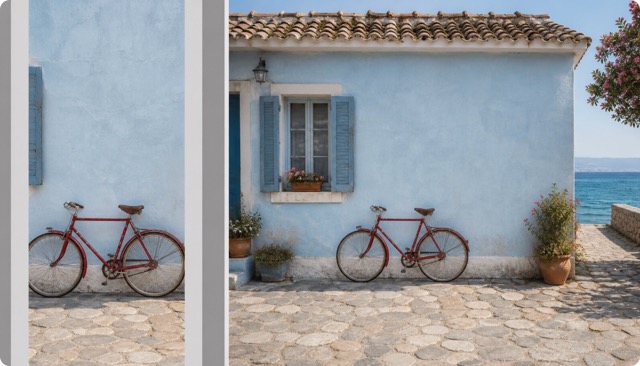
Original problem
The source image is too narrow for a landscape banner. Cropping it further would cut off the bicycle, so the missing space must be generated around the original content.
Copyable prompt
Expand this image horizontally into a natural 16:9 coastal scene. Preserve the red
bicycle, pale blue wall, existing texture, scale, and original central area. Extend
the cottage façade with a matching window, cobblestone path, small flowering plants,
and a subtle glimpse of sea. Continue the same perspective, daylight, shadows, and colors.
If the edit fails
Outpainting can duplicate objects or distort edges. State what must appear only once:
Keep one bicycle only. Do not duplicate the wheels, window, plants, or architectural
features. Preserve the original image in the center and generate only the missing side areas.
10. Restore an Old Photo
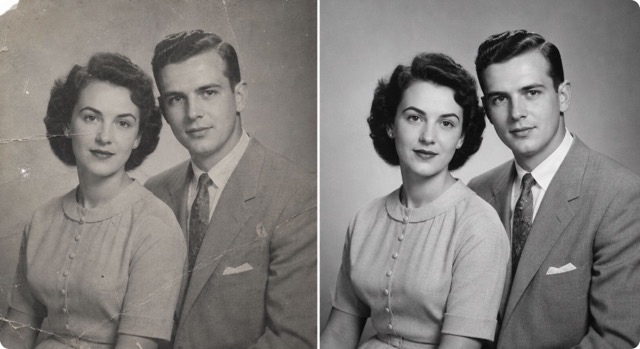
Original problem
The vintage portrait has fading, dust, scratches, creases, torn edges, and low contrast. Restoration should repair the damage without modernizing the people or turning the photograph into a newly generated portrait.
Copyable prompt
Restore this damaged 1950s black-and-white studio portrait. Remove dust, scratches,
crease lines, stains, and torn-edge damage. Recover natural facial, hair, fabric,
and background detail while preserving both people’s exact identities, expressions,
clothing, pose, framing, and period appearance. Keep it black and white with subtle film grain.
If the edit fails
If faces become too modern or overly sharp, ask for historical restraint:
Restore damage only. Return to the original facial structure and period-appropriate
film softness. Do not beautify, modernize, recolor, or reinterpret either person.
How to Edit a Photo Without Changing the Face
Face preservation is one of the most common difficulties in GPT photo editing. Even a simple background or lighting change may alter the eyes, jawline, skin, or expression if identity is not explicitly locked.
Use this preservation block at the beginning of portrait prompts:
Use the uploaded photo as the identity reference. Keep the person's face, identity,
facial structure, eyes, nose, lips, hairstyle, expression, skin texture, age, body
proportions, and pose unchanged. Apply the requested edit only to [target area].
For stronger control:
- Make one edit per generation.
- Avoid vague requests such as “make the whole photo better.”
- Name the exact region that can change.
- Name the face, hair, pose, clothing, and hands as protected elements.
- Use a clear source photo rather than a small or heavily compressed image.
- Compare the result at full size before accepting it.
The same principle applies to products. Replace the identity list with silhouette, dimensions, label placement, logo, material, texture, and packaging details.
Common ChatGPT Photo Editing Mistakes
Asking for too many changes at once
A prompt that requests a new background, outfit, facial expression, pose, lighting setup, camera angle, and text treatment is effectively asking for a new image. Divide the job into stages.
Describing only the desired result
“Put this person in a café” explains the destination but not what must remain unchanged. Add an explicit preservation list.
Using subjective instructions
Words such as “better,” “professional,” and “beautiful” are open to interpretation. Replace them with observable changes: neutral white balance, softer under-eye shadows, uncluttered background, or warm side lighting.
Giving a full new prompt after a small error
When the result is close, correct only the mistake. A completely rewritten prompt may generate an entirely different image.
Expecting perfect pixel-level precision
Prompt-based editing is excellent for visual revisions, scene concepts, and natural-language workflows, but generated pixels may not match a manual selection exactly. Carefully review faces, fingers, product labels, logos, small text, and repeated patterns.
Can You Edit Photos with a ChatGPT Photo Editor Online for Free?
Some online AI editors let users start or test the workflow before choosing a paid plan, but “free” does not always mean unlimited generations. Image resolution, model choice, credit use, download options, account requirements, and public visibility can vary.
Before generating an image, check the current settings and credit requirement shown by the tool. PicEditor’s editor displays the required credits alongside the generation controls, so you can review the cost before submitting the edit.
Frequently Asked Questions
Can ChatGPT edit an existing photo?
Yes. A prompt-based image editor can use an uploaded photo as a reference and create a revised version based on written instructions. Results are more consistent when the prompt states both the requested change and the elements that must remain unchanged.
What is the best prompt for editing a photo?
There is no single best prompt for every photo. A reliable structure is: preserve the subject, identify one target area, describe one clear change, define the desired realism or style, and list the details that must not change.
How do I stop AI from changing the face?
Begin the prompt by explicitly preserving identity, facial structure, eyes, nose, lips, hairstyle, expression, age, skin texture, pose, and body proportions. Use a clear source photo and request only one main edit at a time.
Can I replace a photo background with a prompt?
Yes. Describe the new setting and tell the editor to change only the background. Ask it to preserve the subject and match the new environment’s light direction, color temperature, perspective, and shadows.
Can an AI photo editor replace text?
It can, especially when the source text is clear and the replacement is short. Quote the old and new wording, request an exact spelling, and ask the editor to preserve typography, placement, perspective, and surrounding texture.
Which image format or aspect ratio should I choose?
Choose based on where the result will appear. Use 16:9 for blog sections and landscape banners, 1:1 for square thumbnails, and 9:16 for vertical social content. Starting with the correct ratio reduces the need for later cropping.
Start Editing Your Photo with a Prompt
The most reliable ChatGPT photo editing prompts are not necessarily the longest. They are the ones that clearly separate the requested change from the protected parts of the image.
Start with a clear reference, request one edit, preserve the details that already work, and refine only the biggest remaining problem. When you are ready to try the examples in this guide, open the PicEditor Chat GPT Image Editor, upload a photo, and paste one of the prompts above.