
How Image to Minecraft Skin Turns Photos into Character Ideas
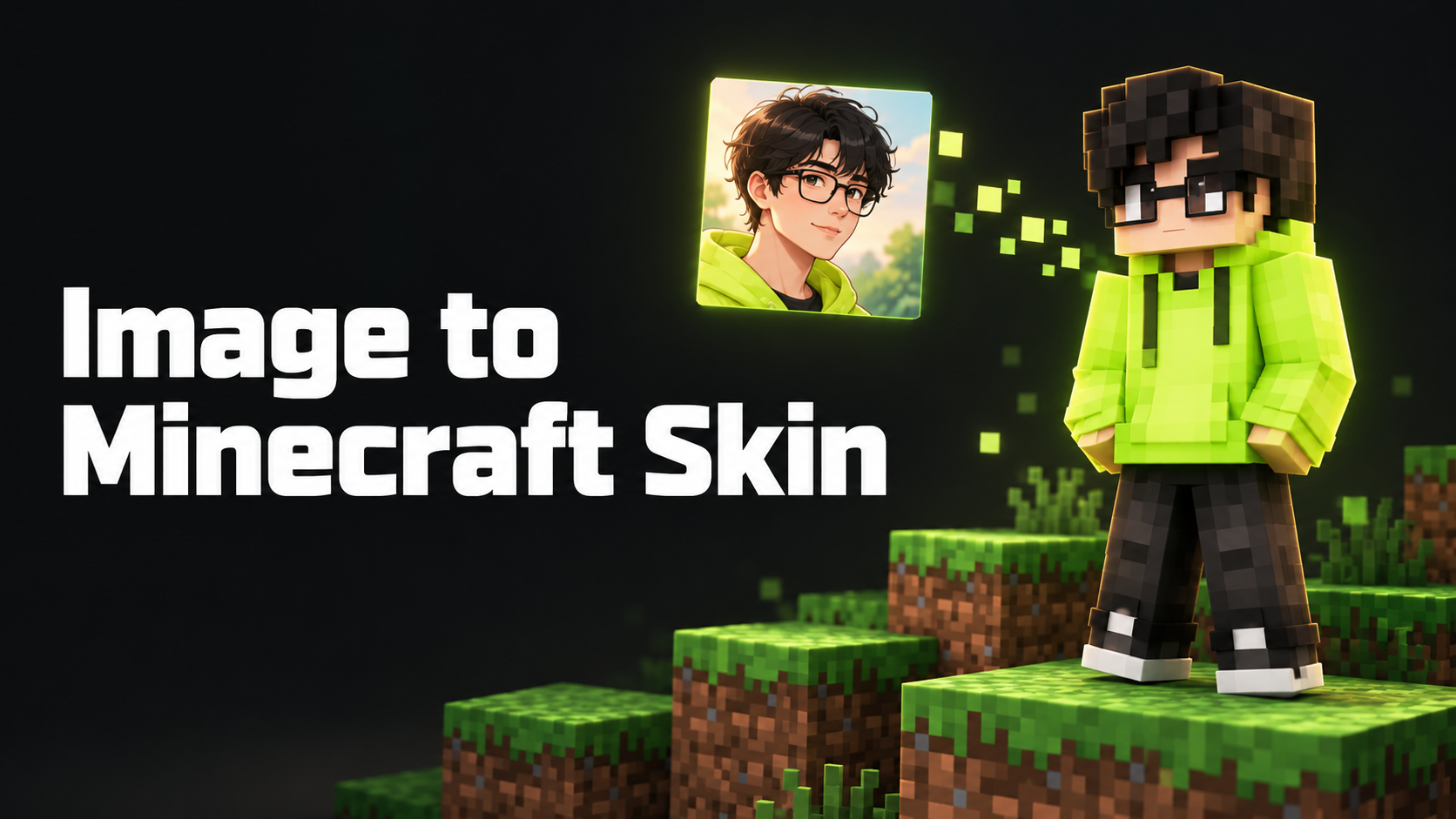
Image to Minecraft Skin starts with choosing which details make a photo recognizable. Learn how to use PicEditor for a blocky character concept, carry that design into a proper skin texture, and check model compatibility before importing your finished character into Minecraft.
A red jacket, square glasses, and a distinctive fringe can make a Minecraft character recognizable even after most facial detail disappears. Translating a photo into that small visual vocabulary is the real challenge. Shrinking the whole picture leaves little room to decide which features deserve the pixels.
An Image to Minecraft Skin workflow gives you a starting point for those decisions. You can explore how a portrait or drawing might look as a blocky character, then refine the design for its intended use. First, decide whether you need a character illustration or a skin you can equip in Minecraft.
Know which kind of image you need
A character preview shows the finished look: a blocky person wearing an outfit, often against a background. A playable skin is a flat texture with separate areas arranged to wrap around the character. Minecraft's official skin guide explains that importing a custom skin requires an unwrapped PNG, correctly aligned to the model. A good-looking render alone does not provide that layout.
PicEditor's Image to Minecraft Skin page describes its output as a Minecraft-inspired character preview and a reference for further custom skin design. Its documented workflow is to upload an image, generate, and review the result. That makes it a concept step: a way to work out the appearance before drawing or editing the actual texture.
For a thumbnail or character mood board, that preview may be enough. For a character you want to wear in-game, plan a second stage in a skin editor. Choosing the destination now helps you judge the first result fairly.
Choose a reference with something worth keeping
Start with one clearly visible subject. PicEditor recommends a front-facing reference and accepts portraits, pet photos, mascots, and drawings. The useful question is what someone should recognize after the image loses its photographic detail.
Imagine adapting a portrait of someone in a red jacket with black glasses. The jacket gives you a large color area; the glasses provide a small, high-contrast facial cue. Those features deserve attention before skin shading or fabric texture. If the reference is a pet, you might preserve a distinctive eye patch or muzzle color in a humanoid character design.
Crop away unrelated people and leave enough of the outfit visible to guide the design. A tightly cropped face gives you little information about clothing, so choose another reference if the outfit matters. Avoid asking one dim, crowded photograph to settle every part of the character.
Before generating, write down the details you would be disappointed to lose. A short note such as “black glasses, red jacket, dark fringe” lets you check each version against the same brief.
Judge the preview at the size people will see
After uploading the reference and generating a preview, look for recognition first. Can you still identify the feature you cared about? Does the outfit have a clear shape? Is the hair distinguishable from the face?
View the result small as well as enlarged. A design can look intricate close up while its eyes and glasses merge when reduced. If the important feature disappears, simplify the surrounding detail or give it more contrast during editing.
For the red-jacket example, a few broad blocks of red may communicate the outfit better than an elaborate attempt to reproduce every crease. Keep the glasses legible without letting them cover the whole face. The source image guides these choices, but a successful adaptation can depart from it.
When a preview misses the character, try a clearer crop or another reference. Change one thing at a time so you can tell what helped. Keep a promising version beside the original rather than repeatedly generating without a specific goal.
Build the texture around the character
Once the appearance works, move to an editor that supports Minecraft skin layouts and a rotating character preview. Use the generated image as a visual reference while placing the face, clothes, and other details on the appropriate body parts.
Start with a standard 64 × 64 PNG skin layout. Microsoft's skin-pack reference recommends that size and documents two model types: standard arms are four pixels wide, while slim arms are three. The texture must match the chosen model.
Simply resizing a character illustration to 64 × 64 will not arrange its features into the required layout. Build from a proper template, then rotate the model while editing. Check where the jacket crosses from torso to arm, whether the hair continues around the head, and what the character looks like from behind.
A single front-facing reference leaves the back unresolved. Make a deliberate choice: extend the jacket color, continue a visible hair shape, or add a simple design consistent with the front. Inspect the tops of the shoulders and the soles too; a straight-on preview can hide unfinished areas.
Import it on the platform you use
In Java Edition, open the Minecraft Launcher, select Java Edition, and use the Skins tab to add a new skin. Choose the matching Classic/Wide or Slim model, browse to the PNG, and save and use it.
For Bedrock, custom-file importing depends on the device. Mojang's Character Creator FAQ identifies Windows and mobile as supported for custom skin imports and says consoles do not support importing them. Check that your device offers the import option before spending time preparing a file for it.
Once equipped, inspect the character in-game from several angles. If a sleeve breaks at the shoulder or a face detail is misplaced, return to the texture editor and correct that area. Keep the reference, concept, and exported skin separately so later adjustments are easy.
A recognizable custom skin begins with a few well-chosen details. Use the image conversion stage to settle those details, then give the texture the attention it needs. The feature that made you choose the original picture should still be easy to spot in the finished skin.