9 AI Photo Editor Use Cases You Can Try Without Photoshop
Turn Everyday Photos Into Useful Images With Clear, Copyable Prompts. Explore Nine Practical AI Photo Editor Use Cases, From Product Photos and Natural Headshots to Restored Memories, Retro Portraits, and Playful Pet Figurines, With Visual Examples and Simple Checks to Help You Keep the Details That Matter.
Messy product backgrounds, unwanted strangers, poor portrait lighting: these AI photo editor use cases start with familiar problems and a clear sentence describing the fix.
With PicEditor’s AI picture editor, you can upload a photo and describe changes in everyday language. No Photoshop experience is needed to start. Explain what should change and what should stay.
The example images below are AI-generated visual concepts created with OpenAI ImageGen, not tested PicEditor outputs. The prompts are starting points; results depend on the source photo and editing model.
Start With One Photo and One Clear Request
Open an image-editing workflow, upload your photo, and paste the relevant prompt. Choose an available size, generate, and compare before downloading. Reuse the original for different edits.
A useful prompt formula is: change + target appearance + details to preserve. Start with one task, then refine the detail that needs attention.
1. Give Product Photos a Clean White Background
A plain backdrop keeps attention on a skincare bottle, handmade accessory, or other product and helps a catalog feel consistent.
Copy This Prompt
Edit the uploaded product photo. Replace the entire background with pure white. Keep the product’s shape, proportions, color, material, label, and camera angle unchanged. Center the complete product with clear space around every edge. Add only a subtle, realistic contact shadow. Remove background clutter; do not add text or props.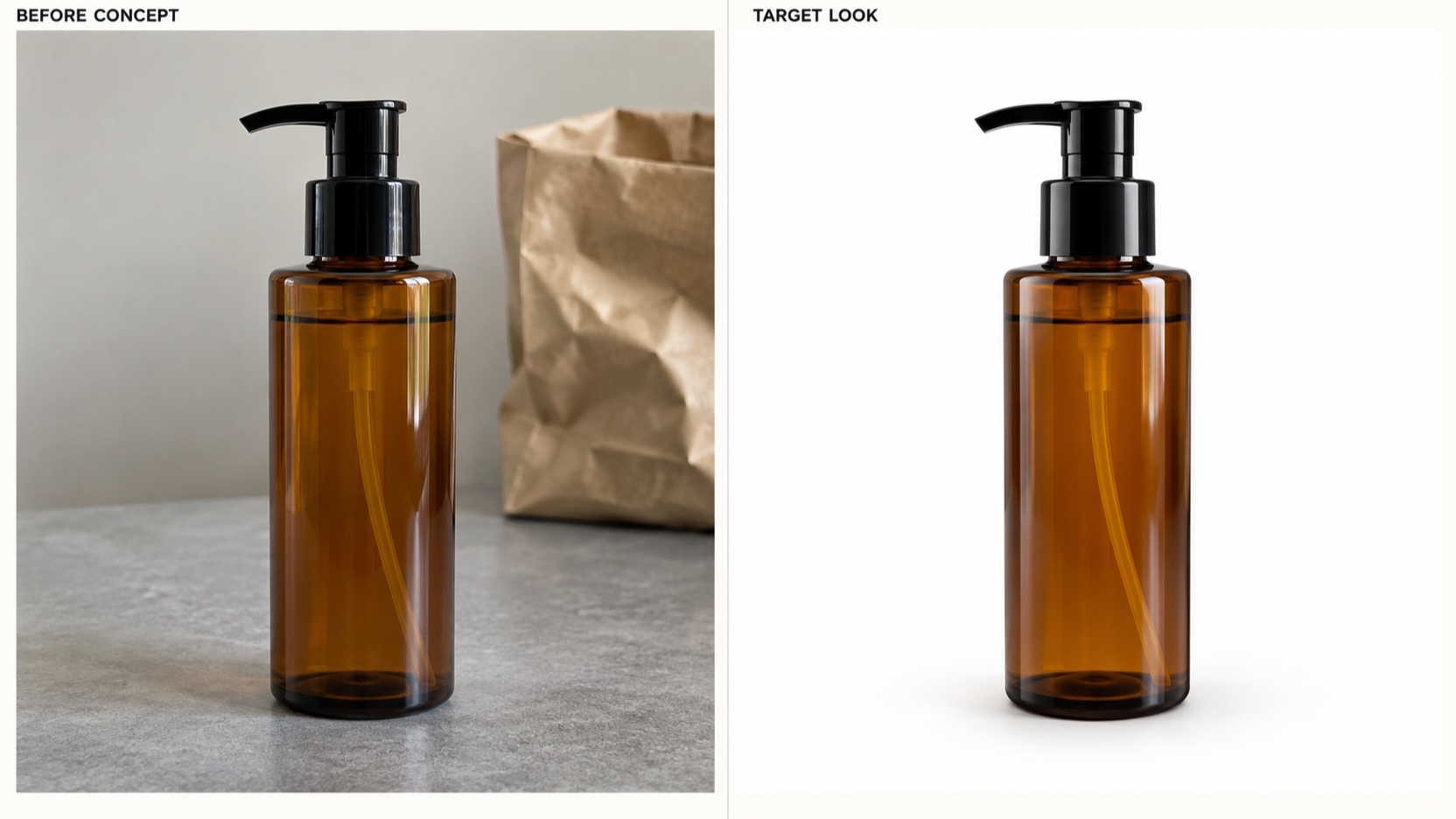
Concept: a tabletop bottle photo becomes a clean product image. Try a similar background edit in PicEditor.
Check: Inspect the pump, edges, and any label text. Match the final composition to your marketplace’s image requirements.
2. Place a Product in a Lifestyle Scene
Help shoppers imagine where an item belongs: a breakfast table for a mug or a bathroom shelf for skincare.
Copy This Prompt
Use the uploaded mug photo as the product reference. Place the same mug on a light oak breakfast table beside a sunlit window. Keep its exact shape, handle, sage-green glaze, proportions, and viewing angle. Add soft morning light and a believable contact shadow. Put one softly blurred croissant in the background. Do not add branding or text.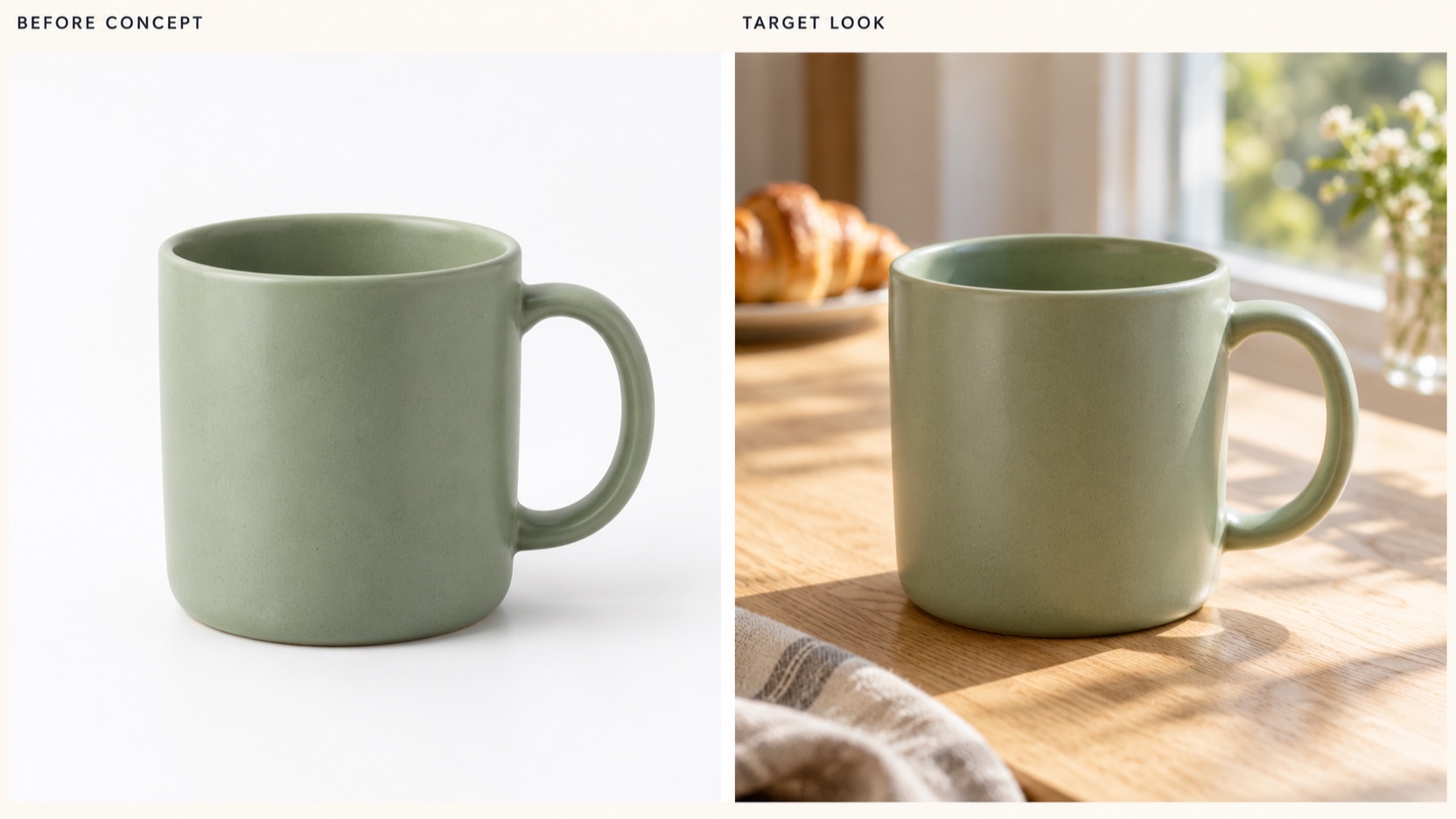
Concept: a studio mug image gains a breakfast setting.
Check: The mug should sit on the table naturally. Props should not appear to be included with the purchase.
3. Preview a Different Product Color
Explore a color idea before another shoot. Compare the generated shade with a physical sample before using it as a sales image.
Copy This Prompt
Change only the beige canvas fabric of the tote bag in the uploaded photo to muted olive green. Keep the black handles unchanged. Preserve the weave, seams, folds, bag shape, size, position, lighting, shadows, and background. Do not change the material or add any accessories, patterns, logos, or text.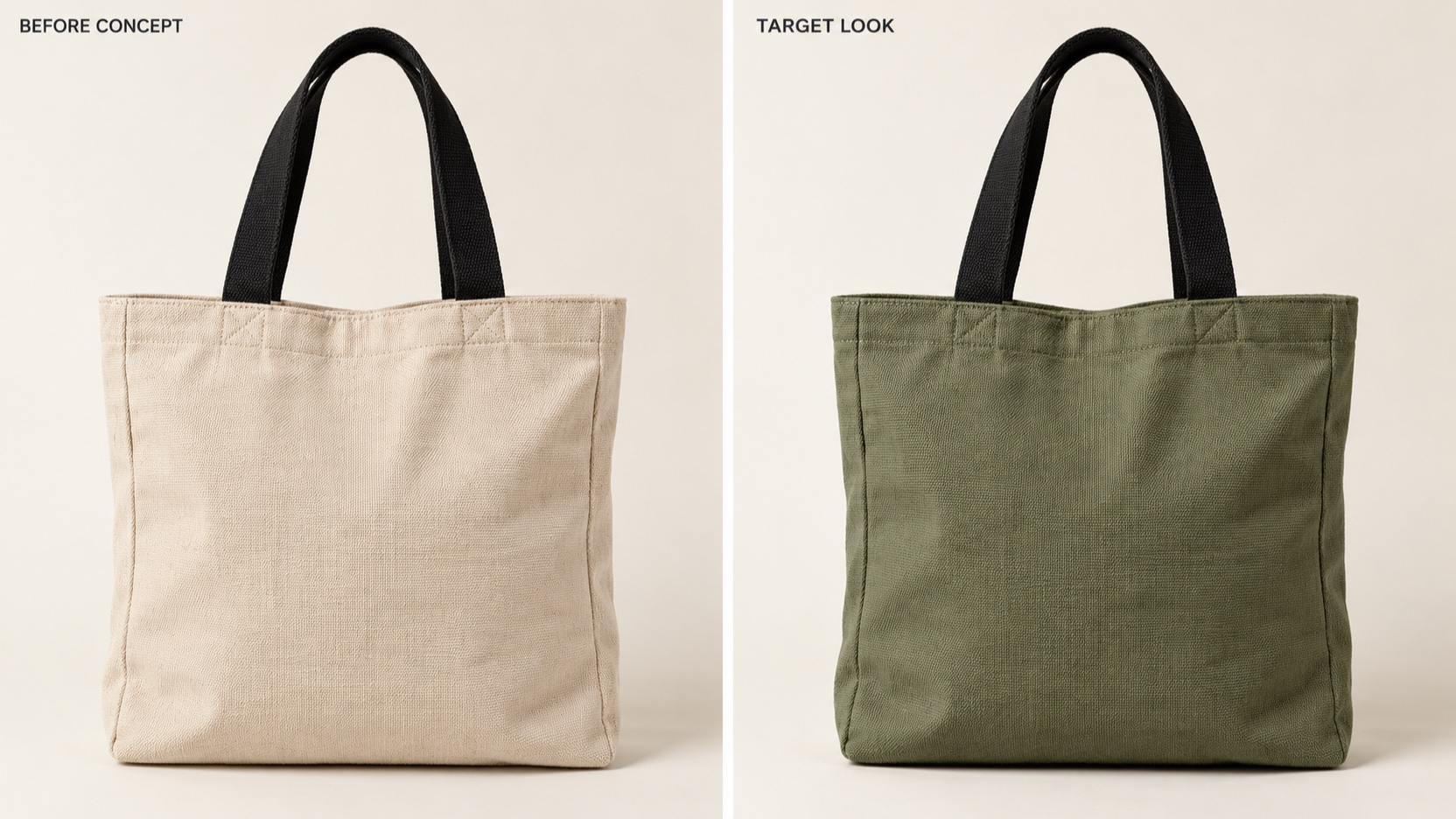
Concept: beige canvas changes to olive while black handles remain.
Check: Look for color bleeding onto handles and seams. Use the result as a mockup until the actual product color is verified.
4. Remove a Distracting Person or Object
Remove a travel-photo distraction by identifying its position and appearance, clearly separating it from the subject you want to keep.
Copy This Prompt
Remove only the background tourist wearing a red shirt on the far left. Rebuild the stone terrace behind that person so the perspective and texture continue naturally. Keep the woman in the cream shirt, her face, hair, pose, clothing, and all other scenery unchanged. Preserve the original framing and lighting.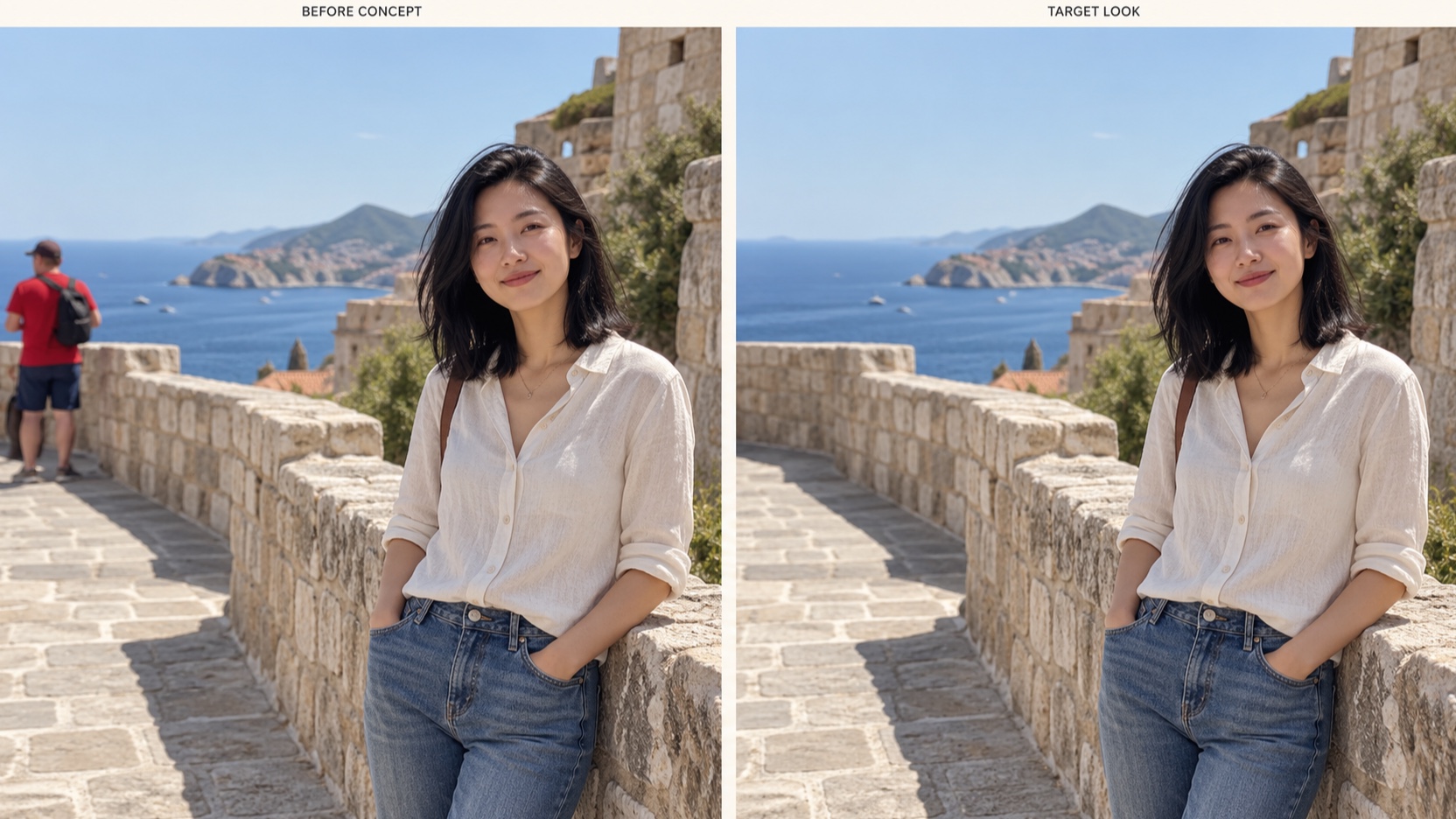
Concept: the background tourist disappears from the terrace.
Check: Inspect rebuilt railings, paving, and horizon lines for breaks or repeated patterns.
5. Expand a Tight Photo for a Banner
When cropping would cut into the subject, try adding surrounding space. PicEditor’s AI image extender offers a dedicated background-expansion workflow; confirm the available ratio in your chosen editor.
Copy This Prompt
Expand this square plant photo horizontally into a wide landscape composition. Continue the beige plaster wall and tabletop naturally on both sides. Keep the original plant, pot, proportions, and position unchanged. Leave uncluttered wall space on the left for a headline to be added later. Do not add objects or generate text.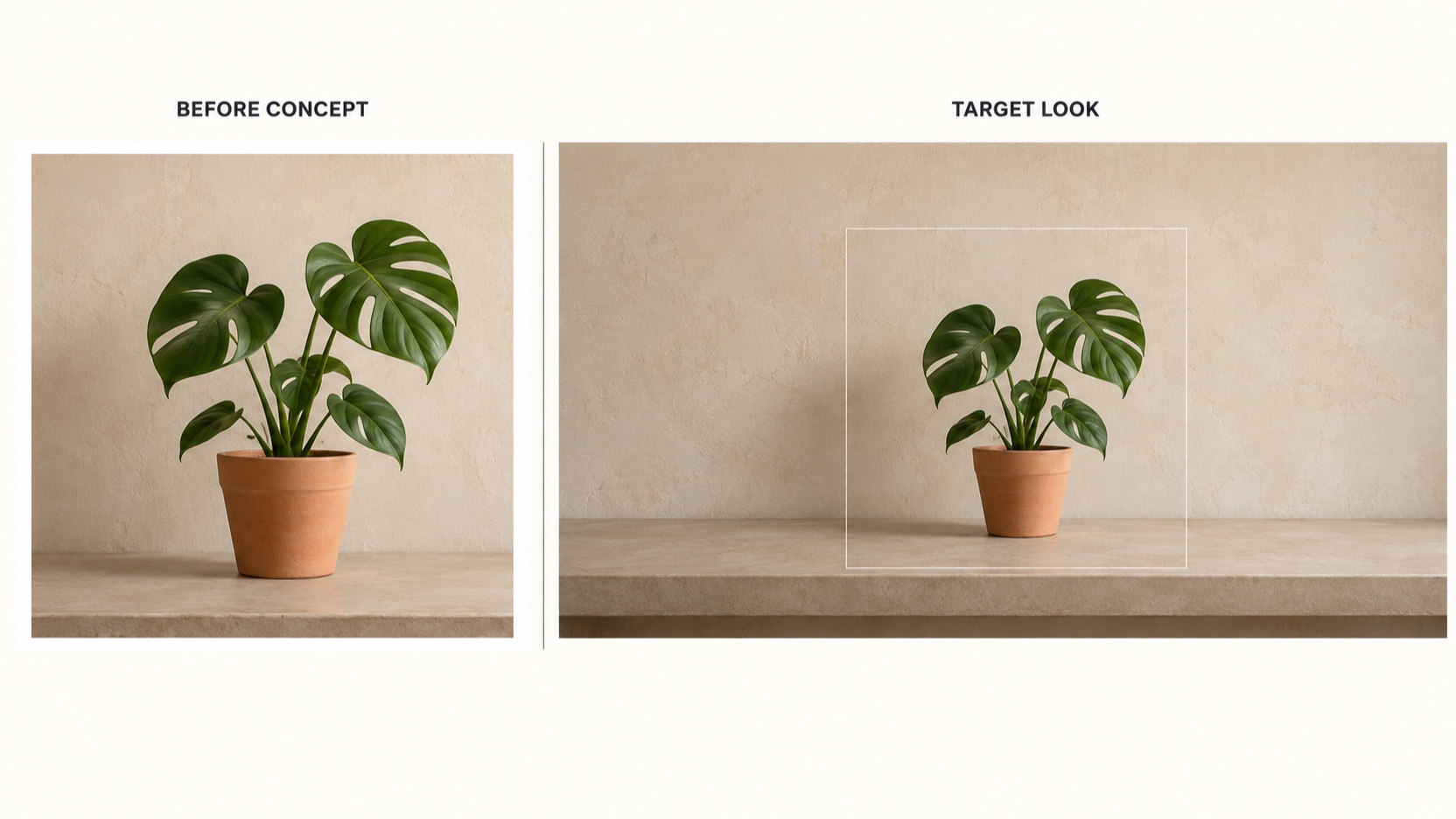
Concept: extra wall and tabletop create room for a banner layout.
Check: Inspect the new boundaries and tabletop alignment. Set or crop to the final dimensions before publishing.
6. Make a Casual Portrait Look More Professional
Give a clear portrait a simpler setting and better lighting while keeping the person recognizable.
Copy This Prompt
Edit this head-and-shoulders portrait for a professional profile. Replace the cafe background with a neutral light-gray studio backdrop and balance the lighting softly. Preserve the person’s identity, age, facial structure, expression, hair, earrings, navy top, and pose. Keep natural skin texture. Do not reshape the face or apply heavy beauty retouching.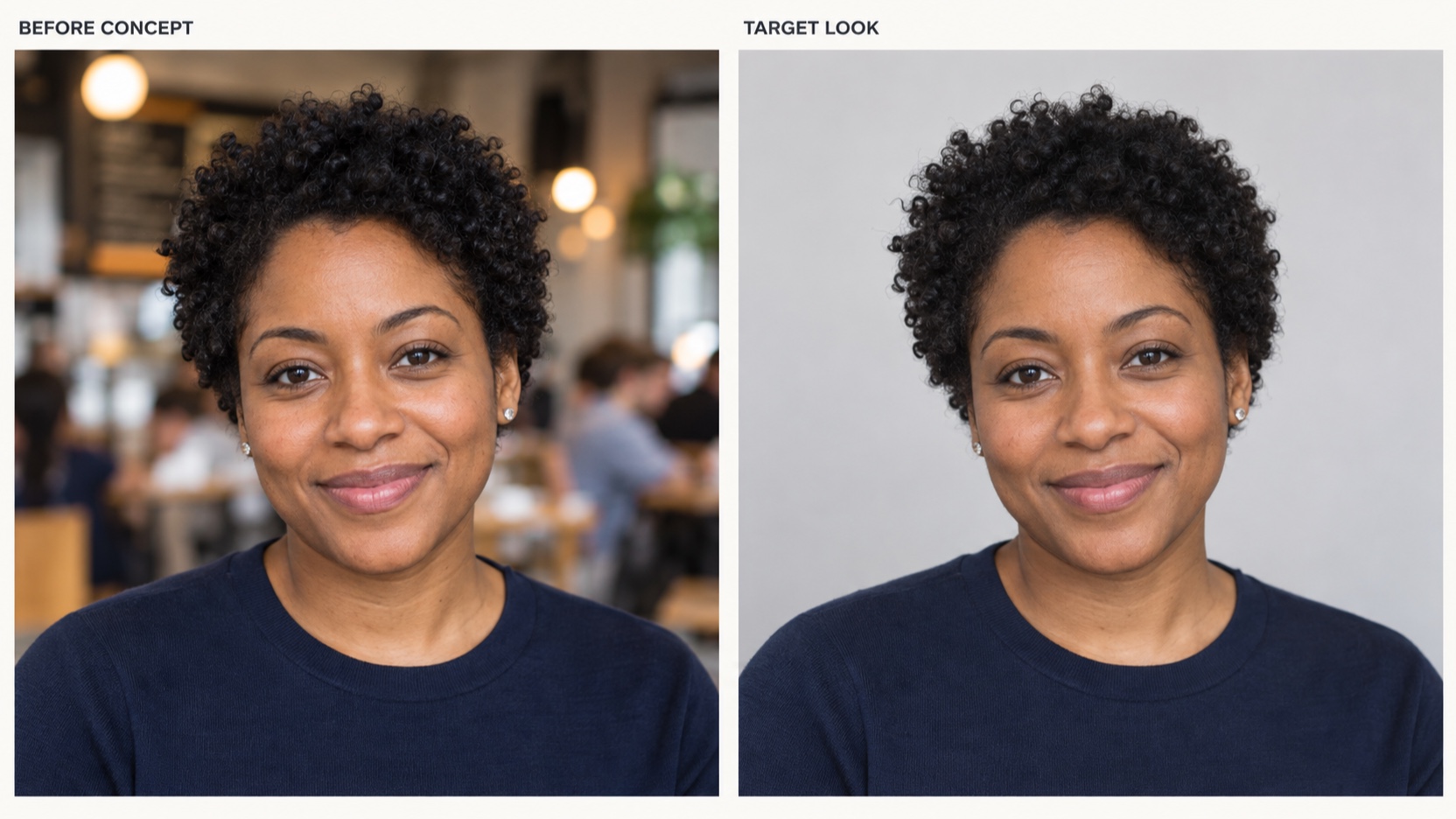
Concept: the same portrait receives a simpler backdrop and softer lighting.
Check: Compare facial features, hair, and earrings with the original at full size.
7. Repair a Faded Family Photo
Try PicEditor’s photo restoration workflow for damaged keepsakes. For prompt-controlled repair, describe the damage and request a restrained result. Save a separate copy of the original scan.
Copy This Prompt
Restore this old black-and-white photograph. Remove visible scratches, dust, and the pale background crease. Gently improve faded contrast and clarity. Preserve both people’s identities, ages, expressions, clothing, glasses, and the original garden setting. Keep the image black and white with a natural period-photo appearance. Do not invent missing facial details.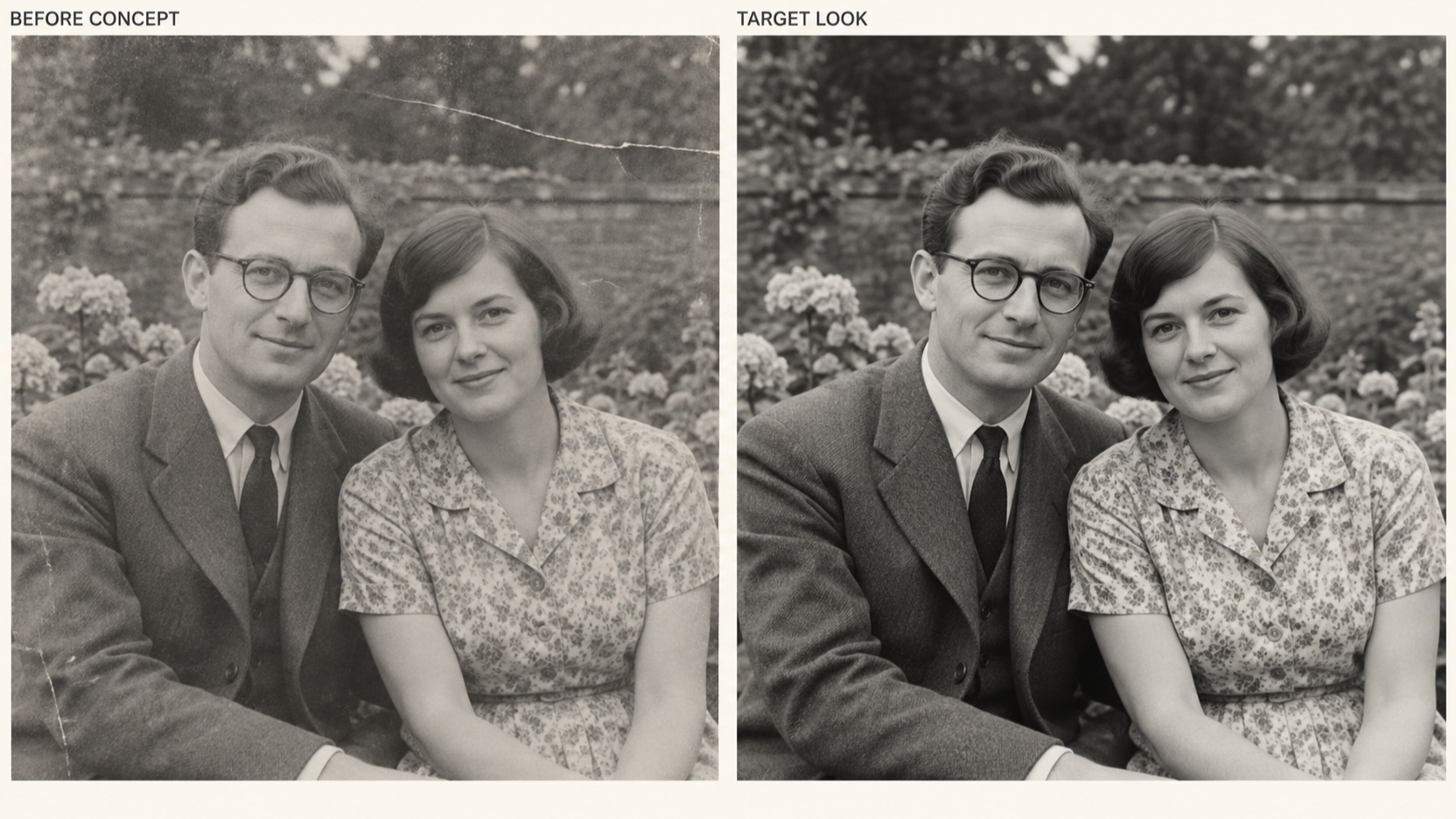
Concept: surface damage is reduced while the portrait stays monochrome.
Check: Examine faces carefully. Newly generated detail is an interpretation, not proof of what the original contained.
8. Turn a Pet Photo Into a Collectible Figurine
For a playful edit, try the figurine format featured in Google’s 2025 Nano Banana trend roundup. Preserve distinctive markings.
Copy This Prompt
Transform the corgi in the uploaded photo into a small collectible resin figurine photographed on a light oak desk. Preserve its tan eyebrows, white chest, black back, perked ears, sitting pose, and red collar. Place the figurine on a plain clear circular display base. Use soft window light and realistic miniature materials. No packaging, logos, or text.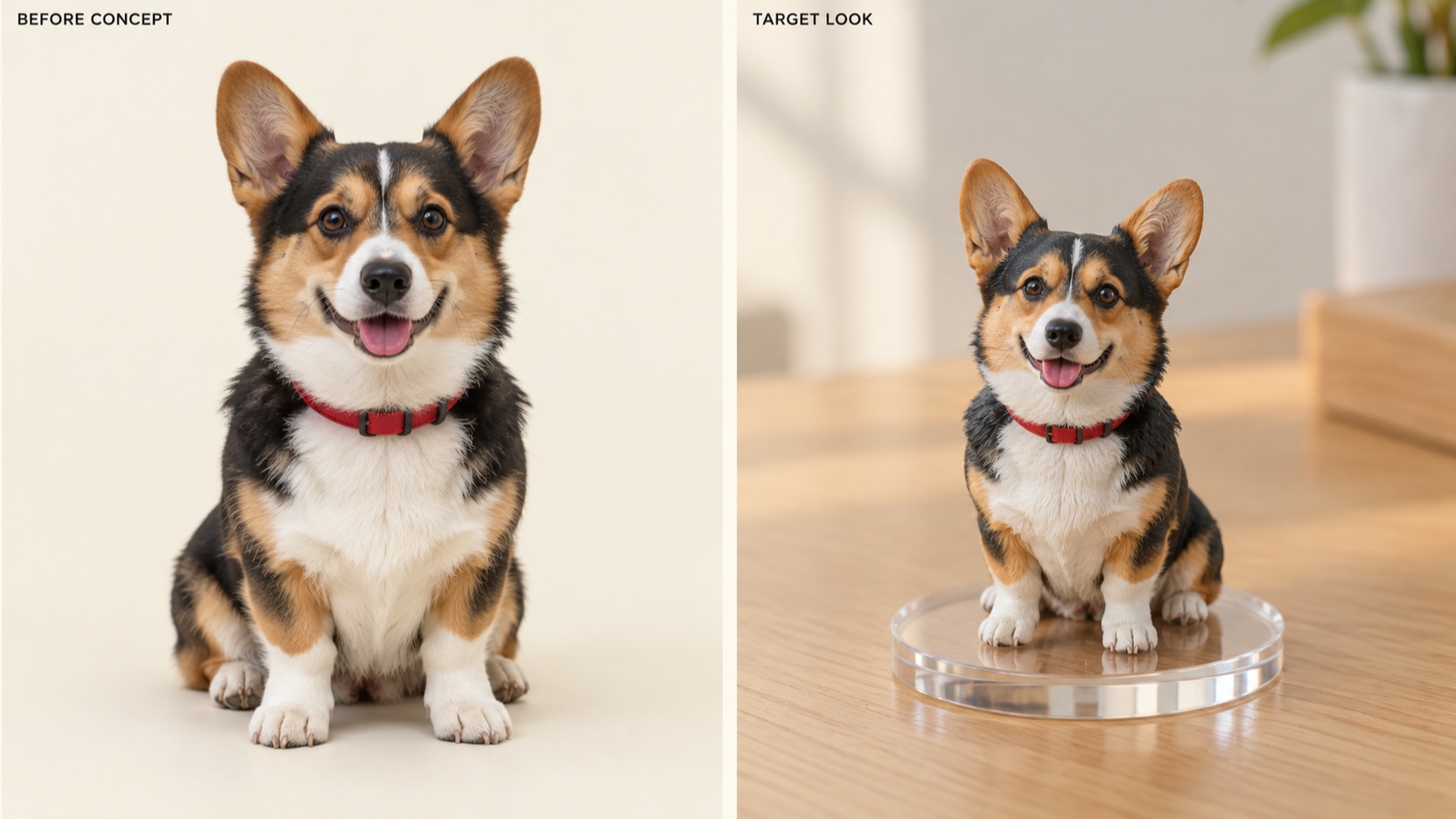
Concept: a pet portrait becomes an imagined collectible miniature. Explore a creative photo edit with PicEditor.
Check: Confirm the markings and collar match. This creates an image concept, not a printable 3D model.
9. Give a Portrait a 90s Hong Kong Film Look
Create a nostalgic portrait for a profile picture or social post. Describe the styling, setting, and photographic finish together so the transformation has a clear visual direction.
Copy This Prompt
Transform the uploaded portrait into a 1990s Hong Kong film-inspired street portrait. Preserve the person’s identity, age, facial structure, skin tone, expression, and head angle. Style the hair in voluminous side-parted waves. Add a vintage dark-brown leather blazer over an ivory shirt and small gold hoop earrings. Replace the background with a softly blurred evening storefront, a green metal shutter, and warm amber window light. Use a scanned 35mm film look: warm highlights, muted green shadows, softly glowing lights, fine film grain, and slightly faded blacks. Keep recognizable facial details. No face reshaping, futuristic neon, heavy scratches, text, or logos.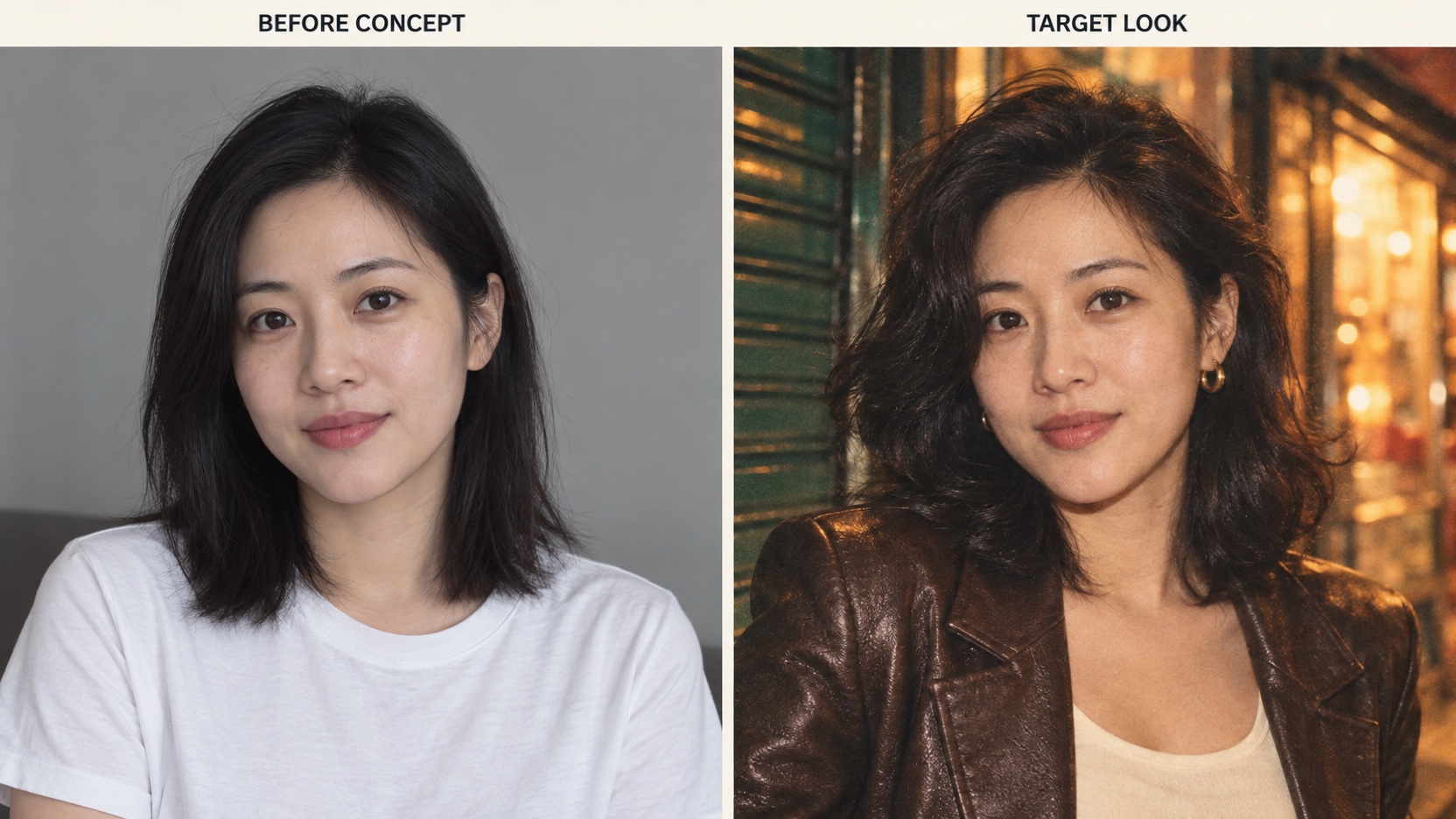
Concept: a modern portrait is reimagined with 90s-inspired styling, an evening street setting, and warm 35mm-film colors.
Want an 80s Version? Replace the styling and setting with: “Use a jewel-tone blazer, voluminous feathered hair, a blue-purple studio backdrop, and a soft studio-glamour glow inspired by 1980s portraits.” Keep the identity-preservation instructions.
Check: Compare the eyes, nose, jawline, and skin tone with the original. Clothing, hair, lighting, and setting can change while the person stays recognizable.
Try the Edit Your Photo Actually Needs
The most useful AI photo editor use cases begin with a specific goal. Copy a prompt, replace the subject details, and try it in PicEditor. Compare carefully and refine one thing at a time. Ordinary language gets you started; preserving the details makes the edit useful.