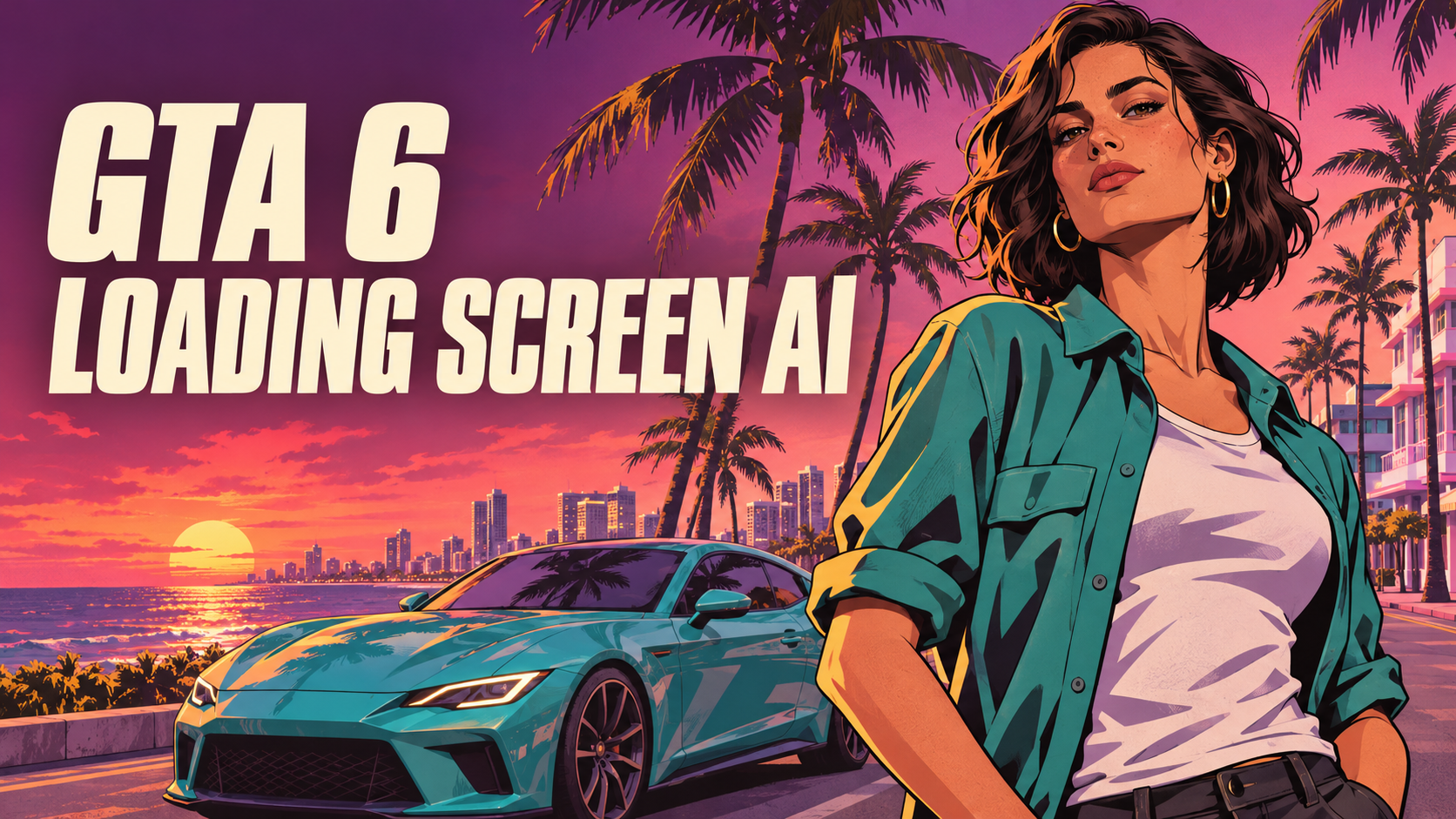
Upload one portrait to create loading-screen-inspired character art with bold outlines, a pink-orange sunset, palm trees, and a sports car.
AI Image Tools
Everything You Need to Edit Photos Faster
Open the PicEditor AI tools library for background removal, photo enhancement, object cleanup, face swap, upscaling, and more focused image workflows.

Replace Text in Image
AI Caricature Generator
Self Hug Sketch

AI Snow Globe Photo
3 Layer Photo Editing

Make Them All Wear White Trend

Photo Booth With Friend

Waist Heart Trend

Bold Glamour Filter
Romantic Couple Spotlight
I'm So Sorry Trend AI Photo Editor

AI Halloween Generator

Corpse Bride AI Filter

AI Blemish Remover
FLUX 3 Image Klein

Ideogram 4.5
AI Portrait Retouching

Snatched Waist Editor
AI Facial Expression Changer

AI Texture Generator

AI Nose Piercing Filter
Replace Object in Photo Online
Add Object to Photo
GTA 6 Loading Screen AI: Your Photo As Character Art
Bold Outlines, Sunset Colors, And A Tropical City Backdrop
Put yourself at the center of an illustrated loading-screen scene. GTA 6 Loading Screen AI redraws a regular portrait with thick contours, graphic shading, a pink-orange sky, palm trees, and a sports car. Use this GTA loading screen AI generator to transform a familiar photo into a dramatic character composition. GTA 6 Loading Screen AI starts with your uploaded image, so your face, hairstyle, and outfit provide the creative reference. Ready to turn photo into GTA loading screen art? Choose a clear portrait and let GTA 6 Loading Screen AI apply the visual treatment.
How To Use GTA 6 Loading Screen AI
The GTA 6 Loading Screen AI workflow keeps the effect focused on one source photo. You do not need to write a detailed prompt or draw the scene yourself. Follow these four steps to turn photo into GTA loading screen art with a clear subject and a strong visual starting point.

Upload A Clear Portrait
Choose one photo with a visible face and enough room around the head and shoulders. GTA 6 Loading Screen AI uses this image as the identity reference. A sharp, evenly lit portrait gives the GTA 6 AI photo generator more useful detail than a dark screenshot or a heavily filtered selfie.

Apply The Loading-Screen Look
Start generation after checking the settings and any credit cost shown in the interface. GTA 6 Loading Screen AI supplies the scene direction: graphic outlines, illustrated shadows, tropical sunset colors, palms, and a sports car. The GTA loading screen AI generator uses the built-in effect prompt, so no separate style selection is required. GTA 6 Loading Screen AI is configured for a still image.

Check The Character Details
Review the face, hair, clothing, and hands before choosing your favorite result. GTA 6 Loading Screen AI reinterprets the photo as an illustration, so compare the details that make the subject recognizable. When you turn photo into GTA loading screen art, look at the portrait first and then check how the background supports it.

Save Your Finished Artwork
Save the result you want to use and consider its final crop before posting. GTA 6 Loading Screen AI can provide a starting image for a profile, fan post, or personal wallpaper. Leave space around the face when cropping; the GTA 6 AI photo generator scene is most readable when the character remains the main focus. Return to GTA 6 Loading Screen AI with another clear portrait to explore a different pose.
The Visual Ingredients Of GTA 6 Loading Screen AI
GTA 6 Loading Screen AI combines portrait restyling with an illustrated city atmosphere. This GTA loading screen AI generator focuses on the relationship between a recognizable subject, strong contour lines, warm sky colors, and a cinematic background.
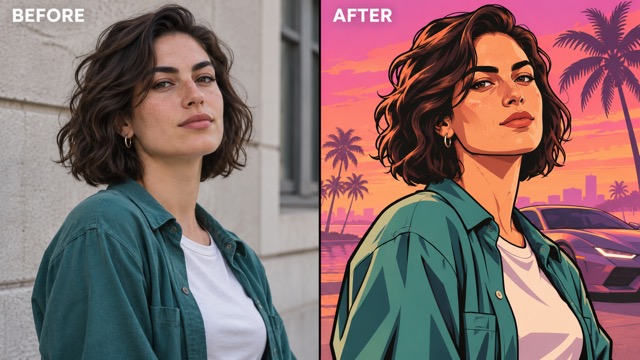
A Portrait With Character
GTA 6 Loading Screen AI uses the uploaded face, hairstyle, expression, and clothing as references for the character. The aim is a portrait that still feels connected to the original person while adopting a drawn finish. The GTA 6 AI photo generator does more than place a colored sky behind an unchanged photograph: the subject itself is redrawn. Choose an image with a clear expression and a simple silhouette. GTA 6 Loading Screen AI works from the visual details you supply, so distinctive glasses, hair, or a jacket can help establish personality. Review those details in the result rather than assuming every small feature will transfer exactly.
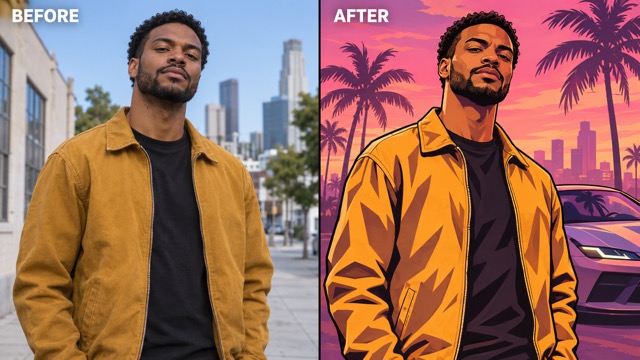
Bold Lines And Graphic Shadows
Thick contours and simplified shading give GTA 6 Loading Screen AI its poster-like character. The intended finish emphasizes shapes, edges, and blocks of color instead of photographic skin texture. If you want to turn photo into GTA loading screen artwork, this change in rendering is as important as the scenery. Keep the input sharp enough for the face and clothing to read clearly. GTA 6 Loading Screen AI then has a stronger reference for translating those forms into drawn shapes. The GTA loading screen AI generator is designed around an illustrated result, with the person remaining visually distinct from the background.
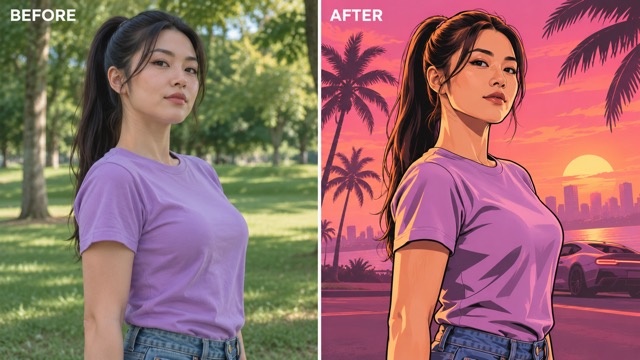
A Pink-Orange Sunset Atmosphere
The warm sky is a defining part of GTA 6 Loading Screen AI: pink and orange tones bring a tropical evening mood to an everyday portrait. Palm silhouettes and distant city details give the composition depth without needing a beach photo as the source. Use the GTA 6 AI photo generator with a straightforward portrait and let the built-in direction establish the setting. GTA 6 Loading Screen AI pairs that backdrop with graphic character shading, creating a coherent illustrated scene. An uncluttered input makes it easier to judge the transformation because the subject is immediately clear before and after the edit.
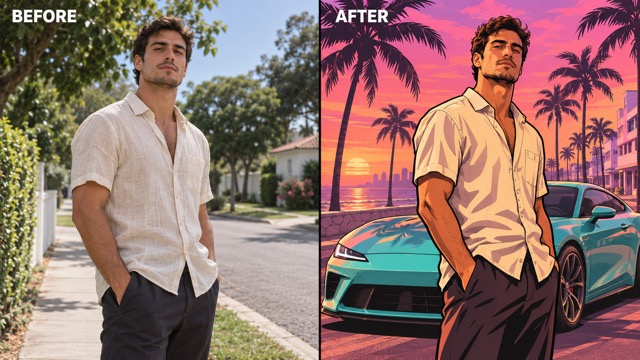
Palm Trees And A Sports-Car Scene
GTA 6 Loading Screen AI adds the scene ingredients that turn a character portrait into loading-screen-inspired artwork: palms, a stylized sports car, and an urban coastal atmosphere. The car supports the composition rather than replacing the person as the focal point. You do not need a vehicle in your source image to turn photo into GTA loading screen art with this visual direction. GTA 6 Loading Screen AI supplies those elements through its effect prompt. This GTA loading screen AI generator creates a new composition from your reference, so the exact position of the car and trees can vary between results.
Creative Uses For GTA 6 Loading Screen AI
Choose the final destination before you generate. GTA 6 Loading Screen AI can supply an illustrated portrait for personal fan creations, while the GTA 6 AI photo generator effect gives ordinary photos a consistent visual theme.

Refresh A Gaming Profile
Use GTA 6 Loading Screen AI to make a character portrait for your profile picture. Start with a close, clear face and check the result at a small size before cropping. The GTA loading screen AI generator adds a full scene, but a profile crop should keep eyes, hair, and expression easy to recognize.

Create A Photo Transformation Post
Show the original portrait beside your selected illustration in a social post. GTA 6 Loading Screen AI makes the change in outlines, colors, and atmosphere the central story. To turn photo into GTA loading screen content that reads clearly in a feed, use the same subject crop in both panels and keep added captions separate from the artwork.

Make Personal Wallpaper Art
A wider portrait with room around the subject can be a useful starting point for wallpaper planning. GTA 6 Loading Screen AI adds sunset scenery that gives the image more than a headshot composition. Check your device crop before saving the final version; the GTA 6 AI photo generator effect does not determine where your clock or app icons will sit.

Give A Fan Post A Personal Lead
Put your own portrait into a fan-art concept instead of relying on a generic character image. GTA 6 Loading Screen AI builds the visual idea around the person in your photograph. Use the GTA loading screen AI generator for a personal gaming post, mood board, or illustrated introduction, then add any editorial text in your usual layout tool. GTA 6 Loading Screen AI provides the portrait artwork for that design.
Get A Better Source Photo For GTA 6 Loading Screen AI
Before opening GTA 6 Loading Screen AI, take a moment to check the image you want to upload. A strong source makes it easier to turn photo into GTA loading screen art with a readable face and a purposeful pose.
Keep The Face Easy To Read
Clear Facial Detail
Give GTA 6 Loading Screen AI a face with visible eyes, a clear jawline, and enough light to distinguish features. Avoid a crop that cuts through the forehead or chin. The GTA 6 AI photo generator uses the uploaded portrait as a visual reference, so heavy blur, large obstructions, or tiny faces leave less detail to interpret.
GTA 6 Loading Screen AI Questions
Find practical answers about the photo input, visual treatment, and output of GTA 6 Loading Screen AI.
GTA 6 Loading Screen AI is a photo-to-illustration tool configured to redraw a portrait with bold outlines, graphic shading, sunset colors, palm trees, and a sports car. It uses one uploaded image as the character reference. The result is loading-screen-inspired portrait artwork for your own creative projects.
Upload a clear portrait and start the configured effect. GTA 6 Loading Screen AI includes the visual direction, so you do not need to write the scene yourself. Review the completed face, clothing, and composition before saving. For the strongest starting point, choose a photo with a visible face and a simple pose.
No. GTA 6 Loading Screen AI includes a prepared visual direction for this effect. Upload your portrait without writing a scene description. The GTA loading screen AI generator combines your photo with that direction, so your main creative choice is the photograph you upload.
GTA 6 Loading Screen AI asks the model to retain visible identity cues such as facial structure, hairstyle, expression, and clothing while redrawing the person. Stylization can change small details, so review the result against your source. A clear, well-lit portrait gives the model a better reference than an obscured or heavily filtered image.
GTA 6 Loading Screen AI creates still-image artwork. It does not animate a photo transition or install a loading screen inside the game. You can use a saved image as source material in a separate video-editing workflow if you want to build a before-and-after clip.
No. GTA 6 Loading Screen AI includes the pink-orange sunset, palms, and sports-car direction in its built-in scene prompt. The source photo supplies the person. Start with a portrait where the face and outfit are clear; the generated background is an illustrated reinterpretation rather than a record of the original location.
Create Your GTA 6 Loading Screen AI Portrait
Choose a photo with a clear face and let GTA 6 Loading Screen AI reinterpret it as bold character art. Bring together graphic outlines, a pink-orange sunset, palm trees, and a sports-car backdrop in one illustrated scene.