AI Image Tools
Everything You Need to Edit Photos Faster
Open the PicEditor AI tools library for background removal, photo enhancement, object cleanup, face swap, upscaling, and more focused image workflows.
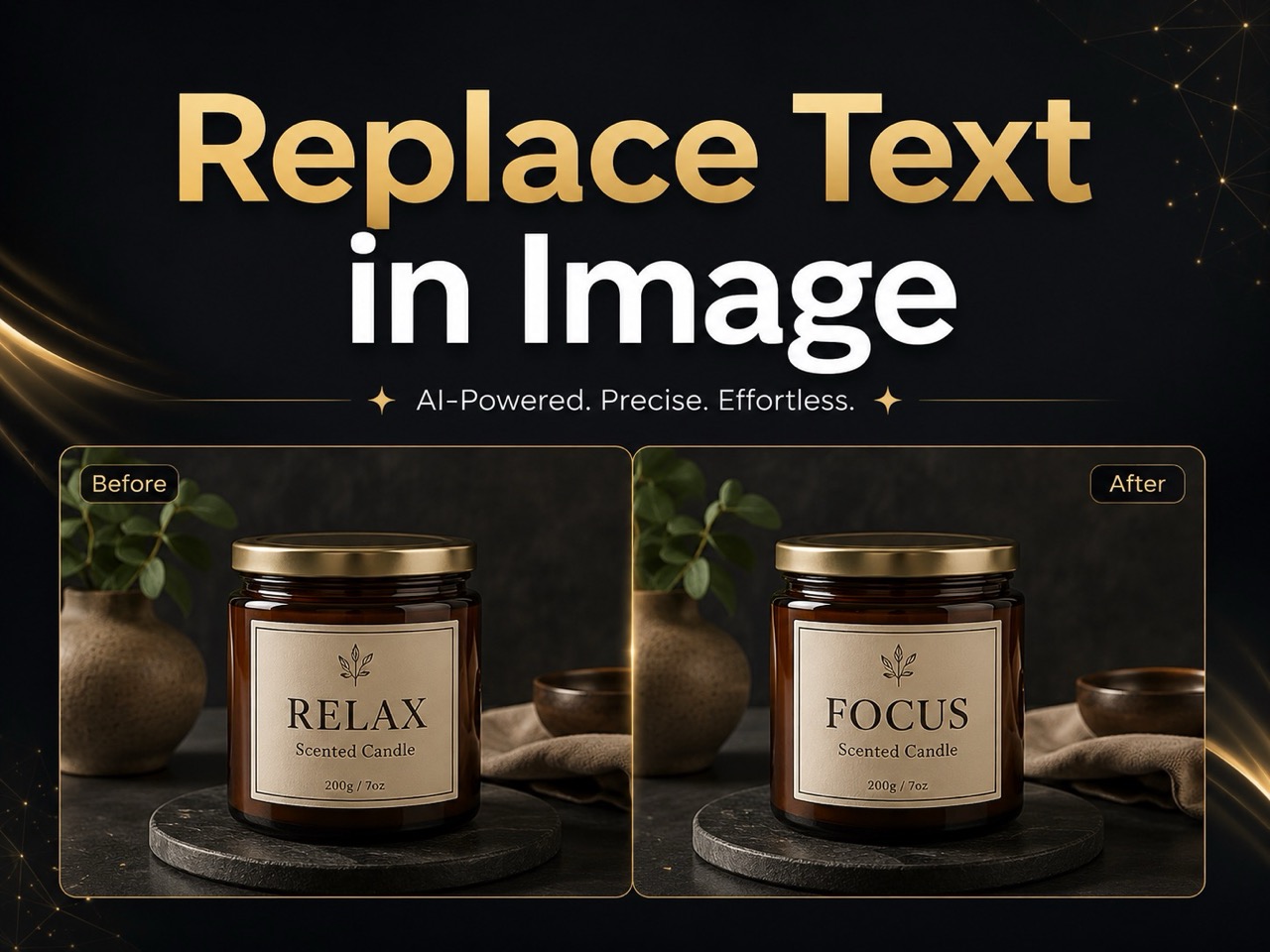
Replace Text in Image

Side By Side Photo

Mirror Image
Change Image Pose
Remove Background From Signature

Snowman Bestie Photo
1980s AI Photo Generator
AI Cow Makeup Photo

Sheru Bhai AI Photo

GTA 6 AI Photo
AI Caricature Generator
Self Hug Sketch

AI Snow Globe Photo

GTA 6 Loading Screen AI
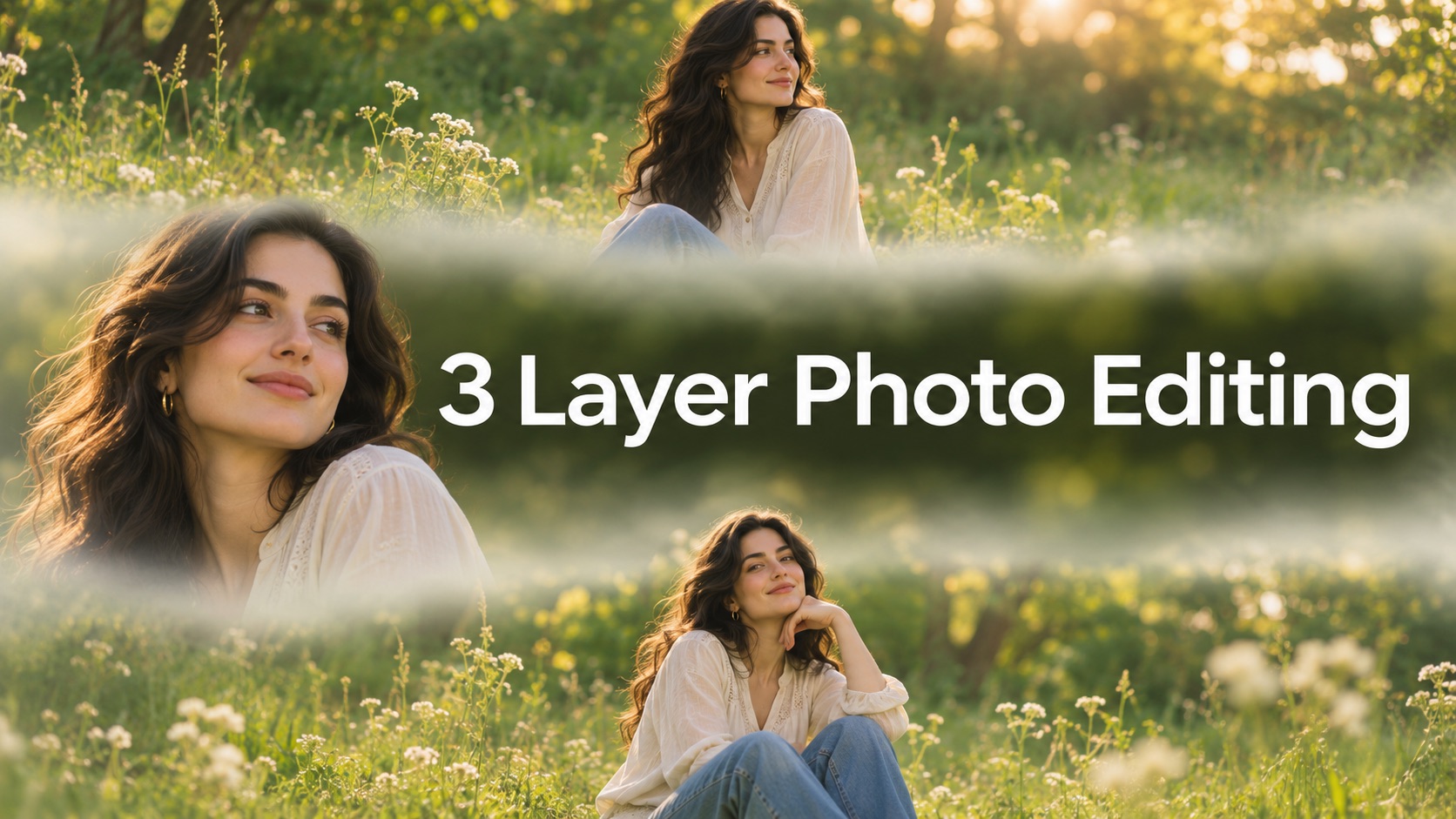
3 Layer Photo Editing

Make Them All Wear White Trend
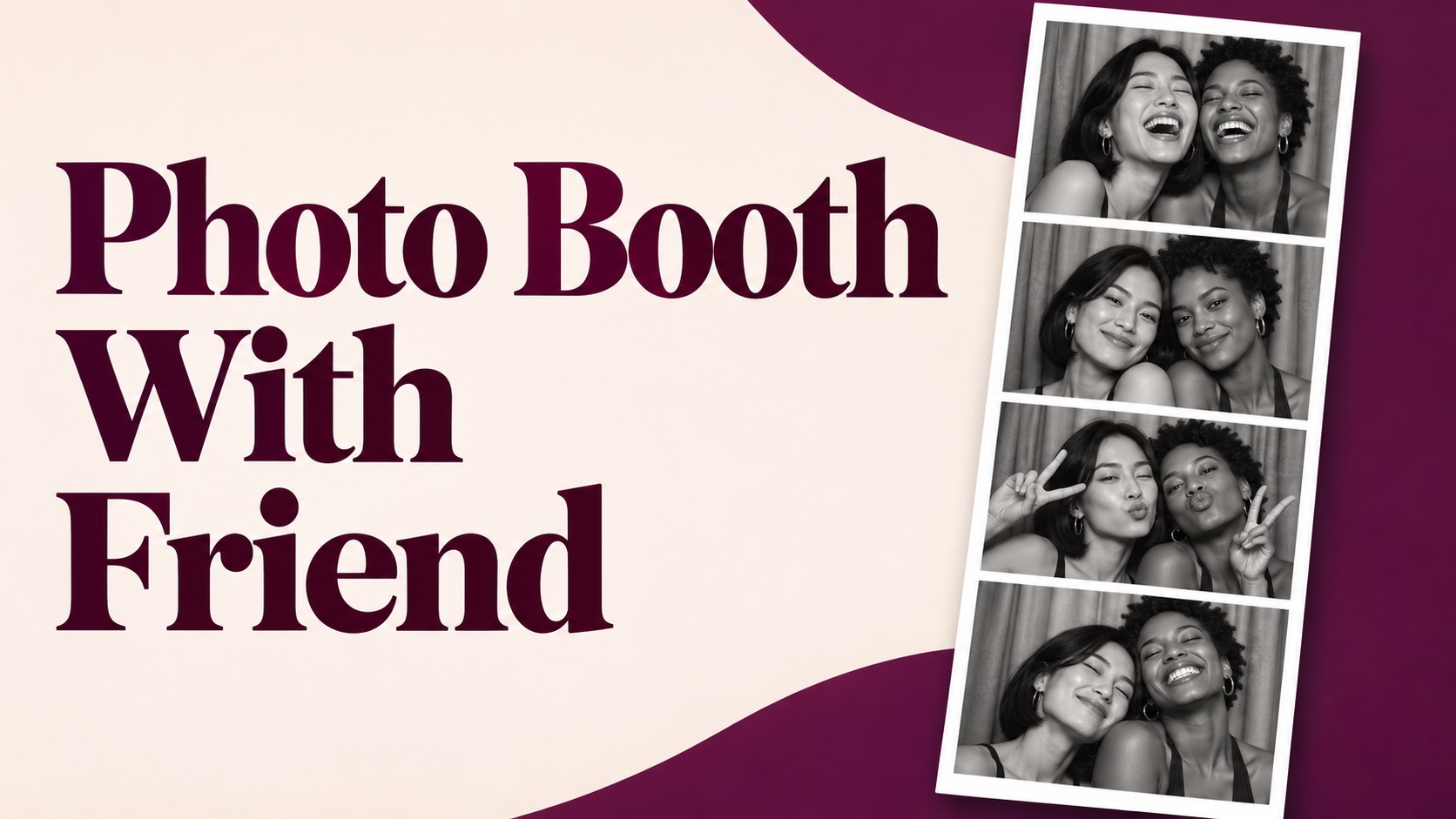
Photo Booth With Friend
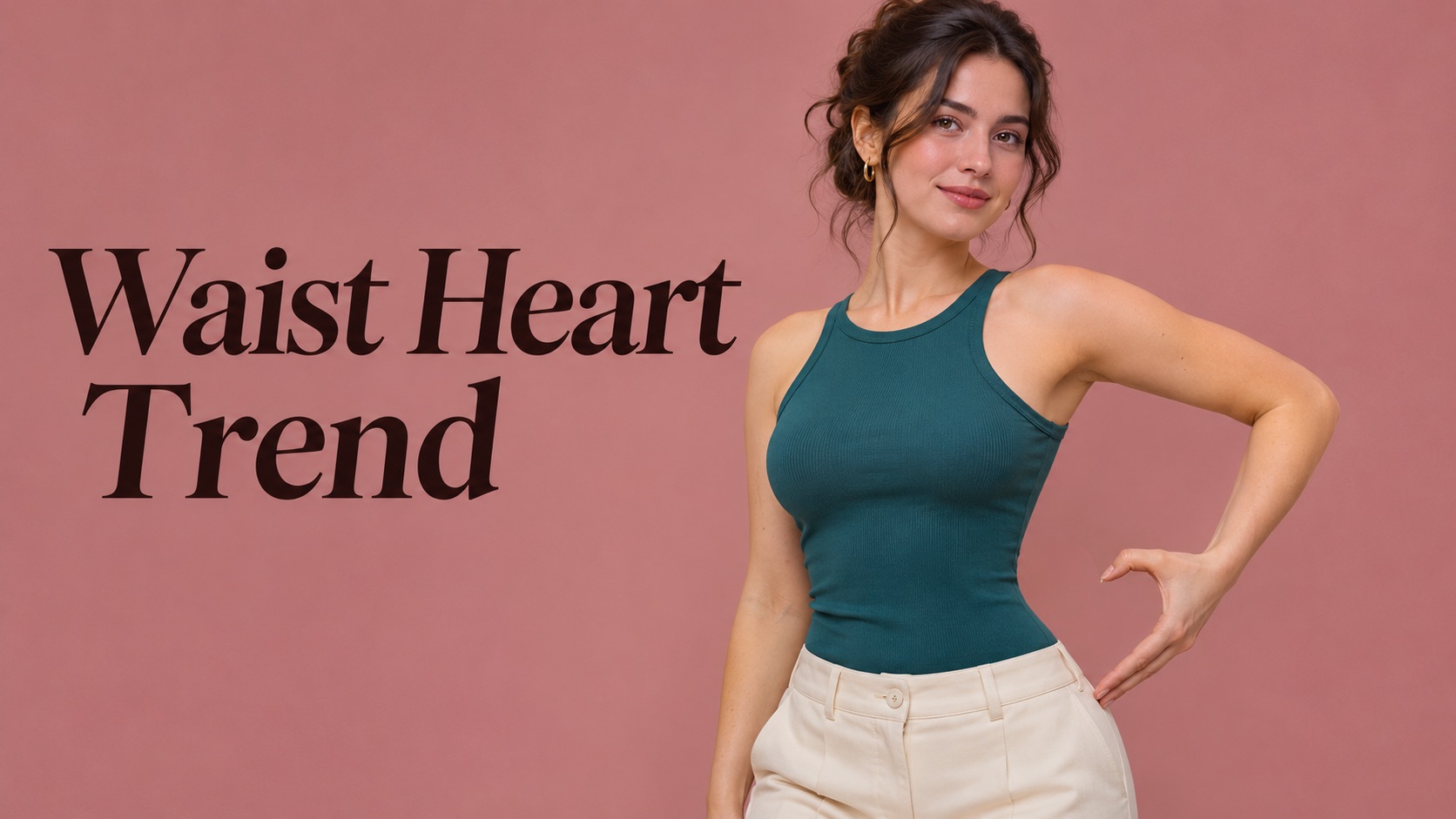
Waist Heart Trend
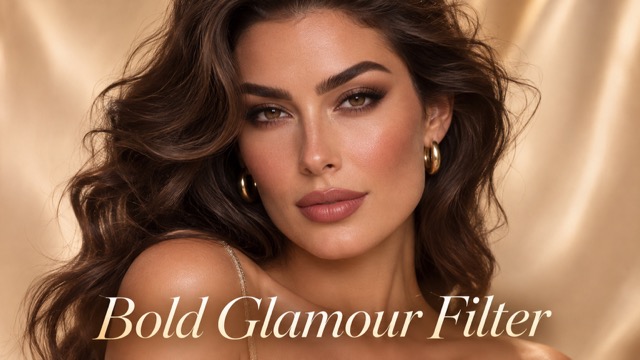
Bold Glamour Filter
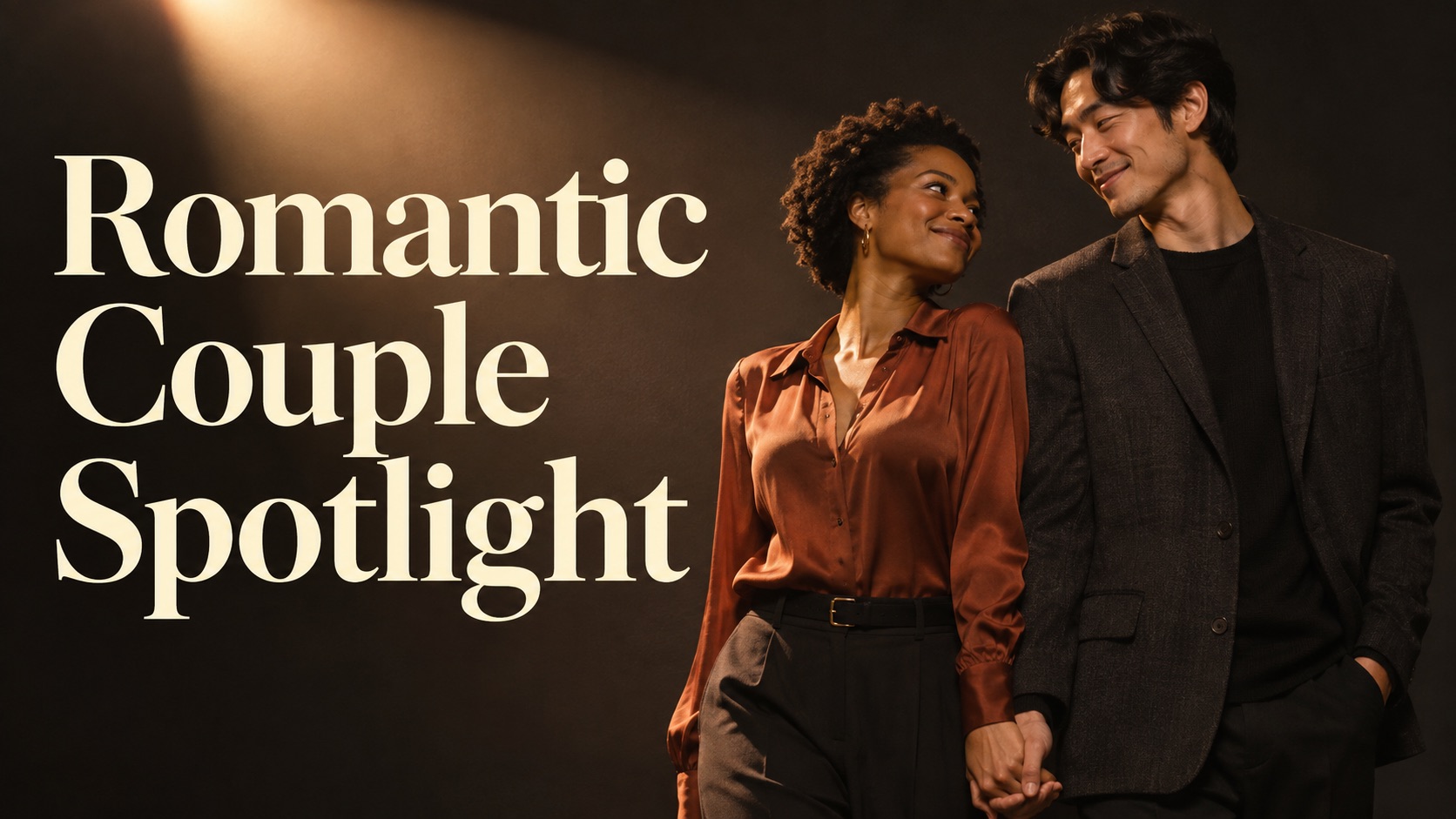
Romantic Couple Spotlight
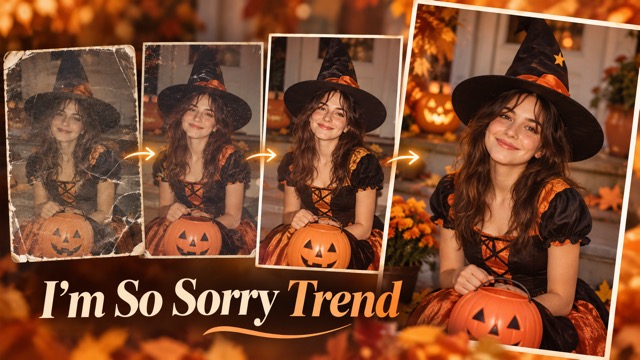
I'm So Sorry Trend AI Photo Editor

AI Halloween Generator
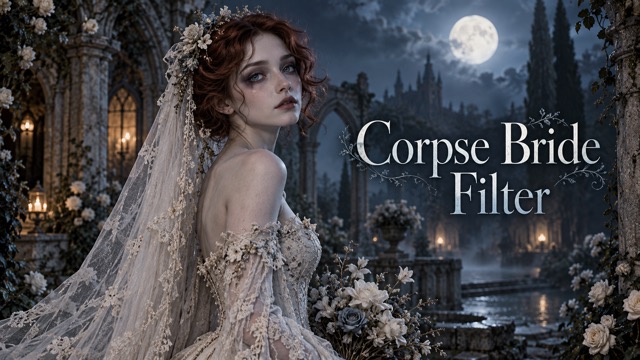
Corpse Bride AI Filter
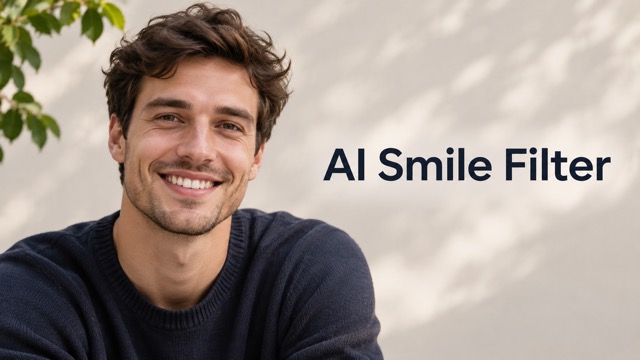
AI Smile Filter: Add A Natural Smile To A Photo
Bring A Warmer Expression To Your Portrait
Use the AI smile filter to add a smile to a photo and explore a friendlier expression. Upload a clear portrait and generate an edited version that aims to keep the face, lighting and setting recognizable.
How To Use The AI Smile Filter
Follow these steps to add a smile to a photo with the AI smile filter.

Choose A Portrait
Pick a clear photo where the face is visible. The AI smile filter works from the image you upload.

Upload Your Photo
Add the portrait to the AI smile filter. The built-in instruction asks for a natural expression.

Generate A Smile
Start the AI smile filter and wait for the image to be generated. Review the expression and facial details.

Review And Save
Compare the result with your original. If you like it, save your edited photo.
What The AI Smile Filter Helps You Do
The AI smile filter gives you a simple way to add a smile to a photo for a range of portrait uses.
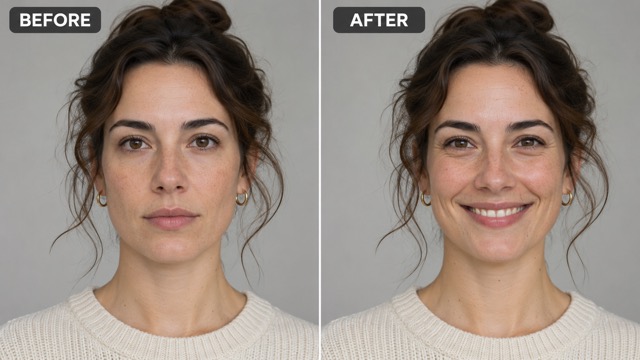
Add A Natural-Looking Smile
The AI smile filter aims for a believable smile with coordinated changes to the mouth and surrounding expression. Use it to add a smile to a photo while retaining the character of the portrait. For a profile portrait, use the AI smile filter to add a smile to a photo. Review the expression and compare important details with your original image. For a portrait with glasses, use the AI smile filter to add a smile to a photo. Review the expression and compare important details with your original image. The AI smile filter works from the portrait you provide, so a clear face and visible features make it easier to assess the generated result.
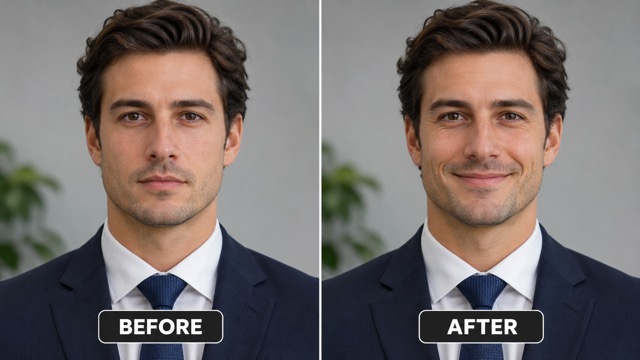
Refresh A Profile Portrait
Try the AI smile filter on an existing headshot when you want a warmer expression. Compare the result with your source photo and choose the look that suits your profile. For a family portrait, use the AI smile filter to add a smile to a photo. Review the expression and compare important details with your original image. For a close-up image, use the AI smile filter to add a smile to a photo. Review the expression and compare important details with your original image. The AI smile filter works from the portrait you provide, so a clear face and visible features make it easier to assess the generated result.
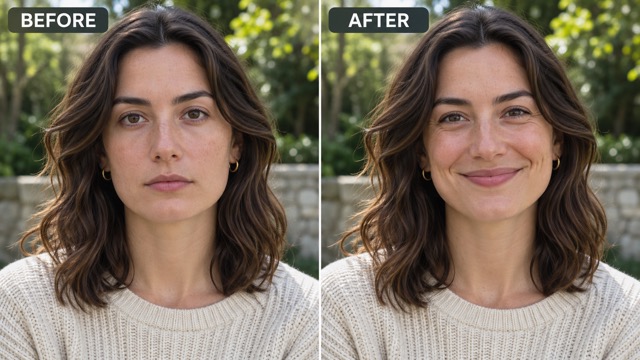
Keep The Setting Familiar
The built-in instruction asks the AI smile filter to preserve facial features, pose, clothing, lighting and background. Since the output is generated, review important details before using it. For a headshot, use the AI smile filter to add a smile to a photo. Review the expression and compare important details with your original image. For a personal photo, use the AI smile filter to add a smile to a photo. Review the expression and compare important details with your original image. The AI smile filter works from the portrait you provide, so a clear face and visible features make it easier to assess the generated result.
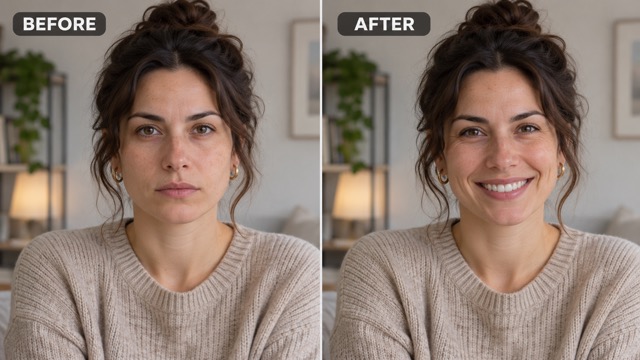
Explore Another Expression
Use the AI smile filter to create a different expression from a favorite portrait. Clear, front-facing images can provide a useful starting point when you add a smile to a photo. For a casual selfie, use the AI smile filter to add a smile to a photo. Review the expression and compare important details with your original image. For a social profile, use the AI smile filter to add a smile to a photo. Review the expression and compare important details with your original image. The AI smile filter works from the portrait you provide, so a clear face and visible features make it easier to assess the generated result.
Ideas For Using The AI Smile Filter
Use the AI smile filter to explore expressions for everyday portraits and creative projects.
Profile Photos
Add a smile to a photo for a social profile and review the result before sharing. For a portrait in daylight, use the AI smile filter to add a smile to a photo. Review the expression and compare important details with your original image. For a project mockup, use the AI smile filter to add a smile to a photo. Review the expression and compare important details with your original image. The AI smile filter works from the portrait you provide, so a clear face and visible features make it easier to assess the generated result.
Professional Headshots
Try the AI smile filter on a headshot to explore a friendly expression while keeping the original as a reference. For a photo taken indoors, use the AI smile filter to add a smile to a photo. Review the expression and compare important details with your original image. For a portrait with a simple background, use the AI smile filter to add a smile to a photo. Review the expression and compare important details with your original image.
Personal Portraits
Revisit a favorite picture with the AI smile filter and compare the new expression with the original. For a favorite portrait, use the AI smile filter to add a smile to a photo. Review the expression and compare important details with your original image. For a portrait with natural light, use the AI smile filter to add a smile to a photo. Review the expression and compare important details with your original image.
Creative Experiments
Use the AI smile filter to explore how a smile changes the mood of a portrait. For a creative portrait, use the AI smile filter to add a smile to a photo. Review the expression and compare important details with your original image. For an existing photo, use the AI smile filter to add a smile to a photo. Review the expression and compare important details with your original image.
AI Smile Filter FAQs
Learn what to expect when you add a smile to a photo.
An AI smile filter generates an edited portrait with a smiling expression based on an uploaded photo.
Upload a clear portrait, generate an image, and review the result before saving it.
Choose a clear image with the face visible. Check that the subject is large enough to see facial details.
AI generation can alter details. Compare the result with the original and check the face, teeth, clothing and background.
You can try a professional portrait you have permission to edit. Review the result for suitability before using it.
You can generate again and compare results, subject to the settings and availability shown in the generator.
Try The AI Smile Filter On Your Portrait
Upload a portrait and use the AI smile filter to add a smile to a photo. Review the generated expression and choose the result that feels right.