AI Image Tools
Everything You Need to Edit Photos Faster
Open the PicEditor AI tools library for background removal, photo enhancement, object cleanup, face swap, upscaling, and more focused image workflows.
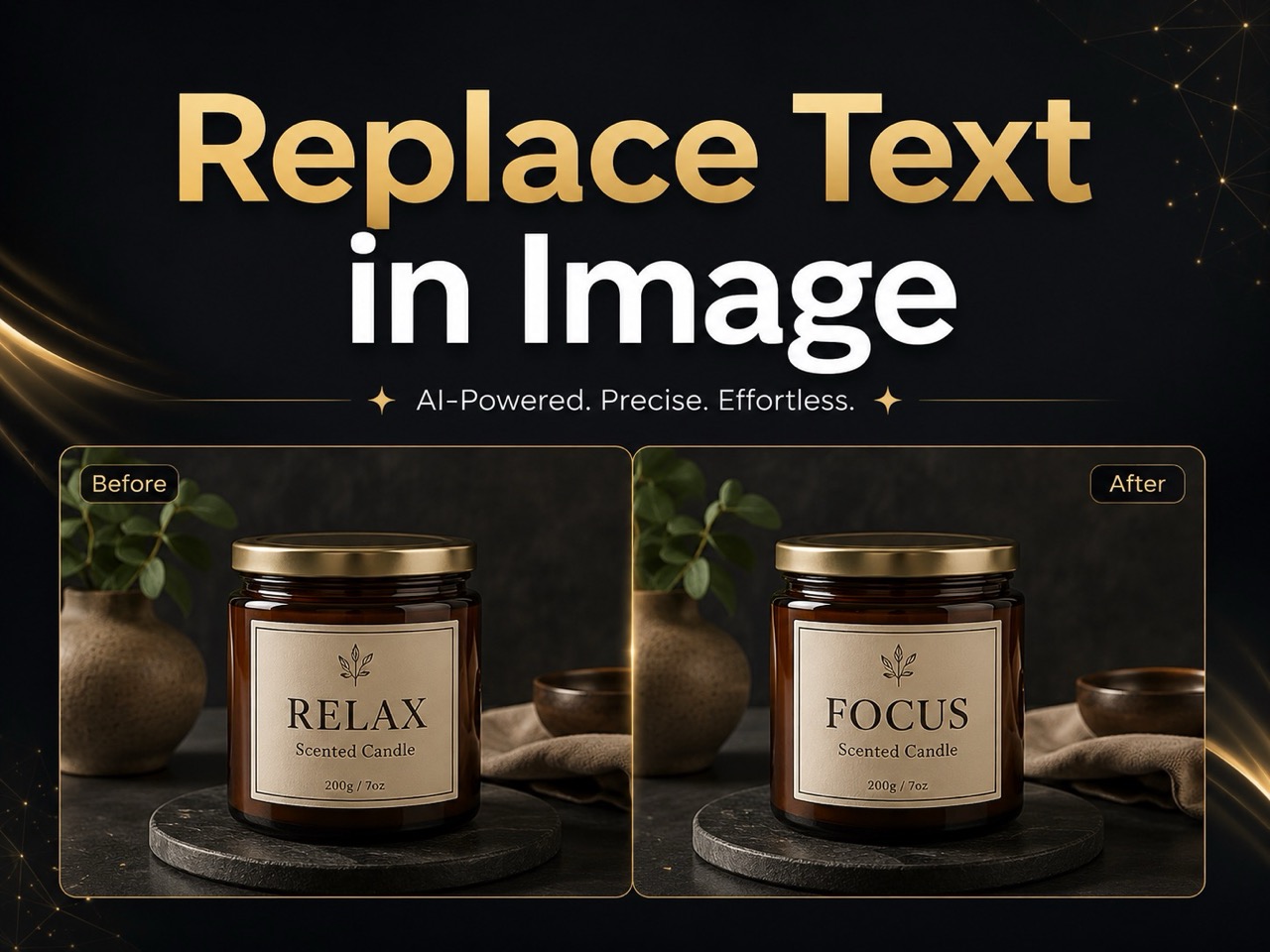
Replace Text in Image
AI Smile Filter
Mirror Image
Change Image Pose
Remove Background From Signature

Snowman Bestie Photo
1980s AI Photo Generator
AI Cow Makeup Photo

Sheru Bhai AI Photo
GTA 6 AI Photo
AI Caricature Generator
Self Hug Sketch

AI Snow Globe Photo

GTA 6 Loading Screen AI
3 Layer Photo Editing
Make Them All Wear White Trend
Photo Booth With Friend
Waist Heart Trend

Bold Glamour Filter
Romantic Couple Spotlight
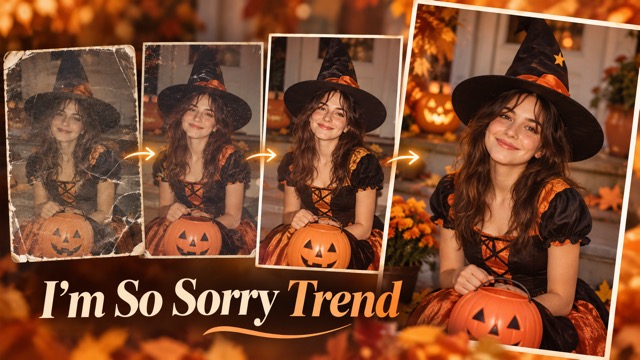
I'm So Sorry Trend AI Photo Editor
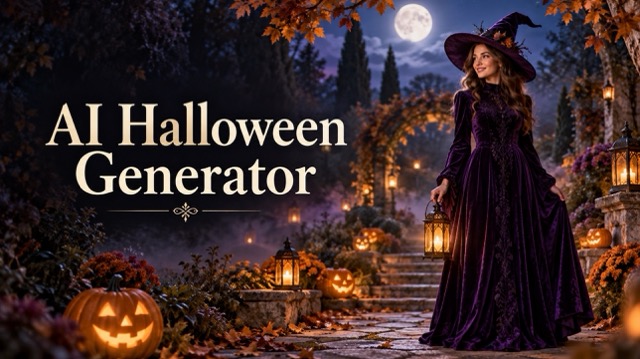
AI Halloween Generator
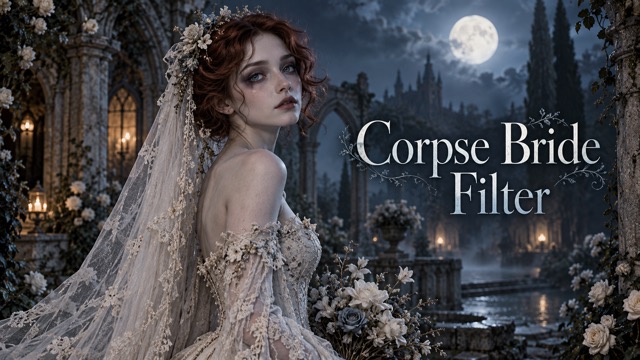
Corpse Bride AI Filter
Side By Side Photo: Put Two Photos Together
Create A Two-Photo Composition With AI
Create a side by side photo by uploading two images and generating a single composition. Use it to put two photos side by side for visual stories, comparisons or paired memories.
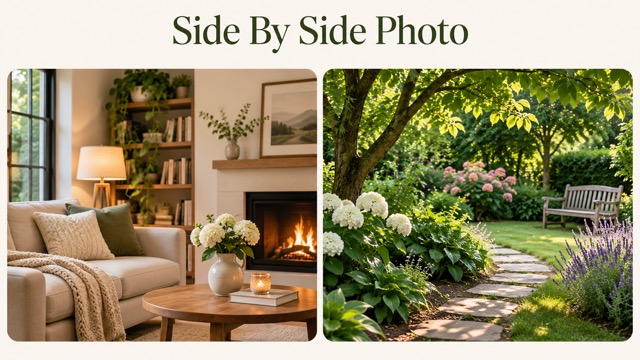
How To Make A Side By Side Photo
Use the side by side photo generator to put two photos side by side in a generated composition.

Choose Two Photos
Select the two images you want to use in your side by side photo.

Upload Both Images
Add the images to the side by side photo generator. The built-in instruction requests the first image on the left and the second on the right.

Generate The Composition
Start the generator to put two photos side by side. AI creates a new combined image from your sources.

Check And Save
Review the side by side photo for arrangement, cropping and important details, then save a result you like.
Create A Side By Side Photo For Different Ideas
The side by side photo generator can bring related images into one AI-generated layout.
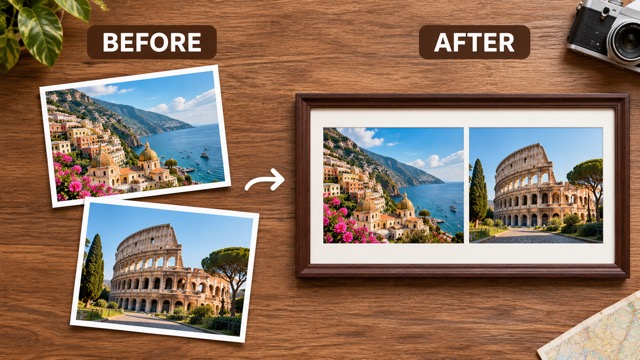
Put Two Photos Side By Side
Upload two photos to create a side by side photo. The built-in prompt asks for separate left and right panels, so each image has its own space. For a travel story, create a side by side photo to put two photos side by side. Check the generated composition against both source images before using it. For a presentation, create a side by side photo to put two photos side by side. Check the generated composition against both source images before using it. A side by side photo brings two source images into a shared composition; review their arrangement and important details in the generated result.
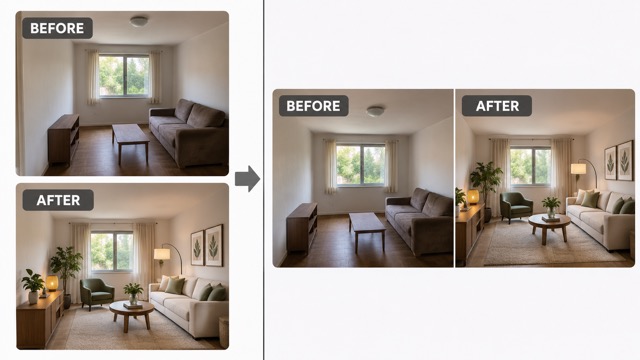
Compare Two Moments
A side by side photo can show two stages of a project or two views of a place. Check the generated image against the source photos before using it for a comparison. For a personal memory, create a side by side photo to put two photos side by side. Check the generated composition against both source images before using it. For a social post, create a side by side photo to put two photos side by side. Check the generated composition against both source images before using it. A side by side photo brings two source images into a shared composition; review their arrangement and important details in the generated result.
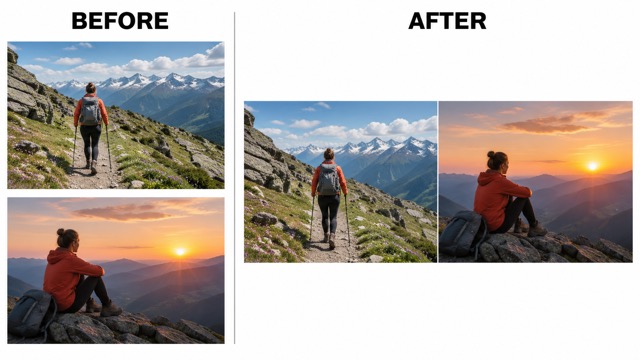
Pair Travel Memories
Put two photos side by side to tell a visual story from a trip. A side by side photo can bring two places, details or moments into one composition. For two views of a room, create a side by side photo to put two photos side by side. Check the generated composition against both source images before using it. For two related portraits, create a side by side photo to put two photos side by side. Check the generated composition against both source images before using it. A side by side photo brings two source images into a shared composition; review their arrangement and important details in the generated result.
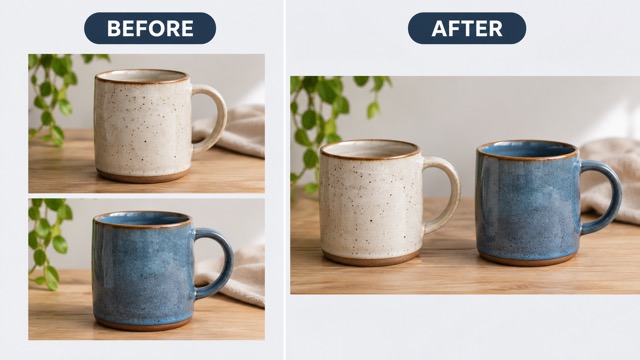
Show Two Product Views
Create a side by side photo from two product images to explore a paired presentation. Review labels, colors and shapes carefully because the result is generated. For a design concept, create a side by side photo to put two photos side by side. Check the generated composition against both source images before using it. For a mood board, create a side by side photo to put two photos side by side. Check the generated composition against both source images before using it. A side by side photo brings two source images into a shared composition; review their arrangement and important details in the generated result.
Side By Side Photo Ideas
A side by side photo helps organize two related visual ideas in one composition.
Before And After
Put two photos side by side to illustrate a change over time. Verify that the generated version retains details important to the comparison. For a pair of product images, create a side by side photo to put two photos side by side. Check the generated composition against both source images before using it. For a creative idea, create a side by side photo to put two photos side by side. Check the generated composition against both source images before using it. A side by side photo brings two source images into a shared composition; review their arrangement and important details in the generated result.
Travel And Memories
Make a side by side photo from two scenes or moments you want to share together. For two landscape scenes, create a side by side photo to put two photos side by side. Check the generated composition against both source images before using it. For a change over time, create a side by side photo to put two photos side by side. Check the generated composition against both source images before using it.
Product Views
Put two photos side by side to explore how different angles or items look together. For a visual comparison, create a side by side photo to put two photos side by side. Check the generated composition against both source images before using it. For two images from an event, create a side by side photo to put two photos side by side. Check the generated composition against both source images before using it.
Creative Storytelling
Use a side by side photo to pair images for a mood board, presentation or social post. For a project update, create a side by side photo to put two photos side by side. Check the generated composition against both source images before using it. For a visual draft, create a side by side photo to put two photos side by side. Check the generated composition against both source images before using it.
Side By Side Photo FAQs
Learn how to put two photos side by side with this AI workflow.
A side by side photo presents two images next to each other in one composition.
Upload two photos, generate a composition, and check the arrangement before saving.
No. This workflow generates a new image using AI, so details, crop and layout can change. Review the result against both source images.
The built-in instruction requests the first uploaded image on the left and the second on the right. Check the generated result, as placement can vary.
You can explore a side by side photo using two stages of a project. Verify visual details before using the result to make factual comparisons.
This page uses an AI generation workflow; manual border and layout controls have not been established for this configuration.
Create Your Side By Side Photo
Upload two images to create a side by side photo. Review the AI-generated composition and save the version you want to use.