Upload one photo and describe the pose you want to create.
AI Image Tools
Everything You Need to Edit Photos Faster
Open the PicEditor AI tools library for background removal, photo enhancement, object cleanup, face swap, upscaling, and more focused image workflows.

Replace Text in Image

Side By Side Photo
AI Smile Filter

Mirror Image
Remove Background From Signature

Snowman Bestie Photo
1980s AI Photo Generator
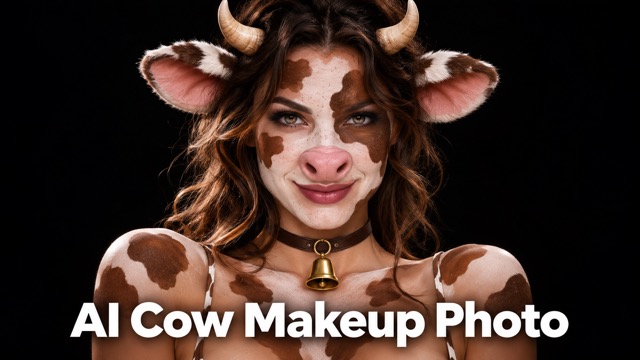
AI Cow Makeup Photo

Sheru Bhai AI Photo

GTA 6 AI Photo
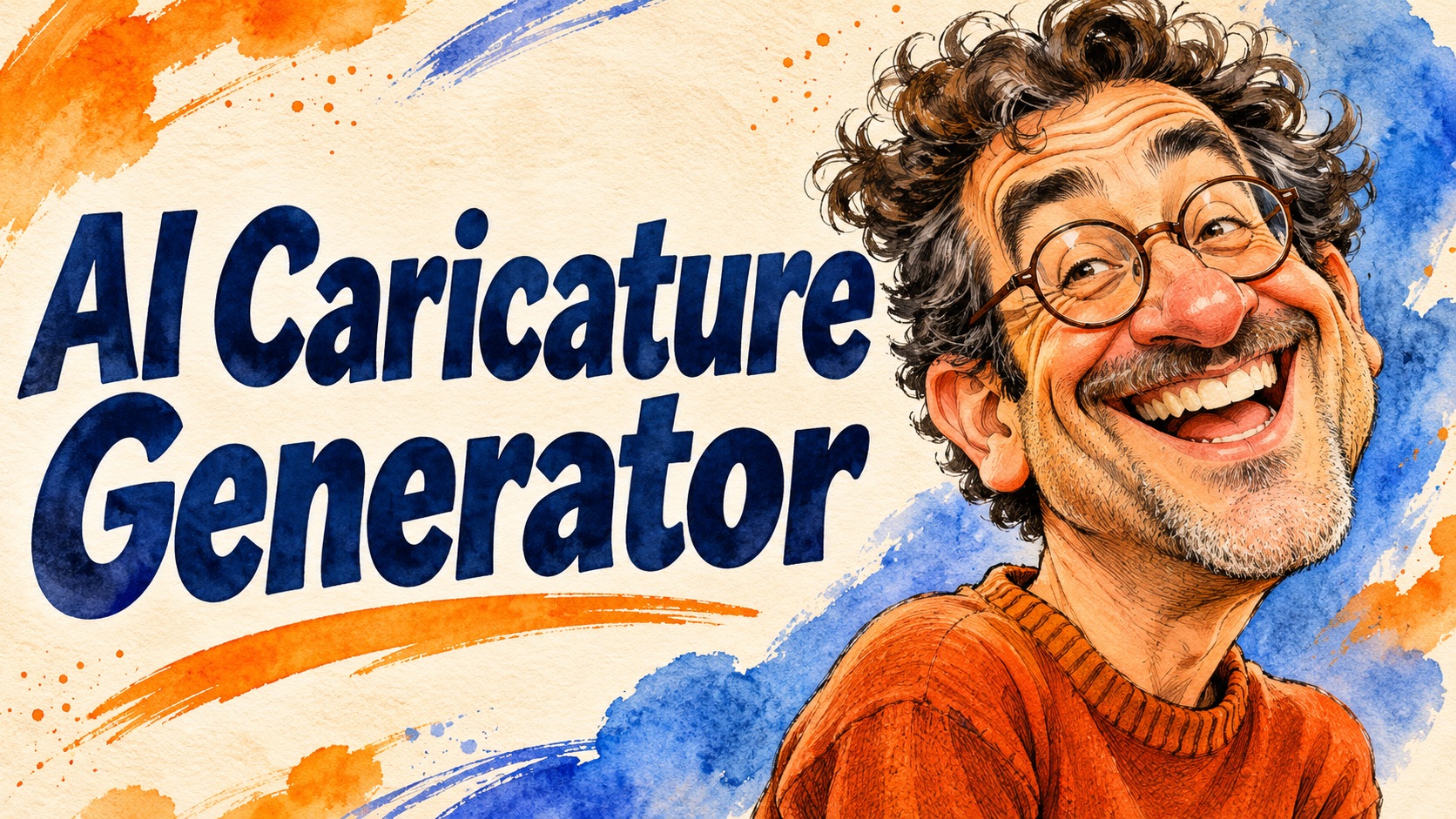
AI Caricature Generator
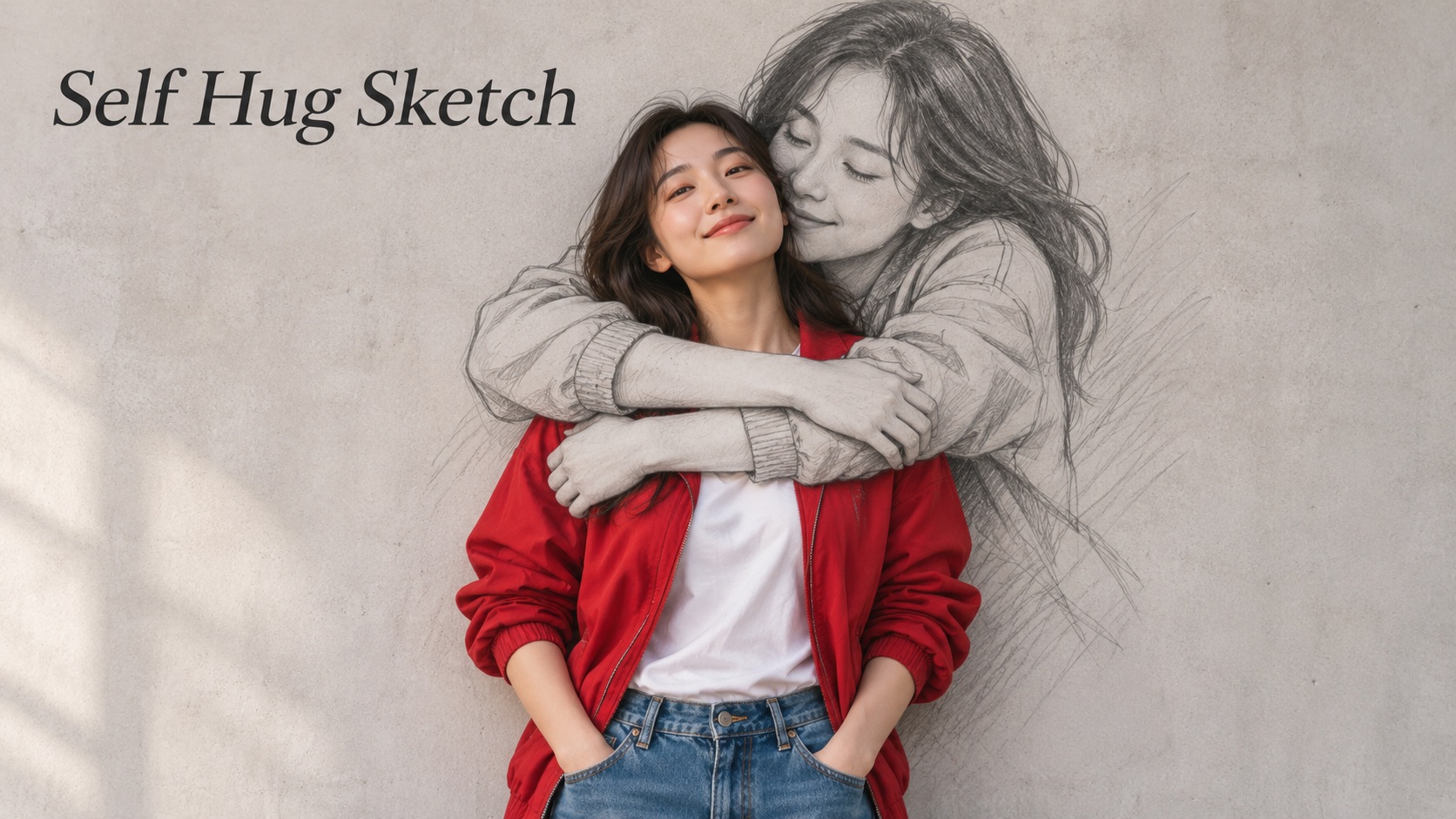
Self Hug Sketch

AI Snow Globe Photo

GTA 6 Loading Screen AI
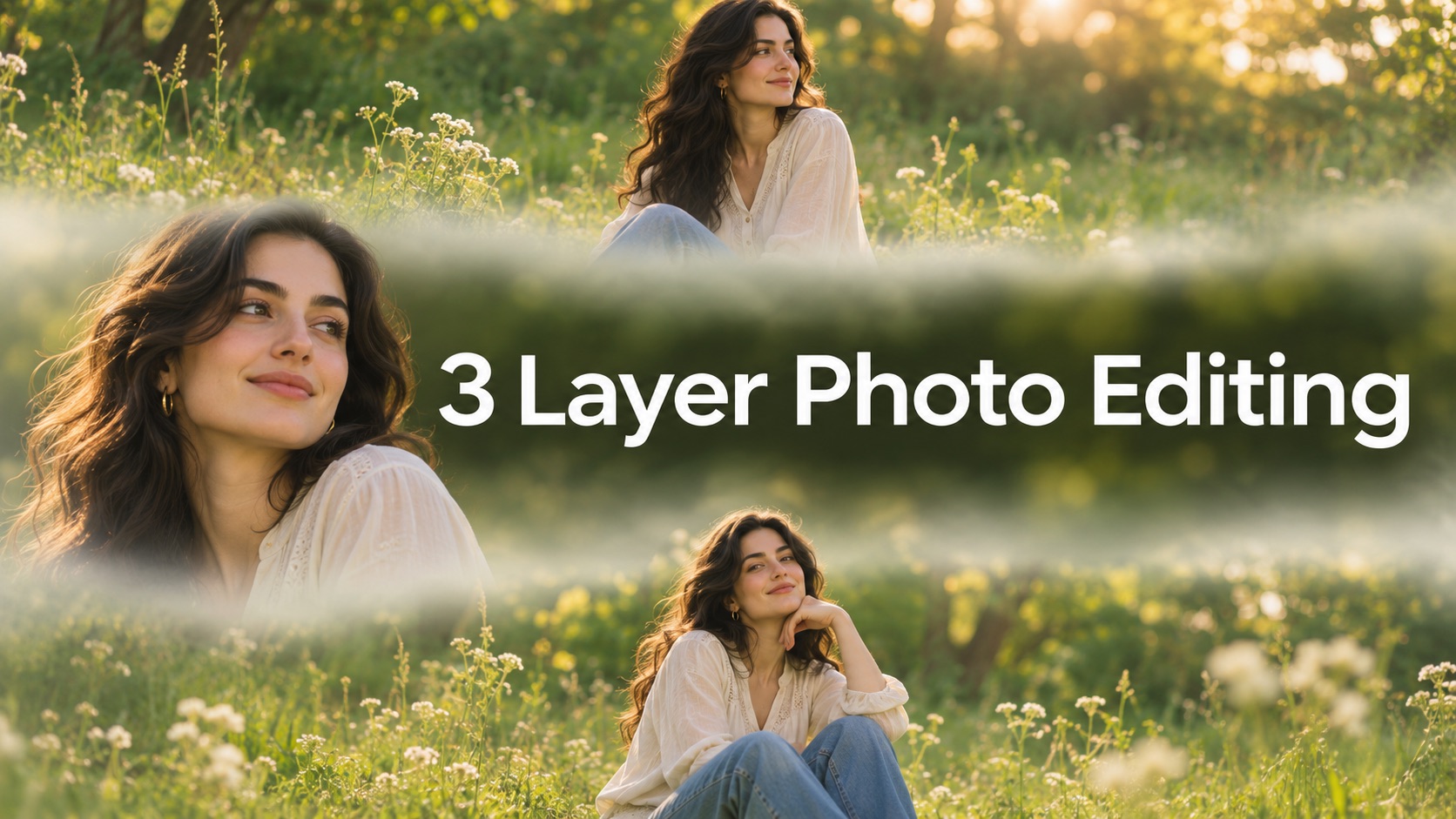
3 Layer Photo Editing

Make Them All Wear White Trend
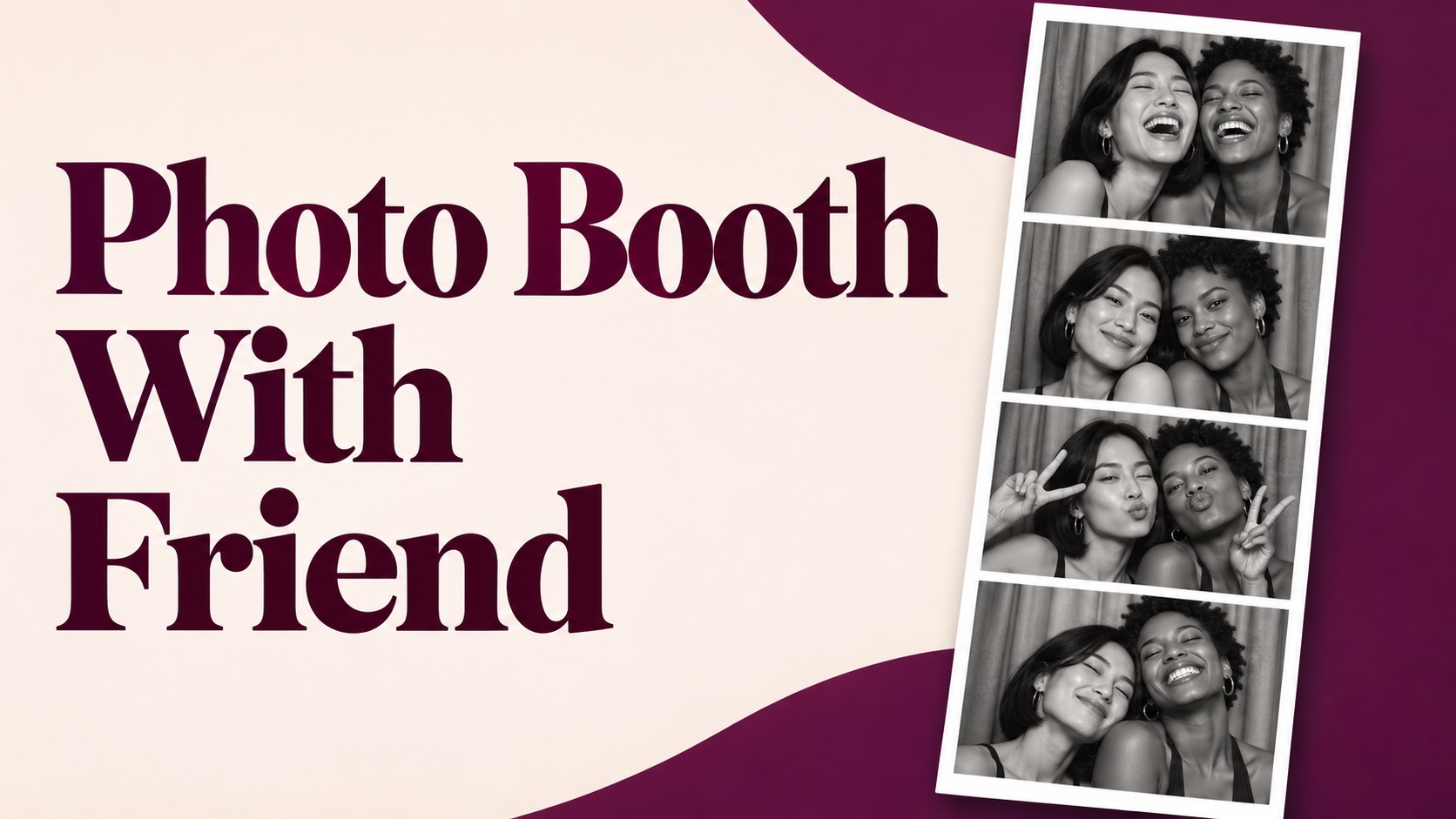
Photo Booth With Friend
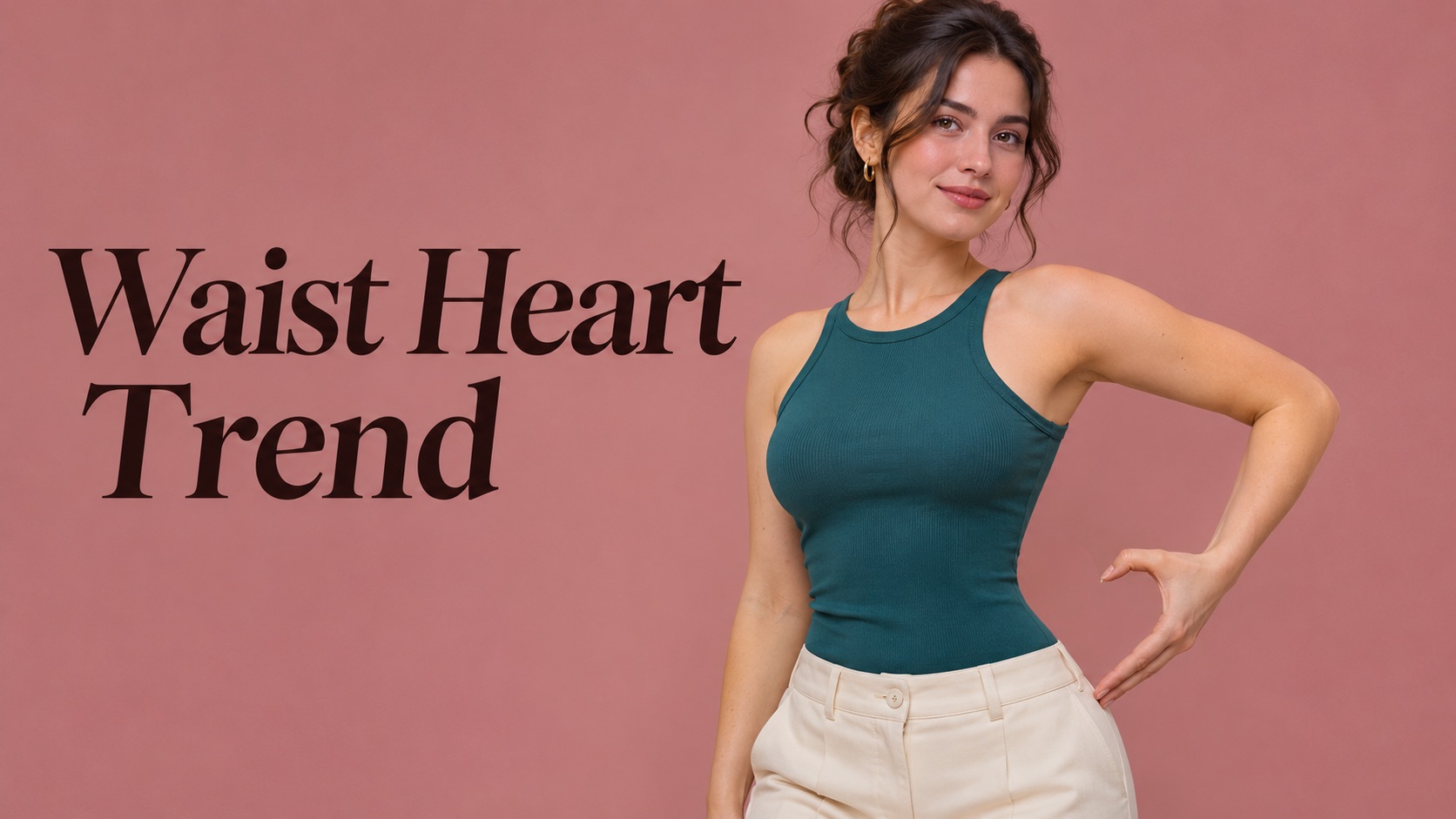
Waist Heart Trend

Bold Glamour Filter
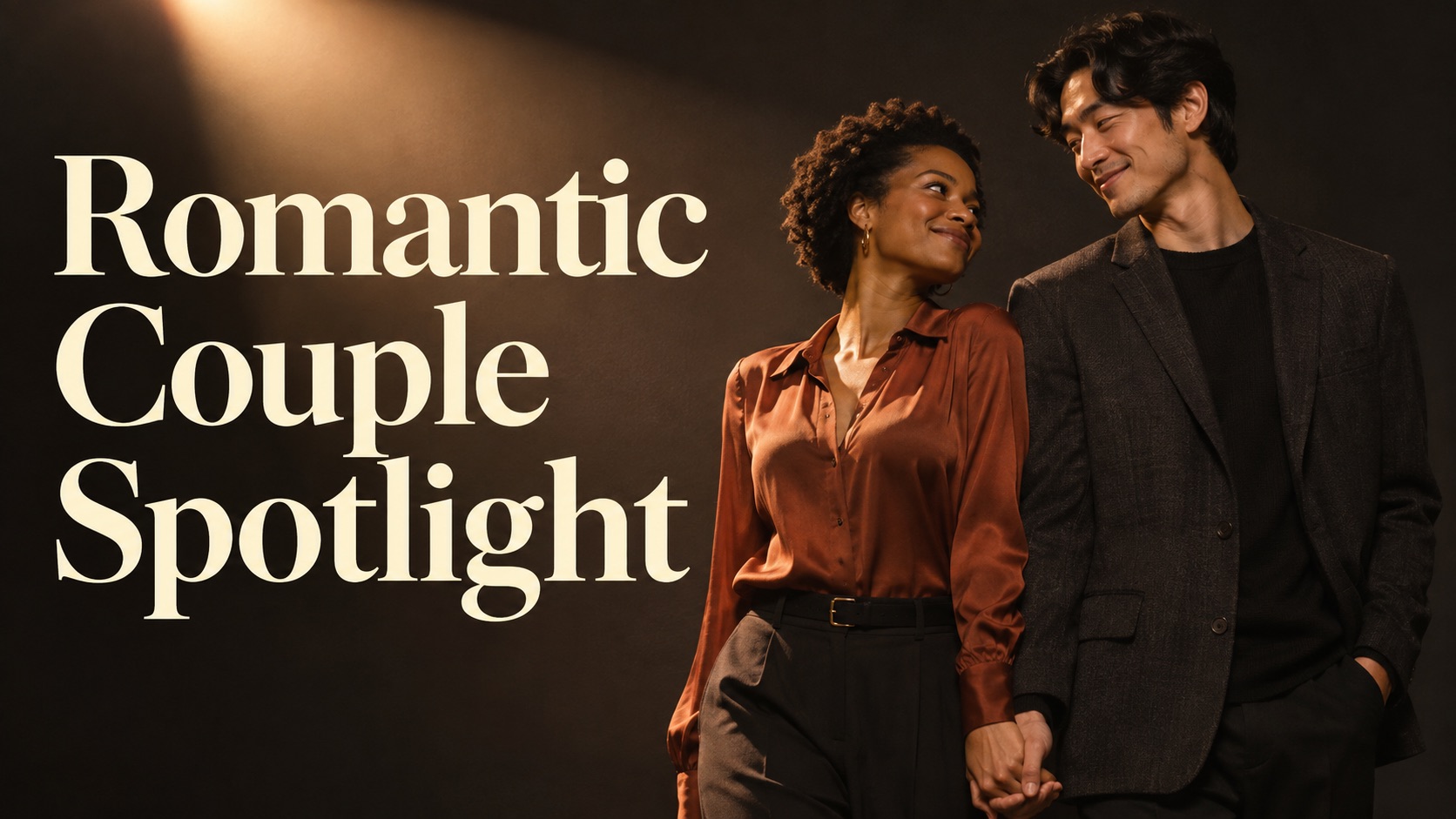
Romantic Couple Spotlight
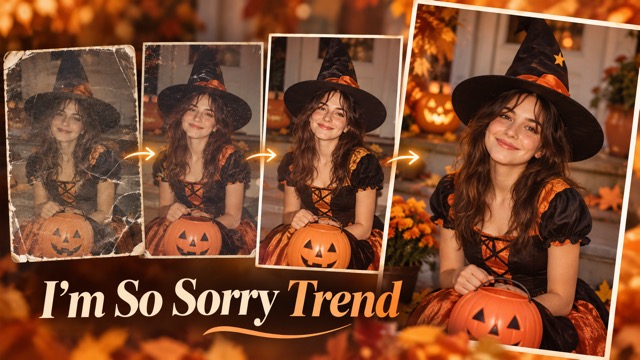
I'm So Sorry Trend AI Photo Editor

AI Halloween Generator

Corpse Bride AI Filter
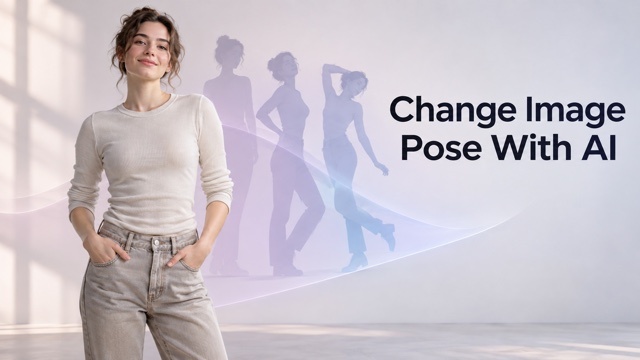
Change Image Pose With AI
Give A Photo A New Pose
Change image pose by uploading a photo and describing the position you want. The AI pose changer uses your image as the starting point and your instructions to guide the edit. Explore a seated, standing, or relaxed pose while reviewing the face, clothing, and background in the result.
How To Change Image Pose
Use an AI pose changer to explore a different pose from a photo you already have.

Upload A Photo
Choose a clear image of the subject. To change image pose, leave enough room around the body for the position you want to describe.

Describe The Pose
Tell the AI pose changer what the subject should do. Include the position of the arms, legs, and body, along with any details you want to retain.

Generate The Edit
Run the edit to change image pose using your upload and description. The original photo provides the visual reference.

Review The Image
Compare the result with the original. Check the face, hands, joints, clothing, and contact with nearby objects before saving.
Change Image Pose While Keeping The Photo In View
An AI pose changer combines a source photo with your description of a new body position.
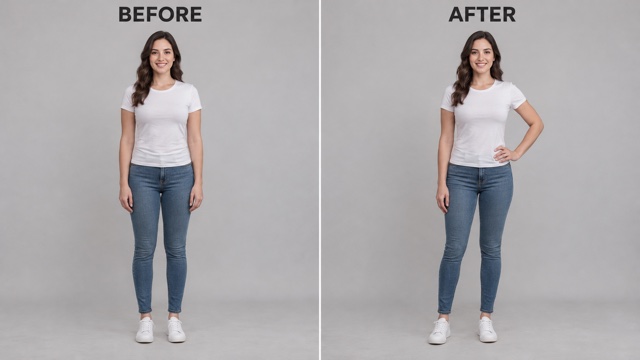
Change Image Pose Using Your Own Description
Change image pose by describing the position you want, such as standing with relaxed arms or sitting with hands on the lap. The AI pose changer uses the uploaded photo as a reference and your description to guide the edit.
Be specific about the torso, hands, and direction of the subject's gaze. If you want to retain the original outfit or setting, include those details in your instruction. Some poses require the editor to create parts of the scene that were hidden in the source. After you change image pose, inspect the hands, joints, clothing folds, and contact points, then refine your description if needed. If the image contains more than one person, identify which subject should move. Choose a photo with enough space around the body so the desired position has room within the frame.
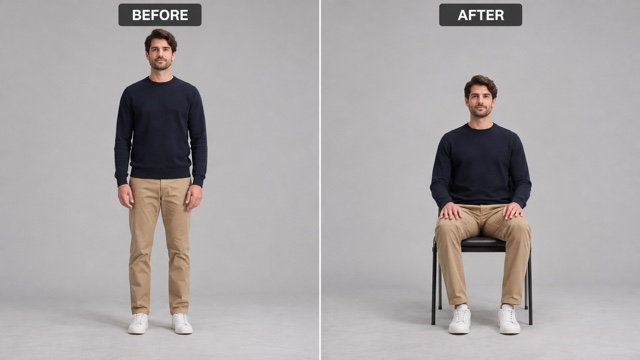
Use An AI Pose Changer For Portrait Variations
Use the AI pose changer to explore a more relaxed stance, a seated composition, or a different arm position in a portrait. You can ask it to retain the subject's recognizable features, hairstyle, and clothing while you change image pose.
The original photo provides a visual reference, but generative edits can introduce differences. Compare the face and proportions, especially when the requested pose reveals parts of the body outside the original frame. Check the setting too: a seated pose needs a plausible surface, while a standing pose should look grounded. Choose the variation that best fits your intended composition. For a social post or other layout, consider the crop before selecting a variation. Review the finished image at its intended size and look for changes in the subject's expression, outfit, and surrounding details.
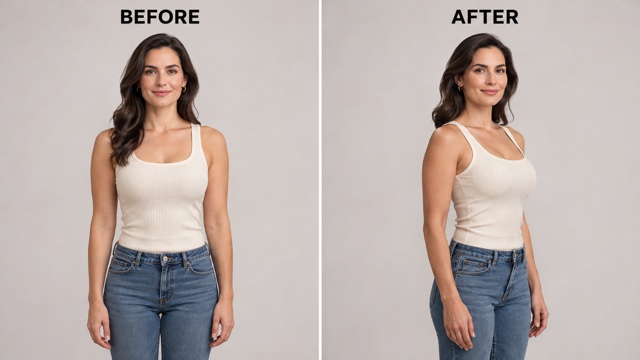
Write Clear Instructions To Change Image Pose
To change image pose, identify the subject and describe the desired posture. Give the AI pose changer concrete details about the arms, legs, and viewpoint, and mention any clothing or background details you want to keep.
Request one main adjustment at a time. For example, describe a person turning slightly toward the camera with their arms relaxed at their sides. After you change image pose, review the image at full size: check fingers, elbows, balance, shadows, and facial features. If the result differs from your intent, refine the instruction and try again with the original photo. Start with a clear photo where the subject is easy to distinguish. Use the same original for each variation, so you can compare the different poses against a consistent reference before choosing a result.
Ways To Change Image Pose
Use an AI pose changer to explore different compositions for your own images.
Portrait Ideas
Change image pose to explore a different stance in a portrait. The AI pose changer can use your photo and a concise description as a starting point for a new composition; inspect the face and hands before choosing a result.
Social Content
Create an alternative for a social post when you want a different gesture. Change image pose with a clear instruction, then use the AI pose changer result that best fits your crop and message.
Creative Concepts
Use an AI pose changer to visualize a seated or standing variation for a creative concept. Change image pose and check the balance, surroundings, and clothing before incorporating the image into a layout.
Photography Planning
Change image pose to explore ideas for a future shoot. An AI pose changer can offer a visual starting point for discussing posture and framing; compare variations with the original photo.
Change Image Pose: Common Questions
Answers about using an AI pose changer with a photo and a written instruction.
Upload a photo, describe the desired body position, and generate an edit. When you change image pose, review the face, hands, body proportions, and background against the original. To change image pose clearly, mention the position of the torso and hands. Change image pose again with a more specific instruction if the first image misses your intended gesture.
Describe the posture and the position of the arms and legs. Include details you want to retain, such as the person's clothing, expression, or setting.
You can request a sitting pose in your description. The AI pose changer may need to create a seat and previously unseen details, so check the result for believable contact and proportions. To change image pose into a seated position, describe where the hands and feet should rest. Change image pose with enough context for the editor to interpret the setting.
A generative edit can change facial or clothing details. Ask the AI pose changer to retain them, and compare the output with the original before using it.
Start with a clear photo of the subject and enough space around the body. A visible face and clothing give you more details to compare after you change image pose.
You can describe another position and create another variation. For easier comparison, start from the same original and change one part of the instruction at a time.
Change Image Pose From Your Photo
Upload your photo and describe the posture you want to explore. Use the AI pose changer to create a new variation, then review the face, hands, and composition before saving.