Upload a clear signature photo or scan, then inspect the handwriting and background in the result.
AI Image Tools
Everything You Need to Edit Photos Faster
Open the PicEditor AI tools library for background removal, photo enhancement, object cleanup, face swap, upscaling, and more focused image workflows.

Replace Text in Image

Side By Side Photo

AI Smile Filter

Mirror Image

Change Image Pose

Snowman Bestie Photo

1980s AI Photo Generator

AI Cow Makeup Photo

Sheru Bhai AI Photo

GTA 6 AI Photo

AI Caricature Generator

Self Hug Sketch

AI Snow Globe Photo

GTA 6 Loading Screen AI

3 Layer Photo Editing

Make Them All Wear White Trend

Photo Booth With Friend

Waist Heart Trend

Bold Glamour Filter

Romantic Couple Spotlight

I'm So Sorry Trend AI Photo Editor

AI Halloween Generator

Corpse Bride AI Filter
Remove Background From Signature For A Cleaner Image
Prepare Your Handwritten Signature For Documents
Remove background from signature images to separate handwritten ink from paper and create a cleaner asset for your documents. Upload a clear scan or photo, then inspect the result against your original. A signature background remover helps you prepare a reusable image while keeping the shape and details of your handwriting in view.

How To Remove Background From Signature Images
Follow these steps to remove background from signature images and review the result before using it.

Upload Your Signature
Choose a clear photo or scan with enough space around the writing. To remove background from signature images, start with dark ink on a clean, well-lit surface.

Start The Edit
Run the signature background remover to separate the handwritten marks from the surrounding paper. The tool uses the uploaded image as its source.

Inspect The Ink
Compare the result with the original. When you remove background from signature images, check faint strokes, dots, loops, and the edges of every letter.

Save And Use
Save a result that retains the complete signature. Check its background and appearance in the document where you intend to use it.
Remove Background From Signature Images With The Details In Mind
A signature background remover is useful when the handwriting matters as much as the clean background.
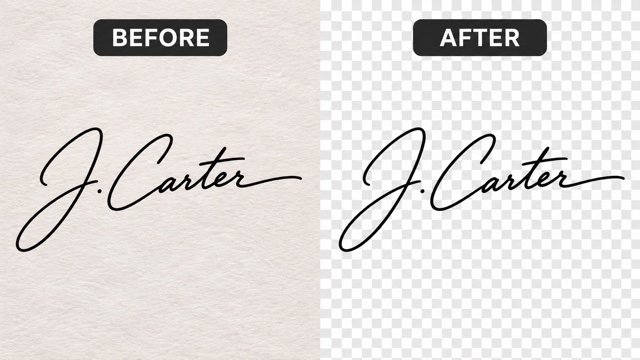
Remove Background From Signature Images While Focusing On The Ink
A handwritten signature can contain fine lines, dots, loops, and changes in pressure. To remove background from signature images, start with a clear source where the ink stands out from the paper. The signature background remover is directed to keep the handwriting while separating it from surrounding marks.
Leave a margin around the complete signature, including any long flourishes. After you remove background from signature images, compare the result with the original at a larger size. Check stroke ends, initials, dots, and spaces inside loops. If a detail is missing, try a sharper, evenly lit scan and review the result again. A simple background and strong contrast make it easier to see where the writing begins and ends. Compare the overall shape as well as individual marks before placing the signature in a document.
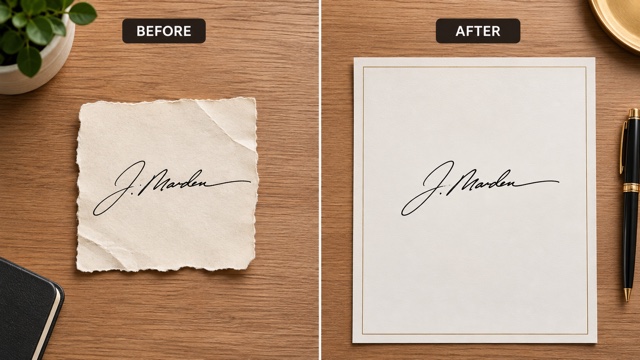
Prepare A Signature Image For Documents
Remove background from signature images when the surrounding paper distracts from a document layout. A cleaner signature image can be placed in a letter, form, invoice, or personal template using your document editor. Use a signature you are authorized to apply and check the document's requirements.
After using the signature background remover, open the saved image in the application where you plan to use it. Check that the background displays as intended, the handwriting remains readable, and the image fits the page. Keep the original scan for comparison, and try a clearer source if the edit changes a stroke. A signature background remover prepares the image; your document editor controls its placement and size. Check the final page at normal viewing size as well as close up, especially around thin strokes and small initials.
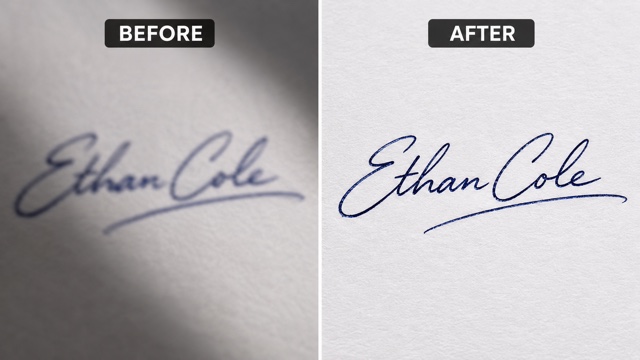
Choose A Better Source Before You Remove Background From Signature
To remove background from signature images, start with a sharp scan or a photo taken straight above the page. Use even light, avoid heavy shadows, and leave a comfortable border around the writing. Clear contrast between the ink and paper gives the signature background remover a better source to work from.
Avoid cropping out initials or long flourishes. After you remove background from signature images, inspect both the ink and the surrounding area. Open the result over a different background to look for leftover paper, halos, or gaps in the writing. If necessary, retry with a clearer source and compare it with the original. For ruled or textured paper, pay particular attention to faint lines near the ink. A source with an unobstructed signature and consistent lighting makes the final comparison easier and helps you spot unwanted changes.
Ways To Use A Signature Background Remover
Remove background from signature images for layouts where a clean handwritten mark is useful.
Letters And Correspondence
Remove background from signature scans before placing your handwritten mark in a personal letter. A signature background remover helps you prepare an image that can be checked against the original and positioned in your preferred document editor.
Forms And Templates
A signature background remover can help prepare a signature image for a form or template. Remove background from signature images, then check the form's instructions and confirm that the result is appropriate for the intended use.
Invoices And Business Documents
Remove background from signature images to prepare a clean asset for an invoice or other business document. Review the signature background remover output at the size it will appear, especially around thin strokes.
Personal Creative Projects
Use a signature background remover to isolate your own handwriting for a personal design. Remove background from signature photos and compare the result with the source before placing it in your layout.
Remove Background From Signature: Common Questions
Learn how to prepare, check, and use the result from a signature background remover.
Upload a clear photo or scan of the signature, run the edit, and compare the result with your original. To remove background from signature images successfully, check thin lines, dots, and loops before saving. To remove background from signature scans, use a source with the entire mark visible. After you remove background from signature images, check the result on a contrasting background.
A sharp image with clear contrast between ink and paper is a useful starting point. Leave space around the complete signature and avoid shadows or crops that hide the handwriting.
You can upload a clear photo of a signature on paper. The signature background remover is directed to separate the writing from the surrounding paper; review the output for missing ink or leftover background. To remove background from signature photos, keep the camera parallel to the page. When you remove background from signature images, avoid shadows across the ink.
AI editing can change fine details. After you remove background from signature images, compare every stroke with the original and use a result only if it accurately represents your writing. If you remove background from signature images and a stroke is missing, try a sharper scan. Remove background from signature photos only after checking that the original is readable.
Open the saved image in an editor that displays transparency or place it over a colored background. A signature background remover result should be checked in the application where you intend to use it. When you remove background from signature images, confirm that the file retains the background you need. If you remove background from signature scans for a particular application, test the saved file there.
You can insert an image in many document editors. Before using it, check the document's signing requirements and confirm that you are authorized to apply the signature.
Remove Background From Signature Images
Prepare a cleaner handwritten signature image from your own photo or scan. Use the signature background remover, then compare the result with the original and check the background before placing it in a document.