AI Image Tools
Everything You Need to Edit Photos Faster
Open the PicEditor AI tools library for background removal, photo enhancement, object cleanup, face swap, upscaling, and more focused image workflows.
Eyeliner Filter
AI Bust Down Filter

Image Splitter

Add White Background to Photo
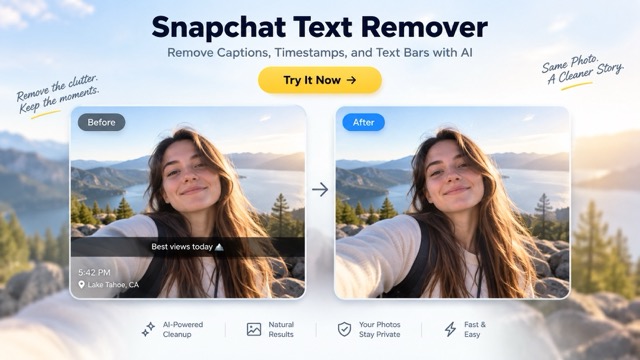
Snapchat Text Remover
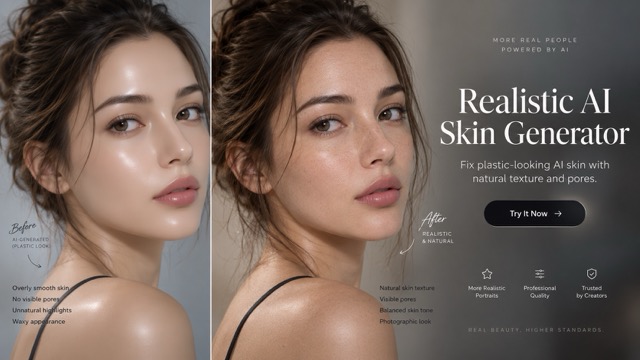
Realistic AI Skin Generator
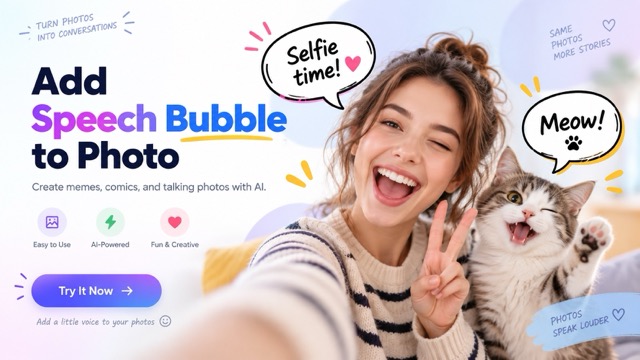
Add speech bubble to photo
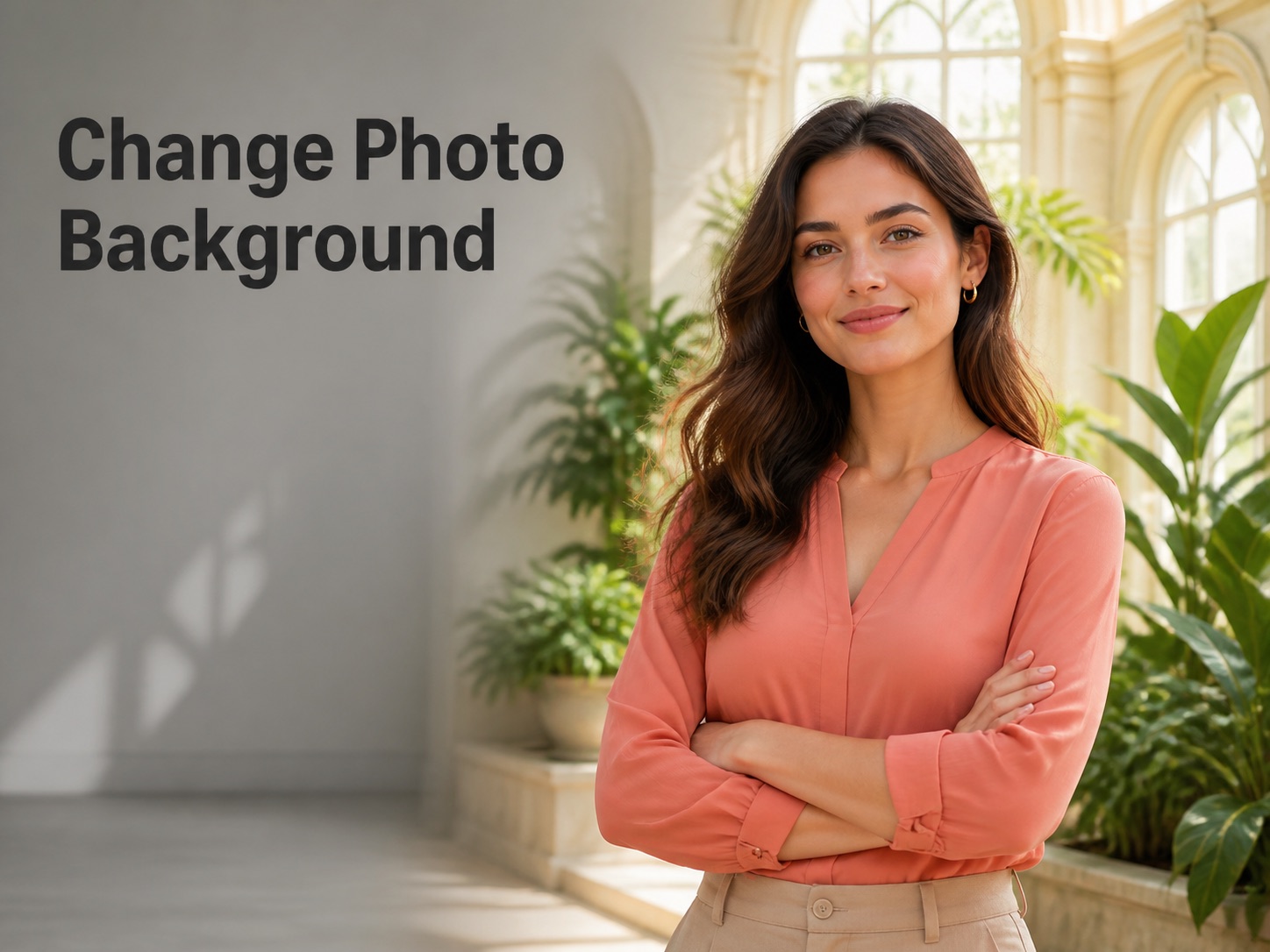
Change Photo Background
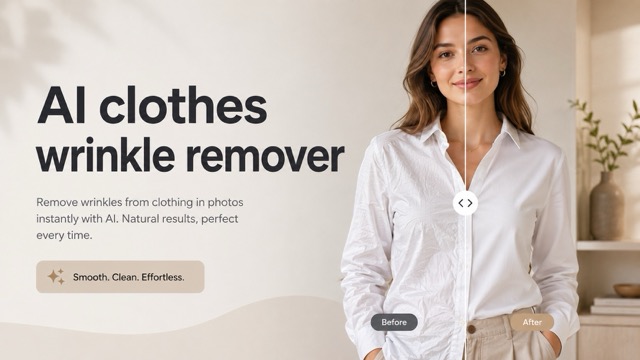
AI Clothes Wrinkle Remover
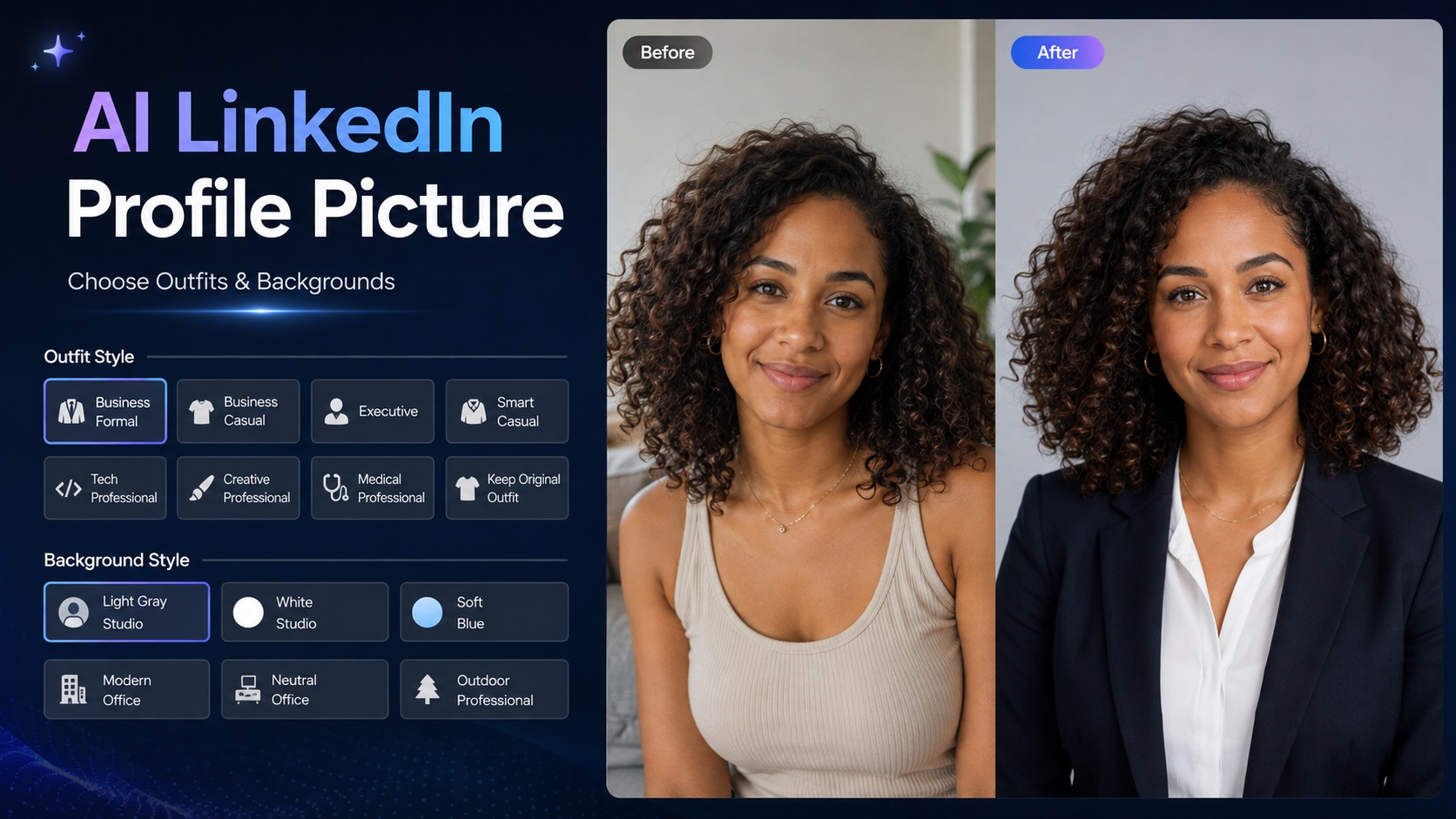
AI LinkedIn Profile Picture
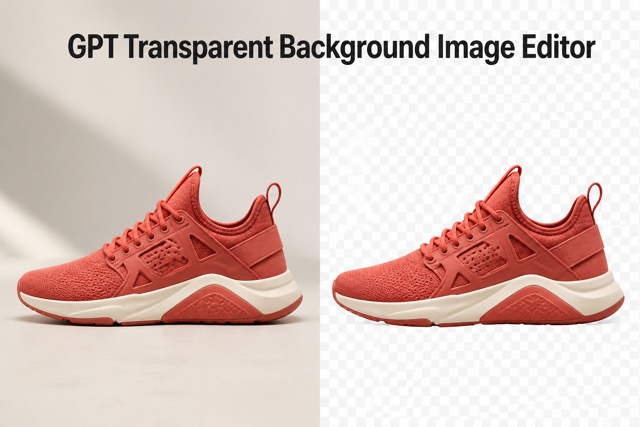
GPT Transparent BG Image Editor
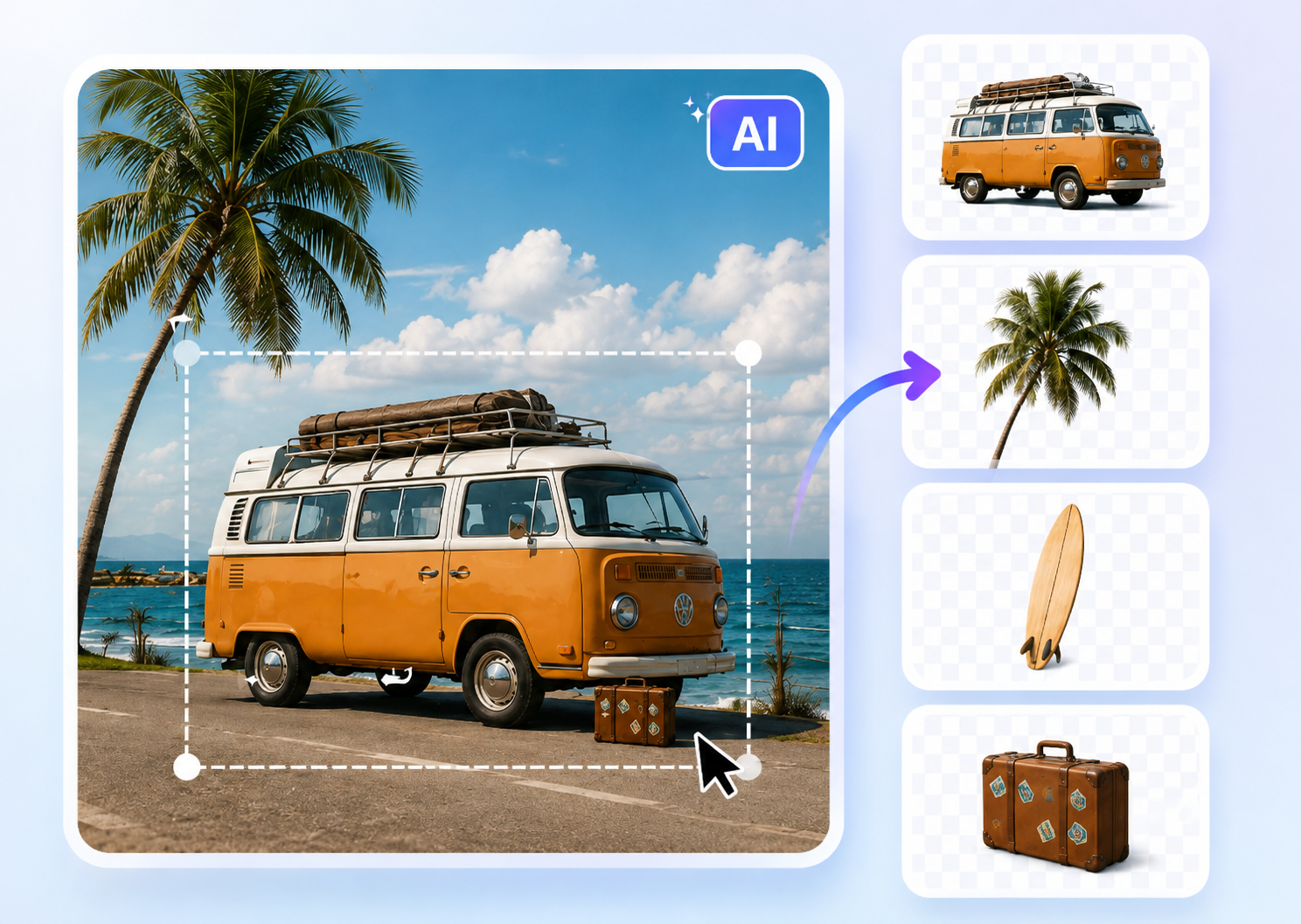
Image to Layers
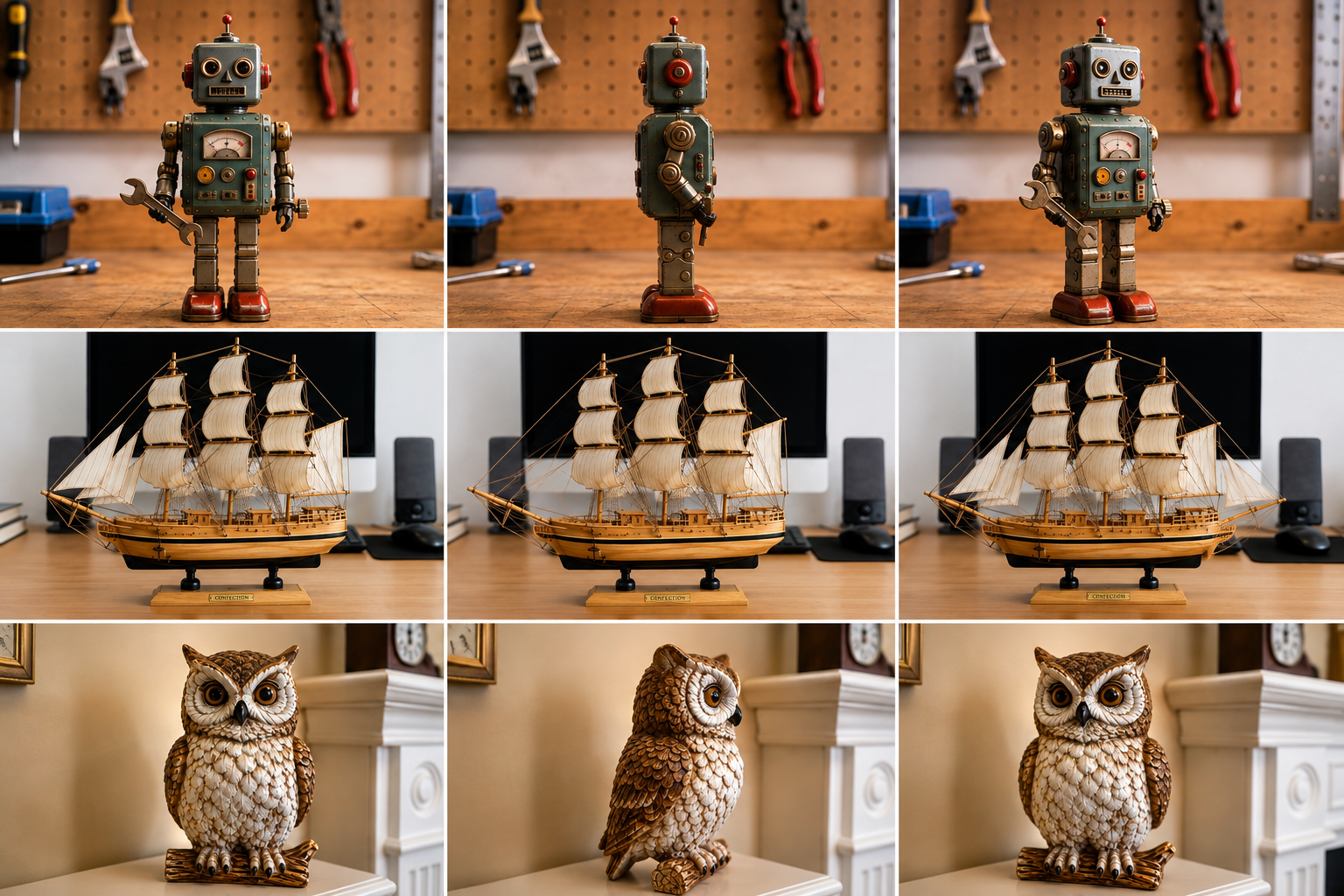
3D Angle Editor
Change Background of Photo
Add Text to Image
Speech Bubble Meme Generator
AI Image Darkener
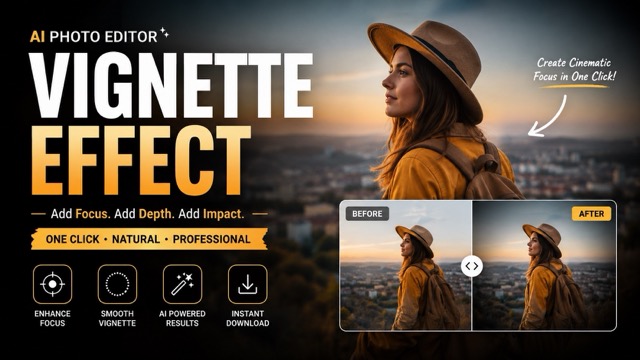
AI Vignette Effect
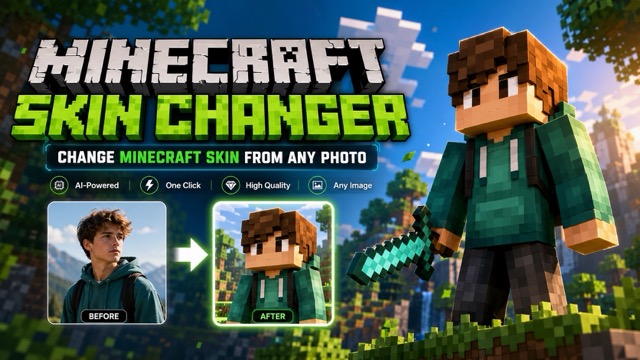
AI Change Minecraft Skin
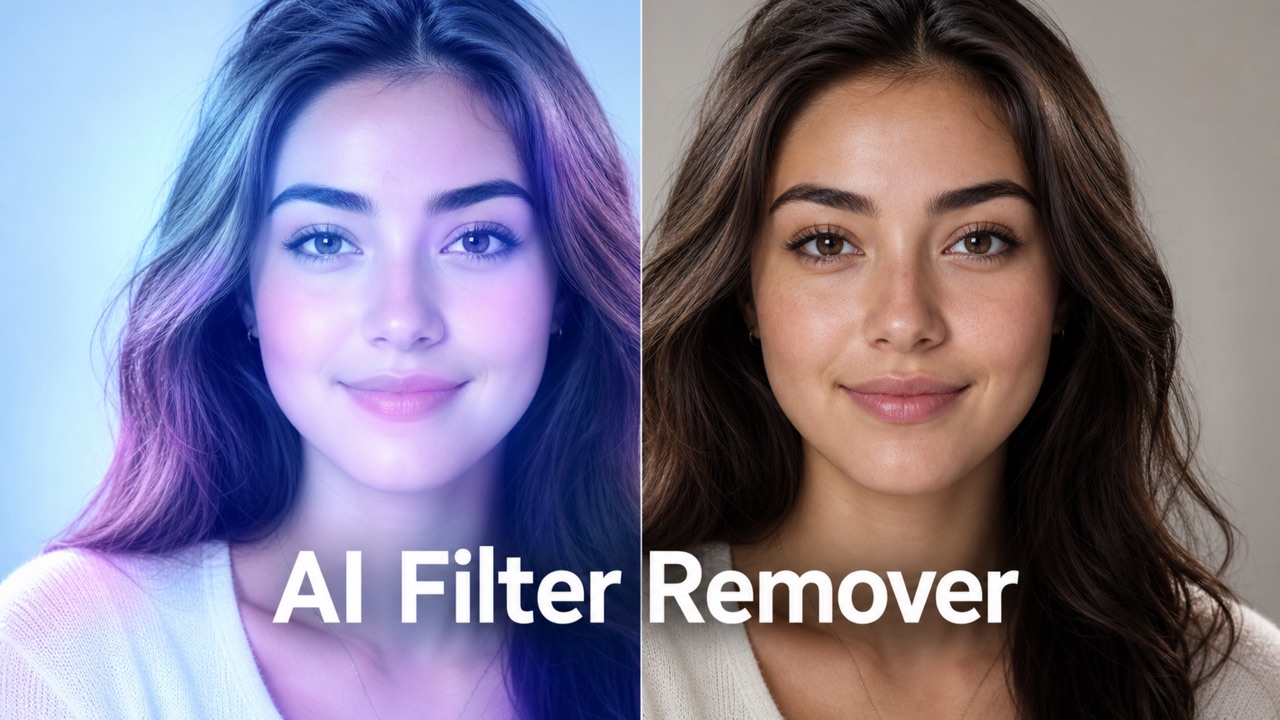
Remove Color From Image
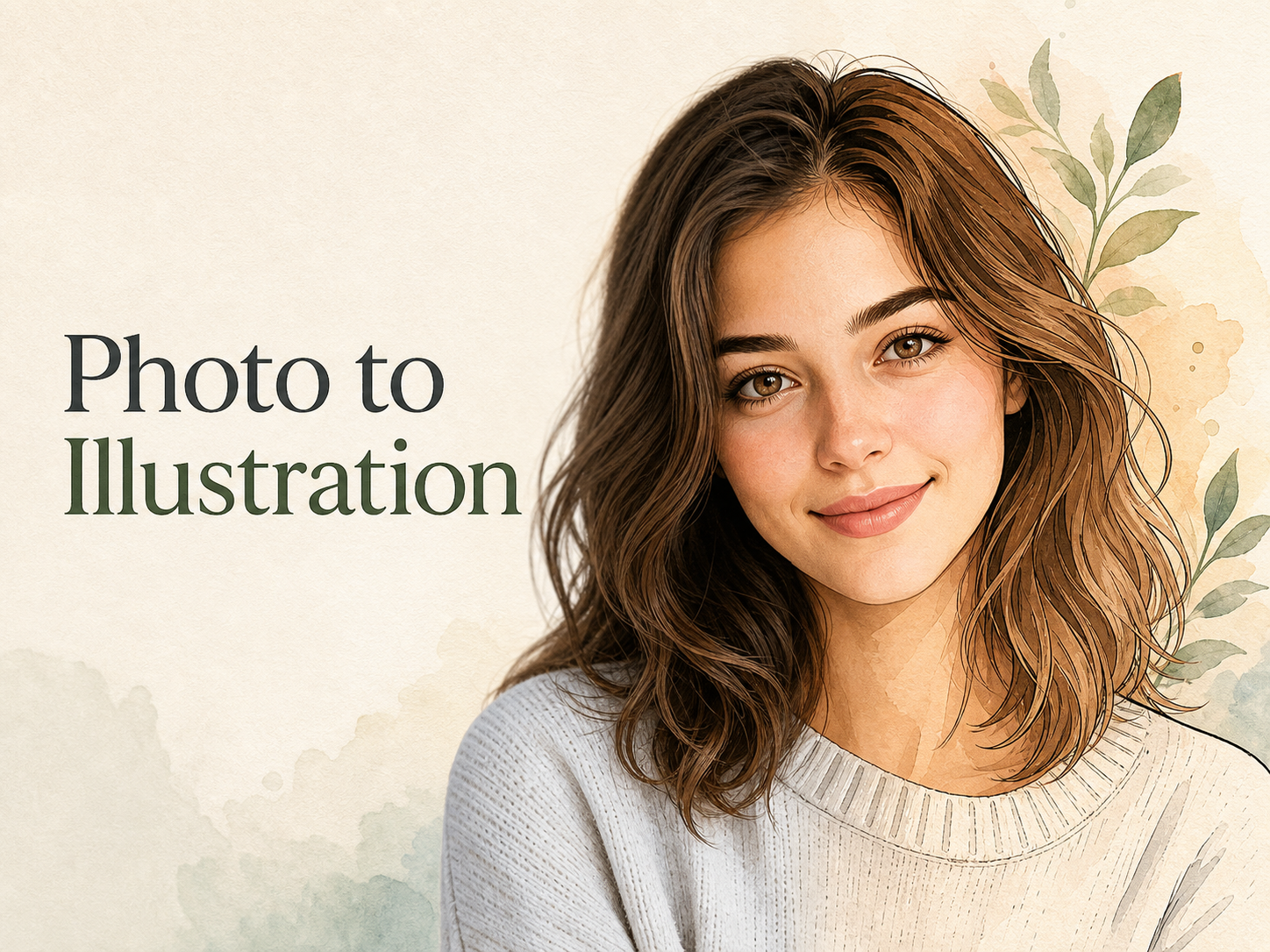
Photo to Illustration
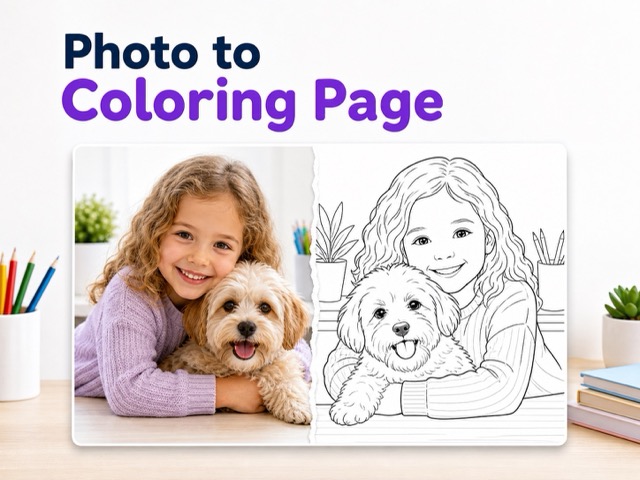
Photo to Coloring Page
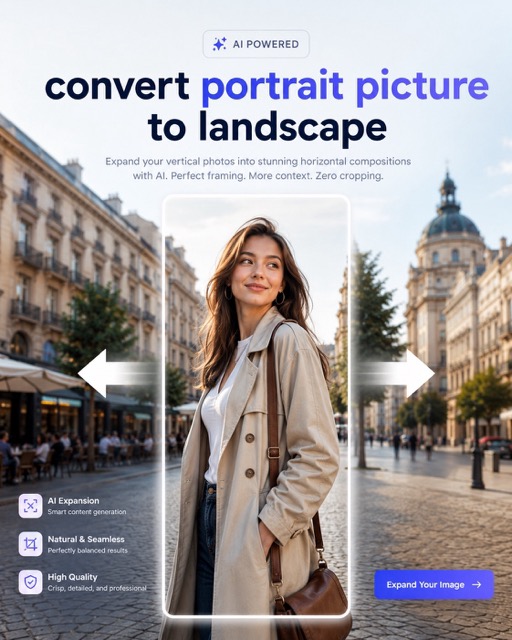
convert portrait picture to landscape
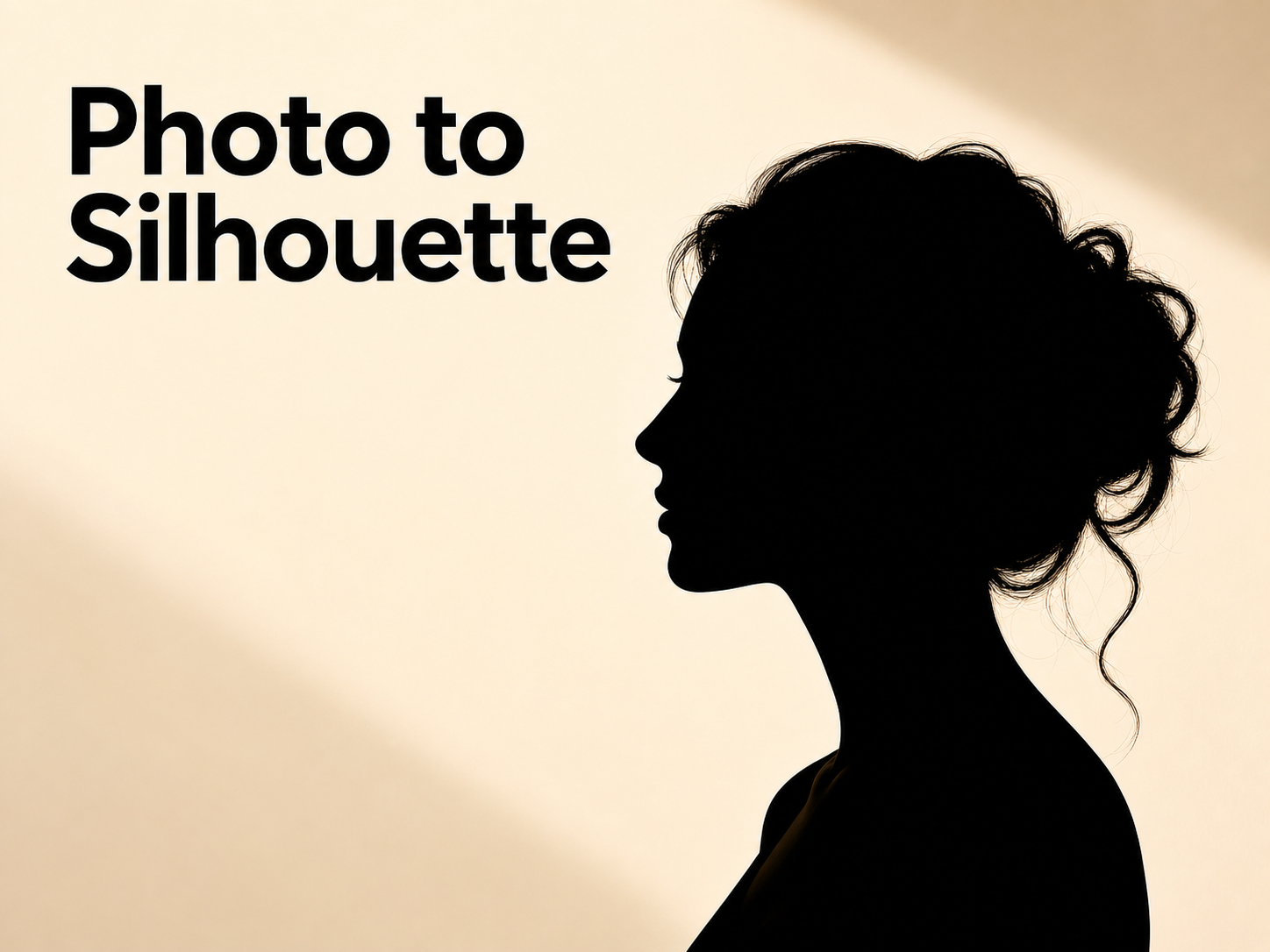
Photo to Silhouette
Image Text Editor for Prompt-Based Text Edits
Upload a picture, describe the words you want changed, and let Image Text Editor rebuild the text area.
Image Text Editor helps you update words already baked into a picture without rebuilding the whole design. Upload an image, write a clear prompt that explains what text should change, and let the model generate a revised result.
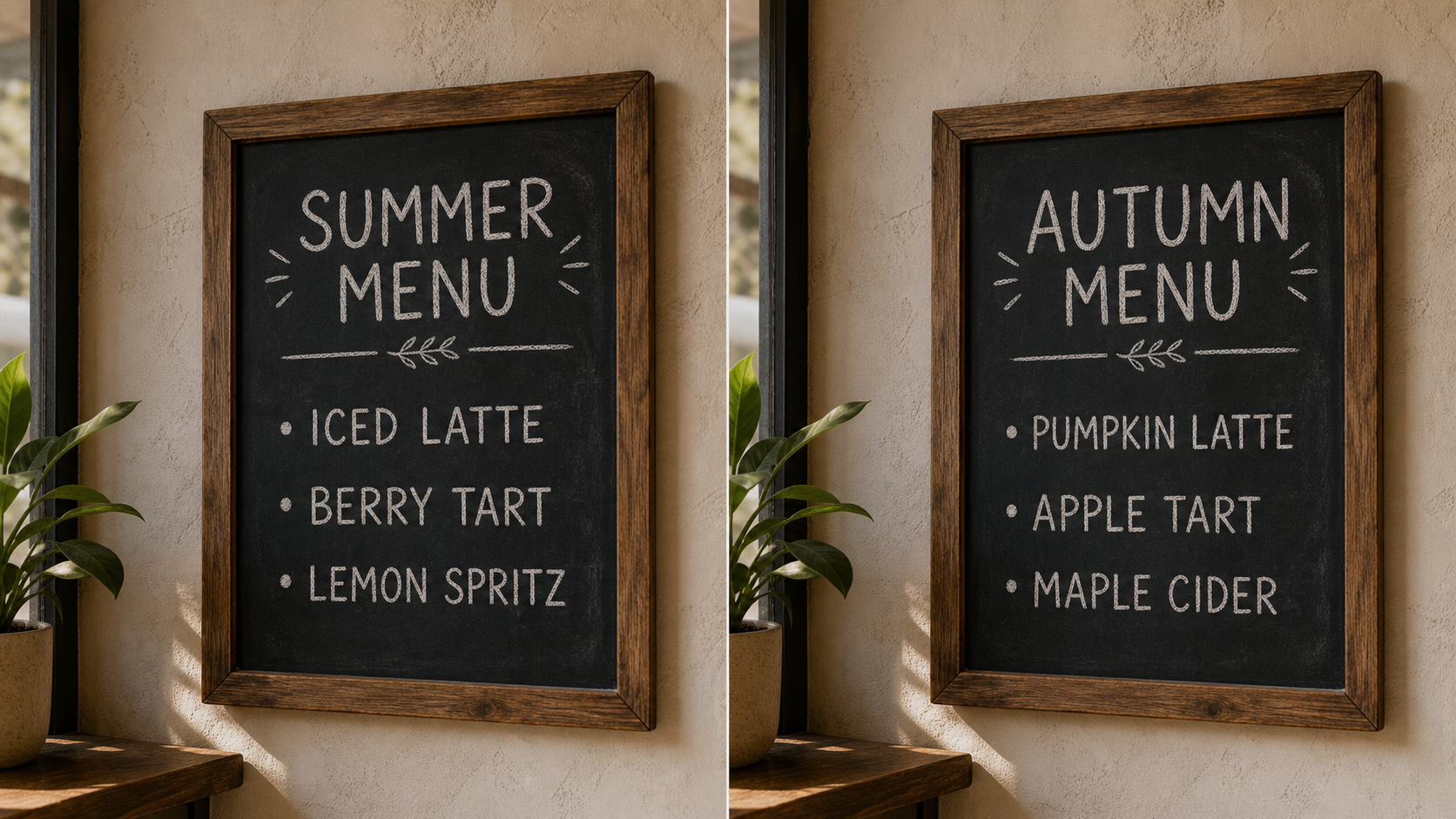
How to Use Image Text Editor
Use Image Text Editor in a simple prompt-driven flow: upload the source image, describe the text you want changed, then review the AI-edited result. Use Edit Text in Image for practical updates without manual layer rebuilding.

Upload the Image
Start by adding the picture that contains text you want to revise. Image Text Editor reads the whole composition before making a change, including the background texture, shadows, layout, and nearby visual details. For best results, use a clear image and describe the specific wording that should be replaced. This prompt-first image editor keeps the task simple: upload, explain, and review.

Describe the Text Change
Tell Image Text Editor what should change in plain language, such as replacing a date, correcting a typo, updating a price, or changing a headline. No manual text-area selection is required. The Image Text Editor model interprets your prompt and the image context together, then generates an edit that aims to match the original type style and surrounding pixels. Use Edit Text in Image when the instruction matters more than manual controls.

Download the Revised Image
Review the generated result and check whether the new wording fits naturally. If the edit needs a different phrase, shorter line, or cleaner background, revise the prompt and run Image Text Editor again. This Image Text Editor loop is practical for small corrections and larger text replacements because each pass keeps the source image as the visual anchor. Once the result looks right, save the updated image.
Features of Image Text Editor
Image Text Editor focuses on prompt-based text replacement inside existing images. It helps revise wording, reconstruct covered backgrounds, and keep the edit visually consistent with the original picture.
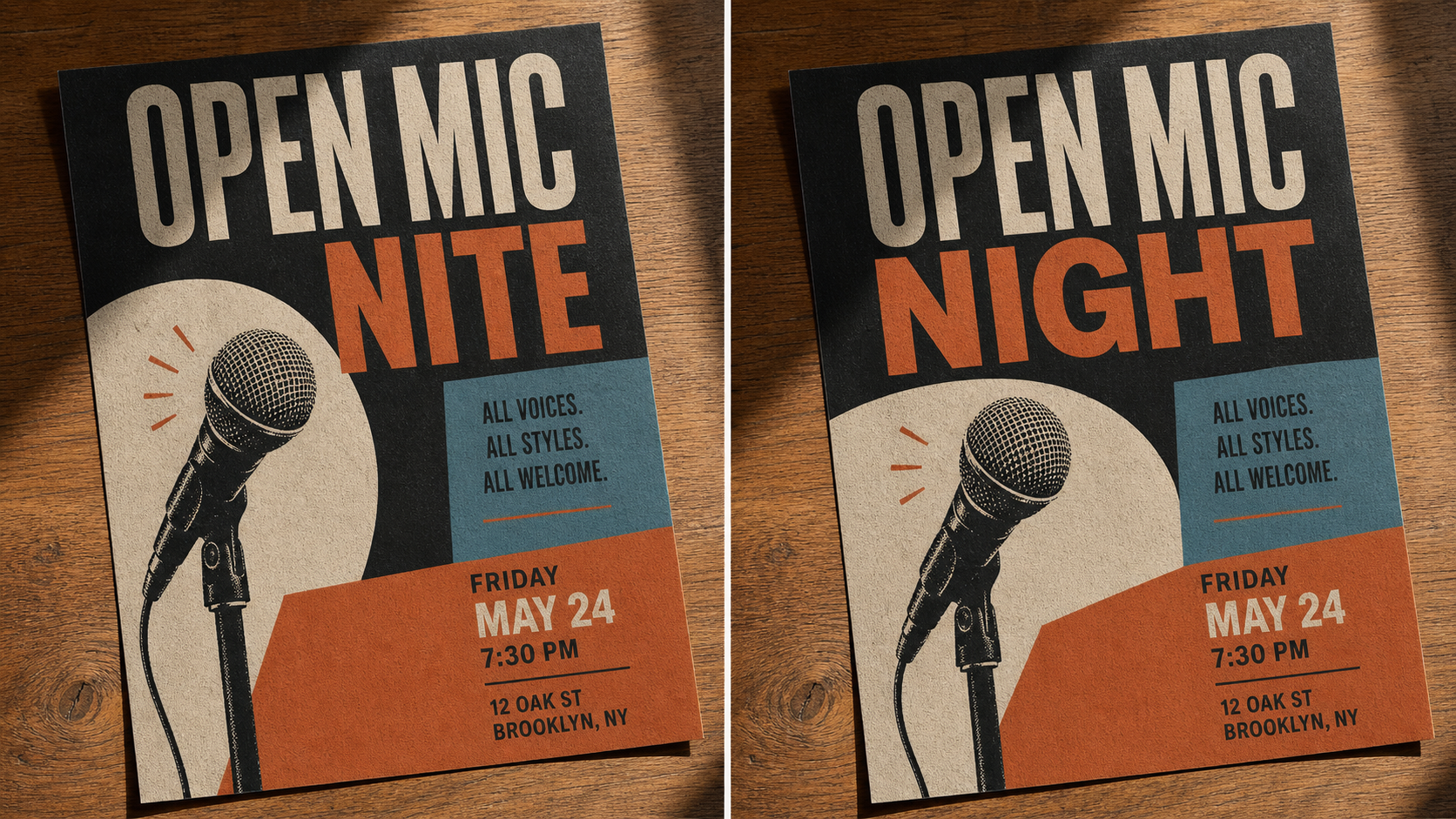
Edit Text in Image with Plain Prompts
- Image Text Editor turns a written instruction into an image-level text edit.
- The Image Text Editor model uses the surrounding design as context, so the new wording can sit in the same space rather than looking pasted on.
- Use Edit Text in Image when you know the change but do not have the source file.
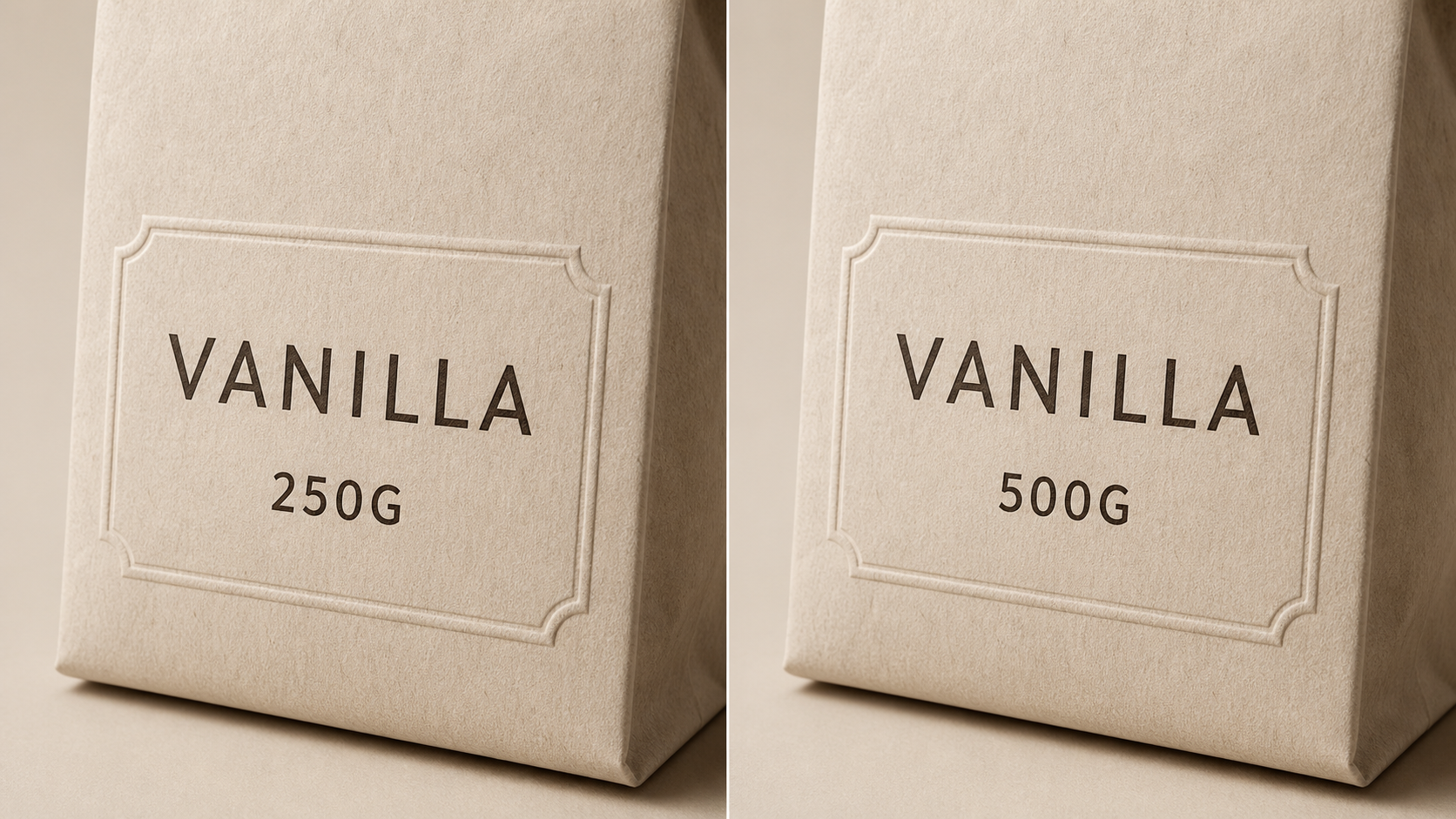
Keep Backgrounds Looking Natural
- Image Text Editor is built for changes where the text sits on a real surface, gradient, pattern, or photo detail.
- When old lettering is replaced, the surrounding area still needs to look believable.
- The Image Text Editor process attempts to rebuild the covered background and place the revised words back into the scene.
- Use this image editor for menus, flyers, labels, and announcements where a clean text area matters.
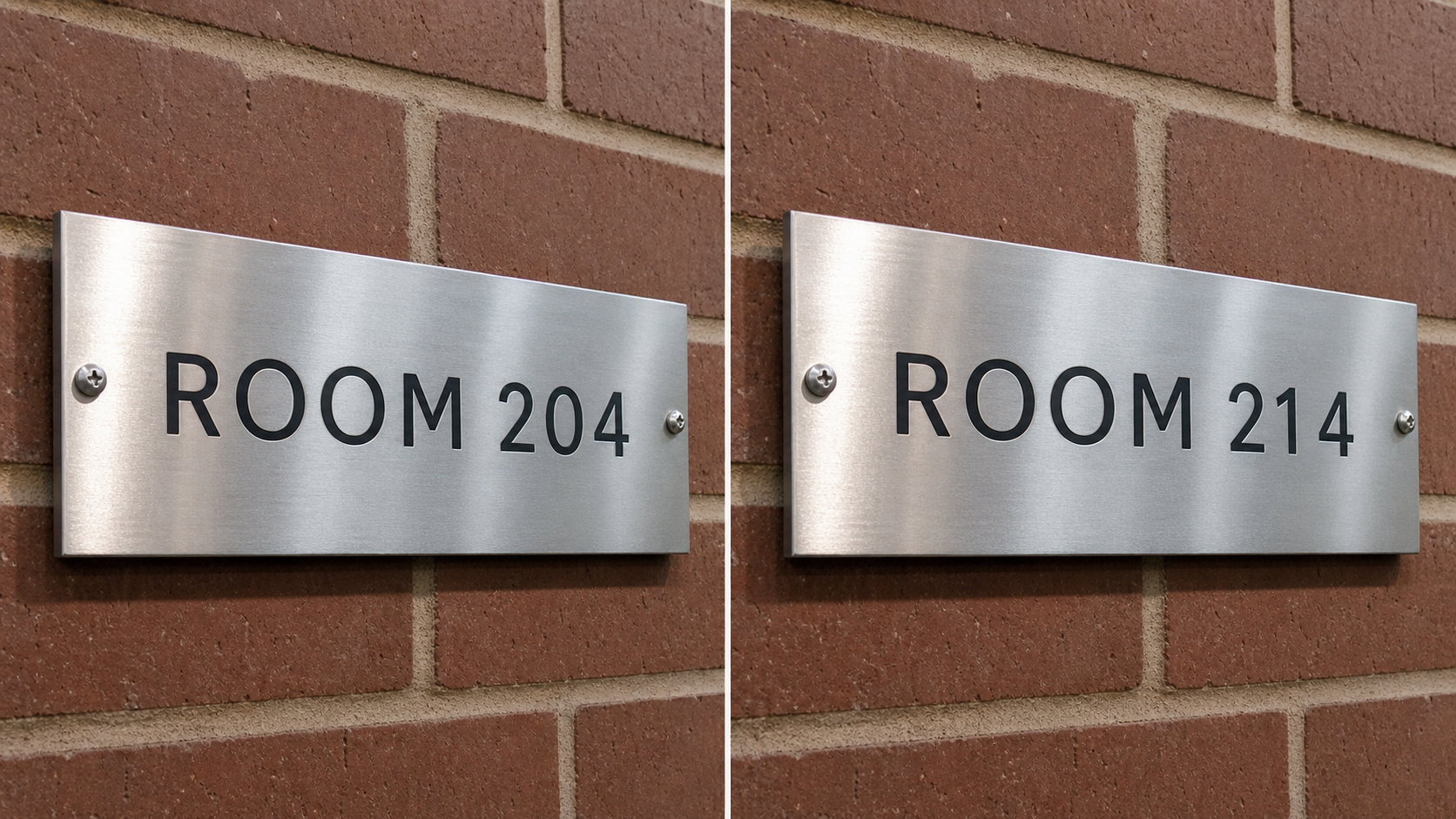
Match Style, Perspective, and Spacing
- A useful Image Text Editor should respect the original image, not just cover it with a new caption.
- Shorter replacement wording usually gives Image Text Editor more room to match the layout cleanly.
- When you edit image text on signage, packaging, or screenshots, prompt for the exact wording and the intended visual tone.
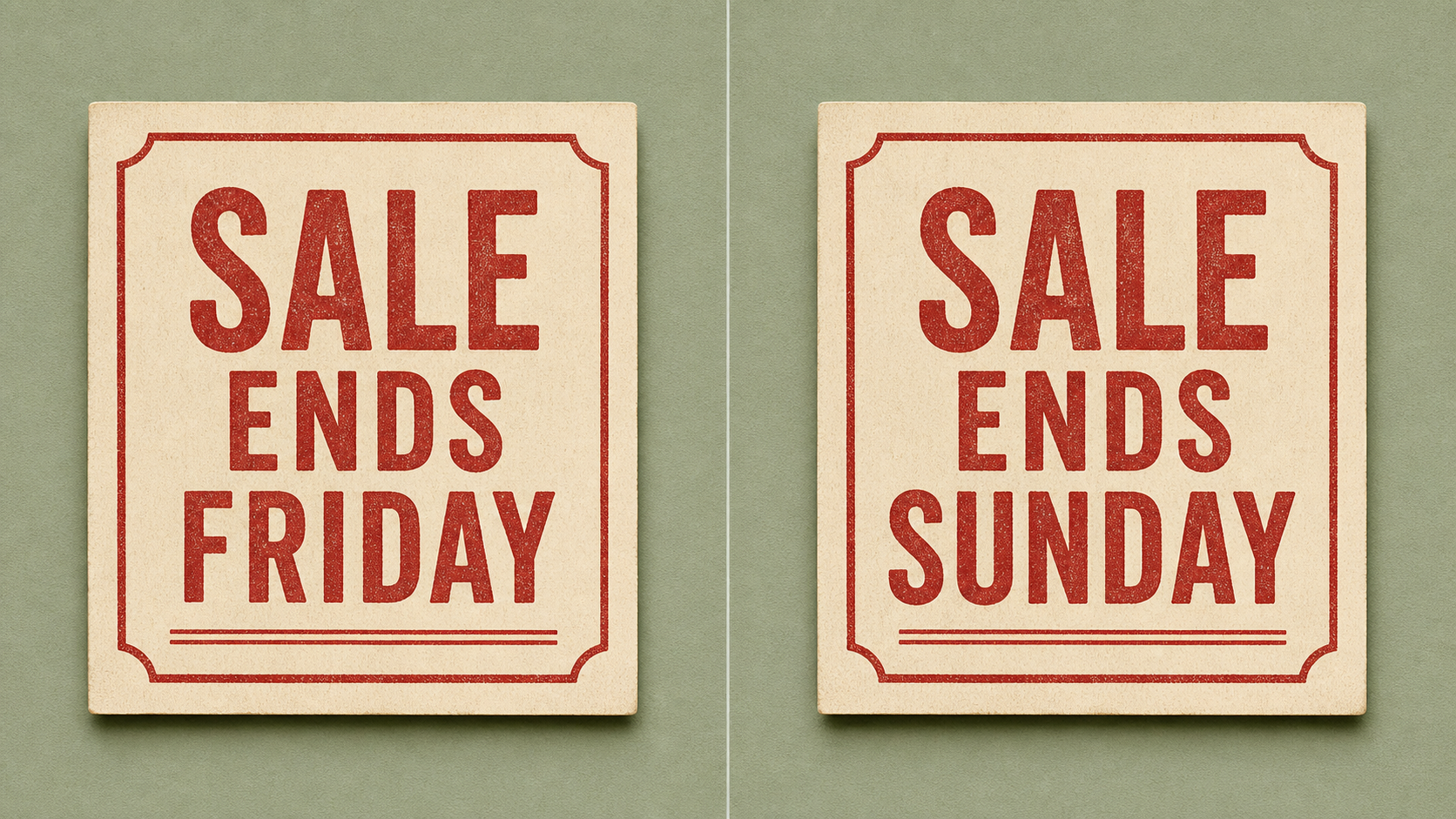
Update Visuals When the Source File Is Gone
- Image Text Editor helps when you only have a flattened image but still need a current version.
- Image Text Editor keeps the job focused on the requested wording instead of forcing a full redesign.
- For repeated variations, keep the same image and change only the prompt so each edit image request stays easy to compare.
Why Use Image Text Editor
Image Text Editor is made for people who need practical changes to words inside flattened images. It keeps the workflow prompt-led, visual, and focused on the final edited picture. Choose Edit Text in Image when the source file is unavailable.

Correct Typos in Published Graphics
A small typo can make an otherwise finished graphic feel careless. Image Text Editor lets you upload the flattened image and ask for a precise correction, such as changing one word or fixing a spelling error. The Image Text Editor result can preserve the surrounding design better than covering the area with a manual patch. Use Edit Text in Image for flyers, quote graphics, menus, and notices that only need a focused text repair.

Refresh Dates, Prices, and Details
Promotions, event dates, class schedules, prices, and short announcements change often. Image Text Editor is useful when the old graphic still looks good but one detail is outdated. Write a prompt that names the current wording and the replacement, then let the Image Text Editor generate a revised version. This image editor works best when the new text is similar in length and the instruction is specific.
Revise Screenshots and Mockups
Teams often need a cleaner screenshot for a presentation, support article, or product walkthrough. Image Text Editor can help replace visible example text while keeping the surrounding screenshot layout intact. Use it to edit image labels, sample names, dates, or short interface copy in a static image. Avoid asking for broad product redesigns; Image Text Editor is strongest when the requested text change is clear and localized.

Personalize Invitations and Social Posts
When an invitation, greeting, meme, or personal post has the right look but the wrong words, Image Text Editor can create a new version from your prompt. Ask for the guest name, date, phrase, or short message you want placed into the existing design. The Image Text Editor approach is faster than rebuilding decorative text from scratch and gives everyday creators a practical Edit Text in Image workflow.

Update Marketing and Product Visuals
Marketing teams may need to change a headline, update a badge, or revise a product callout after a graphic has already been exported. Image Text Editor gives them a prompt-based way to test a replacement on the finished image. Use Image Text Editor for quick reviews, alternate wording, and small content updates before deciding whether a full design rebuild is worth the time.

Repair Text on Real-World Photos
Text on signs, labels, cards, packaging, and menu boards often follows perspective, lighting, and surface texture. Image Text Editor can help edit image text in those photos by using the scene as context. Keep prompts concrete: identify the visible wording, provide the replacement, and mention whether the original color or style should remain. This Image Text Editor use case benefits from clear source photos and realistic expectations.
What Users Say About Image Text Editor
Creators, marketers, educators, and documentation teams use Image Text Editor when a finished image needs a specific text change. Their workflow starts with a prompt and ends with a revised picture.
Image Text Editor helped me fix a date on a school fundraiser poster after the design file went missing. I described the change, reviewed the result, and avoided rebuilding the whole flyer.
Image Text Editor helped me fix a date on a school fundraiser poster after the design file went missing. I described the change, reviewed the result, and avoided rebuilding the whole flyer.
I use Image Text Editor when a product graphic needs one price changed before a campaign review. It is much faster than opening a full design workflow for every small update.
I use Image Text Editor when a product graphic needs one price changed before a campaign review. It is much faster than opening a full design workflow for every small update.
The best part of Image Text Editor is the prompt. I can say what needs to change in plain language, then compare the edited image against the original without extra setup.
The best part of Image Text Editor is the prompt. I can say what needs to change in plain language, then compare the edited image against the original without extra setup.
Our team used Image Text Editor for a batch of old workshop graphics. We updated dates and room names while keeping the same visual style, which made approvals easier.
Our team used Image Text Editor for a batch of old workshop graphics. We updated dates and room names while keeping the same visual style, which made approvals easier.
I needed to Edit Text in Image for a menu board photo before sharing it online. The prompt-based workflow gave me a cleaner result than covering the old words manually.
I needed to Edit Text in Image for a menu board photo before sharing it online. The prompt-based workflow gave me a cleaner result than covering the old words manually.
Image Text Editor is useful when I need a quick image editor for static screenshots. I can change sample names and short labels without pretending I still have the original file.
Image Text Editor is useful when I need a quick image editor for static screenshots. I can change sample names and short labels without pretending I still have the original file.


FAQs About Image Text Editor
Find practical answers about using Image Text Editor, writing prompts, choosing suitable images, and refining results. These notes help set realistic expectations for prompt-based text changes.
Image Text Editor is a prompt-based tool for changing words that are already part of an uploaded picture. Instead of rebuilding a poster, screenshot, label, or card from scratch, you describe the text that should be changed and provide the replacement. The system generates an edited image that tries to preserve the original background, layout, perspective, and style around the revised text.
Write a direct prompt that identifies the current text and the exact replacement. For example, ask Image Text Editor to change one date to another date, replace a short headline, or correct a misspelled word. Mention style requirements only when they matter, such as keeping the original color or matching a sign angle. Short, specific prompts usually produce easier-to-review results than broad instructions.
No editable text layer is required. This workflow is based on upload and prompt description rather than manual text-area selection. You tell Image Text Editor what visible wording should change and what the new wording should say. The model then interprets the image context and generates a revised picture. That makes the process useful even when text is flattened into a photo, screenshot, or exported design.
Image Text Editor is best for focused changes such as replacing a date, correcting a typo, updating a price, changing a short label, or revising a headline. It can be used on posters, invitations, product graphics, screenshots, signs, menus, and similar images. Very long paragraphs, tiny text, heavy distortion, or busy backgrounds may need a simpler prompt or another generation pass.
The model attempts to preserve the surrounding image while replacing the requested text, but results depend on source quality, background complexity, text length, and prompt clarity. If the first result feels mismatched, try a shorter replacement, mention the style you want retained, or ask Image Text Editor to keep the original color, spacing, or perspective. Treat each result as a visual draft you can refine.
Clear images usually work better because the model can read the visual context around the text. Blurry photos, extreme angles, shadows, reflections, and low contrast can make the edit harder. If the image is difficult, give Image Text Editor more context in the prompt, such as where the target wording appears or what style should remain. You can also crop closer before uploading if the text area is small.
Use it for practical updates to flattened images: a changed event time, a new product price, a corrected recipe title, a revised screenshot label, or a personalized greeting. Image Text Editor is also useful when the original design file is unavailable and recreating the full layout would take too long. It is not meant to replace full design software for complex multi-layer editing.
If the edited result is close but not final, adjust one part of the prompt and try again. Replace long wording with a shorter phrase, clarify which text should change, or ask the model to preserve the original font feel, color, shadow, or alignment. Image Text Editor works best as an iterative image editor: review the output, make a focused prompt revision, and compare the next result.
Update Image Text with Image Text Editor
Upload a picture, describe the replacement wording, and let Image Text Editor generate a revised image that keeps the original visual context intact. Image Text Editor keeps the final step focused and practical.