Create detailed images from text, combine visual references, and refine existing pictures with MiniMax H3 Image.
AI Image Tools
Everything You Need to Edit Photos Faster
Open the PicEditor AI tools library for background removal, photo enhancement, object cleanup, face swap, upscaling, and more focused image workflows.
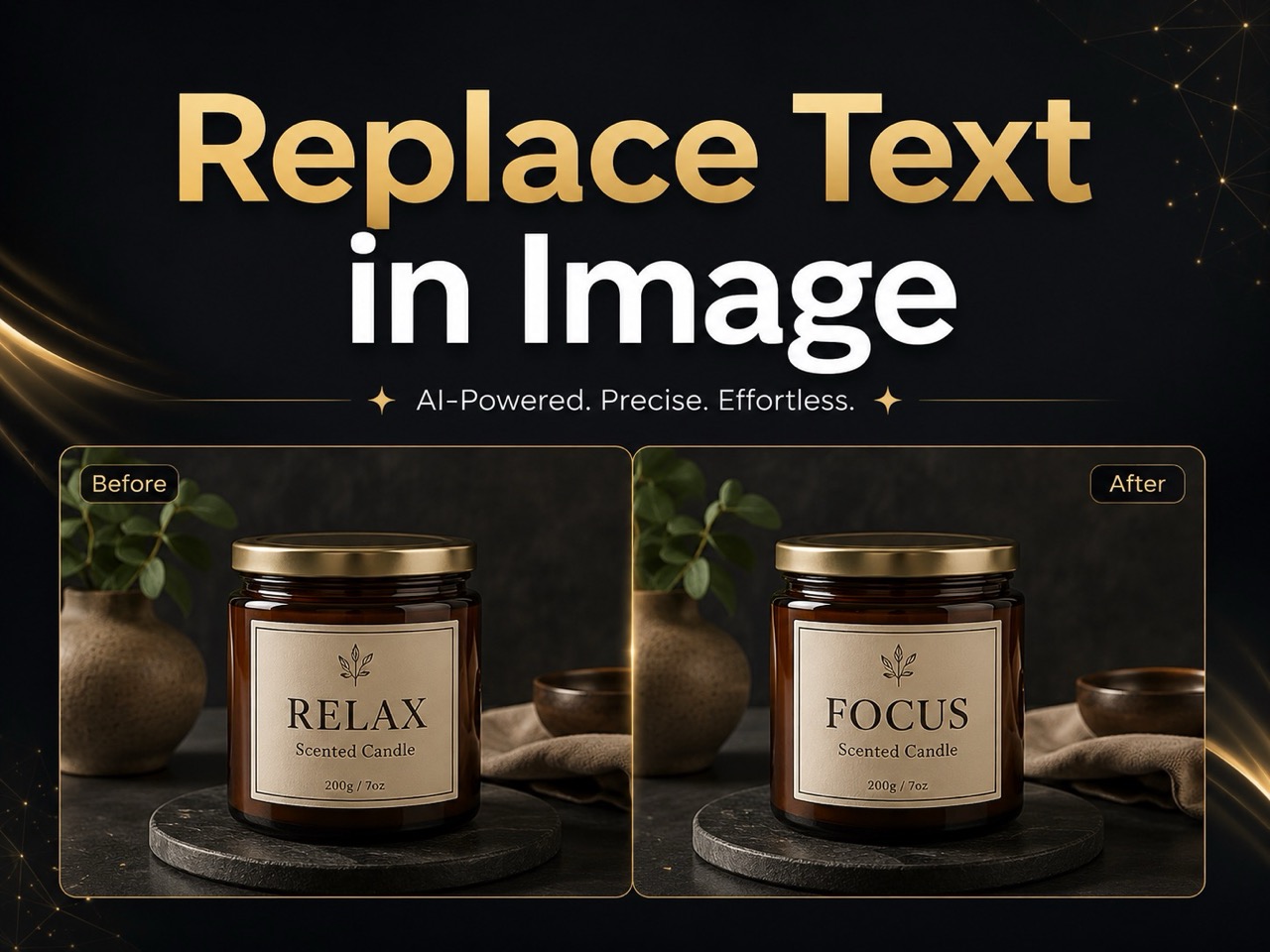
Replace Text in Image

Photo Booth With Friend

Waist Heart Trend

Bold Glamour Filter

Romantic Couple Spotlight

I'm So Sorry Trend AI Photo Editor

AI Halloween Generator
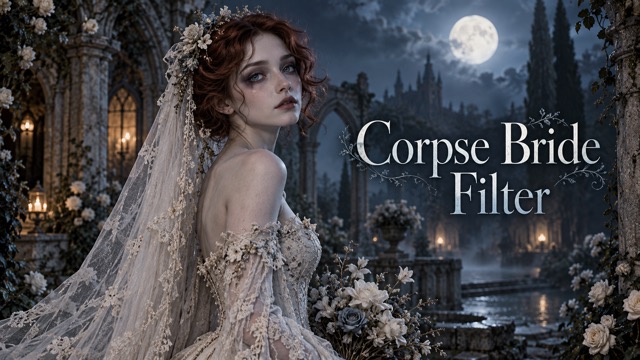
Corpse Bride AI Filter

AI Blemish Remover
FLUX 3 Image Klein
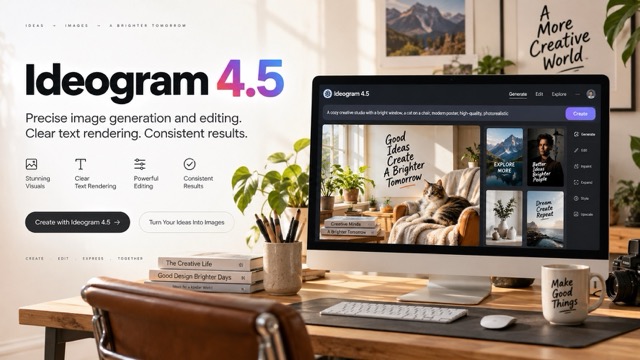
Ideogram 4.5
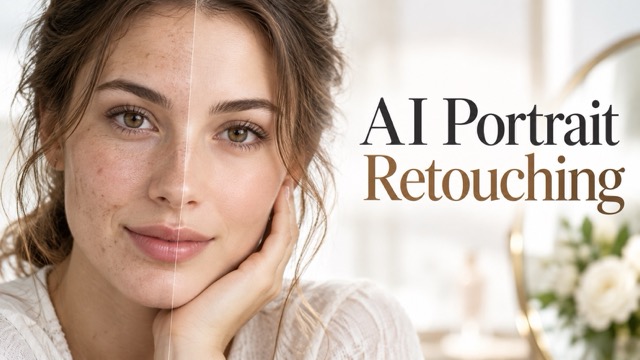
AI Portrait Retouching

Snatched Waist Editor

AI Facial Expression Changer

AI Texture Generator

AI Nose Piercing Filter
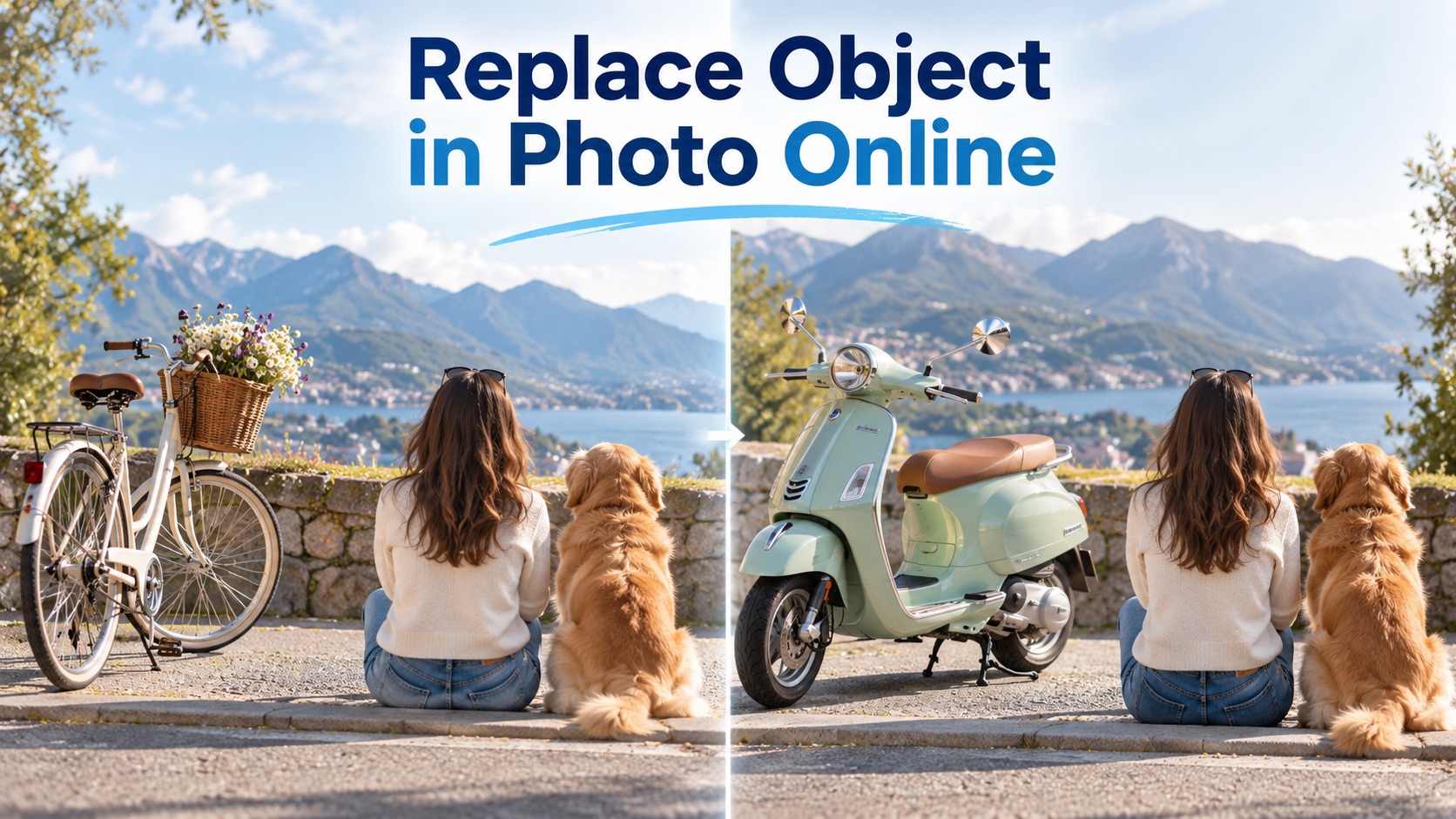
Replace Object in Photo Online
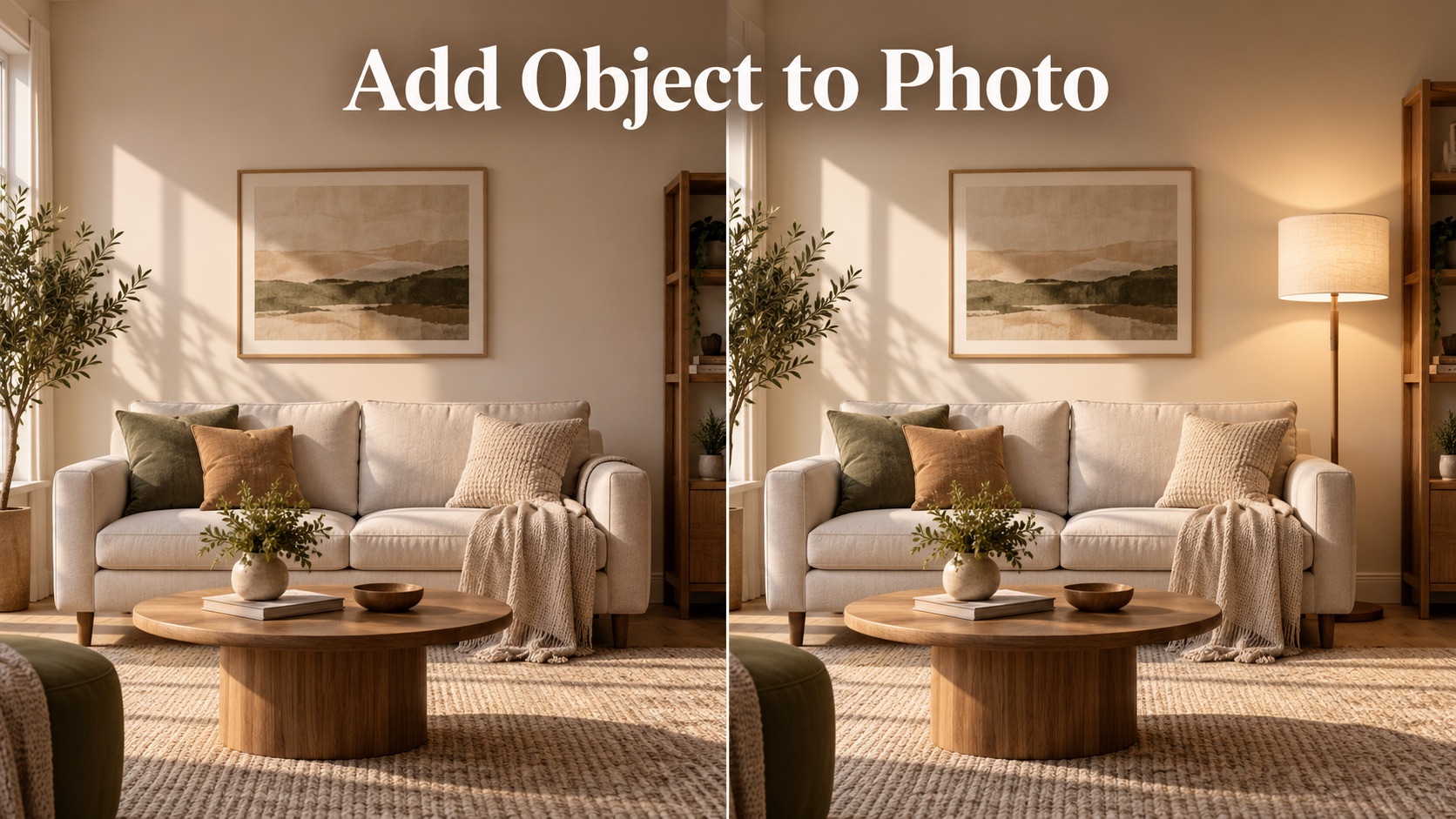
Add Object to Photo
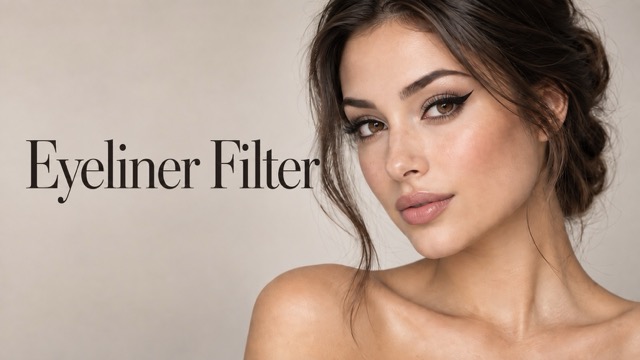
Eyeliner Filter

AI Bust Down Filter

Image Splitter

Add White Background to Photo

Snapchat Text Remover
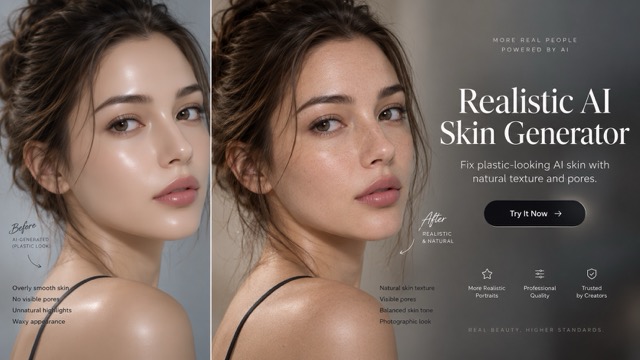
Realistic AI Skin Generator
MiniMax H3 Image For Detailed Visual Creation
Create And Refine Detailed Visuals With MiniMax H3 Image
Turn a written idea into a new image, combine visual references, or refine an existing picture with MiniMax H3 Image. From product compositions to illustrated environments, MiniMax H3 Image brings generation and editing into one creative workflow. Describe the subject, materials, lighting, and layout that matter, then explore a visual direction you can refine around your project. Native high resolution gives fine details room to develop.
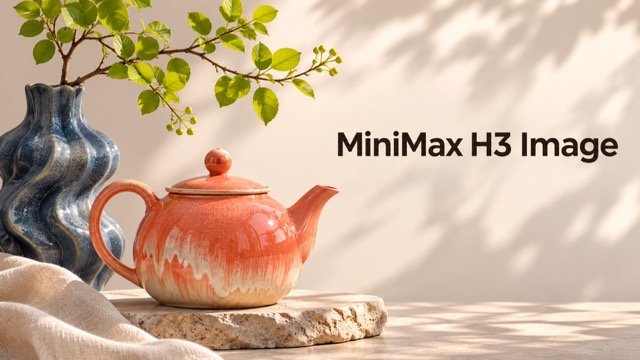
How To Create With MiniMax H3 Image
Start with a clear visual goal for MiniMax H3 Image, add references when they help, and compare the result with your brief. Keep each revision focused on a specific improvement.

Describe Your Image
Give MiniMax H3 Image a brief covering the subject, setting, composition, and style. For an edit, upload your source and explain what should change. When using references, describe each image's role and the details you want to preserve in the result.

Generate And Refine
Choose the available settings, then let MiniMax H3 Image generate a first version. Review the subject, object placement, lighting, and requested text. Refine one important element at a time, naming the successful details to preserve so the next revision has a clear direction.

Download Your Image
Review your MiniMax H3 Image result at a useful viewing size before downloading. Check small details, edges, and space for the final layout. Save the version that fits your brief, then bring it into your presentation, design project, or publishing workflow.
What You Can Create With MiniMax H3 Image
Use MiniMax H3 Image for new compositions, reference-guided scenes, and focused edits. Start with the element that carries your message, then refine the supporting details around it.
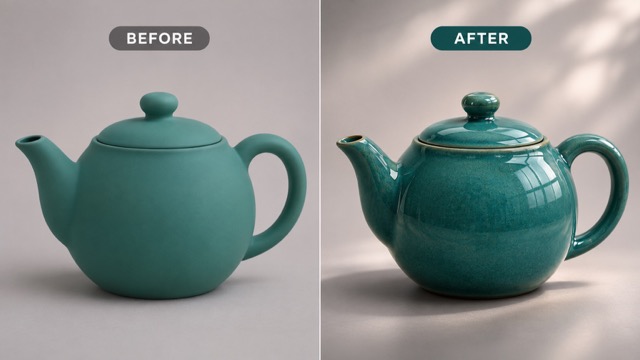
Create Fine Detail With MiniMax H3 Image
MiniMax H3 Image generates high-resolution imagery natively, giving textures, surfaces, and small elements room to develop. Explore a ceramic product, layered costume, architectural setting, or illustrated environment with a clear material and lighting direction. Instead of asking only for more detail, tell MiniMax H3 Image which surfaces should feel glazed, woven, polished, or weathered. Inspect important shapes and fine edges before choosing a larger layout or close crop. For example, a soft side light can emphasize the shape and finish of a ceramic surface.

Bring Visual References Into One Scene
Combine references for a subject, room, material palette, or composition. MiniMax H3 Image supports multiple images, helping you communicate ideas that are difficult to describe from scratch. Give each reference a distinct role and identify the details that should remain recognizable. This approach can guide a product collection, a styled interior, or a character in a new environment while keeping your visual priorities explicit.
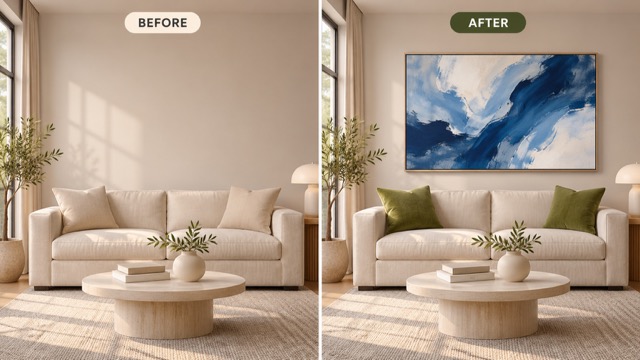
Make Focused Edits With MiniMax H3 Image
Ask MiniMax H3 Image for a targeted revision: change cushion colors, introduce a new setting, or explore another visual treatment. Pair the change with a short instruction about what to preserve, such as the subject, camera angle, or surrounding objects. A focused MiniMax H3 Image edit gives you a clearer comparison with the source. Review the requested change and the preserved details before extending the concept into another variation.
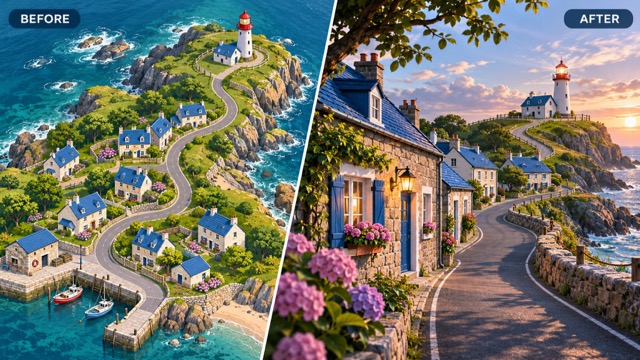
Explore New Viewpoints With MiniMax H3 Image
Use MiniMax H3 Image to explore another perspective or investigate how separate elements could fit together. A map can inspire a view from inside a game environment; a product reference can guide a visual breakdown. Tell MiniMax H3 Image which viewpoint, object positions, and spatial relationships matter. Review complex layouts as concepts, especially when accurate geometry, recognizable structures, or precise component placement will matter in your final design.
MiniMax H3 Image Ideas For Creative Work
Choose a MiniMax H3 Image workflow that matches your audience and deliverable. A concrete subject and a clear destination make concepts easier to compare, discuss, and refine.

Product Campaign Concepts
Ecommerce designers can use MiniMax H3 Image to explore campaign settings around a product reference. Try a tabletop arrangement, seasonal palette, or lifestyle composition before choosing a production direction. Specify the product's defining features, then compare background treatment, visual hierarchy, and space for campaign copy to find a concept worth developing. Compare neutral and expressive settings to find the right emphasis.

Game Worlds And Character Studies
For game artists and independent developers, MiniMax H3 Image can support location studies, character concepts, and key art directions. Combine a subject reference with environmental cues, or explore a viewpoint suggested by a map. Use the results to discuss atmosphere, silhouette, and world design before investing time in detailed production assets. Keep a consistent color direction across concepts for the same location.

Interior And Styling Presentations
Interior stylists can bring furniture, materials, and room references into a shared direction with MiniMax H3 Image. Explore how an armchair, lamp, and palette might work together in a proposed setting. Compare the atmosphere and arrangement with your client, then check dimensions and practical placement separately as the design moves forward. A shared composition can make contrasting styling choices easier to explain.

Editorial And Educational Visuals
Content designers and educators can use MiniMax H3 Image to translate an idea into an illustration with a clear focus. Develop a visual metaphor, lesson scene, or presentation opening image. Specify the audience and concept to emphasize, then check factual details and labels before incorporating the chosen result into finished material. Leave enough negative space for a slide title or accompanying explanation.
Creative Perspectives On MiniMax H3 Image
These fictional perspectives illustrate how different creative roles might evaluate the workflow. They are examples for this page, not verified customer testimonials.
I value being able to explore several settings around one product idea. A clear reference and a focused brief make it easier to compare compositions before choosing a campaign direction.
I value being able to explore several settings around one product idea. A clear reference and a focused brief make it easier to compare compositions before choosing a campaign direction.
Working from a map and a scene description gives me a concrete starting point for discussing a game location. I can evaluate atmosphere and viewpoint together instead of separately.
Working from a map and a scene description gives me a concrete starting point for discussing a game location. I can evaluate atmosphere and viewpoint together instead of separately.
Seeing furniture references in one composition helps me explain a styling direction. I still check dimensions separately, but the shared visual makes conversations about color and atmosphere more productive.
Seeing furniture references in one composition helps me explain a styling direction. I still check dimensions separately, but the shared visual makes conversations about color and atmosphere more productive.
I prefer an image workflow where the revision has a specific purpose. Keeping the subject while exploring another visual treatment makes feedback more concrete and helps the concept stay focused.
I prefer an image workflow where the revision has a specific purpose. Keeping the subject while exploring another visual treatment makes feedback more concrete and helps the concept stay focused.
The most useful concepts give the main idea room to breathe. Describing the layout and intended audience helps me judge an image by its role in the presentation.
The most useful concepts give the main idea room to breathe. Describing the layout and intended audience helps me judge an image by its role in the presentation.
I like separating subject, materials, and lighting in my brief. That makes each version easier to assess and gives me a practical way to explain what should change next.
I like separating subject, materials, and lighting in my brief. That makes each version easier to assess and gives me a practical way to explain what should change next.





Questions About Image Creation
Explore how MiniMax H3 Image handles prompts, references, and image revisions. These answers help you choose a starting point and review the result before using it in a finished project.
MiniMax H3 Image is MiniMax's open-weight model for creating and editing still images. It supports generation from text, reference-based creation, and changes to existing images. Its uses include product compositions, illustrations, character concepts, and environmental scenes. Start with the task you want to accomplish, then choose the relevant input approach.
Yes. Start MiniMax H3 Image with text to describe a new scene, or upload an existing image when its subject and composition provide a useful foundation. For an edit, explain what should change and what should stay consistent. Keep the request focused instead of rewriting every detail of the scene.
Choose references with complementary roles: one for the subject, another for the setting, and another for color or materials. Explain those roles to MiniMax H3 Image and avoid conflicting directions. Use the upload allowance shown in the generator, prioritizing images that clarify the result rather than adding unnecessary references.
MiniMax H3 Image supports native high-resolution generation, including 4K output in MiniMax's official offering. That detail can help with textures, larger compositions, and close inspection. Choose from the output settings available in the generator, then review the downloaded file before deciding how much to crop or enlarge it.
Give MiniMax H3 Image a clear subject, setting, composition, and style. Add materials, lighting, or object relationships when they affect the result. Specify any text that should appear, then check it carefully after generation. A concise brief with explicit priorities is more useful than a stack of unrelated style terms. Put the most important instruction first, especially when several details compete for attention.
Compare the result with your original goal and identify the most important mismatch. Ask for that change while naming the elements to preserve, then review the next version. Check recognizable subjects, object relationships, edges, and written text before using the image. Focused revisions are easier to assess than several conflicting changes at once.
Bring Your Brief To Life With MiniMax H3 Image
Bring a written brief, a useful reference, or an image you want to refine. Use MiniMax H3 Image to explore the subject, composition, and visual treatment, then shape the result around your project. Start with one clear idea and build from there.