AI Image Tools
Everything You Need to Edit Photos Faster
Open the PicEditor AI tools library for background removal, photo enhancement, object cleanup, face swap, upscaling, and more focused image workflows.
Eyeliner Filter
AI Bust Down Filter

Image Splitter

Add White Background to Photo
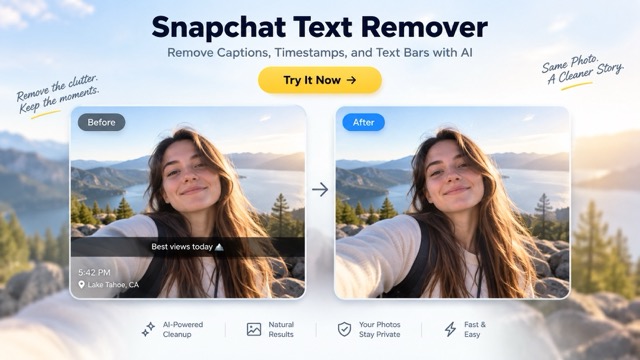
Snapchat Text Remover
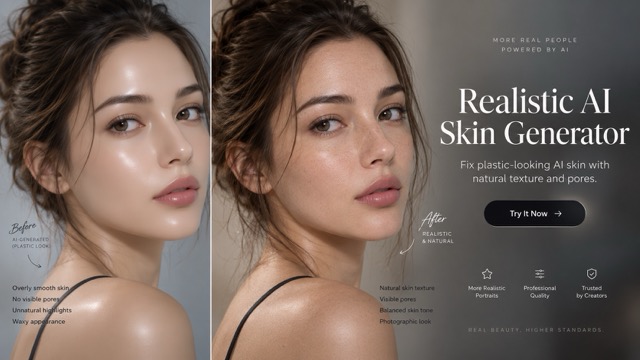
Realistic AI Skin Generator
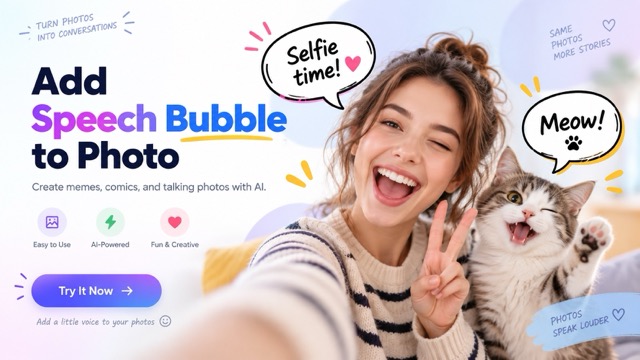
Add speech bubble to photo
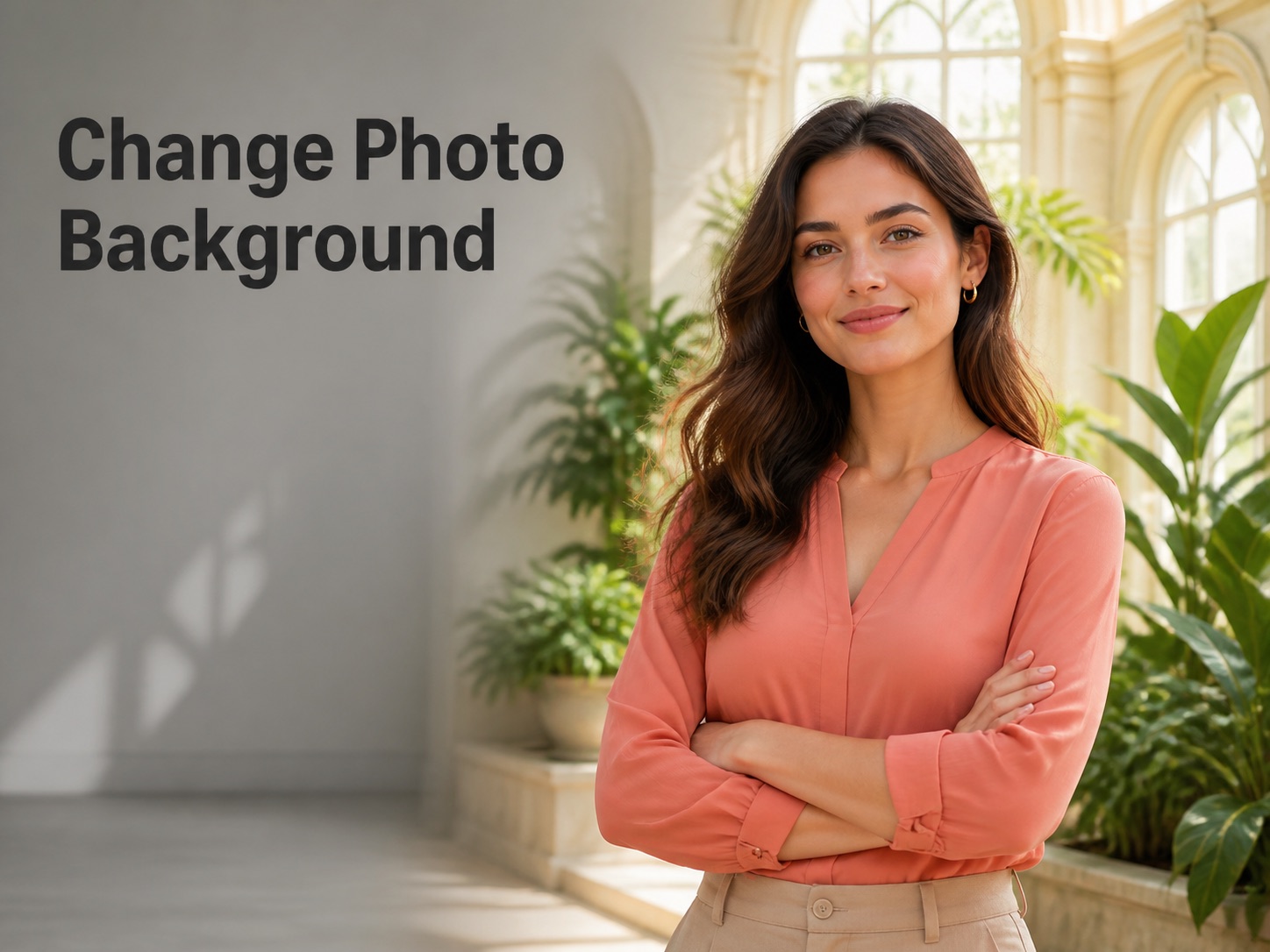
Change Photo Background
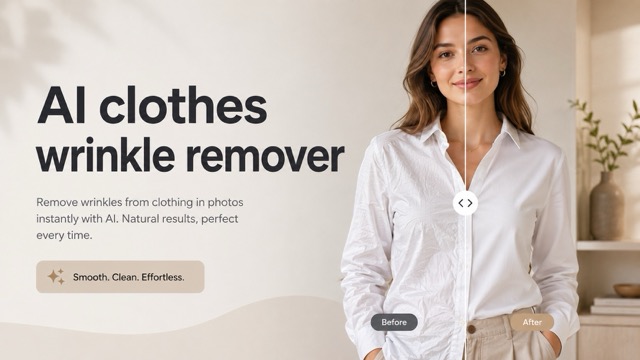
AI Clothes Wrinkle Remover
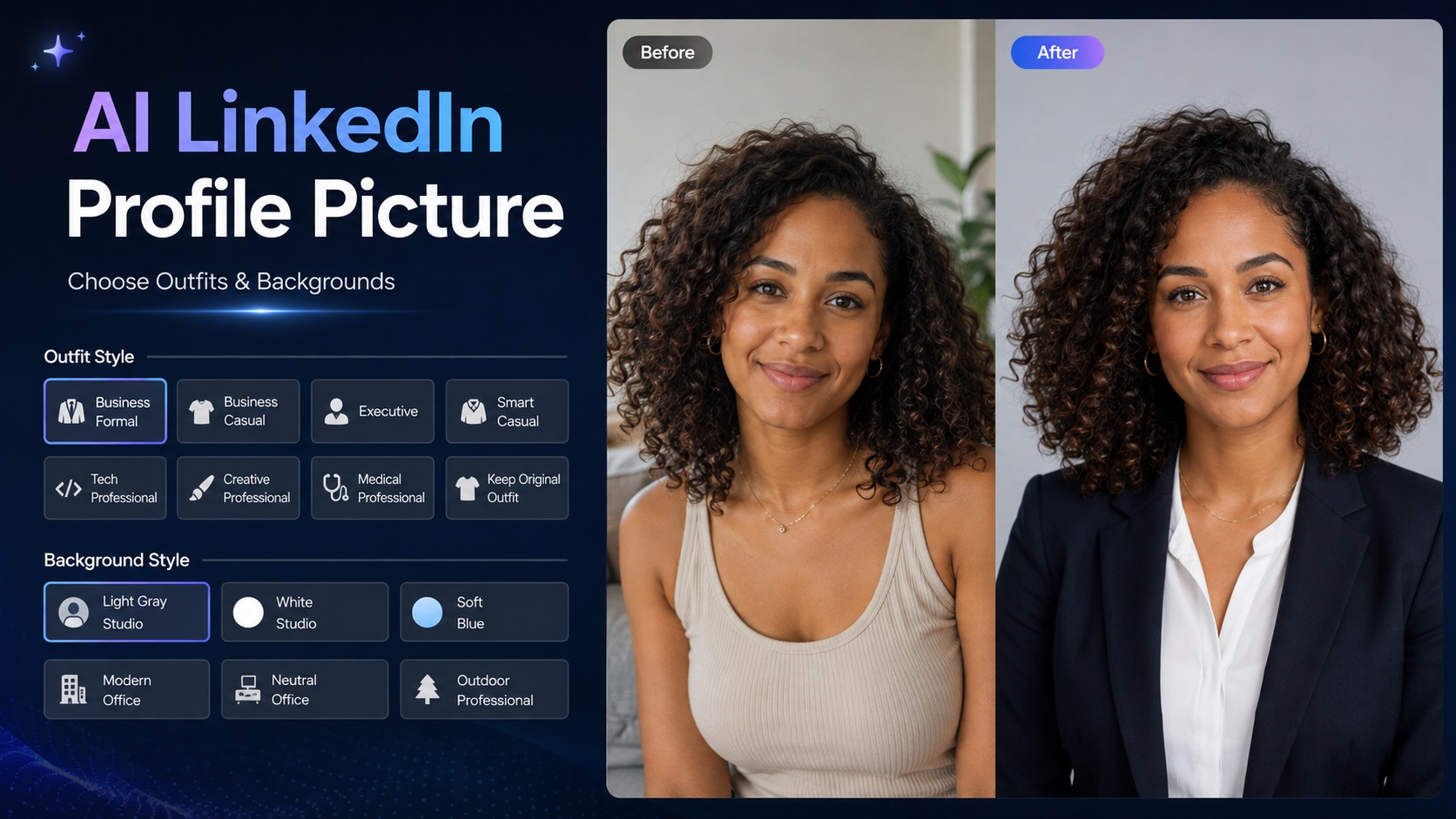
AI LinkedIn Profile Picture
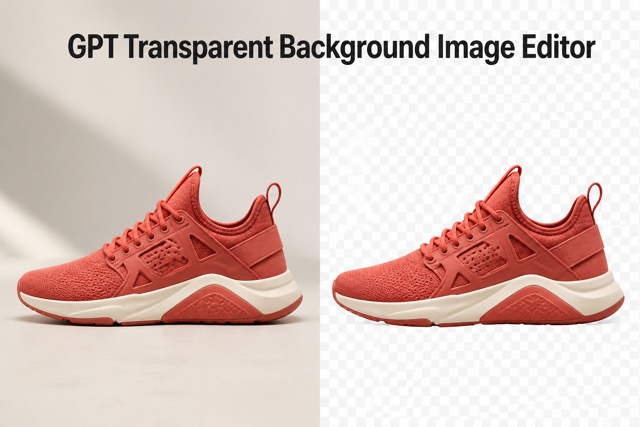
GPT Transparent BG Image Editor
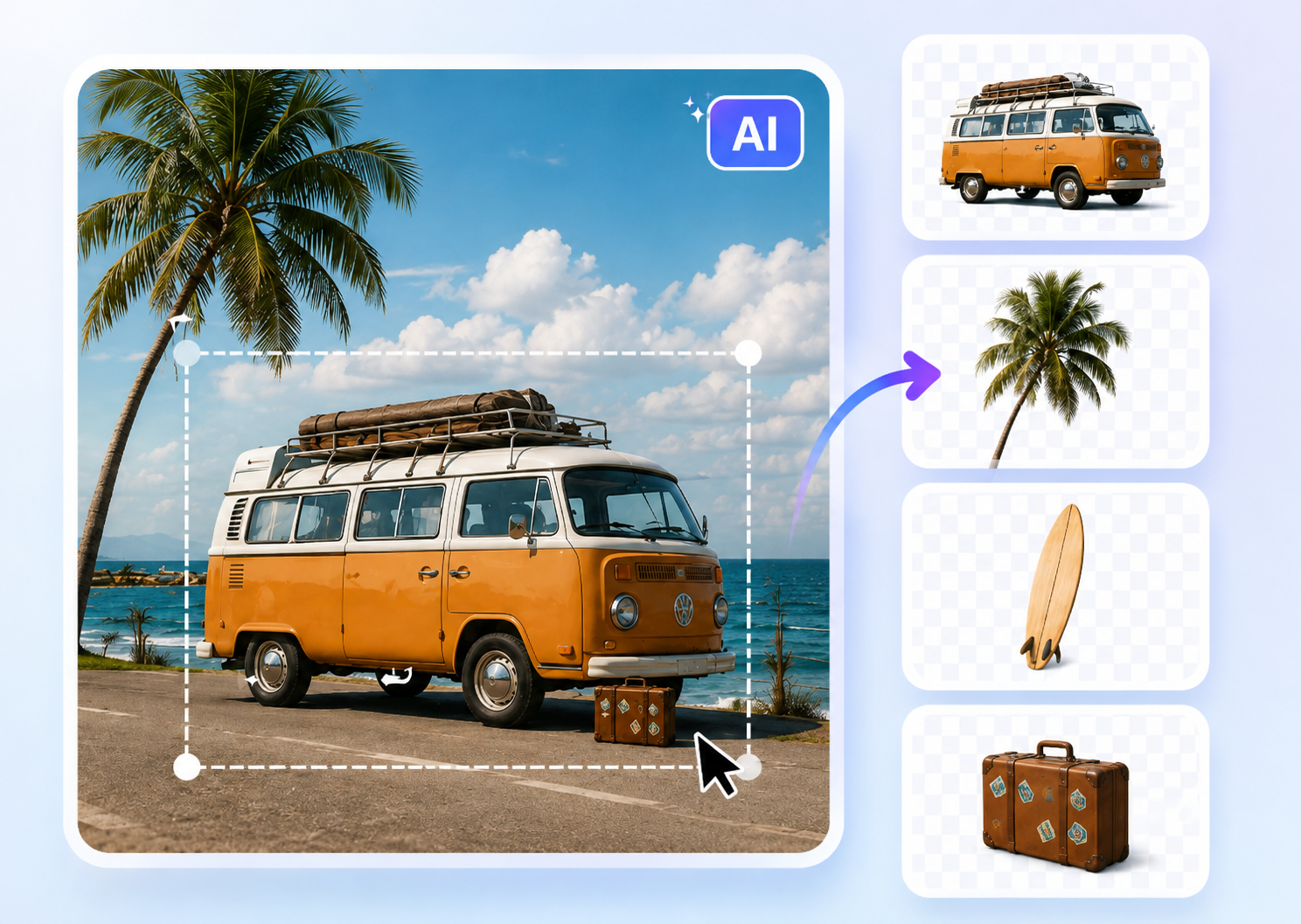
Image to Layers
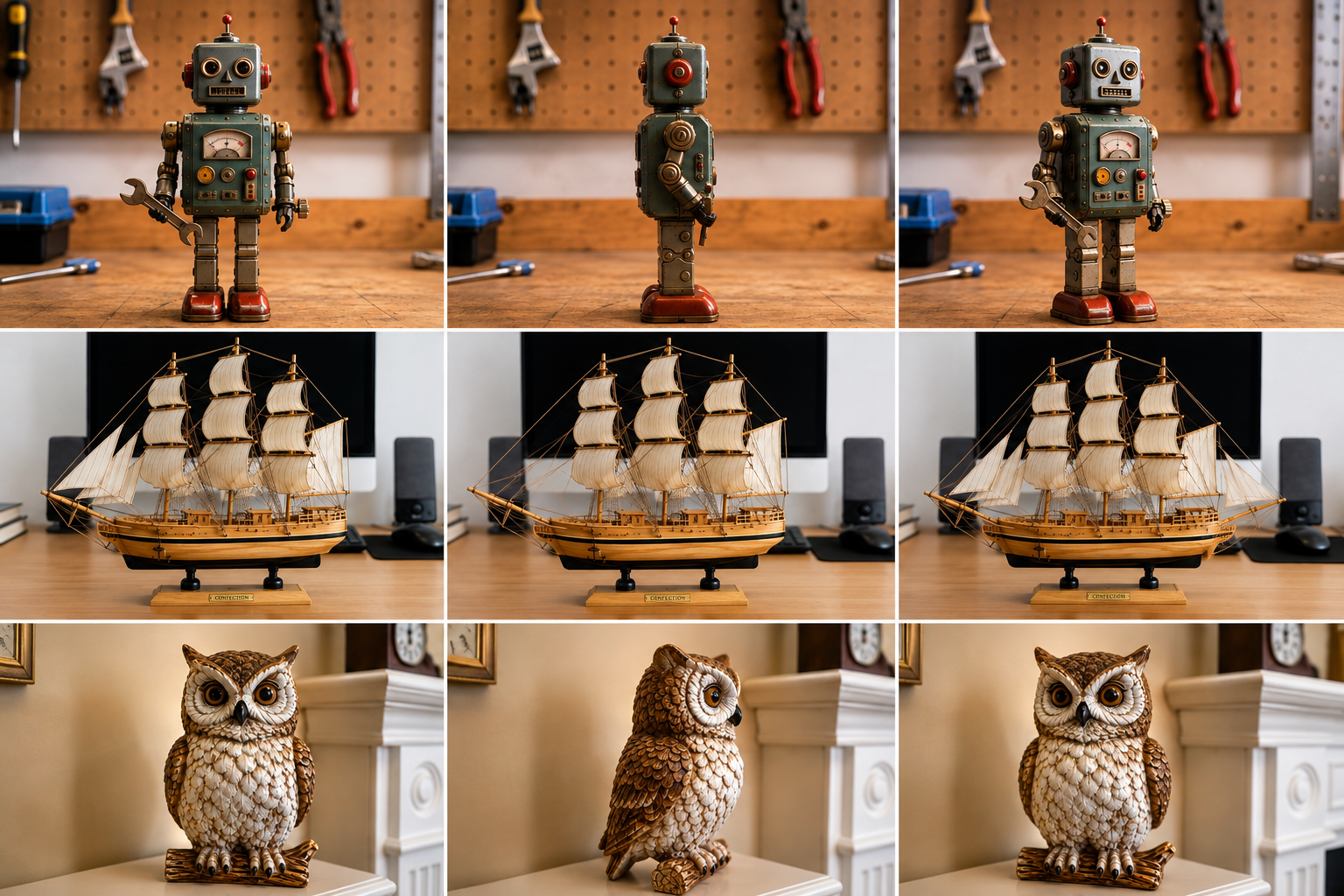
3D Angle Editor

Change Background of Photo
Add Text to Image
Speech Bubble Meme Generator
AI Image Darkener
AI Vignette Effect
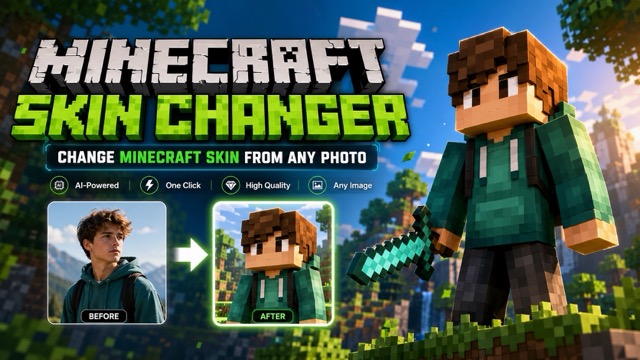
AI Change Minecraft Skin
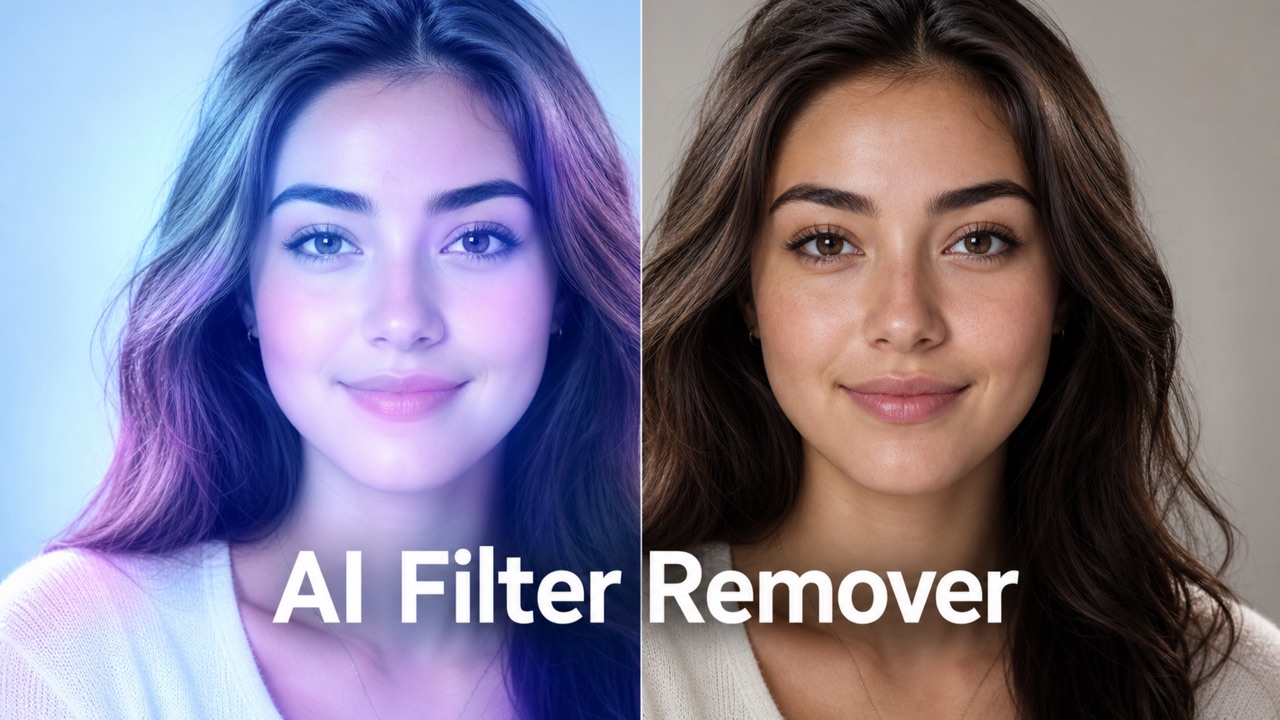
Remove Color From Image
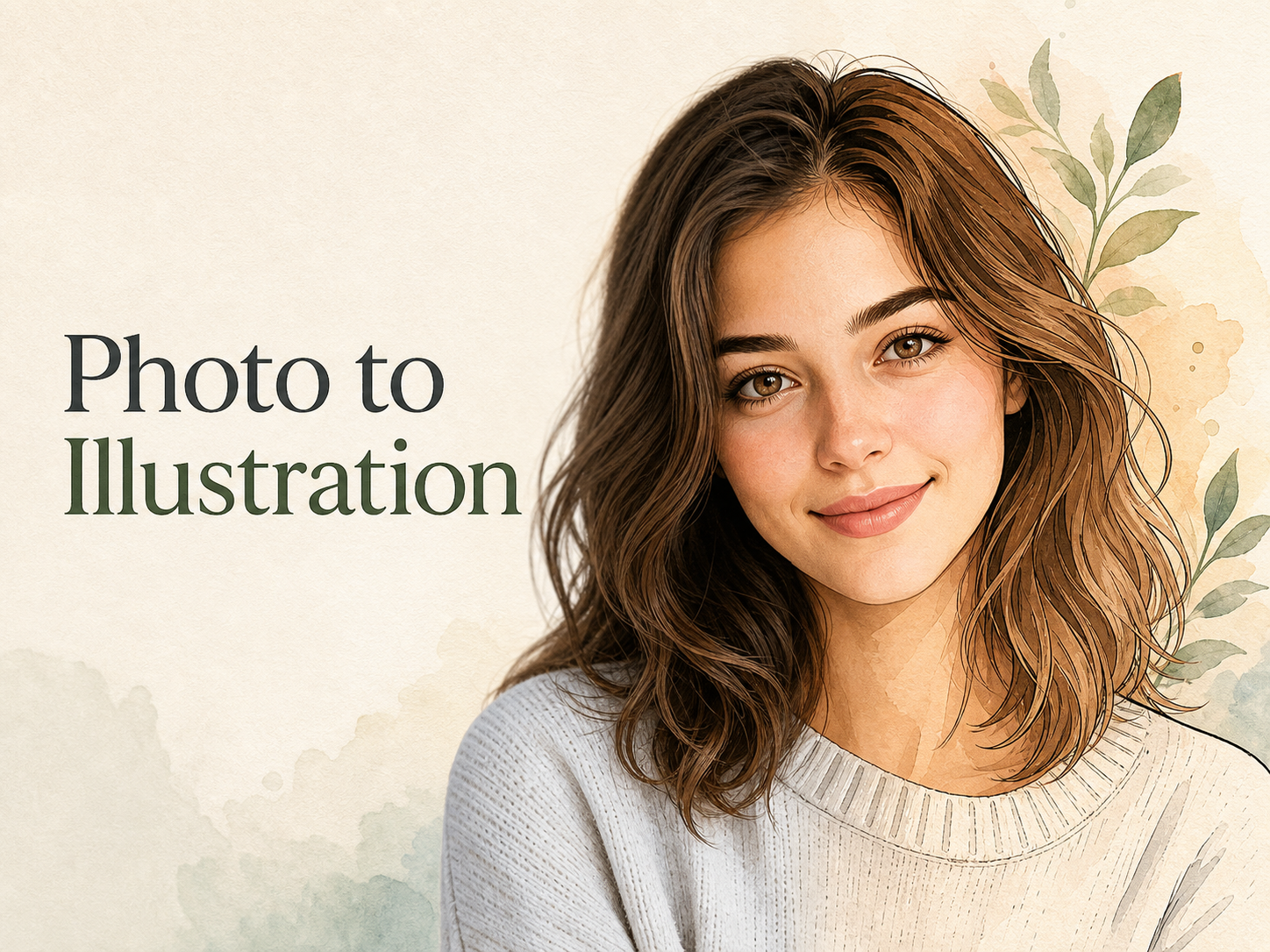
Photo to Illustration

Photo to Coloring Page
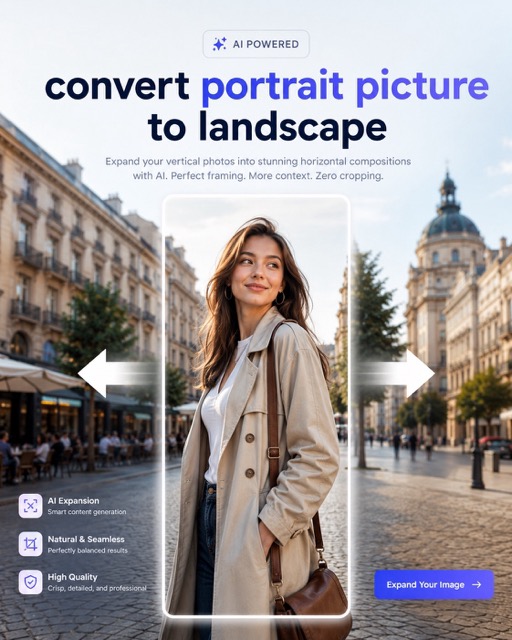
convert portrait picture to landscape
Photo to Silhouette
Remove Photo Blur with AI Unblur Image
Let AI Unblur Image restore cleaner edges, clearer faces, and more usable detail.
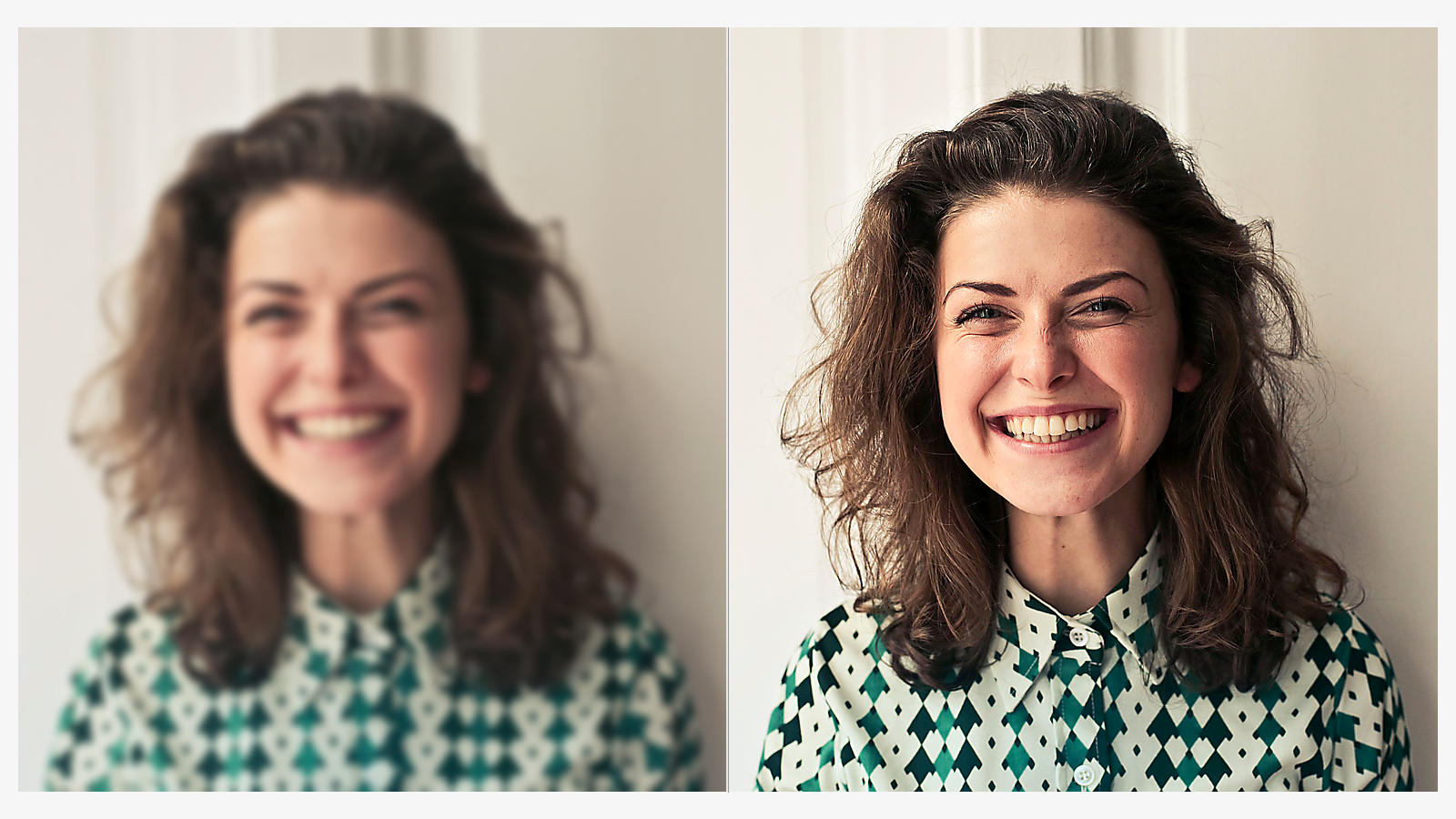
AI Unblur Image helps turn uploaded photos with motion blur, camera shake, or missed focus into clearer images that are easier to use. This Photo Blur Remover uses AI to recover visible structure while keeping the scene recognizable. Use AI Unblur Image when you need to remove photo blur from portraits, products, travel shots, scanned memories, or social content.
How to Use AI Unblur Image
The workflow is built around one clear action: upload an image, process it, and review the result. AI Unblur Image keeps the path short for everyday users and creative teams without forcing a complex editing setup.

Upload to AI Unblur Image
Start by uploading the photo you want to improve. AI Unblur Image reads the existing subject, background, edges, and texture cues before applying blur correction. The goal is simple: make the image clearer while preserving the people, objects, framing, and mood already present in the original file.

Run AI Unblur Image Processing
When processing begins, AI Unblur Image compares blurred areas against the surrounding visual context and predicts a cleaner version of the photo. This AI Image Unblur workflow is useful when you need a Photo Blur Remover for soft focus, mild shake, or details that look smeared by motion.

Review the AI Unblur Image Result
Preview the restored photo and decide whether the result is ready for your project. AI Unblur Image is designed to help you Remove Photo Blur without rebuilding the scene from scratch. If the source contains enough structure, the output can look sharper, cleaner, and more presentable.
Features of AI Unblur Image
AI Unblur Image focuses on clarity recovery for uploaded pictures across portraits, product photos, motion-soft scenes, and archived images. Each feature explains where blur hides detail and how a clearer result can help.
AI Unblur Image for Portraits and Faces
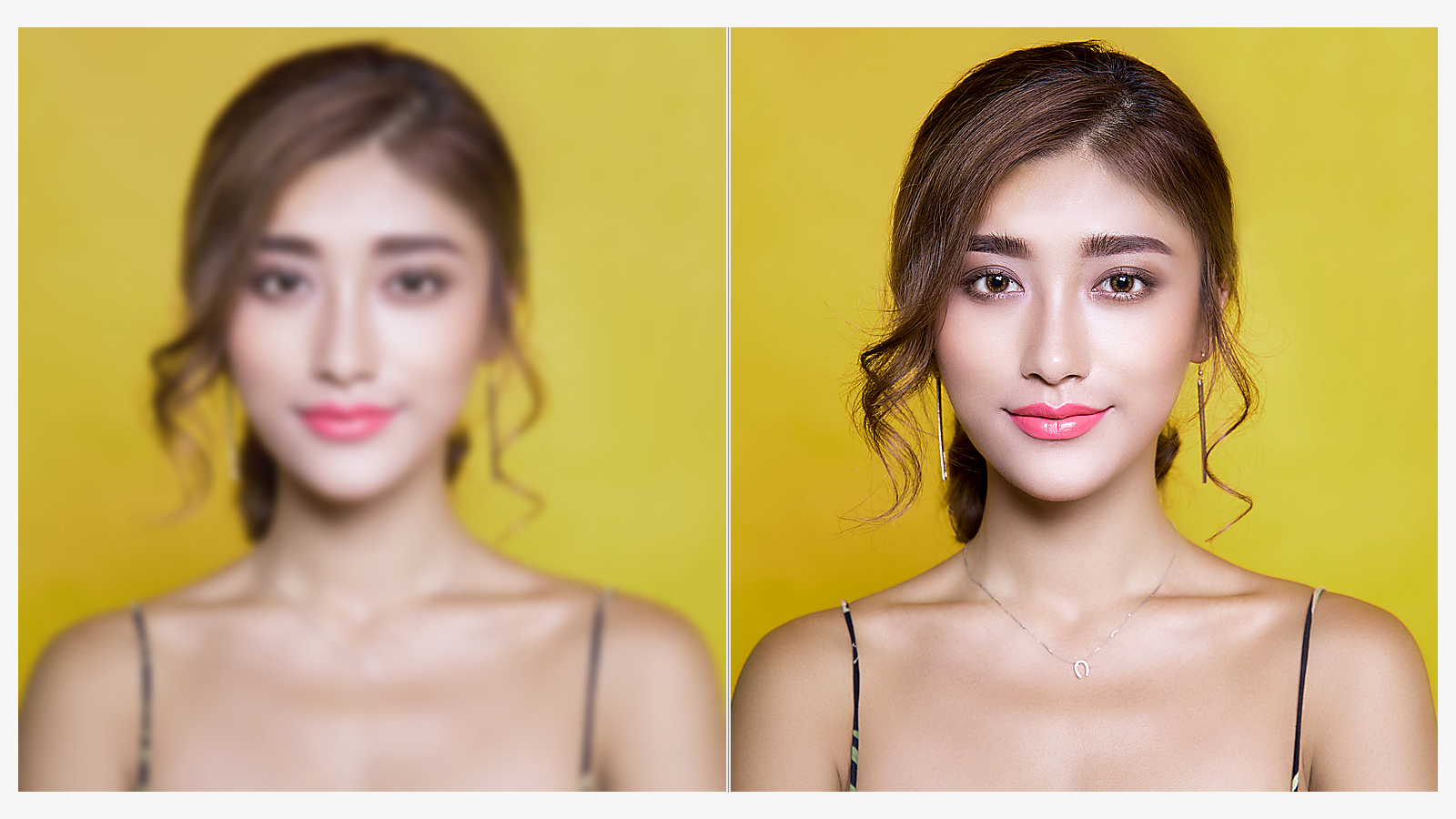
- AI Unblur Image can improve portraits where the camera missed focus or movement softened the face.
- The model studies eyes, hairlines, skin texture, clothing edges, and background separation before restoring clarity.
- Use AI Image Unblur for profile photos, family snapshots, event photos, or images that need a cleaner first impression.
- AI Unblur Image works best when the original face still has enough visible structure to guide recovery.
AI Unblur Image for Product Detail
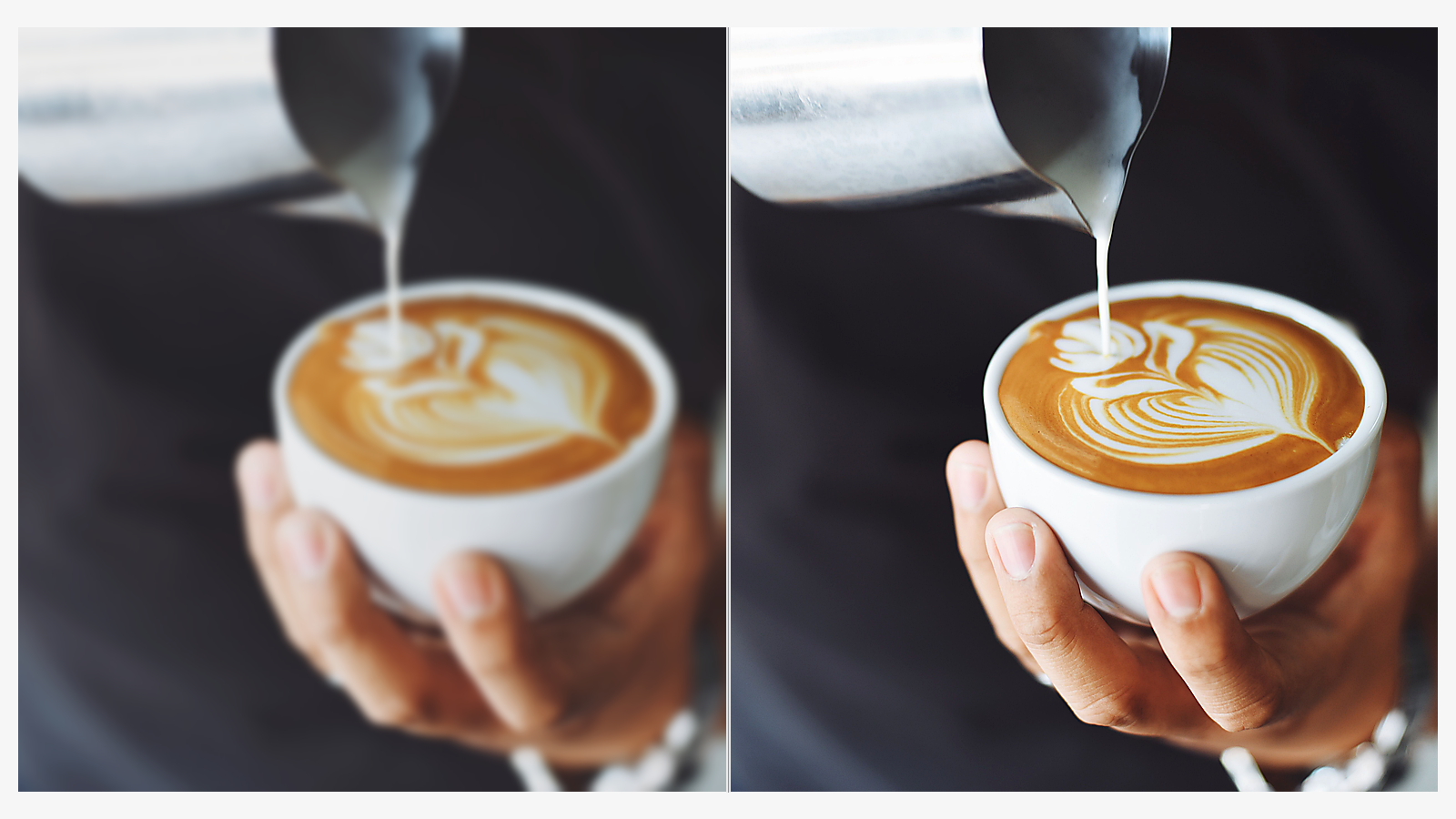
- A product photo can lose trust when labels, edges, texture, or material details look soft.
- AI Unblur Image helps clarify uploaded product images while keeping the original angle and layout intact.
- This Photo Blur Remover is useful for catalog drafts, marketplace listings, inventory records, and marketing previews.
- AI Unblur Image supports cleaner inspection by reducing blur that hides fabric, packaging, surface finish, or small visual details.
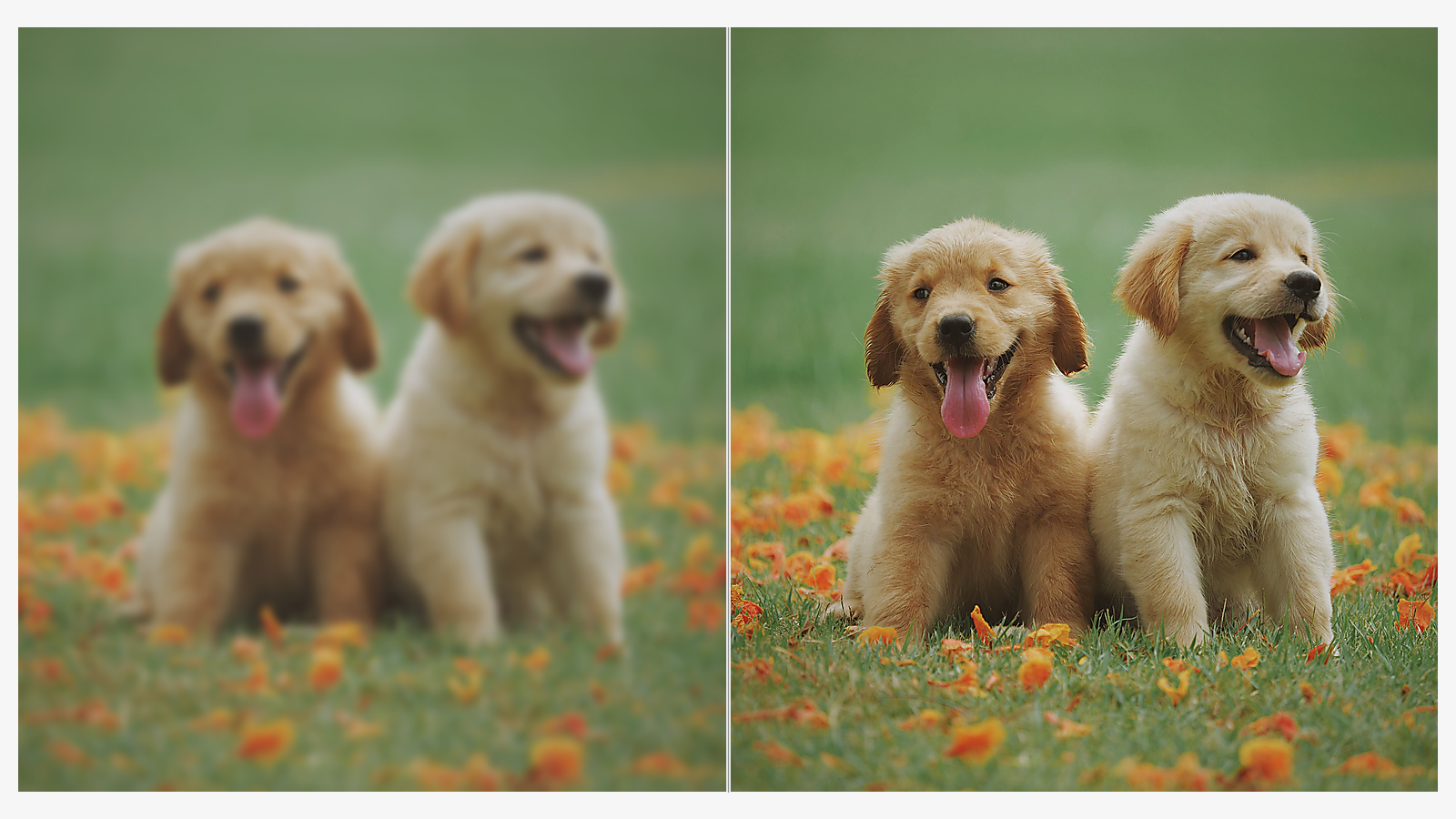
AI Unblur Image for Motion-Soft Shots
- Movement can smear important details even when the moment itself is worth keeping.
- AI Unblur Image helps reduce visible streaking from hand movement, subject movement, or a quick capture.
- Use AI Image Unblur to make travel photos, sports moments, pets, and candid scenes easier to read.
- AI Unblur Image does not replace the original moment; it restores enough clarity to make the photo more useful.
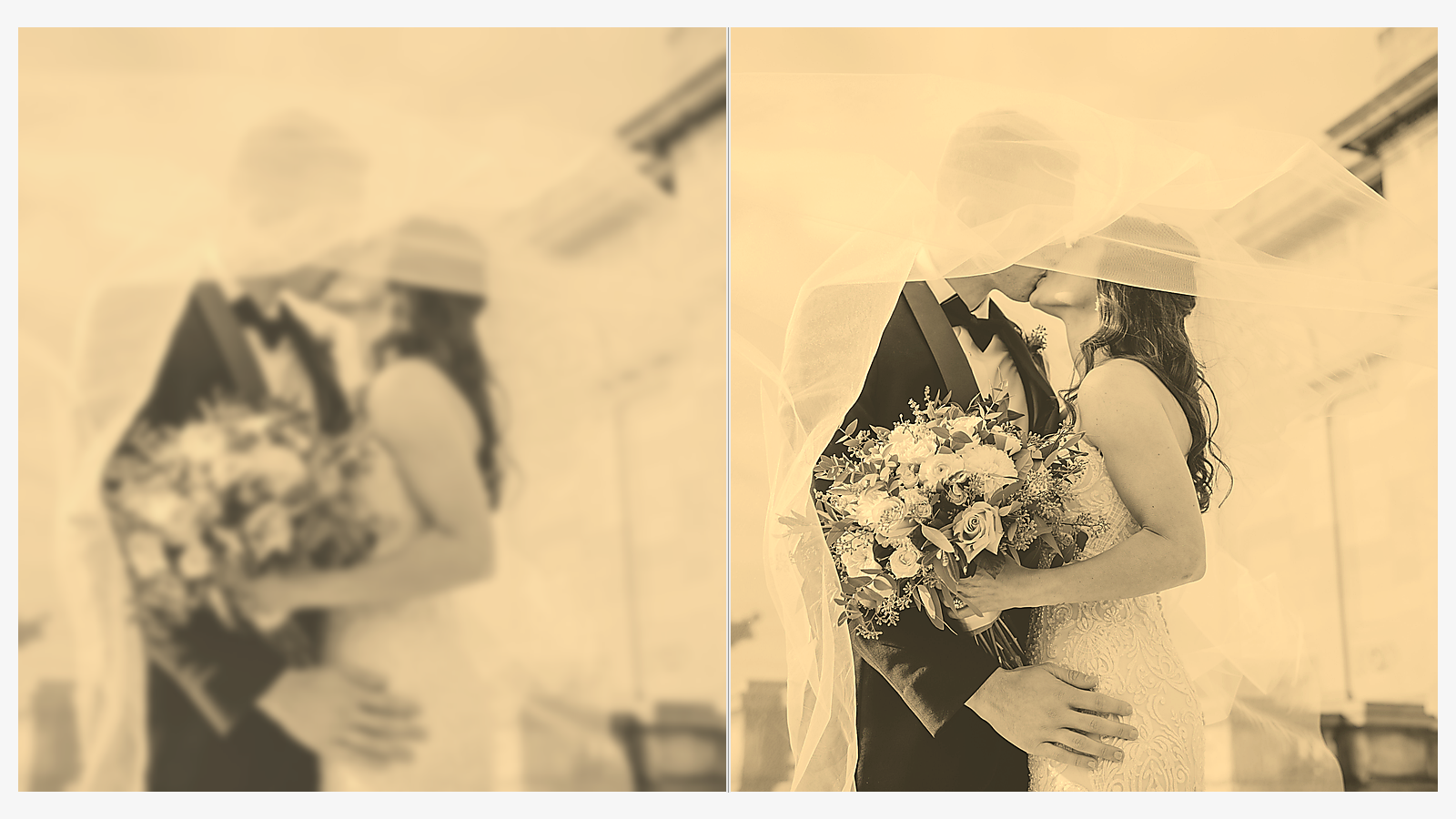
AI Unblur Image for Archives and Scans
- Old prints, scanned documents, screenshots, and saved images often collect softness from time, compression, or poor capture.
- AI Unblur Image can recover clearer outlines and readable visual structure without inventing a new scene.
- Use AI Image Unblur when you need to Fix Blurry Photos for albums, presentations, references, or personal collections.
- AI Unblur Image gives archived images a cleaner second pass while respecting the source.
Why Choose AI Unblur Image
AI Unblur Image gives users a focused way to recover clarity from uploaded photos. It is built for realistic improvements where blur, softness, or motion hides important details across personal, creative, and work contexts.

Clean Up Everyday Photos
AI Unblur Image is useful when a casual phone shot looks almost right but too soft to share. The model can reduce blur in faces, backgrounds, and object edges while preserving the original scene. Use AI Unblur Image before posting, printing, or sending a photo that deserves a clearer version.

Recover Client and Team Assets
Designers, marketers, and operators often receive images that cannot be reshot immediately. AI Unblur Image can help make those assets usable for drafts, presentations, content calendars, and review documents. AI Image Unblur is especially helpful when stakeholders need to evaluate an image before committing to a final shoot.
Clarify Product and Listing Images
A clear product image helps viewers understand shape, color, texture, and condition. AI Unblur Image can reduce blur that makes small product details difficult to inspect. Use this Photo Blur Remover to improve uploaded listing photos before they move into a catalog, marketplace draft, or sales document.

Improve Memory and Archive Photos
Family pictures, scanned prints, and older digital files often contain meaningful details hidden under softness. AI Unblur Image can make faces, clothing, backgrounds, and objects easier to recognize. Use AI Unblur Image to Remove Photo Blur from images you want to keep, organize, or revisit.

Prepare Images for Layouts
A blurry image can weaken a poster, report, pitch deck, thumbnail, or blog graphic. AI Unblur Image helps sharpen the visual foundation before the image enters a layout. AI Image Unblur can make edges cleaner and subjects more legible without changing the basic crop or composition.

Reduce Blur Before Further Editing
Many edits work better when the source has clearer structure. AI Unblur Image can be a first pass before cropping, retouching, background work, or color correction. Use AI Unblur Image to Fix Blurry Photos before applying more creative adjustments that depend on clean edges and visible detail.
What Users Say About AI Unblur Image
People use AI Unblur Image for everyday photos, product reviews, creative assets, and personal archives. These representative scenarios show practical clarity recovery without unrealistic claims, copied stories, or competitor testimonial details.
AI Unblur Image helped rescue a set of event portraits where the lighting was good but the focus was slightly off. I could keep the original mood and still deliver cleaner previews to the team.
AI Unblur Image helped rescue a set of event portraits where the lighting was good but the focus was slightly off. I could keep the original mood and still deliver cleaner previews to the team.
I used AI Unblur Image on product photos from a rushed sample shoot. The labels and edges became easier to inspect, which made our internal review much smoother before the next round of photography.
I used AI Unblur Image on product photos from a rushed sample shoot. The labels and edges became easier to inspect, which made our internal review much smoother before the next round of photography.
For archived family pictures, AI Unblur Image gave me a cleaner version without making the people look unfamiliar. The tool was most helpful on scans that still had recognizable faces and clothing.
For archived family pictures, AI Unblur Image gave me a cleaner version without making the people look unfamiliar. The tool was most helpful on scans that still had recognizable faces and clothing.
Our content team needed to Remove Photo Blur from several travel shots for a presentation. AI Unblur Image improved the important details enough that the images finally worked in context.
Our content team needed to Remove Photo Blur from several travel shots for a presentation. AI Unblur Image improved the important details enough that the images finally worked in context.
The Photo Blur Remover made a soft social media image look cleaner while keeping the same framing. AI Unblur Image has become my first step when a good photo is held back by focus issues.
The Photo Blur Remover made a soft social media image look cleaner while keeping the same framing. AI Unblur Image has become my first step when a good photo is held back by focus issues.
I tried AI Image Unblur on a set of workshop photos taken in motion. AI Unblur Image reduced the softness around hands, tools, and materials so the documentation was easier to understand.
I tried AI Image Unblur on a set of workshop photos taken in motion. AI Unblur Image reduced the softness around hands, tools, and materials so the documentation was easier to understand.


FAQs About AI Unblur Image
These answers explain how AI Unblur Image behaves, where it helps most, and what users should expect when trying to recover clarity from uploaded photos, so results stay grounded and practical.
AI Unblur Image is an image editing tool that improves uploaded photos affected by blur, soft focus, or camera movement. Instead of simply increasing contrast on edges, the model studies the existing scene and predicts a clearer version that still respects the original composition. It is useful for portraits, products, travel shots, scans, and everyday photos that need more visible detail.
AI Image Unblur works best when the source photo still contains recognizable structure. Mild motion blur, missed focus, soft faces, product edges, and compressed details are good candidates. If an image is extremely tiny, completely smeared, or missing key subject information, AI Unblur Image may still improve clarity, but it cannot reliably restore details that were never visible in the original.
A traditional sharpener often boosts edge contrast, which can make halos, grain, and artifacts more obvious. AI Unblur Image is different because it uses context from the uploaded photo to rebuild a cleaner-looking result. That makes the workflow more useful when you need to Remove Photo Blur from real-world images with faces, textures, labels, or moving subjects and want more natural final images.
Yes, AI Unblur Image can help Fix Blurry Photos when the blur is moderate and the subject is still readable. The tool is best treated as a clarity recovery step, not a guarantee of perfect reconstruction. For best results, start with the highest-quality version you have and avoid repeatedly saving compressed copies before using the Photo Blur Remover in practice.
AI Unblur Image can support product photos by making labels, outlines, materials, and small surface details easier to inspect. It is especially useful when a photo is good enough to keep but too soft for review or layout work. The model aims to preserve the original angle and scene while reducing blur that distracts from the product during practical review.
A Photo Blur Remover can improve many portrait issues, especially missed focus around eyes, hair, clothing, and facial outlines. AI Unblur Image tries to keep identity and expression consistent with the source photo while making important features clearer. Results depend on the quality of the upload, the amount of blur, lighting, distance, and how much facial structure remains visible overall.
Yes. AI Image Unblur can be useful before additional editing because many downstream edits depend on clean visual structure. Running AI Unblur Image first may give you clearer edges for cropping, retouching, background cleanup, layout placement, or color work. It is not always required, but it can help when blur is the main weakness in the source image or publishing.
Start with the clearest available source, upload the original file when possible, and avoid screenshots of screenshots. AI Unblur Image performs better when the subject, lighting, and edges are still identifiable. Use it to Remove Photo Blur before resizing or heavy edits, then review the output at the size where the final image will actually be used in real context.
Make Blurry Photos Clearer
Upload a photo and let AI Unblur Image reduce softness, recover cleaner detail, and make the result easier to use. Try AI Image Unblur when you need a focused way to repair blurry photos without changing the scene. Use the clearer result as a practical starting point for sharing, layout, archiving, or additional editing.