AI Image Tools
Everything You Need to Edit Photos Faster
Open the PicEditor AI tools library for background removal, photo enhancement, object cleanup, face swap, upscaling, and more focused image workflows.
AI Blemish Remover
FLUX 3 Image Klein
Ideogram 4.5
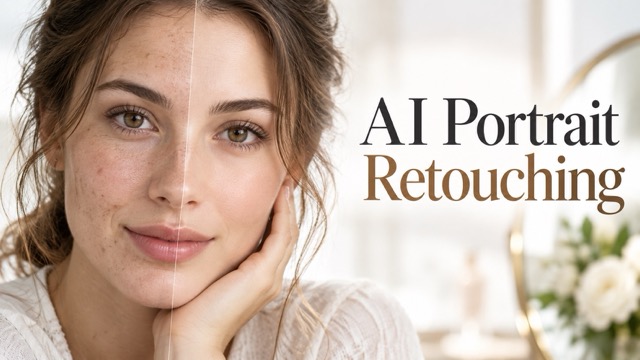
AI Portrait Retouching

Snatched Waist Editor
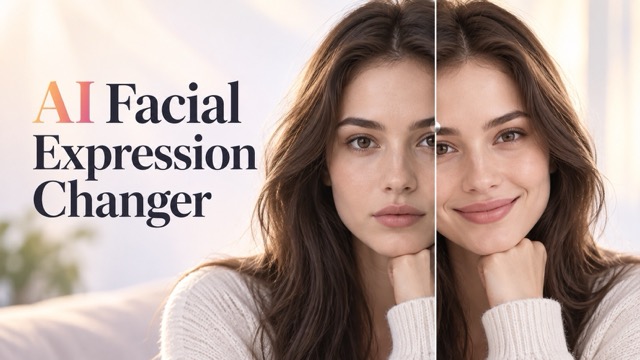
AI Facial Expression Changer
AI Texture Generator

AI Nose Piercing Filter
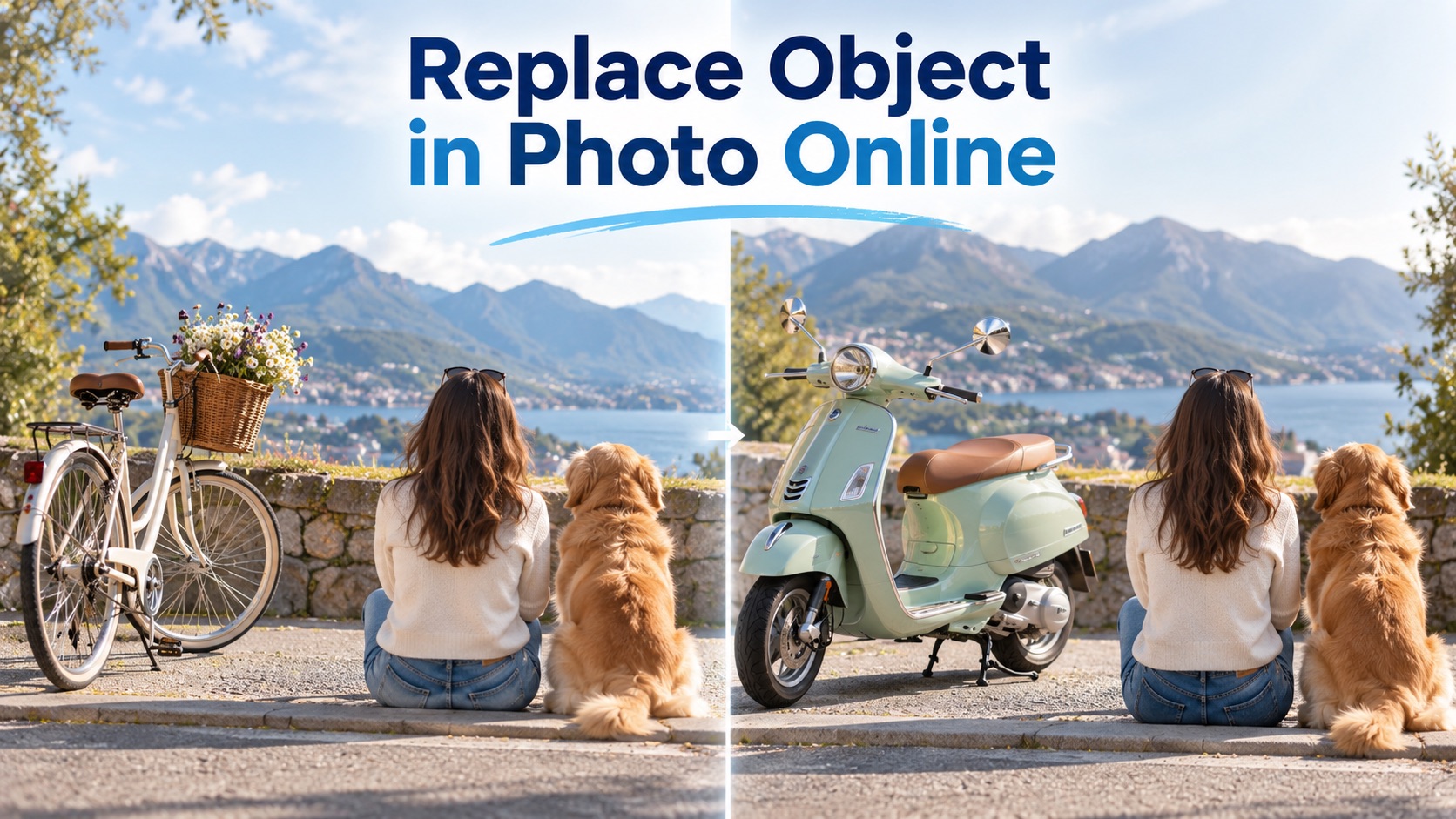
Replace Object in Photo Online
Add Object to Photo
Eyeliner Filter
AI Bust Down Filter

Image Splitter

Add White Background to Photo
Snapchat Text Remover
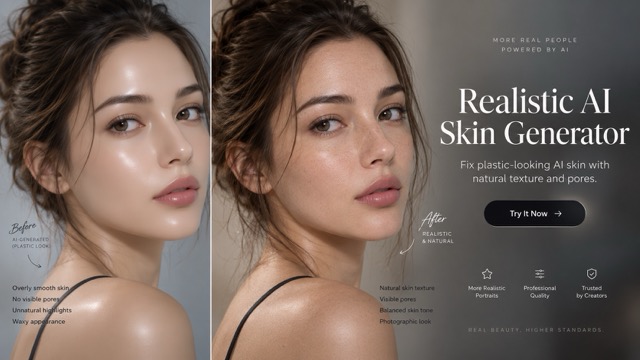
Realistic AI Skin Generator

Add speech bubble to photo

Change Photo Background
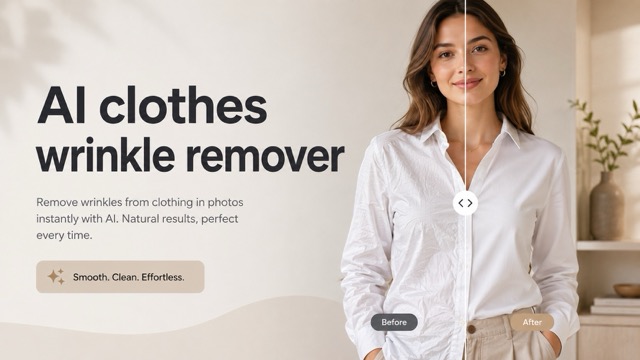
AI Clothes Wrinkle Remover
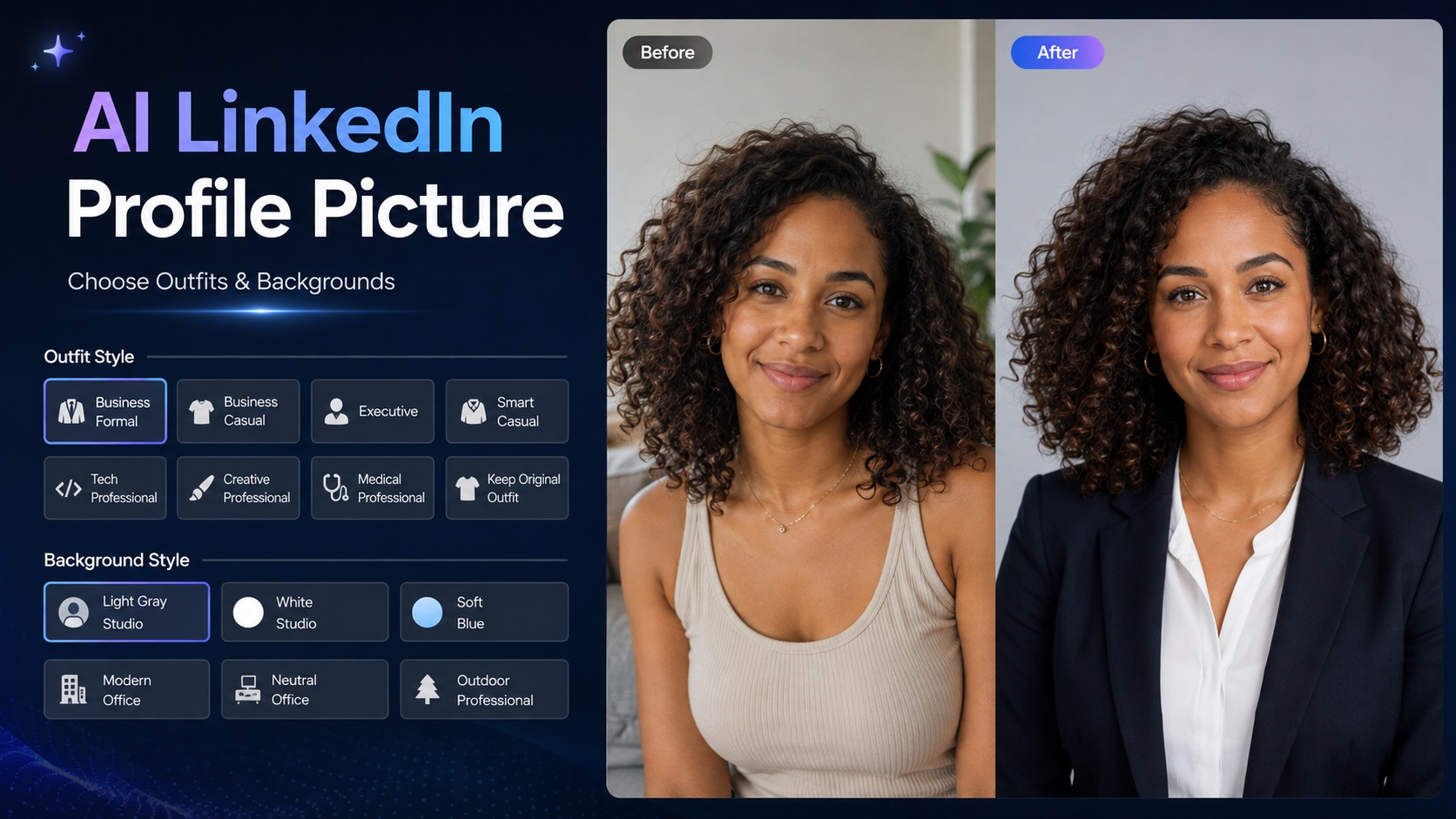
AI LinkedIn Profile Picture
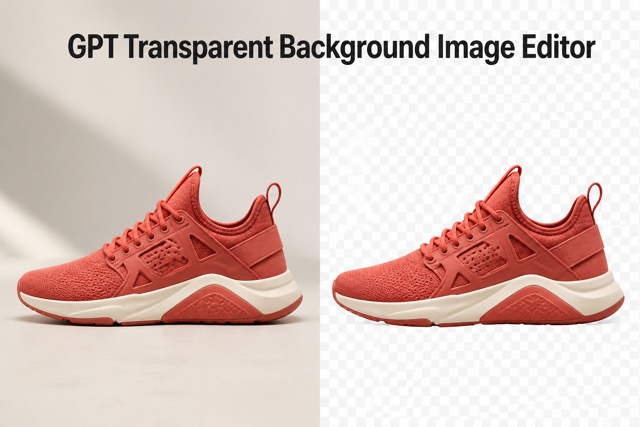
GPT Transparent BG Image Editor
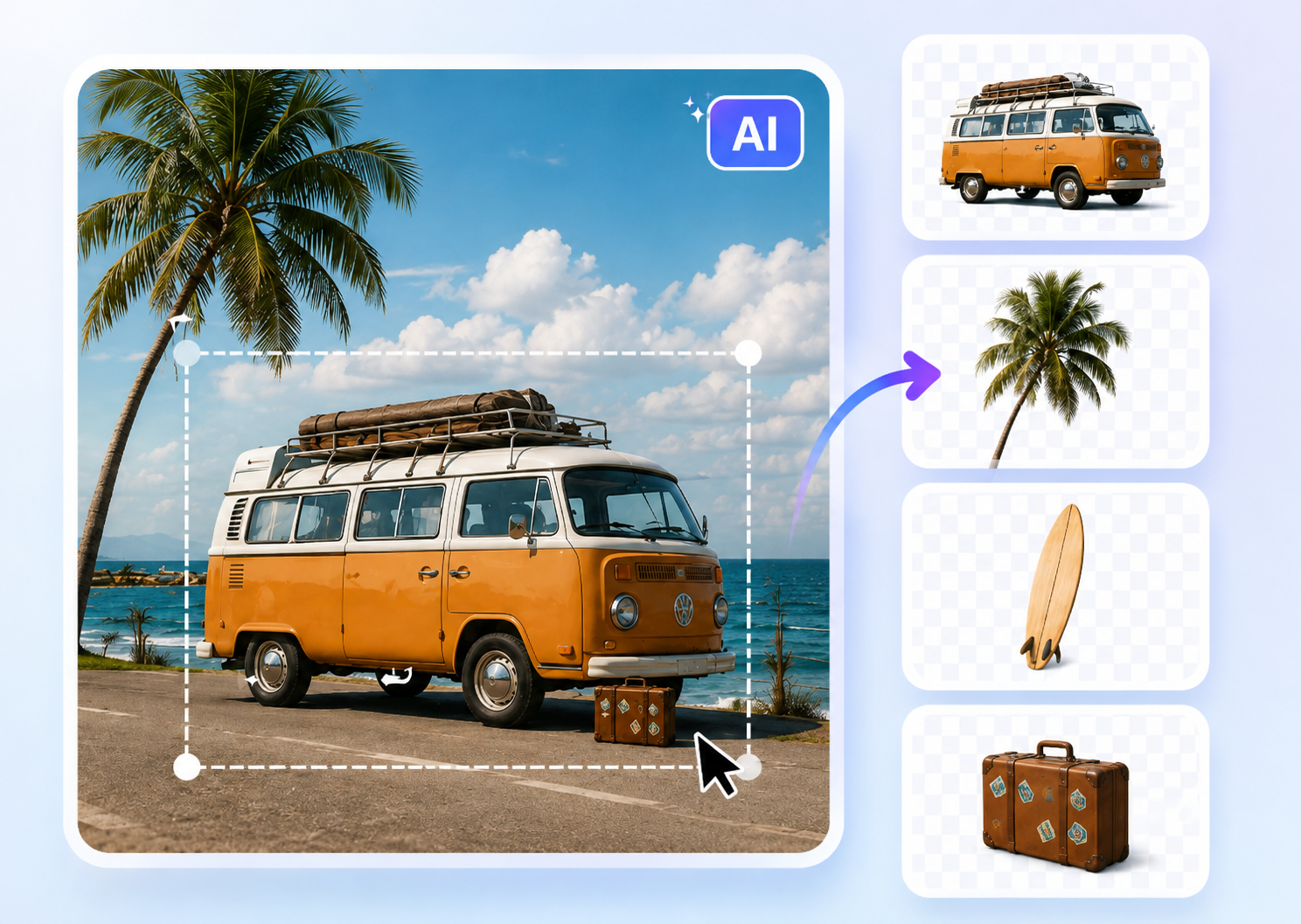
Image to Layers
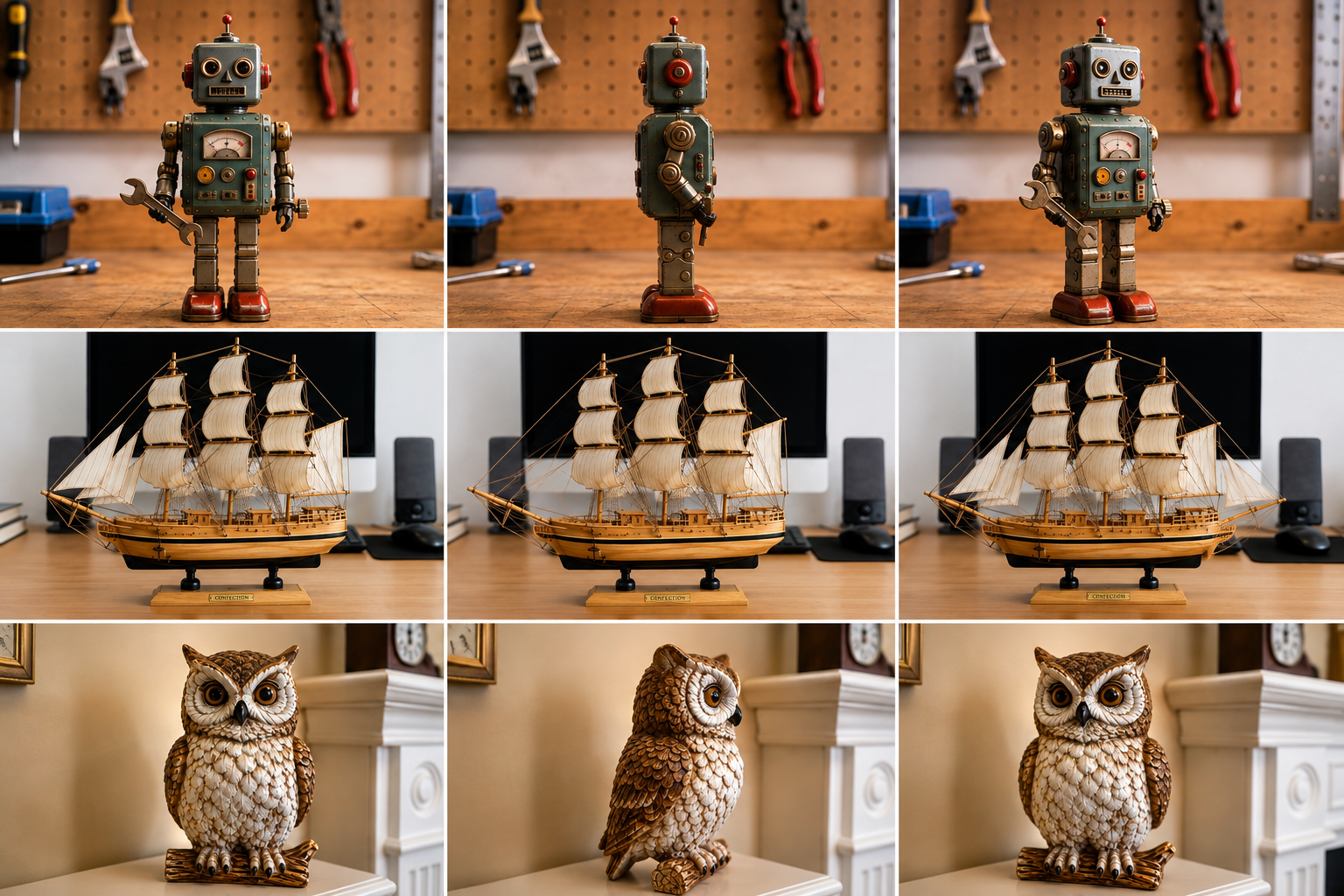
3D Angle Editor

Change Background of Photo
Create Transparent Images with AI Background Remover
Use AI Background Remover to create a transparent-background result.
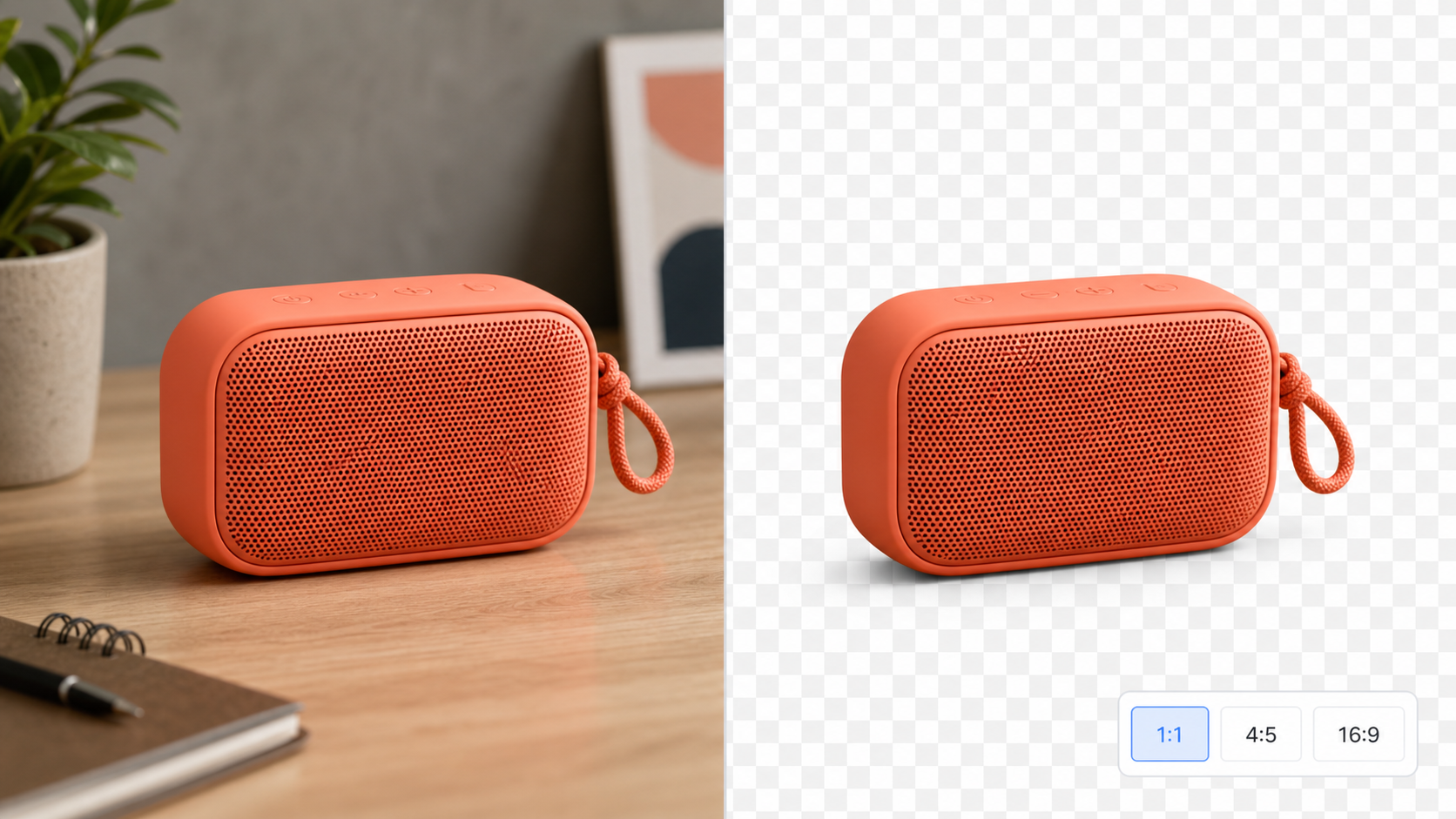
AI Background Remover prepares visual assets without manual tracing. Upload an image, select the image size, and generate a transparent result. Use AI Background Remover for product photos, portraits, marketing graphics, and everyday creative layouts.
How to Use AI Background Remover
AI Background Remover keeps background editing straightforward. Follow three clear steps to upload your source, choose the right image size, and generate a transparent asset for your next design layout.

Upload Your Image
Start AI Background Remover by uploading the image you want to edit. Choose a photo with a clear main subject so the result can serve your layout well. Whether you need to Remove Image Background from a product shot or isolate a portrait, the first step stays simple: provide the source image you want to transform and confirm that the important subject details are visible.

Choose Your Image Size
Select the image size that matches your planned use before generating the result. AI Background Remover lets you shape the output around the layout you are building, whether that is a square product tile, a portrait post, or a wide banner. Review the chosen proportion so the subject has enough room, the crop supports the destination, and the final composition feels intentional.

Generate a Transparent Result
Run AI Background Remover to separate the main subject from the original scene and turn the background transparent. Review the finished cutout and use it in your next design. The Image Background Remover workflow keeps the task clear: upload, choose image size, generate, and continue creating with a flexible visual asset that can move into a new layout across different projects.
Creative Ways to Use AI Background Remover
AI Background Remover helps turn ordinary source photos into transparent assets for practical design work. Explore product, portrait, creative, and image size workflows built around a clear result across common layouts.
Create Cleaner Product Photos with AI Background Remover
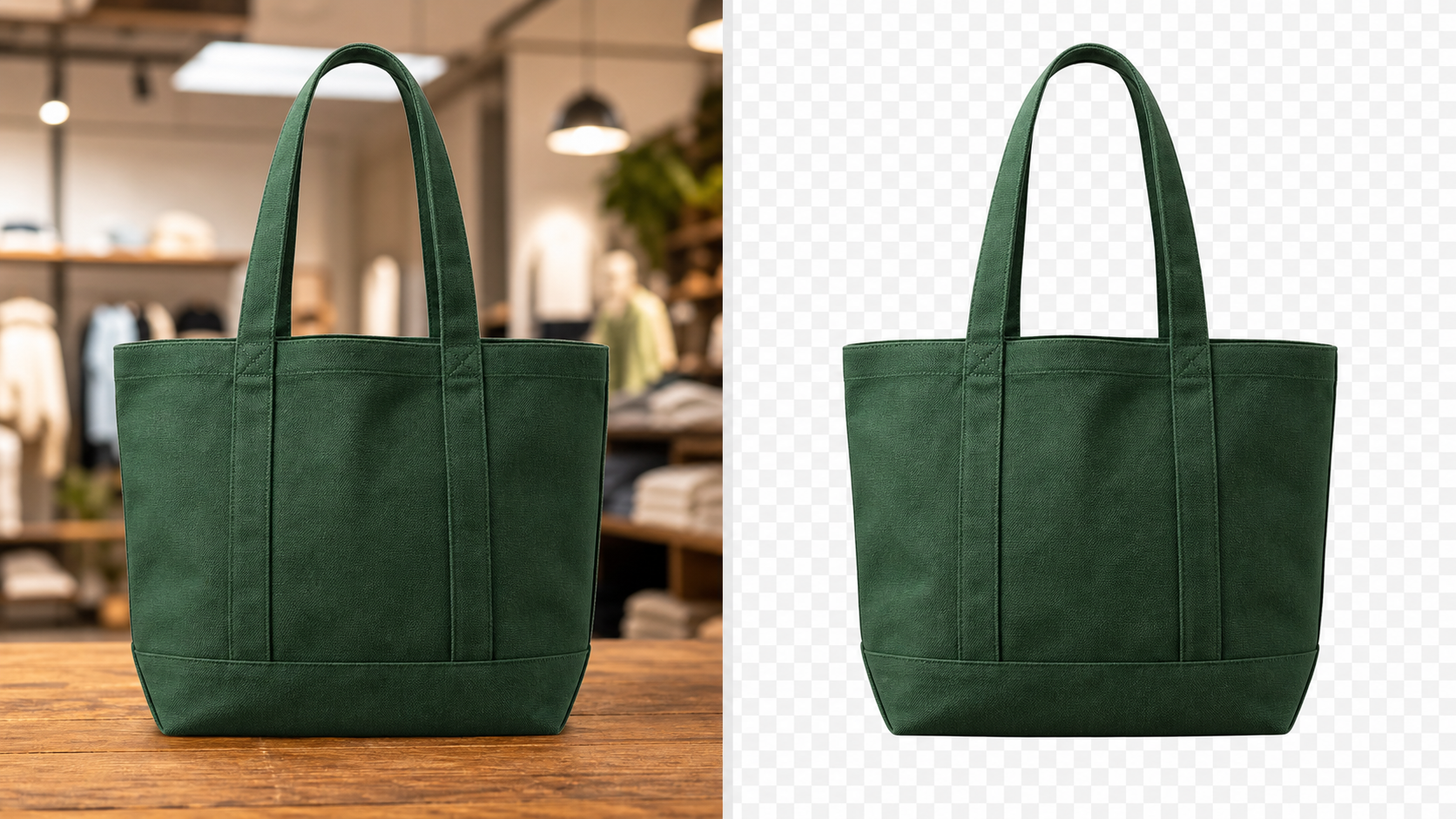
- Use AI Background Remover to separate a product from distracting surfaces, room details, or improvised photo setups.
- Create a transparent cutout that can fit product listings, catalog layouts, comparison graphics, and campaign drafts.
- Choose an image size that gives the item appropriate margins for its destination.
- When you need to Remove Image Background from a product photo, AI Background Remover helps you move from source image to reusable asset.
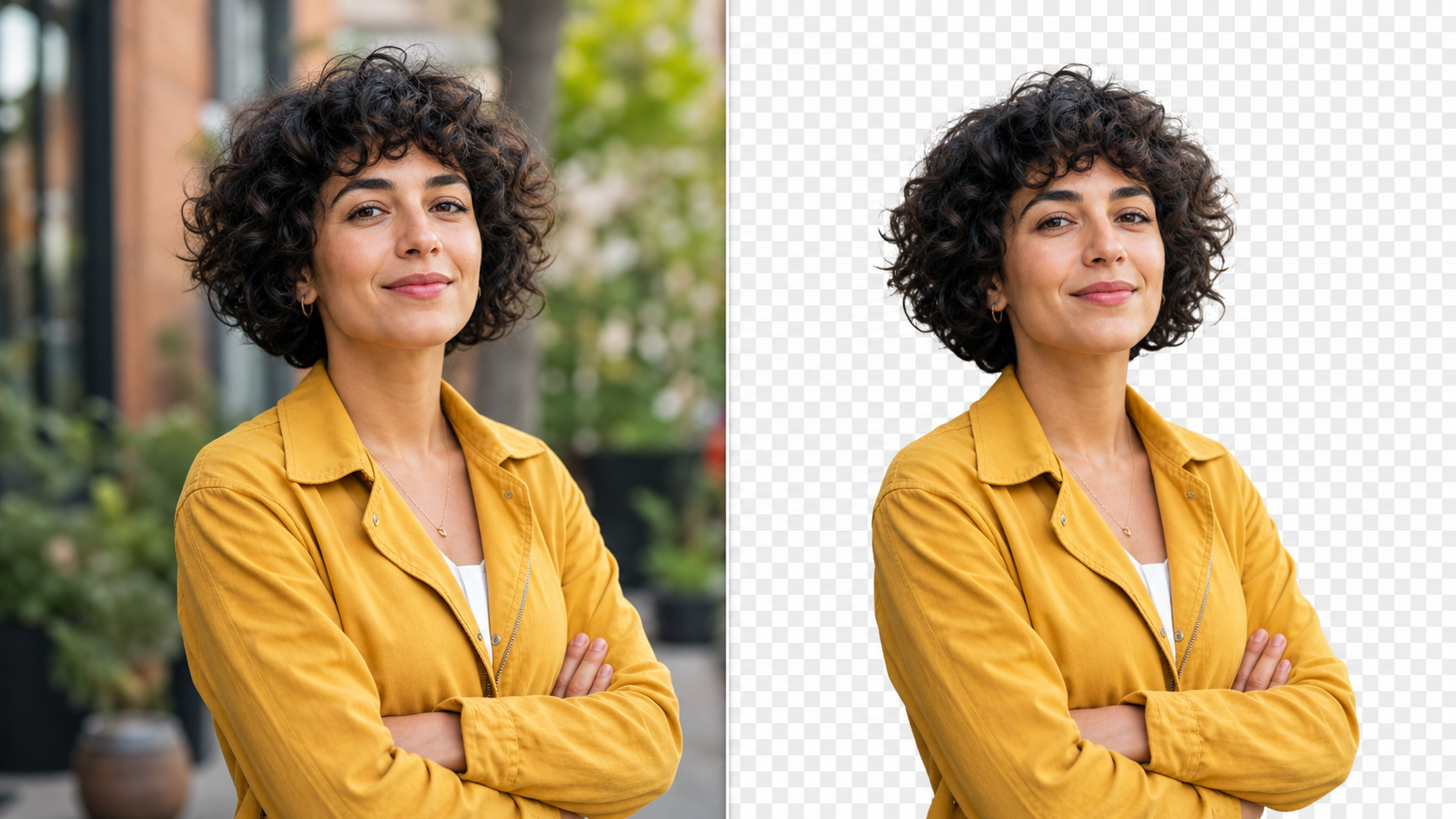
Isolate Portraits with AI Background Remover
- AI Background Remover can turn a portrait into a transparent asset for profile designs, campaign concepts, presentation covers, and social graphics.
- Keep the person as the visual focus while removing the original setting from the composition.
- Select an image size that suits the placement you have in mind.
- The Image Background Remover workflow makes it easier to test different backdrops without repeatedly editing the source portrait.
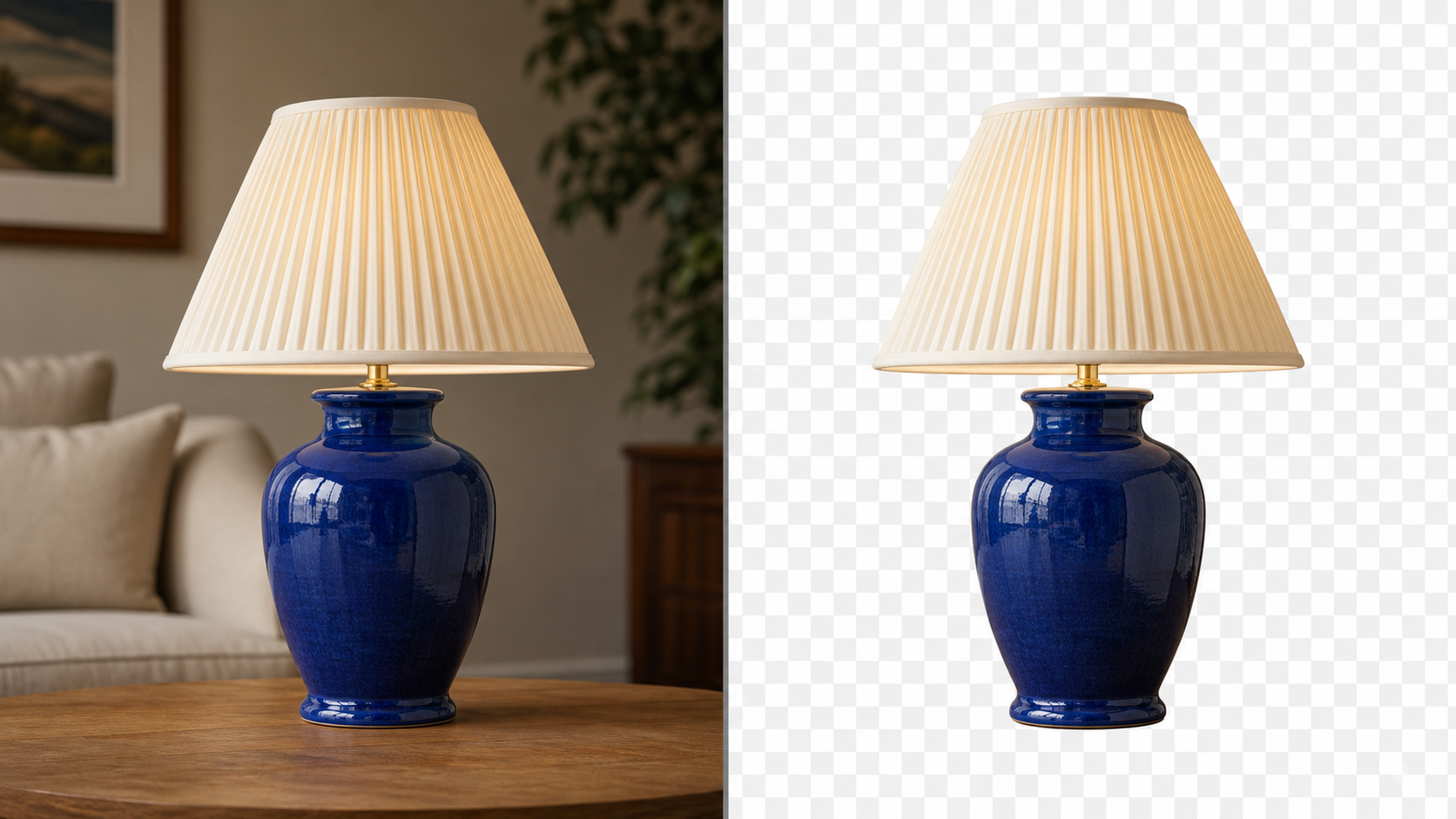
Build Reusable Assets with AI Background Remover
- Turn an object photo into a reusable visual element with AI Background Remover.
- A transparent result can be placed into moodboards, pitch decks, social graphics, layout experiments, and promotional concepts.
- You can Remove Background from Image files when the original environment does not belong in the final design.
- Choose the image size first, then use AI Background Remover to prepare a more adaptable cutout.
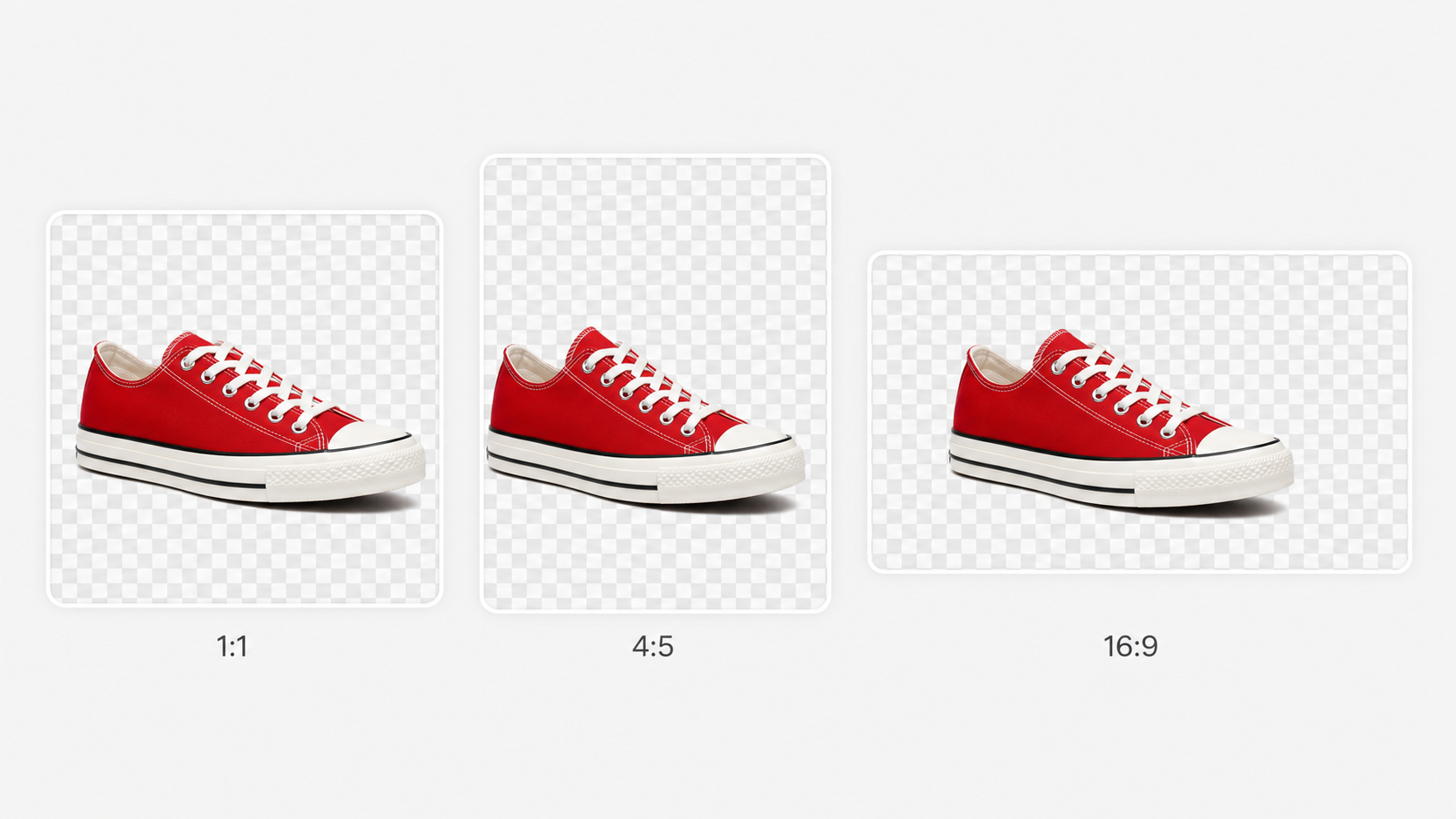
Match Image Size with AI Background Remover
- AI Background Remover includes image size selection as part of the generation flow, so you can plan the composition before creating the transparent result.
- Use a square, portrait, or wide proportion based on the space your subject needs to fill.
- The Image Background Remover process is not only about removing a backdrop; it also helps you prepare a cutout that fits the intended layout with clearer visual balance.
Why Choose AI Background Remover
AI Background Remover is built for a practical editing task: create a transparent subject with a chosen image size. These benefits explain where that focused workflow fits into everyday design.

A Focused AI Background Remover Workflow
AI Background Remover is designed around one concrete outcome: turn the image background transparent. The workflow stays easy to understand because each step supports that goal. Upload the source, choose an image size, and generate the result. When you want an Image Background Remover without unrelated editing steps, AI Background Remover provides a direct path from photo to usable cutout.

Better Product Assets with AI Background Remover
Product images often need to appear in more than one layout. AI Background Remover creates a transparent version that can move between listing mockups, feature grids, comparison sections, and promotional concepts. When you need to Remove Image Background from a product photo, choose an image size that keeps the subject comfortably framed, then use the result as a cleaner starting point for design work.

Portrait Cutouts with AI Background Remover
A portrait may be captured in one setting but needed in another. AI Background Remover isolates the person so the transparent result can be placed into profile graphics, presentation layouts, campaign drafts, or social designs. The Image Background Remover flow lets you choose a suitable image size before generation, helping the cutout work more naturally in the intended destination layout.

Flexible Inputs for Marketing Concepts
Campaign drafts often evolve as copy, color, and layout decisions change. AI Background Remover gives you a transparent subject that is easier to reposition while you explore those options. Use AI Background Remover to Remove Background from Image files that contain a useful subject but an unsuitable setting, then place the cutout into a composition that better supports the message.

Image Size Selection Before Generation
The same subject can feel different in a square card, portrait post, or wide banner. AI Background Remover includes image size selection before the transparent result is generated, letting you think about placement early. Use AI Background Remover when you want the cutout and its framing to support the intended composition instead of treating size as a later afterthought during layout work.
A Reusable Asset for Ongoing Design Work
A transparent subject can be a useful building block across multiple creative tasks. AI Background Remover helps you prepare that asset from an existing image, whether the source contains a product, person, or object. The Image Background Remover workflow gives you a cleaner element for layouts where the original backdrop would limit reuse, allowing the design context to change while the subject stays central.
What Creators Say About AI Background Remover
See how creators use AI Background Remover to prepare transparent product shots, portraits, and visual elements for layouts that need a cleaner and more flexible starting point across daily projects.
I use AI Background Remover when a product photo has the right angle but the wrong setting. Choosing the image size before I generate the transparent result makes it easier to place the cutout into my catalog drafts. The workflow is clear, and I spend less time preparing the first version of a layout.
I use AI Background Remover when a product photo has the right angle but the wrong setting. Choosing the image size before I generate the transparent result makes it easier to place the cutout into my catalog drafts. The workflow is clear, and I spend less time preparing the first version of a layout.
For presentation covers, I often need a portrait separated from the original office background. AI Background Remover gives me a straightforward way to prepare that transparent asset. I upload the image, choose the image size, and continue designing without turning a small edit into a longer manual task.
For presentation covers, I often need a portrait separated from the original office background. AI Background Remover gives me a straightforward way to prepare that transparent asset. I upload the image, choose the image size, and continue designing without turning a small edit into a longer manual task.
AI Background Remover is useful during early campaign exploration because the result can move between different mockups. I can Remove Image Background from an object photo, test several compositions, and keep the strongest direction. That flexibility matters when the message and color palette are still changing.
AI Background Remover is useful during early campaign exploration because the result can move between different mockups. I can Remove Image Background from an object photo, test several compositions, and keep the strongest direction. That flexibility matters when the message and color palette are still changing.
The image size step is a practical detail. With AI Background Remover, I can think about whether the cutout belongs in a square tile or a wider graphic before generation. The transparent result gives me a cleaner base for social content and simple promotional layouts.
The image size step is a practical detail. With AI Background Remover, I can think about whether the cutout belongs in a square tile or a wider graphic before generation. The transparent result gives me a cleaner base for social content and simple promotional layouts.
I needed an Image Background Remover for reusable decor photos in a small brand guide. AI Background Remover kept the process easy to follow. Once the background was transparent, I could place the same subject into several layout ideas without the original room competing with the design.
I needed an Image Background Remover for reusable decor photos in a small brand guide. AI Background Remover kept the process easy to follow. Once the background was transparent, I could place the same subject into several layout ideas without the original room competing with the design.
When I am assembling a quick concept board, AI Background Remover helps me prepare cleaner source material. I can Remove Background from Image files that contain the right object, then choose where the transparent cutout belongs. It is a focused tool for a task that appears often in my workflow.
When I am assembling a quick concept board, AI Background Remover helps me prepare cleaner source material. I can Remove Background from Image files that contain the right object, then choose where the transparent cutout belongs. It is a focused tool for a task that appears often in my workflow.




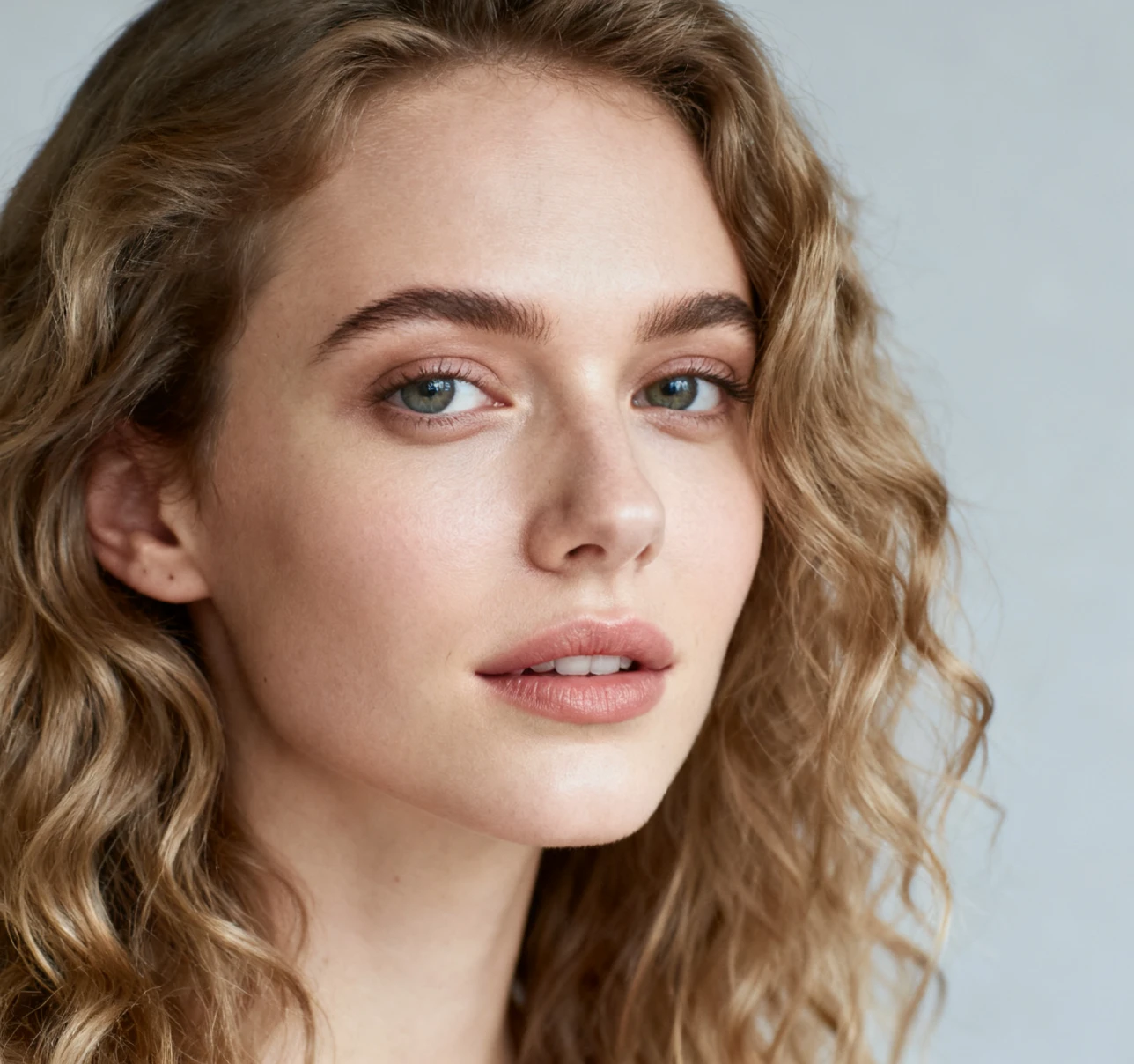

FAQs About AI Background Remover
Learn how AI Background Remover turns uploaded photos into transparent assets, how image size selection fits the workflow, and where the generated cutouts can support creative projects in daily work.
AI Background Remover is an image editing tool for turning the original photo background into transparency. You upload an image, choose the image size for the result, and generate a new cutout with the subject separated from its previous setting. The transparent output is useful when you want to place that subject into a product layout, portrait design, presentation, social graphic, or another creative composition.
The AI Background Remover workflow has three main steps. Upload the source image, select the image size that fits your intended layout, and generate the transparent result. After generation, review how the subject is framed and use the cutout in your design. This focused sequence is useful when you want an Image Background Remover for practical asset preparation rather than a complex manual editing process.
Yes. AI Background Remover can help prepare a product cutout when the item was photographed against a distracting or unsuitable setting. Upload the product image, choose an image size with appropriate space around the subject, and generate the transparent version. If you need to Remove Image Background from catalog or campaign photos, the result can provide a cleaner asset for your next layout.
AI Background Remover can be used for portraits when you want the person separated from the original environment. A transparent portrait can support profile graphics, campaign concepts, presentation covers, and social designs. Choose an image size that leaves enough space for the person and the surrounding layout. Review the generated cutout before placing it into a new context, especially when the portrait includes detailed edges.
Image size affects how the transparent subject fits into the final composition. A square proportion may work for a product tile, a portrait proportion may suit social content, and a wide proportion may fit a banner. AI Background Remover includes that selection before generation so you can plan the asset around its destination. Pick the proportion that gives the subject comfortable margins and supports your intended layout.
Use a source image with a clear main subject and a composition that already represents what you want to keep. AI Background Remover is intended to separate that subject from its background, so a readable source helps you evaluate the cutout. If you plan to Remove Background from Image files for a specific layout, consider how the subject should be framed before selecting the image size.
AI Background Remover creates a transparent-background result that is useful as a design asset. You can place the cutout into layouts where the original environment would be distracting, limiting, or inconsistent with the new concept. The output is particularly relevant for product compositions, portraits, promotional graphics, and presentations. Review the generated result and confirm that the framing matches the image size you selected.
Start by choosing the image size that matches your destination rather than treating every asset the same way. Use AI Background Remover to prepare a transparent cutout, then place the result into your layout with enough breathing room around the subject. For repeatable work, keep the original source image alongside the generated asset so you can create another proportion later when a different composition is needed.
Create Your Transparent Image
Use AI Background Remover to upload your source image, choose an image size, and generate a transparent result for your next product, portrait, or creative layout without manual tracing around the subject.