AI Image Tools
Everything You Need to Edit Photos Faster
Open the PicEditor AI tools library for background removal, photo enhancement, object cleanup, face swap, upscaling, and more focused image workflows.
AI Blemish Remover
FLUX 3 Image Klein
Ideogram 4.5
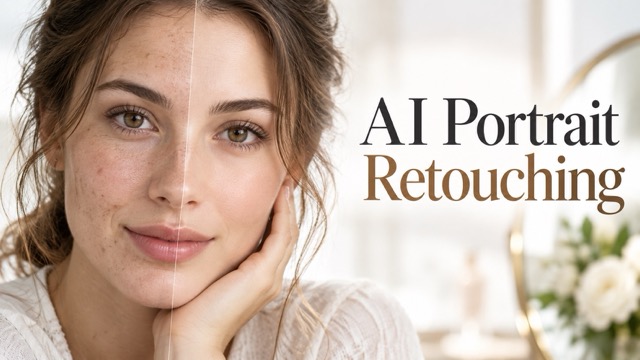
AI Portrait Retouching

Snatched Waist Editor
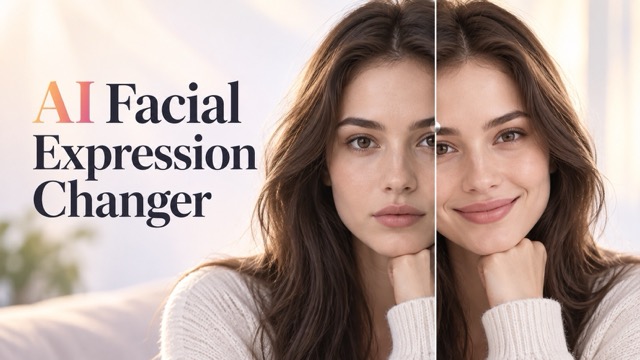
AI Facial Expression Changer

AI Texture Generator
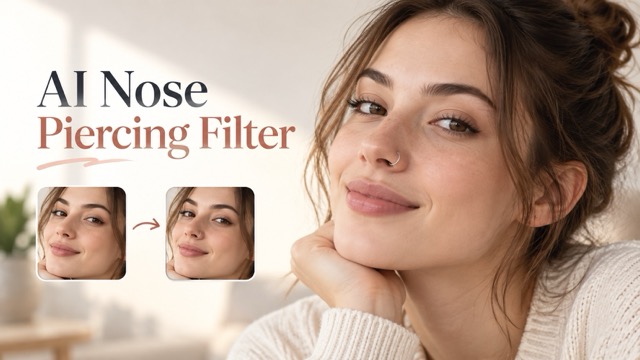
AI Nose Piercing Filter
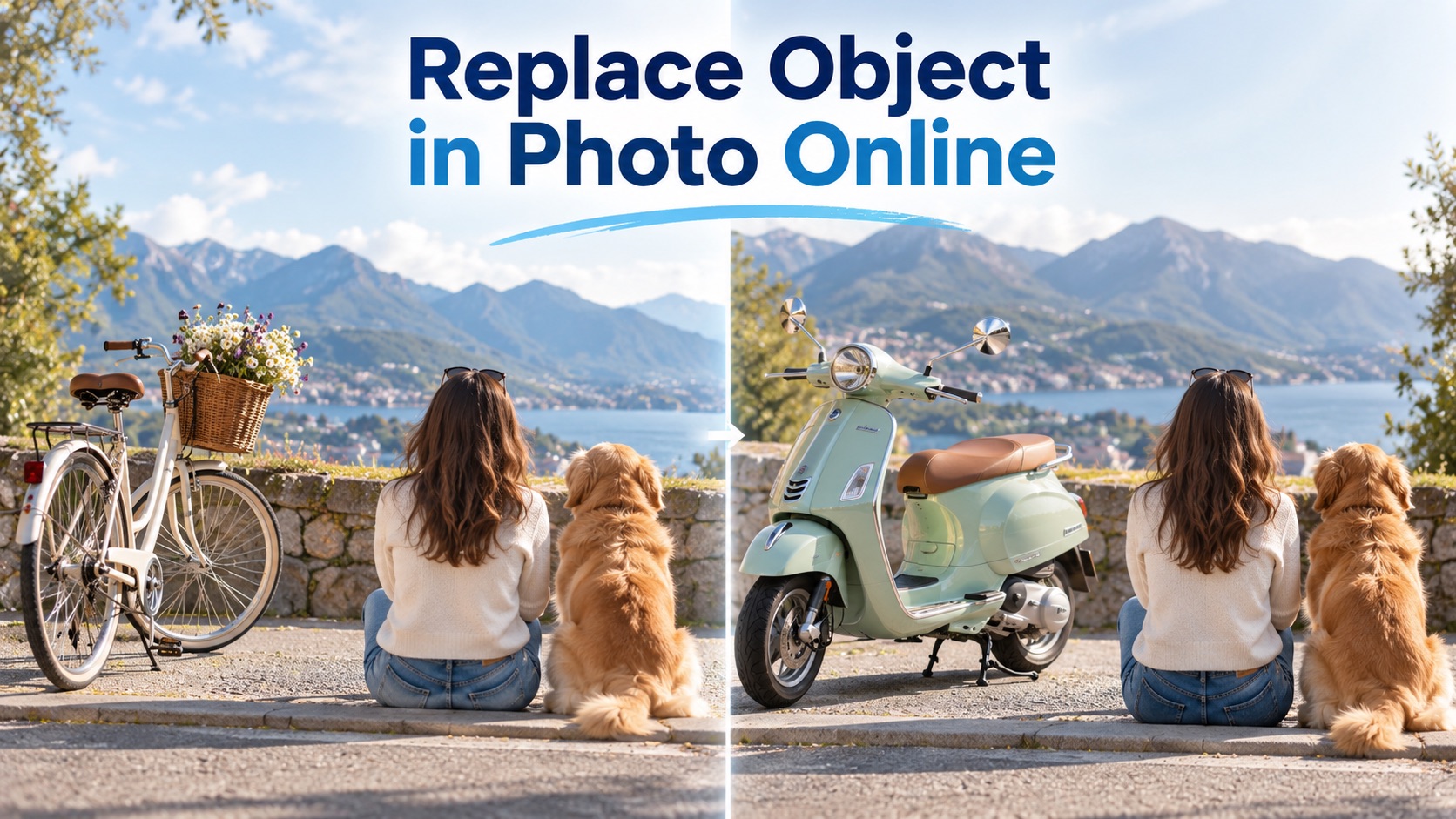
Replace Object in Photo Online
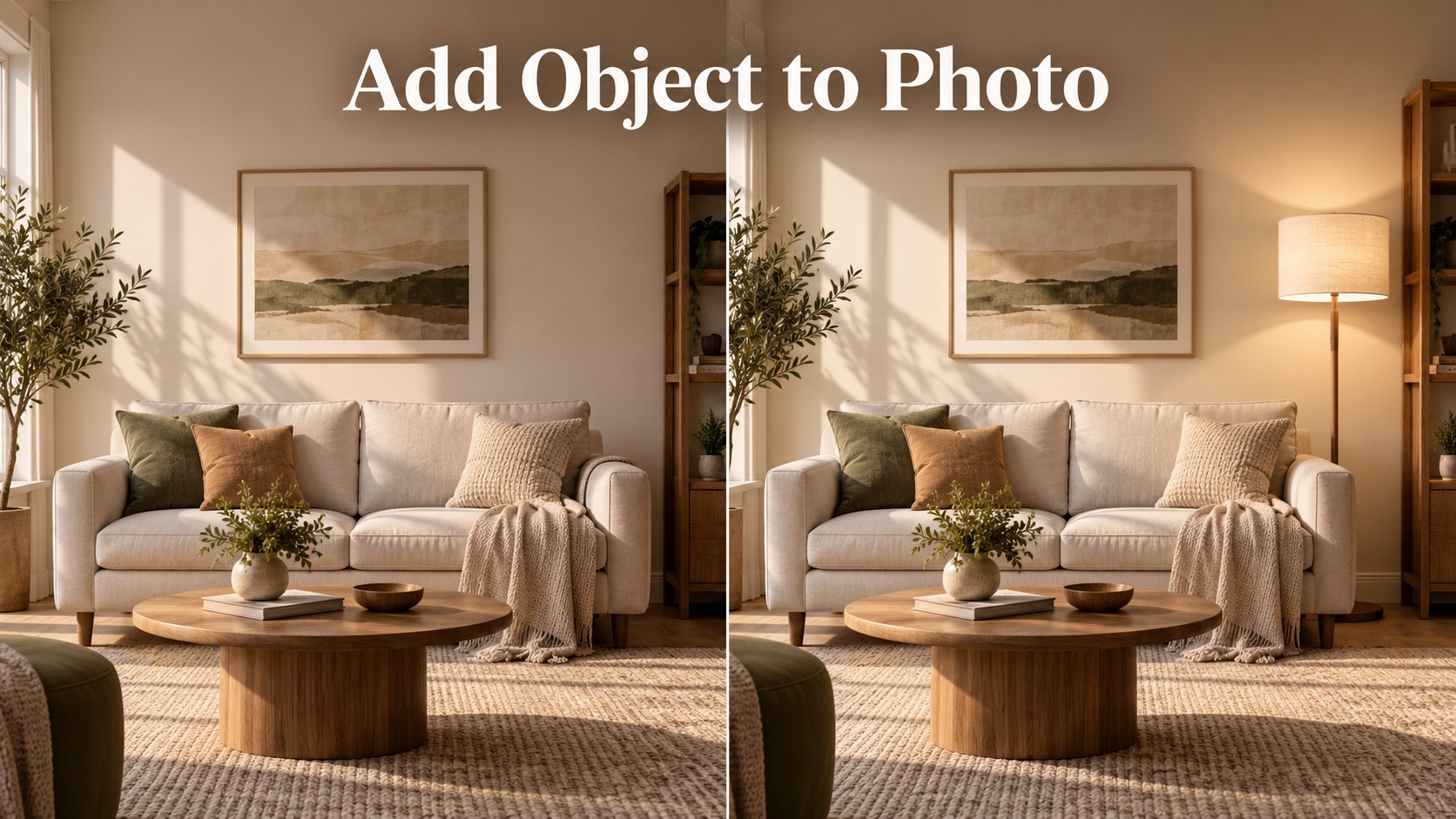
Add Object to Photo
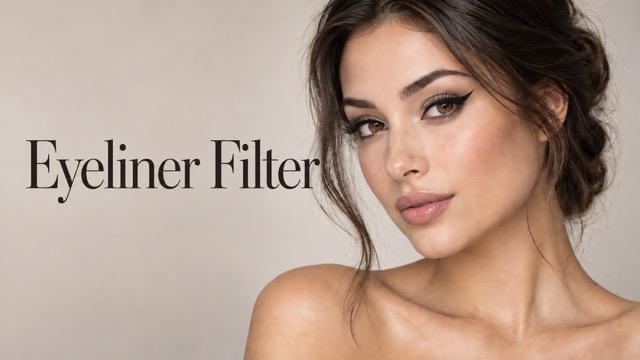
Eyeliner Filter
AI Bust Down Filter

Image Splitter

Add White Background to Photo
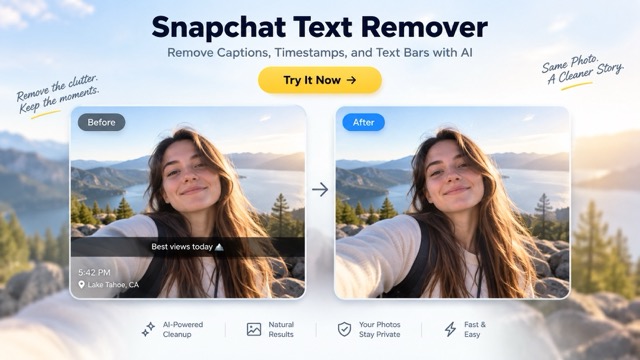
Snapchat Text Remover
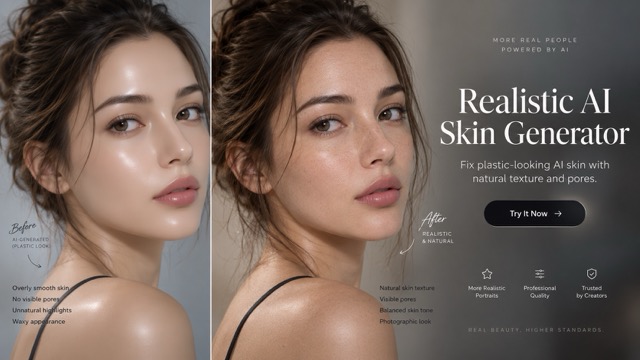
Realistic AI Skin Generator

Add speech bubble to photo
Change Photo Background
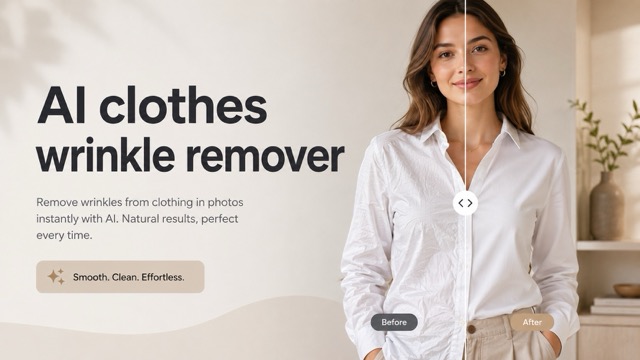
AI Clothes Wrinkle Remover
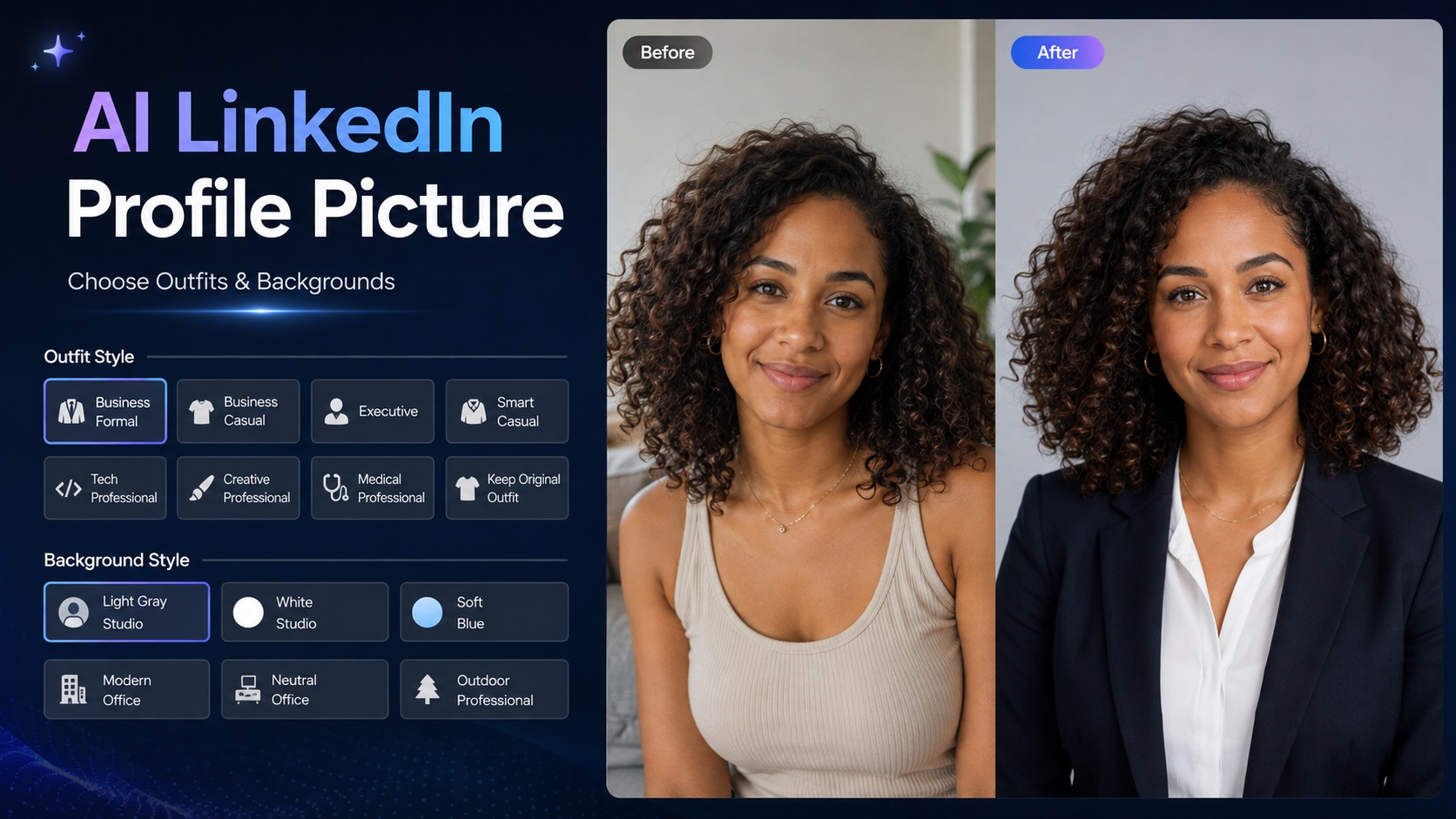
AI LinkedIn Profile Picture
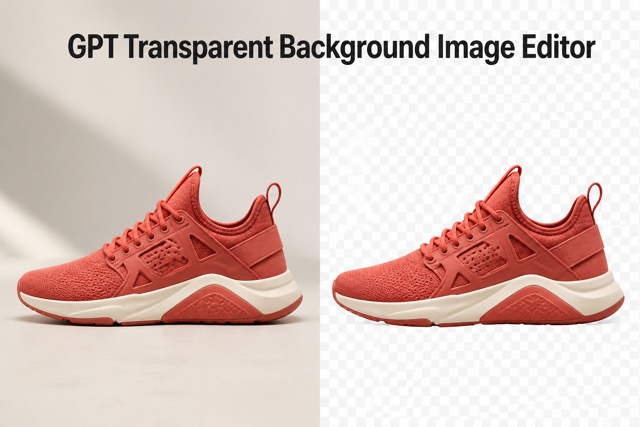
GPT Transparent BG Image Editor
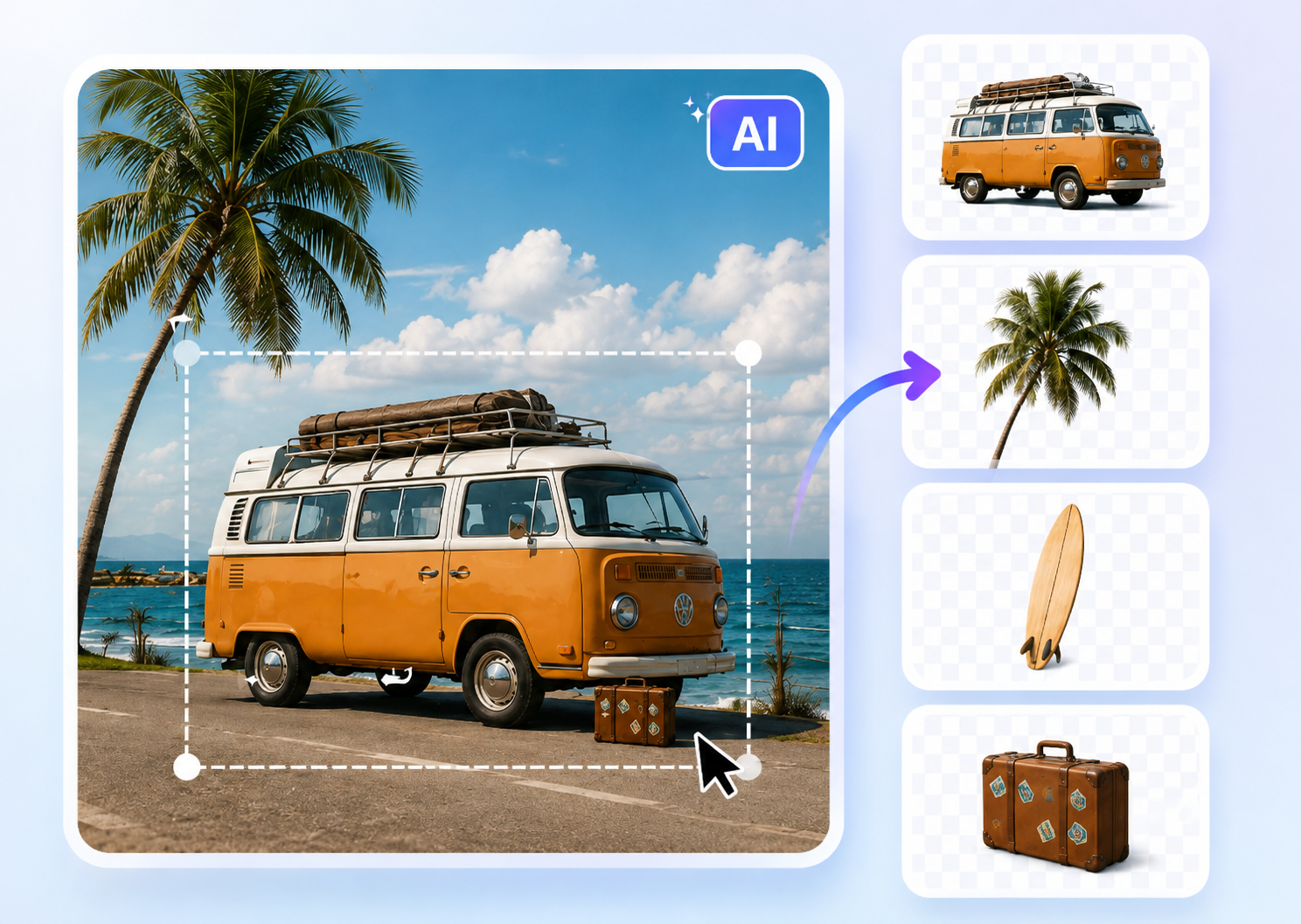
Image to Layers
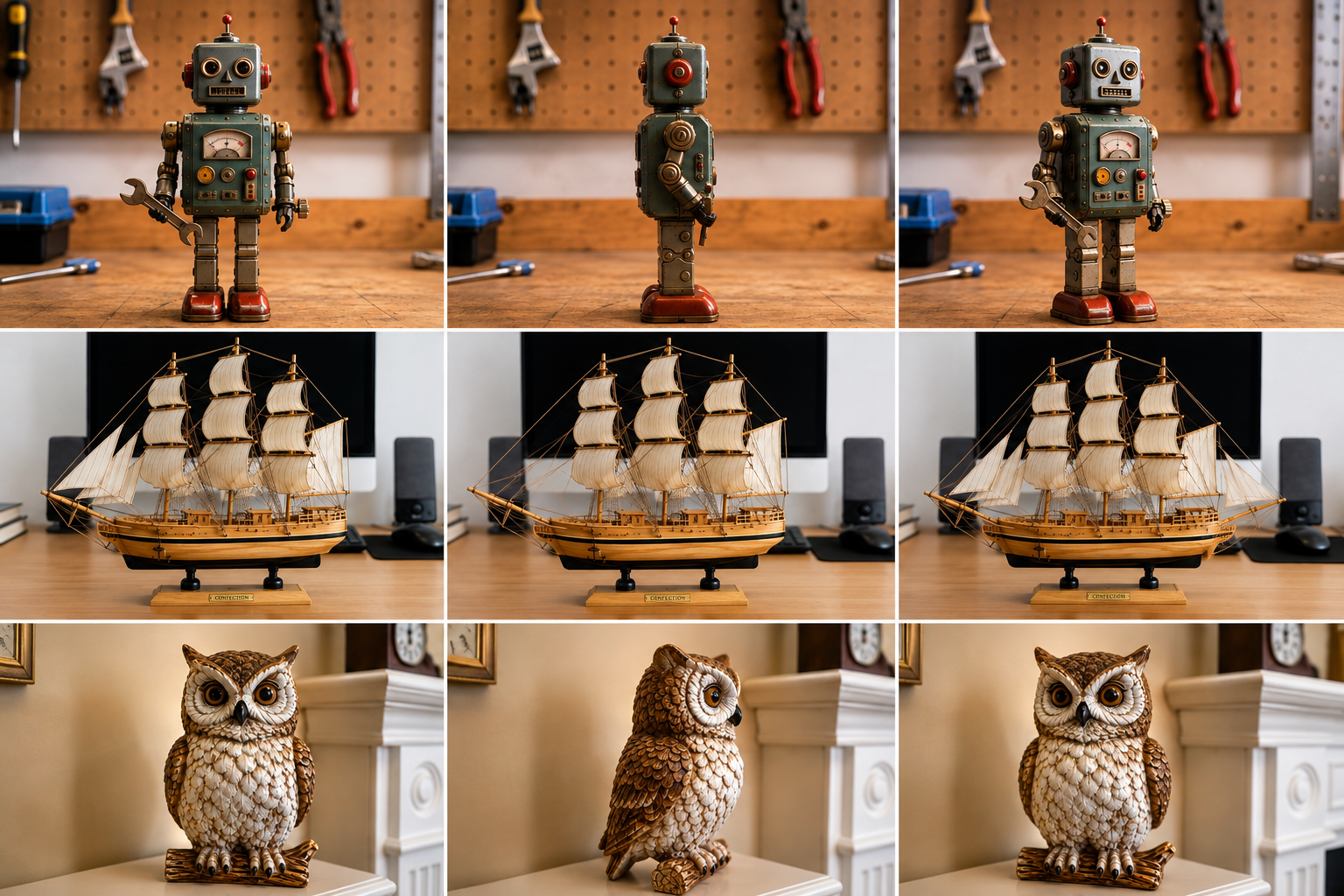
3D Angle Editor
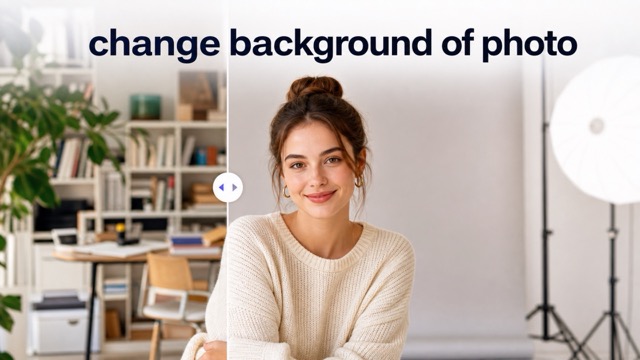
Change Background of Photo
Darken Image Online with a Fast AI Image Darkener
Create a Deeper, More Balanced Look in One Click
Use PicEditor to darken image files without complicated exposure controls. Upload a photo, let the AI image darkener reduce brightness evenly, and download a clean result with the original subject, colors, and composition preserved. This darken image tool is ideal for portraits, product photos, landscapes, social posts, and any picture that feels too bright. The image darkener keeps important details visible while creating richer shadows, calmer highlights, and a more polished mood. Choose darken image processing whenever you need a less intense visual.
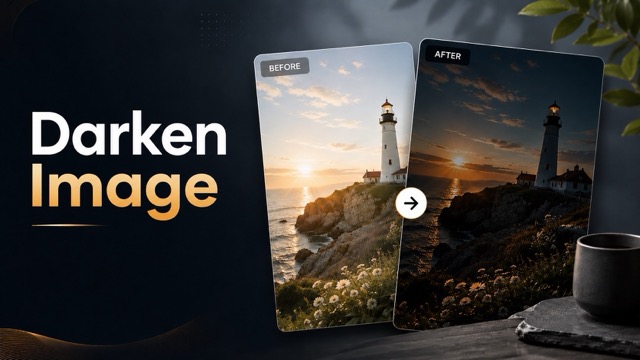
How to Darken Image Files Online
The PicEditor image darkener turns an overbright photo into a balanced visual in three simple steps. You do not need masks, layers, or manual tone curves to darken image content naturally. This darken image process is fast enough for everyday editing.

Upload the Image You Want to Darken
Choose a portrait, landscape, product photo, graphic, or social media image. The darken image workflow supports common image types and prepares the file for automatic exposure adjustment.

Let the AI Image Darkener Adjust Brightness
Start the image darkener and allow AI to analyze highlights, midtones, shadows, skin tones, and focal areas. It will darken image regions with a controlled adjustment instead of covering the picture with a flat black overlay.

Preview and Download the Darkened Image
Compare the original with the result, confirm that the darken image effect matches your goal, and save the finished file. The image darkener delivers a ready-to-use visual for websites, ads, profiles, presentations, and creative projects.
A Smarter Way to Darken Image Content
PicEditor combines automatic exposure analysis with a simple interface, helping anyone darken image files quickly. The AI image darkener produces a controlled result that looks intentional rather than dull, gray, or underexposed. Use darken image adjustments to prepare visuals for almost any layout.
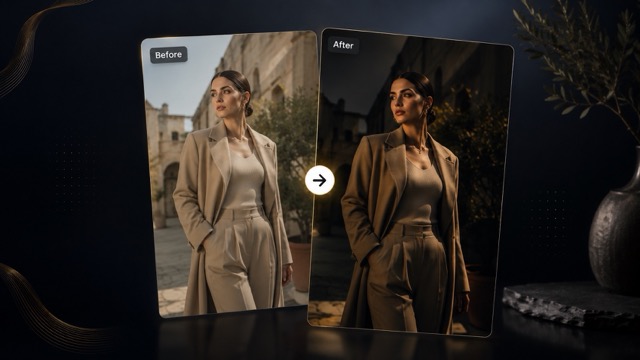
Darken Overexposed Photos Without Losing Detail
Bright skies, pale clothing, reflective water, and direct sunlight can make a photo feel washed out. Use the darken image tool to reduce excessive brightness while keeping textures and edges readable. The image darkener manages luminous areas carefully, so clouds, fabric, faces, and product surfaces remain clear. Instead of lowering every tone aggressively, it creates a more balanced exposure that feels natural and visually complete.
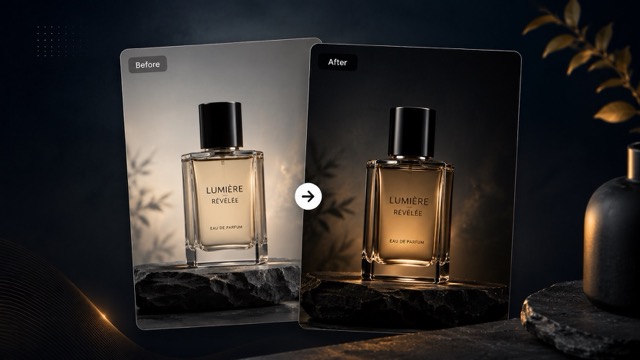
Create a Moody Look for Portraits and Fashion Photos
A darker image can feel cinematic, premium, calm, or dramatic. The AI image darkener helps darken image portraits while keeping the person recognizable and the skin tone believable. It reduces distracting highlights, adds visual depth, and supports a sophisticated editorial mood. Use the image darkener for fashion photography, profile pictures, campaign visuals, travel portraits, or lifestyle content that needs stronger atmosphere.
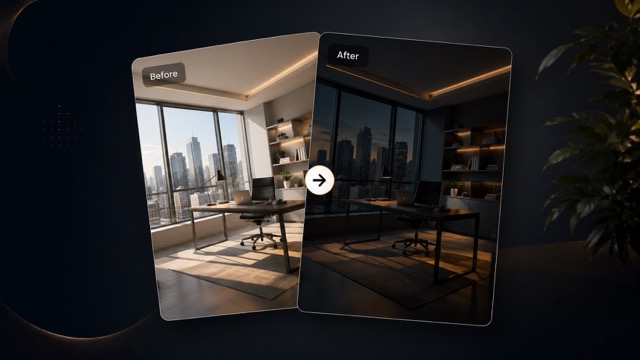
Make Text and Interface Overlays Easier to Read
When a bright image sits behind a headline, button, menu, or app interface, the foreground content can become hard to read. Darken image backgrounds to improve contrast without rebuilding the entire design. The image darkener creates a calmer base for white typography, navigation elements, captions, and calls to action. This darken image approach works especially well for hero banners, presentation covers, video thumbnails, and promotional graphics.
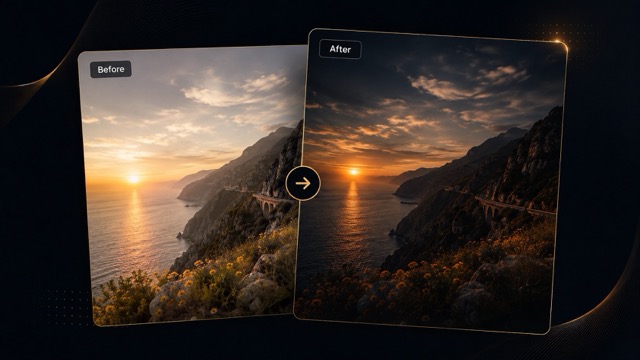
Keep Original Colors, Composition, and Subject
The goal is to darken image exposure, not redesign the picture. PicEditor keeps the original framing, subject placement, background elements, and overall color relationships intact. The AI image darkener avoids adding unrelated objects, artificial vignettes, text, watermarks, or strong color casts. You receive the same image with a darker, cleaner, and more usable visual balance.
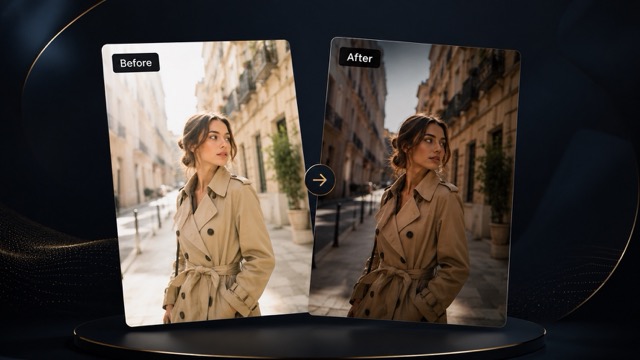
Darken Images for Any Creative Workflow
Use the image darkener before adding text, creating an advertisement, designing a landing page, preparing a social post, or building a visual story. The darken image result can support a luxury style, night-inspired mood, focused composition, or improved readability. Because the process is quick, you can darken image files whenever a brighter original does not fit the final design.
Darken Image and Image Darkener FAQ
Learn how the PicEditor image darkener works, what it preserves, and when to use the darken image tool. These answers explain how to darken image files with consistent results.
The darken image tool reduces the overall brightness of an uploaded picture while protecting visible details, colors, and key subjects. Unlike a simple transparent black layer, the AI image darkener analyzes the image and creates a more even exposure adjustment.
Yes. The image darkener can darken image portraits while preserving facial features, clothing detail, and recognizable skin tones. It is useful when sunlight, flash, or a bright background makes the original portrait feel overexposed.
No. The AI image darkener is designed to adjust brightness rather than replace the scene. It should keep the original subject, composition, background, proportions, and visual elements while applying the darken image effect.
Yes. You can darken image backgrounds before placing white text, buttons, navigation, or promotional copy over them. The image darkener helps create stronger contrast and can make hero sections, banners, and presentation covers easier to read.
The image darkener does not need to add a vignette. Its primary purpose is to darken image exposure evenly while maintaining a natural look. The tool avoids unnecessary borders, black corners, filters, and decorative effects.
You can darken image files such as portraits, fashion photos, product shots, landscapes, travel pictures, social media graphics, digital artwork, and marketing visuals. The AI image darkener is useful whenever the original looks too bright or lacks depth.
Yes. A good darken image adjustment should calm intense highlights without turning the entire picture black. The AI image darkener aims to preserve visible information in bright and dark areas, producing a balanced result.
No. Upload your file, run the image darkener, preview the result, and download it. The darken image workflow is made for users who want a fast adjustment without learning curves, masks, layers, or manual exposure settings.
Why Creators Use Our Image Darkener
Professionals use PicEditor to darken image files for content, campaigns, stores, portfolios, and everyday design tasks.
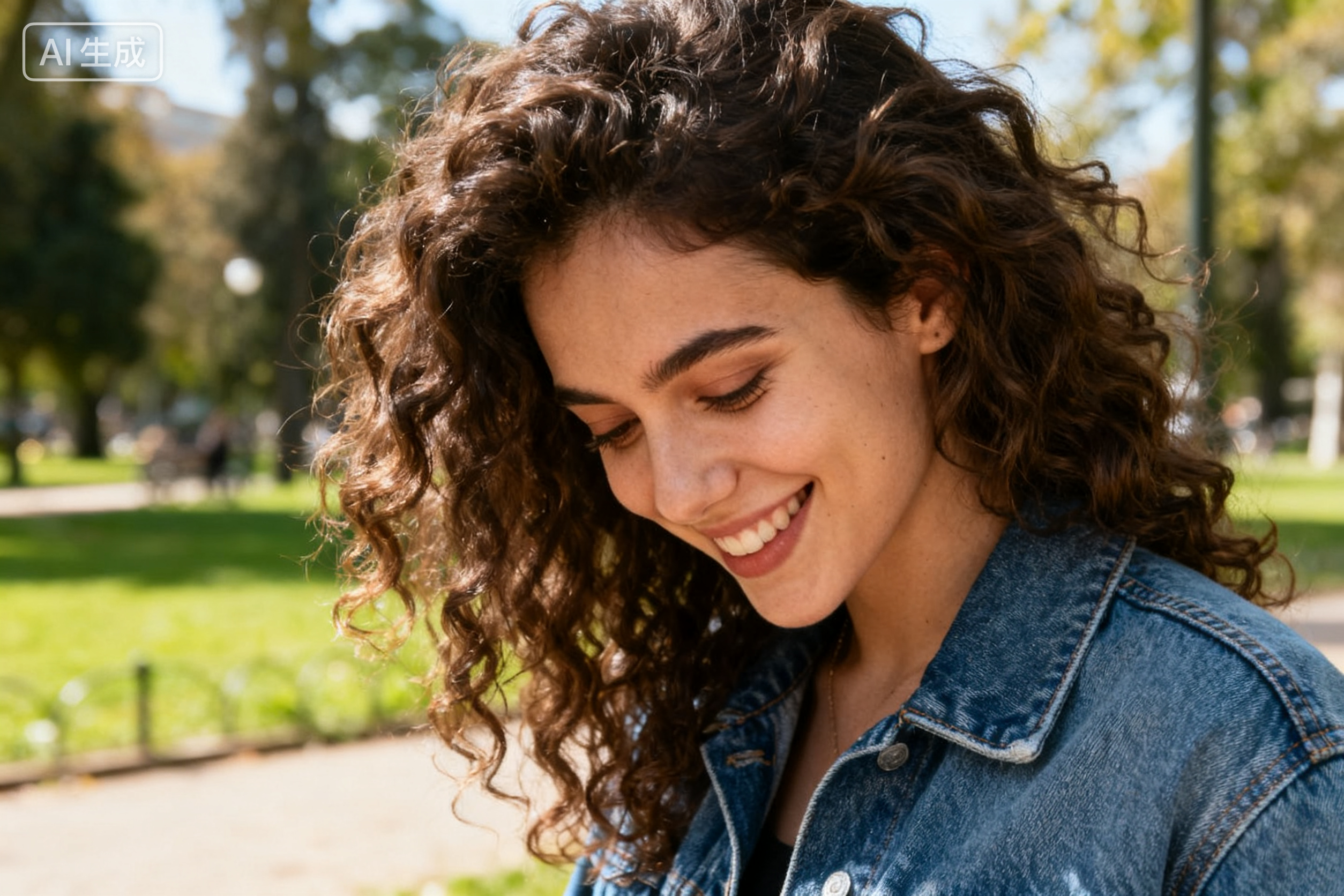
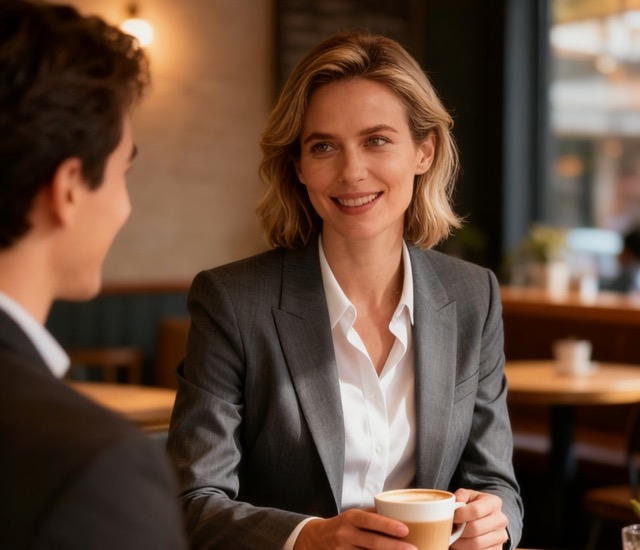
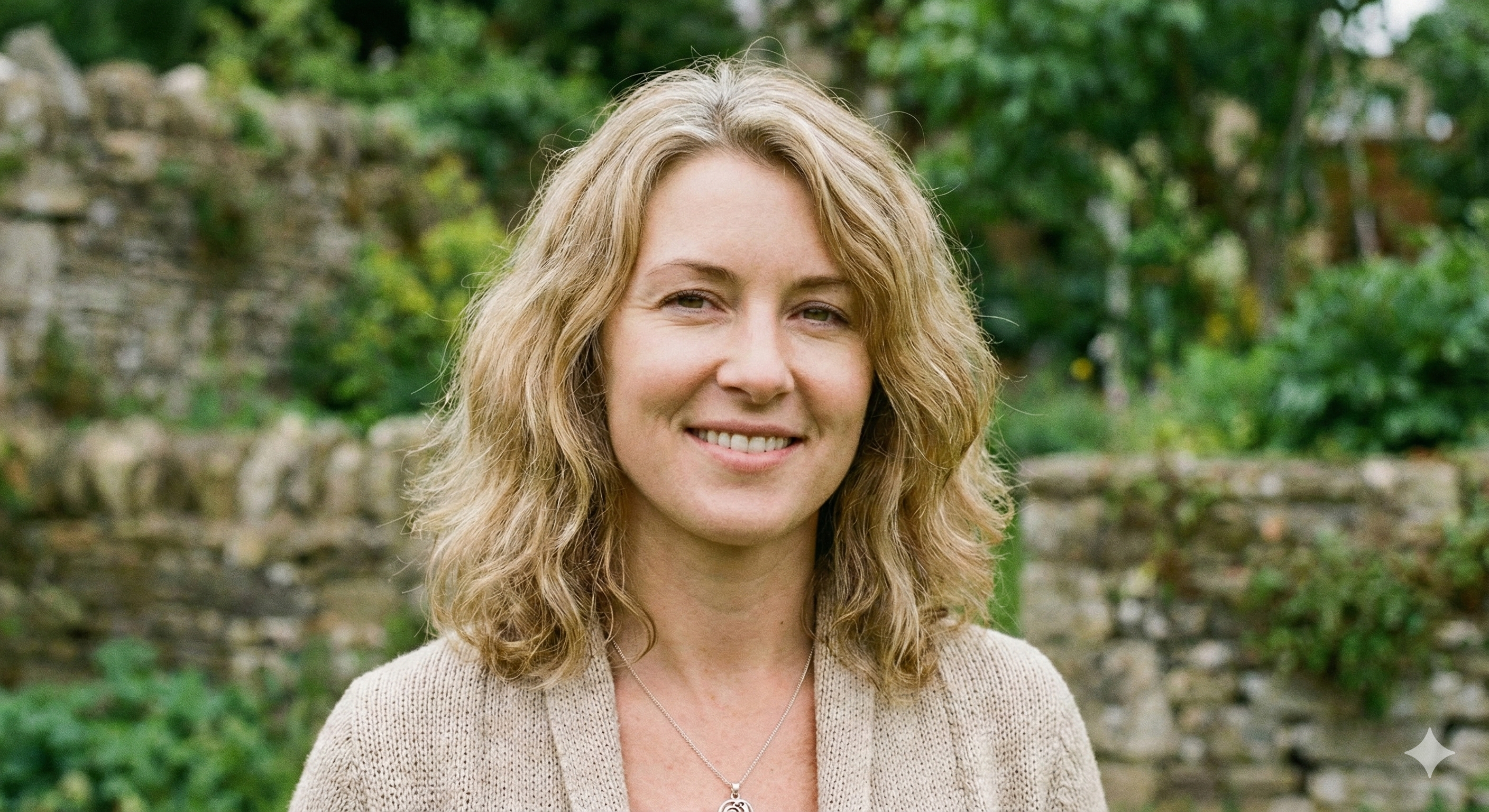
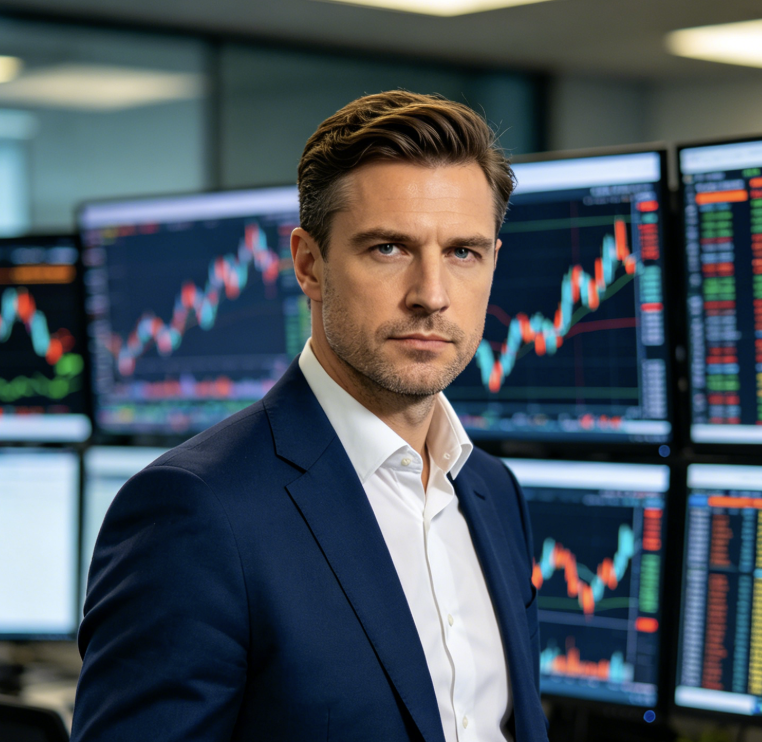
I use the darken image tool for homepage banners that need white headlines. The image darkener gives me better contrast without flattening the product photography, so I can finish layouts much faster.
I use the darken image tool for homepage banners that need white headlines. The image darkener gives me better contrast without flattening the product photography, so I can finish layouts much faster.
Outdoor portraits often arrive with harsh highlights. PicEditor helps me darken image files while keeping faces and clothing visible. The AI image darkener creates a much more controlled starting point for client galleries.
Outdoor portraits often arrive with harsh highlights. PicEditor helps me darken image files while keeping faces and clothing visible. The AI image darkener creates a much more controlled starting point for client galleries.
The image darkener is useful for fashion campaign visuals that need a refined editorial mood. I can darken image shots quickly and keep the original styling, pose, and environment unchanged.
The image darkener is useful for fashion campaign visuals that need a refined editorial mood. I can darken image shots quickly and keep the original styling, pose, and environment unchanged.
I often need to darken image backgrounds before adding promotional text. This image darkener makes thumbnails and social ads feel cleaner, more focused, and easier to read on mobile screens.
I often need to darken image backgrounds before adding promotional text. This image darkener makes thumbnails and social ads feel cleaner, more focused, and easier to read on mobile screens.
Product images can look too bright against a white storefront. The darken image effect adds depth while preserving the product shape and surface. The AI image darkener has become a practical part of my publishing workflow.
Product images can look too bright against a white storefront. The darken image effect adds depth while preserving the product shape and surface. The AI image darkener has become a practical part of my publishing workflow.
For presentation covers, I need a fast way to darken image files without opening advanced software. The AI darkening tool gives me a professional background that works immediately with titles and data callouts.
For presentation covers, I need a fast way to darken image files without opening advanced software. The AI darkening tool gives me a professional background that works immediately with titles and data callouts.
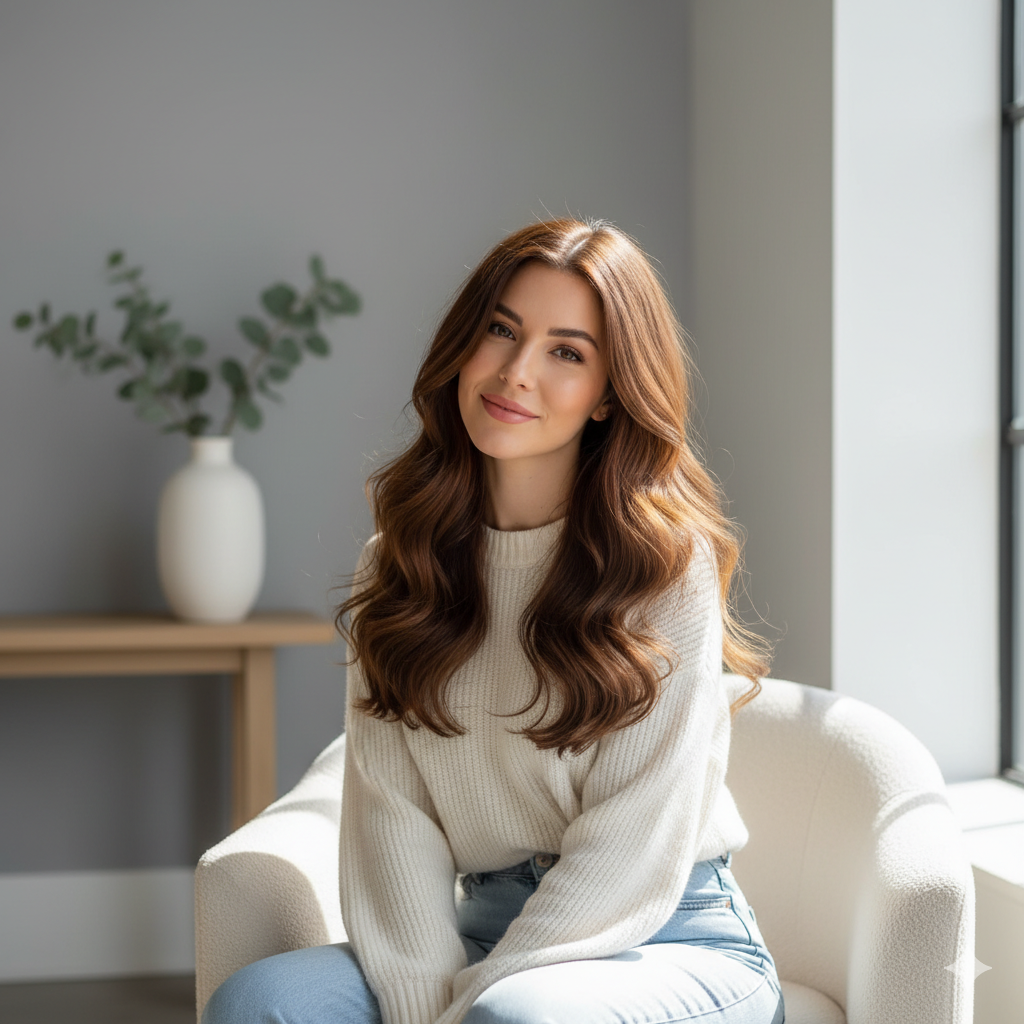
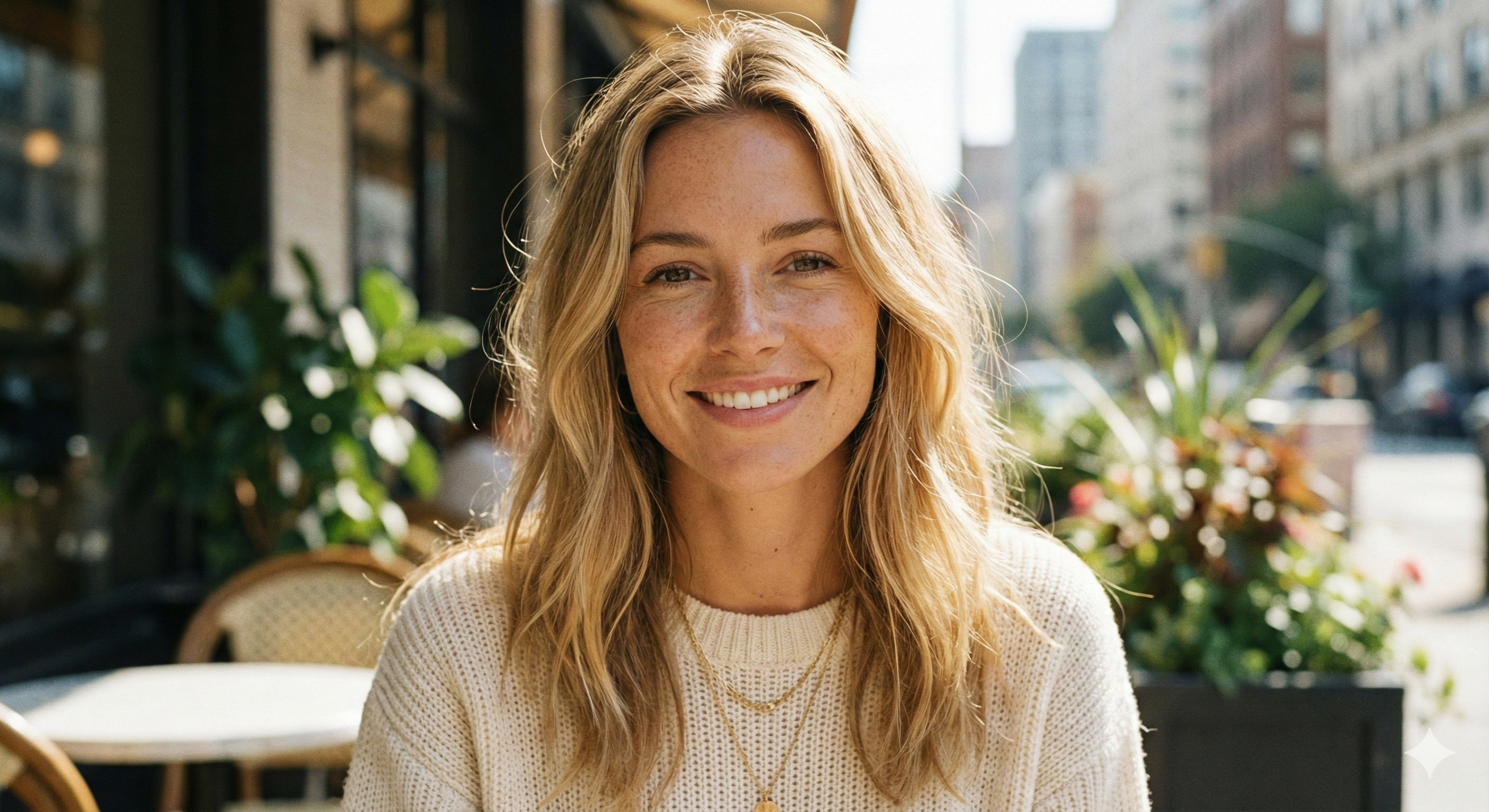
Popular Ways to Use the Darken Image Tool
From portraits to commercial design, the AI darkening tool makes bright visuals more focused, readable, and atmospheric. Each darken image use case focuses on a practical design goal.

Website Hero Banners
Darken image backgrounds to improve headline and button contrast. The AI darkening tool helps the interface stay readable while preserving the original photography.

Portrait and Fashion Editing
Use the AI darkening tool to darken image portraits for a richer, cinematic, or editorial mood without changing the person's identity or pose.

Product Advertising
Darken image ads to emphasize shape, texture, packaging, and premium lighting. The AI darkening tool supports stronger visual hierarchy around the featured product.

Social Media Content
Apply the darken image effect to posts, stories, thumbnails, and covers. The AI darkening tool creates space for readable captions and bold foreground elements.

Landscape Photography
Darken image landscapes with intense sunlight or washed-out skies. The AI darkening tool can add depth to water, mountains, buildings, clouds, and natural scenery.

Presentation Backgrounds
Use the AI darkening tool to prepare clean slide covers and section dividers. A balanced darken image result helps charts, titles, and business messages stand out.
Darken Image Files Online in One Click
Upload any bright photo and use the PicEditor AI darkening tool to create a deeper, cleaner, and more balanced result. Darken image content for portraits, websites, ads, products, landscapes, social posts, and presentations without complex editing. Start the darken image process directly in your browser.